IP scanner for Windows 11: find every device on your network
You want the IP address of a printer, a camera or a TV, or you want to know who is on your Wi-Fi. Windows has a few commands for this, but the answers are scattered and hard to read. Here is what Windows gives you, and what an IP scanner adds.
What Windows 11 shows without any extra app
Two Command Prompt commands get you part of the way. The first shows the address of your own PC and your router. The second shows devices your PC has talked to lately.
Both are fine for a quick look. Wording on screen can differ slightly between Windows 11 versions.
- Open the Start menu, type cmd and open Command Prompt.
- Type ipconfig and press Enter. Find the IPv4 Address of your PC and the Default Gateway, which is usually your router.
- Type arp -a and press Enter. You get a list of IP addresses with their MAC addresses.
- Match an address in the list to a device by trying it, for example by opening the address of a printer in your web browser.
Where the built-in way falls short
The arp list only holds devices your PC has contacted recently. A quiet printer or a TV in standby may be missing. The list also has no device names and no maker, so you are left matching numbers by hand.
Your router's own web page often lists connected devices too. What it shows depends on the router, so it is worth a look, but it is not always easy to read or to export.
List every device with Network Scanner
Network Scanner is a free app from the Microsoft Store that works as an IP scanner. It lists each device with its name, IP address, MAC address, the company that made it and how fast it answered. It also reads your PC's address table, so quiet devices still show up.
- Open Network Scanner.
- Check the network shown in the list at the top. The one for your PC is chosen already.
- Press Scan network.
- Wait a few seconds. Each device appears in the list.
- Type in Search devices to find a device by name, IP, MAC or maker.
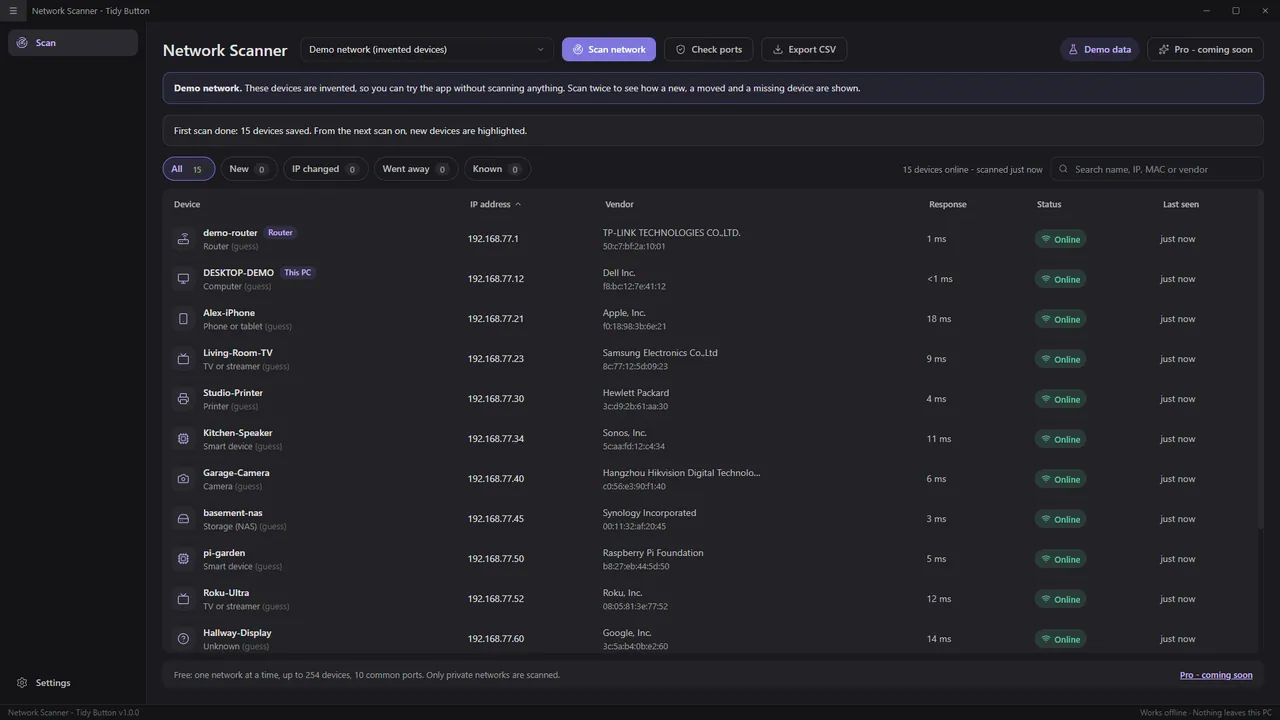
Every device on the network in one sortable list.
Tip. Not sure yet? Choose Demo network (invented devices) in the network list and press Scan the demo network to try it without scanning anything.
Find the IP address of a printer or camera
Once the scan is done, finding an address takes a few clicks. The app also gives a guess at what each device is, such as a router, printer or phone. It is always marked as a guess, with the reason, so check it yourself.
- Scan your network as above.
- Click the device in the list. A panel opens on the right.
- Read the IP address row. Press Copy IP address to copy it.
- Read the Type row for the guess at what the device is.
- Type a name in Your name for this device, then press Save name, so you find it quickly next time.
Notice a new device on your network
Name the devices you recognise and press Mark as known device. The first scan is saved. When you press Scan network again later, a message above the list says what changed since the last scan.
Use the filters New, IP changed and Went away to see each group. A new device is highlighted, which is how you notice a stranger. Click it and check its name, maker and type.
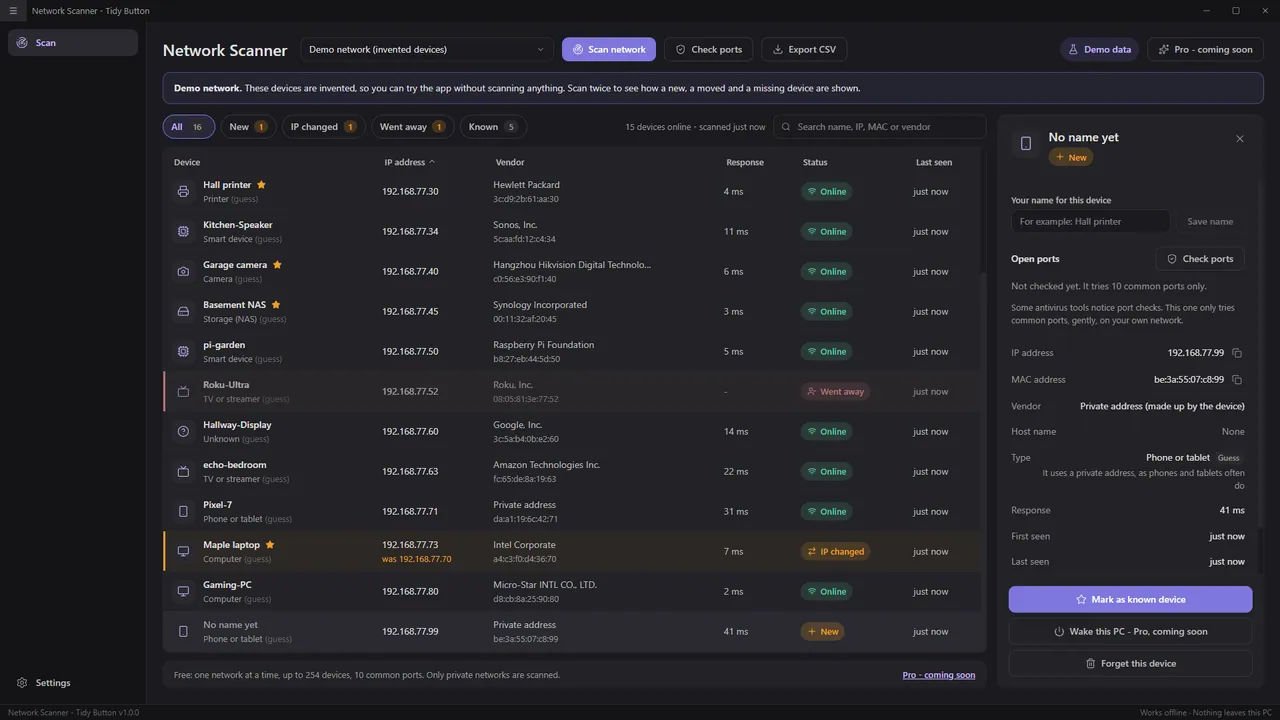
A device that was not there last time is highlighted as New.
Tip. Some phones and PCs use a made up MAC address on Wi-Fi to protect privacy. The Vendor row then says Private address, and the maker cannot be told.
Scan only networks you own or may scan
Please scan only networks you own or manage, or where you have clear permission. Your home network and your own office network are the normal cases. Do not scan a network you do not run.
The app helps here: it scans only home and office address ranges and refuses public addresses. Port checks are optional. If you press Check ports for a device, it tries ten common ports gently, and some antivirus tools notice that. The app warns you before it checks every device.

Checking ports on all devices asks first.
What the free version limits
The free version scans one network at a time, up to 254 devices, and checks ten common ports. That covers a home or a small office. A paid Pro add-on is planned, but it is not available yet.
You can press Export CSV to save the list as a file for a spreadsheet program. The app makes no internet connection and sends nothing anywhere, and the list of maker names is stored inside the app.
Questions
Is there a built-in IP scanner in Windows 11?
Not as a single tool. You can use ipconfig for your own address and arp -a for devices your PC has contacted recently, but the result has no names or makers.
Does Network Scanner connect to the internet?
No. It talks only to devices on your own private network. There is no account, no analytics and no online lookup.
Can it find every device?
It finds devices that answer on the network and reads your PC's address table for quiet ones. A device that stays completely silent may not appear.
Can I scan a network that is not mine?
Please scan only networks you own or manage. The app also refuses public addresses.
If you want a clear list of the devices on your own network, try Network Scanner. It is free on the Microsoft Store, works offline and needs no account. Press Scan network and see who is there.
More from Network Scanner
Questions or something missing? Support is by email, and a person reads it.