How to see who is connected to your Wi-Fi network
This guide shows how to list the devices on your own network, find a device's IP address, and get told when something new appears. Scan only networks you own or manage.
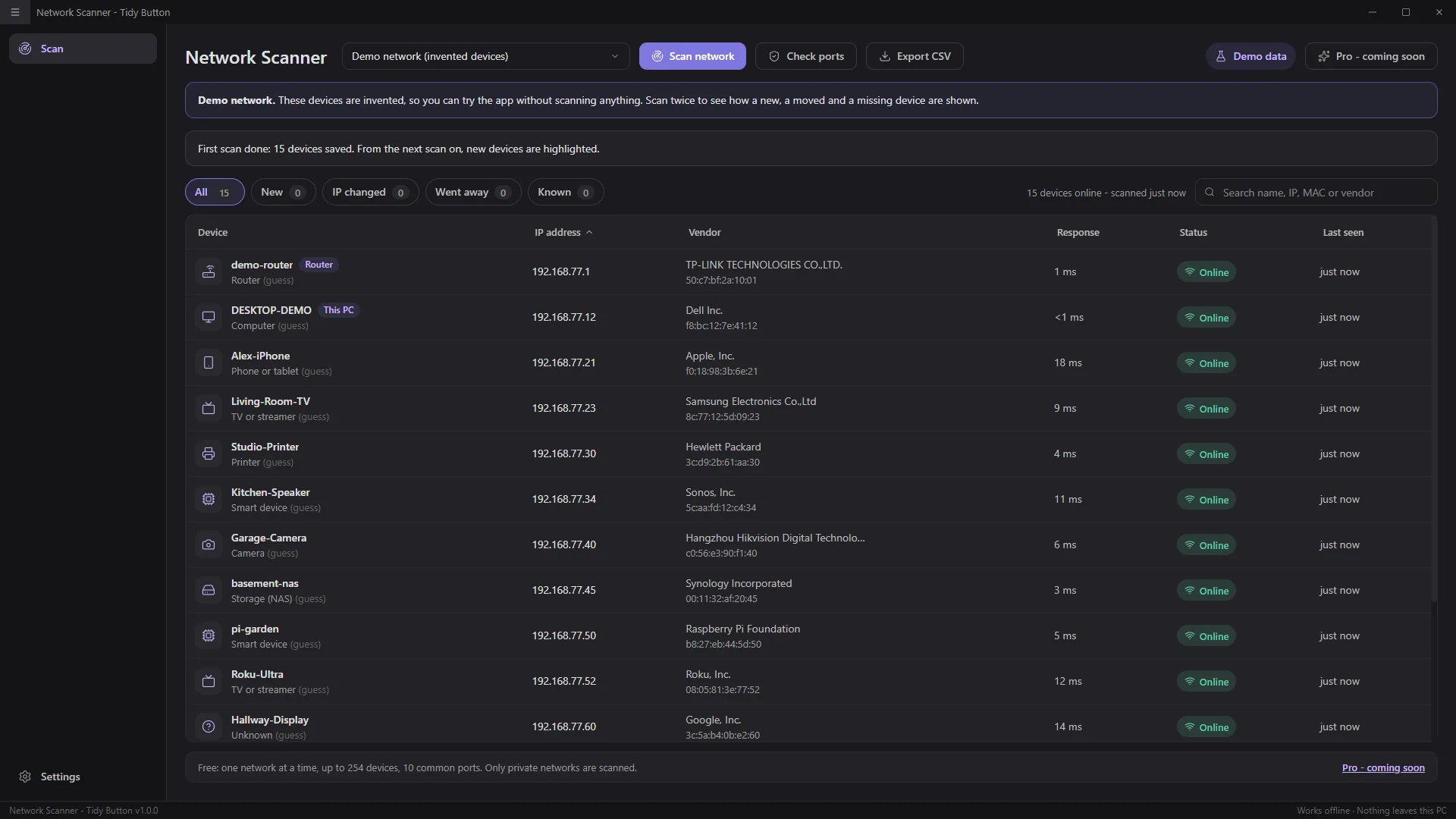
List every device on your network
- Open Network Scanner.
- Check the network shown in the list at the top. The one for your PC is chosen already.
- Press Scan network.
- Wait a few seconds. Each device appears with its name, IP address, MAC address, maker and response time.
- Type in Search devices to find a device by name, IP, MAC or maker.
You can try the app without scanning. Choose Demo network (invented devices) in the network list and press Scan the demo network.
Find the IP address of a printer or other device
- Scan your network as above.
- Click the device in the list. A panel opens on the right.
- Read the IP address row. Press Copy IP address to copy it.
- Read the Type row for a guess at what the device is. It is always marked as a guess, with the reason.
Name a device and mark it as known
- Click the device in the list.
- Type a name in Your name for this device, for example Hall printer.
- Press Save name.
- Press Mark as known device at the bottom of the panel.
Use the Known filter above the list to see only the devices you have marked.
Spot a new or missing device
- Scan your network once. This first scan is saved.
- Later, press Scan network again.
- Read the message above the list. It says what changed since the last scan.
- Use the filters New, IP changed and Went away to see each group.
- Click a new device and check its name, maker and type.
Try the demo network and scan it twice to see how each kind of change looks.
Check common ports and save the list
- Click a device and press Check ports in its panel. The app tries ten common ports and lists the ones that are open.
- To check all devices at once, press Check ports at the top and read the warning before you confirm.
- Press Export CSV to save the list as a file that opens in Excel.
Some antivirus tools notice port checks. Only do this on your own network.
If something goes wrong
The app says No network found. What should I do?
Connect to Wi-Fi or a network cable and open the app again. You can also try the demo network to see how the app works.
A device shows no name. Why?
Not every device shares a name. Give it your own name in Your name for this device, and the app remembers it for that network.
The Vendor row says Private address. What does that mean?
Some phones and PCs use a made up MAC address on Wi-Fi to protect privacy. The app cannot tell who made the device from it.
How do I remove a device from my list?
Click the device and press Forget this device. If it is still on the network, the next scan finds it again as a new device.
Good to know
- Only home and office address ranges are scanned. Public addresses are refused.
- The device type is a guess. Check it yourself before you rely on it.
Still stuck? Support is by email, and a person reads it.