Extract text from a screenshot on Windows 11
A screenshot is only a picture. You cannot select the words in it, so you end up retyping an error message, a table, a quote or a line from a chat. Text recognition (often called OCR) reads the picture and gives the words back as real text. Here is how to do that on Windows 11 without sending your screenshot to a website.
Step one: take the screenshot so it lands on the clipboard
On Windows 11 you can press the Windows key, Shift and S together. The screen dims and you drag a box around the part you want. The picture is copied to the clipboard, which is the short-term memory your PC uses for copy and paste.
The Print Screen key works too. On some PCs it copies the whole screen, and on newer Windows 11 versions it opens the same drag-a-box tool. Either way you end up with an image on the clipboard that you can paste into another program.
Tip. Draw the box tightly around the words. Less background around the text usually means fewer reading mistakes.
What Windows can and cannot do on its own
Depending on your Windows version and its updates, the built-in screenshot tools may offer a way to copy text from a picture. This is not the same on every PC, so wording and menus can differ. If your PC has it and it does the job, use it. It costs nothing and you have nothing to install.
Built-in options are usually limited to one picture at a time, and they may not let you choose the language, check how sure the reading is, or read a scanned PDF. If you need any of that, or if the built-in option is missing on your PC, a dedicated reader is the next step.
Paste the screenshot into Offline OCR
Offline OCR is a free app from Tidy Button on the Microsoft Store. It reads a picture on your PC and shows the text next to it. The language data and the text engine are part of the app, so it works with the internet turned off.
The first read in a session takes a few extra seconds while the text engine starts. After that it is quicker.
- Take your screenshot with Windows key + Shift + S so it is copied to the clipboard.
- Open Offline OCR.
- Press Ctrl+V to paste the screenshot. You can also press Open files and choose a saved picture, or drag the file onto the window.
- Wait for the page to appear, then read the text in the Text panel on the right. The picture is shown on the left.
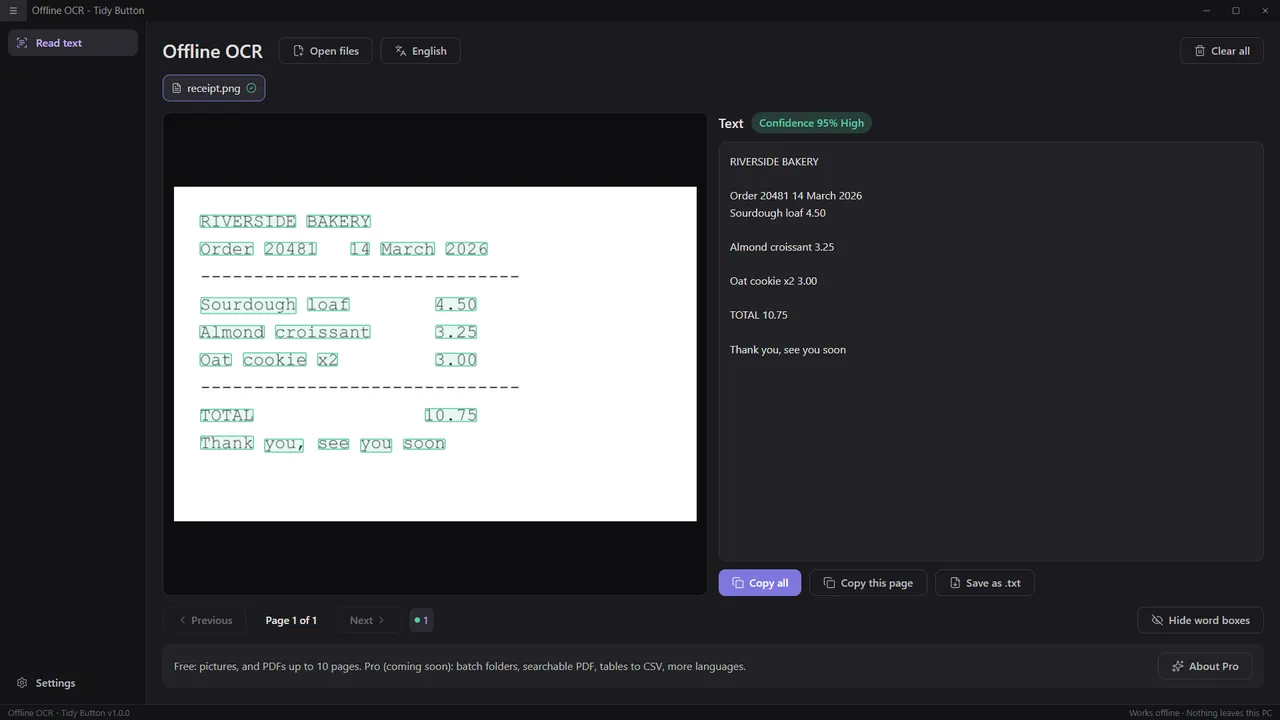
The picture on the left, the text to copy on the right
Check the words before you copy them
Text recognition is good, not perfect. Small print, blurry pictures and unusual fonts can cause mistakes, so it pays to look before you paste the text somewhere important.
Each word the app found gets a box on the picture, so you can see what was read where. Press Hide word boxes if the boxes are in the way and Show word boxes to bring them back. Above the text, a short label says how sure the app is about the page. Check pages with a low label first.
- Look at the boxes on the left and compare them with the text on the right.
- Click in the text and fix any wrong words by hand.
- Press Copy all to put the whole text on the clipboard, or Copy this page for just the page you are on.
- Press Save as .txt if you want a text file. Pick a name and a place to save it.
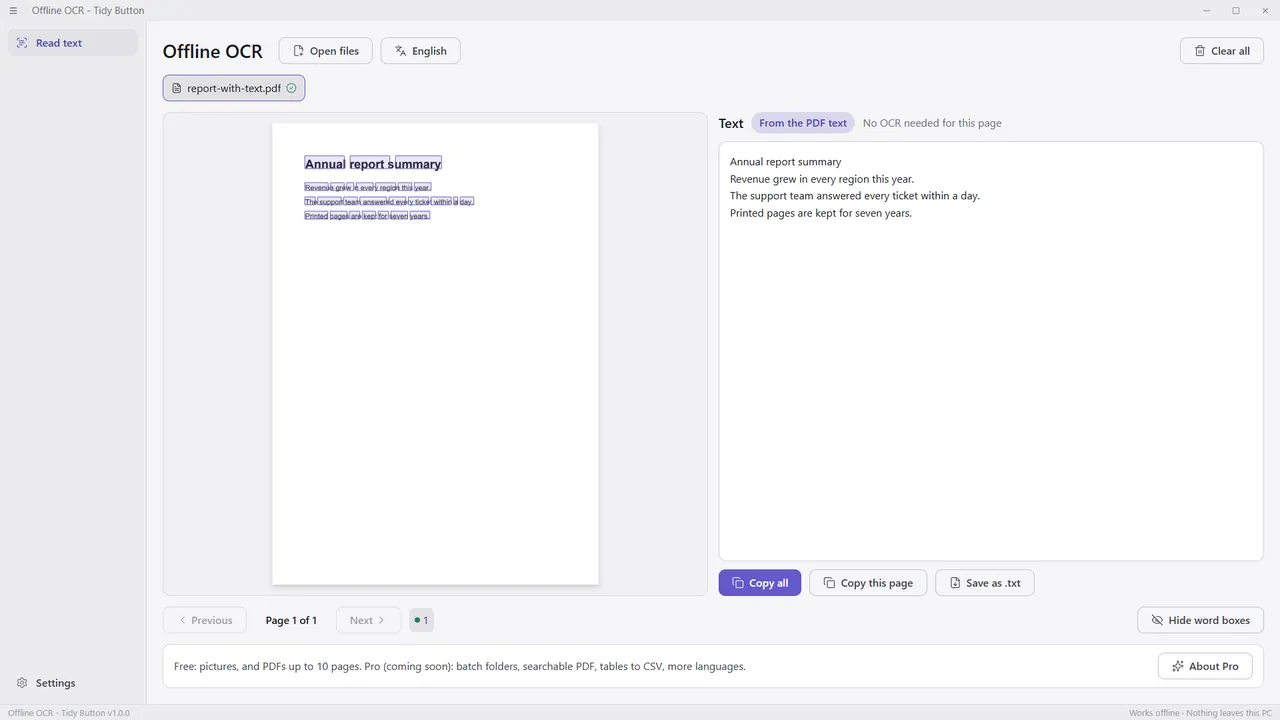
PDFs that already contain real text are read exactly
Tip. Your edits are included when you copy or save, so fix mistakes first.
Screenshots in other languages
Pick the language before you read the picture, because the choice is used when the file is read. Press the language button near the top of the window. In the Languages in the document window, tick every language on the page and press Use these languages.
Eleven languages are built in: English, Spanish, French, German, Portuguese, Italian, Hindi, Malayalam, Tamil, Arabic and Chinese (Simplified). You can tick up to four at once. One language reads fastest and most accurately, so tick only what is on the page.
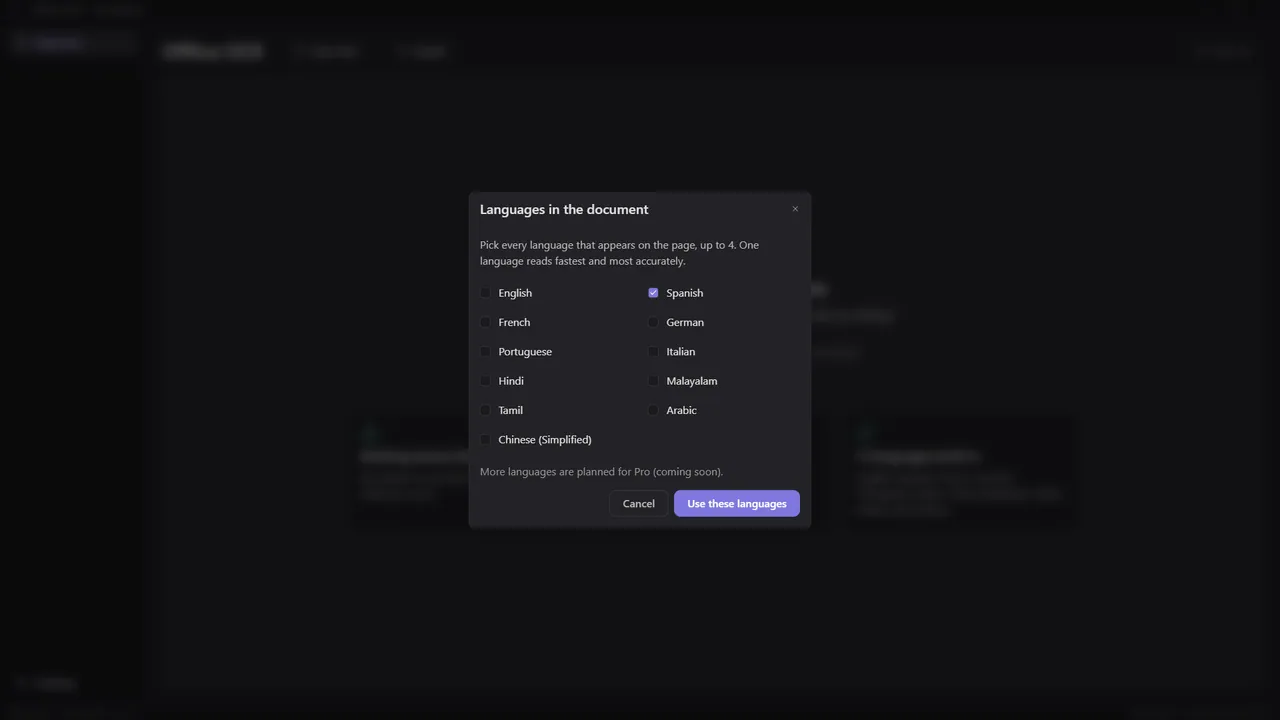
Choose up to four languages at once
What the free version limits
You can use Offline OCR as often as you like. For screenshots and pictures there is no page limit to think about. For PDFs, the free version reads up to 10 pages per file, and it tells you plainly when a file is longer.
A Pro add-on is planned for batch folders, searchable PDF output and PDFs longer than 10 pages. It is not available yet, so nothing in this article depends on it.
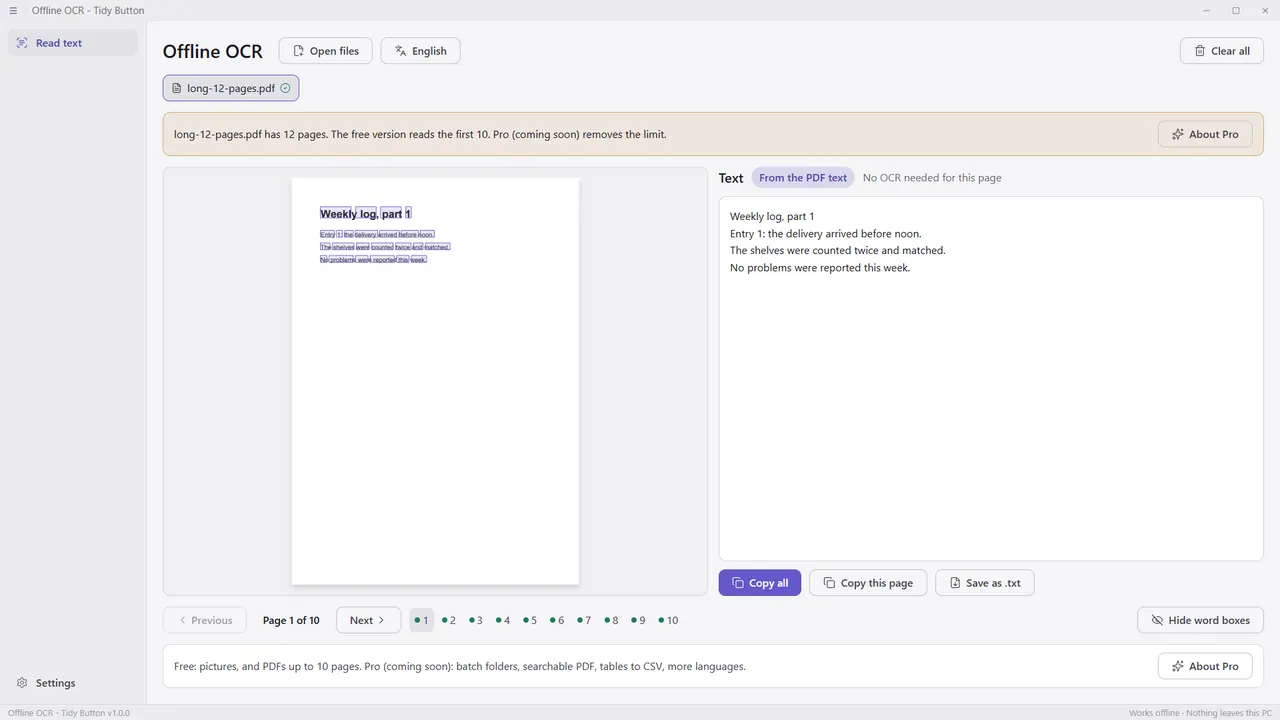
The free version reads the first 10 pages of a PDF
Is your screenshot private?
Many online converters upload your picture to read it. A screenshot can hold passwords, names, bank details or private messages, so that is worth thinking about. Offline OCR makes no network connection to read text. The page, the text it finds and your edits stay on your PC.
The app never changes or deletes the files you open. It puts text on the clipboard only when you press a copy button.
Questions
Can I extract text from a screenshot without installing anything?
Maybe. Some Windows versions have a built-in way to copy text from a picture, but it is not the same on every PC. If yours does not, you need a text recognition app such as Offline OCR.
Does Offline OCR need the internet?
No. The text engine and the language data are part of the app, it makes no network calls, and it works with the internet turned off.
Why is some of the text wrong?
Blurry, tiny or tilted text is harder to read. Check that the right language is chosen, look at the confidence label, and correct words by hand in the text panel before you copy.
Can it read a scanned PDF too?
Yes. It reads PNG, JPG, BMP, TIFF and WebP pictures and PDF files. If a PDF page already has real text, the app uses that text directly. The free version reads up to 10 pages per PDF.
Does it work on Windows 10?
Yes. The app runs on Windows 10 and Windows 11.
If you want to turn screenshots into text you can copy, try Offline OCR. It is free on the Microsoft Store, works offline and needs no account. Take a screenshot, press Ctrl+V and see the words appear.
More from Offline OCR
Questions or something missing? Support is by email, and a person reads it.