How to copy text from a scanned PDF or image offline
This guide shows how to read the text in a picture or PDF, fix any mistakes, and copy or save the result. Your files are only read and are never changed.
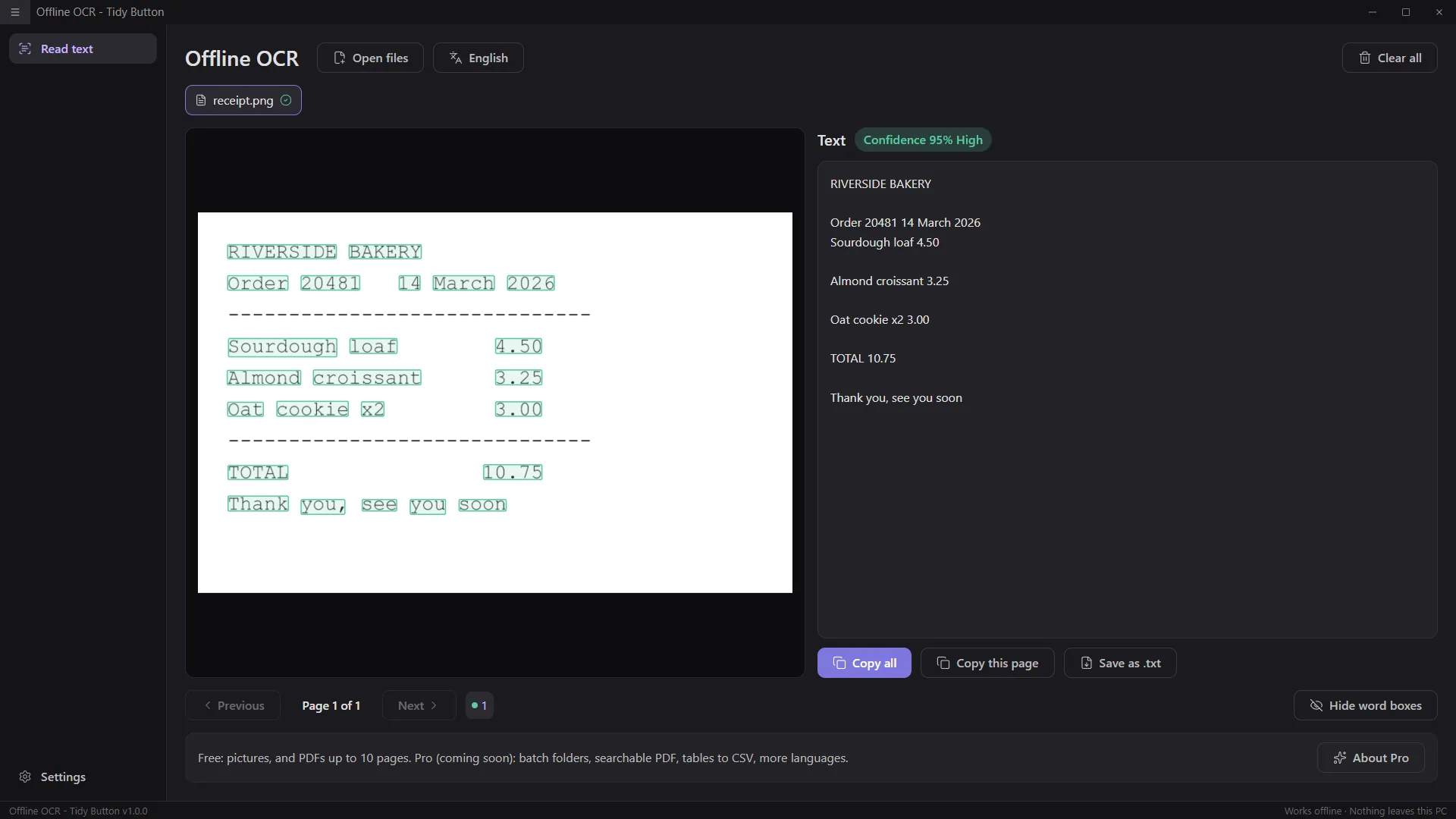
Get the text out of a picture or scanned PDF
The first read in a session takes a few extra seconds while the text engine starts.
- Open Offline OCR.
- Press Open files and choose a picture or PDF. You can also drag the file onto the window.
- Wait while the progress bar shows each page being read.
- Read the result in the Text panel on the right. The page you opened is shown on the left.
Supported files are PNG, JPG, BMP, TIFF, WebP and PDF.
Read a screenshot without saving it as a file
- Take a screenshot so that it is copied to the clipboard.
- Switch to Offline OCR.
- Press Ctrl+V to paste the screenshot.
- Wait for the page to appear, then read the text on the right.
Read a document in another language
Pick the language before you open the file, because the choice is used when a file is read.
- Press the language button near the top of the window. It shows the name of the language now in use.
- In the Languages in the document window, tick every language that appears on the page. You can tick up to four.
- Press Use these languages.
- Press Open files and choose the file.
One language reads fastest and most accurately. A language marked as file missing cannot be ticked.
Check the result and fix mistakes
- Look at the page on the left. Each word the app found has a box around it.
- Press Hide word boxes if the boxes are in the way. Press Show word boxes to bring them back.
- Check the label above the text. It shows how confident the app is about the page, or From the PDF text when the page already had real text.
- Click in the text on the right and correct any wrong words.
- For a file with more than one page, press Next or Previous to move between pages, or press a page number to jump to it.
A page marked as read from the PDF's own text needed no OCR.
Copy or save the text
- Press Copy all to copy the text of every page to the clipboard.
- Press Copy this page to copy only the page you are looking at.
- Press Save as .txt, then choose a name and a place to save the text file.
Your edits are included when you copy or save.
If something goes wrong
Why is the text wrong or full of strange characters?
Check that the right language is chosen, because the app reads best when the language matches the page. The confidence label above the text tells you how sure the app is about each page, so check low-confidence pages first. You can also correct the text by hand.
How do I stop a page that is taking too long?
Press Cancel at the top right while the file is being read. The pages already read are kept.
Why does a PDF page say it needed no OCR?
Some PDFs already contain real text. The app uses that text directly, which is exact, and only reads the pages that are scans.
Why can I not tick a language?
You can tick up to four languages at once, and at least one must stay ticked. Untick one before choosing another.
Good to know
- The app reads PNG, JPG, BMP, TIFF, WebP and PDF files only. Other file types are not accepted.
Still stuck? Support is by email, and a person reads it.