Compare two folders in Windows 11 and find what changed
You have two copies of a folder. One is on your PC, one is on a drive, a laptop or a download from a colleague. Which files are missing? Which ones changed? Checking a few files by eye is easy. Checking hundreds is not. Here are three ways to do it, from simplest to most thorough.
Option one: File Explorer side by side
Open each folder in its own File Explorer window and snap them next to each other. Switch both windows to the Details view so you can see Name, Date modified and Size in columns, and sort both by Name.
You can also right-click a folder, choose Properties, and compare the number of files and the total size. If those numbers differ, something is missing or changed. Wording can differ slightly between Windows 11 versions.
This is free and needs no tools, but it only works for small folders. You compare by eye, subfolders hide things, and two files can have the same size and date but different content.
Option two: a short command for names only
If you are comfortable opening PowerShell, you can list the names that appear in one folder and not the other. Replace the two paths with your own folders.
Get-ChildItem lists the files, and Compare-Object shows the differences. In the result, the arrow pointing left means a name is only in the first folder, and the arrow pointing right means it is only in the second.
- Open PowerShell.
- Type: Compare-Object (Get-ChildItem -Recurse -Name "C:\FolderA") (Get-ChildItem -Recurse -Name "D:\FolderB")
- Press Enter and read the list of names that appear on only one side.
Tip. This compares file names only. It will not tell you that a file with the same name has different content.
Option three: File Compare
File Compare is a free app from Tidy Button on the Microsoft Store. It reads both folders, including subfolders, and shows a single list. Each file is tagged as identical, different, only on the left or only on the right, with sizes and dates for both sides. Files of the same size are checked by their content, not just by name.
Shortcuts and junctions are not followed. The app has no network connection, so your files are never uploaded.
- Open File Compare and go to the Folders tab.
- Press Left folder and choose the first folder. Press Right folder and choose the second.
- Press Compare.
- Read the list. Each file is shown as different, only on the left, only on the right or identical.
- Turn on Show only differences to hide the identical files.
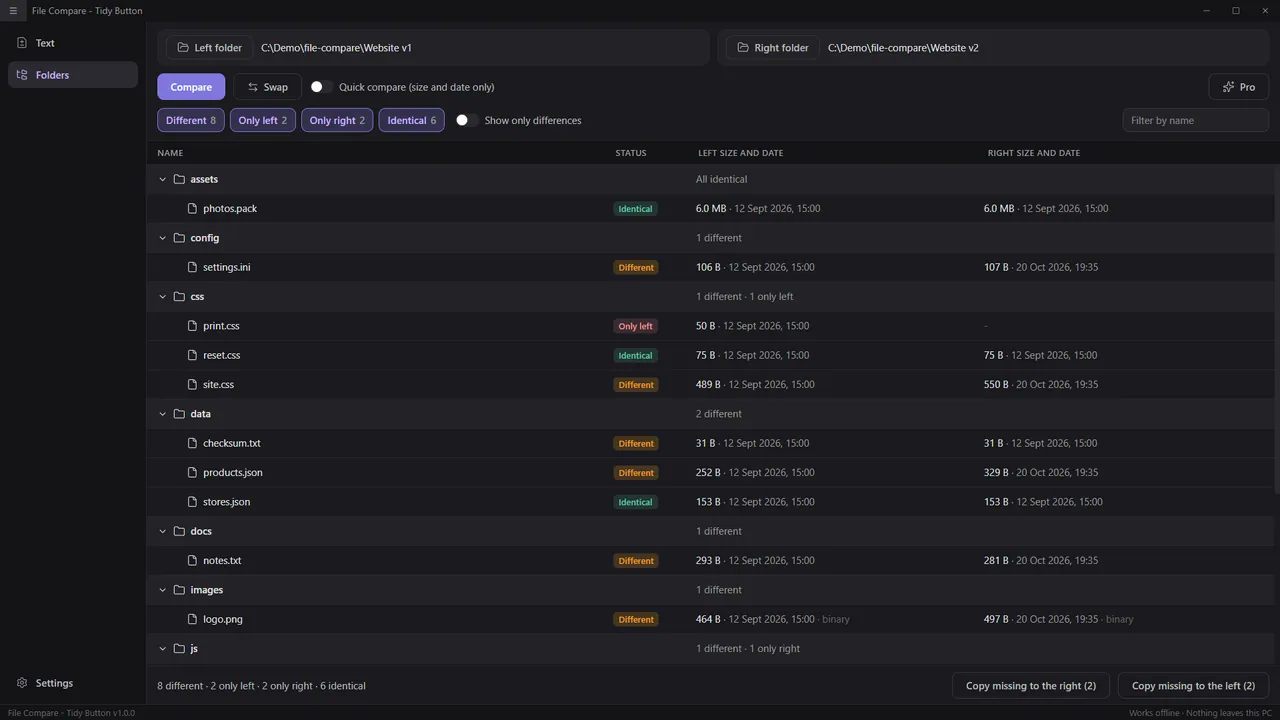
Every file is identical, different, only on the left or only on the right
Cut the list down to what matters
In a big folder most files are the same, and those are the ones you do not need to look at. Show only differences hides them while the counts above the list stay visible, so you still know how many files were checked. You can also filter the list by name.
If a compare is slow, turn on Quick compare (size and date only). The app then skips reading files that have the same size and date. The trade-off is that a file edited without changing its size or date would be missed.
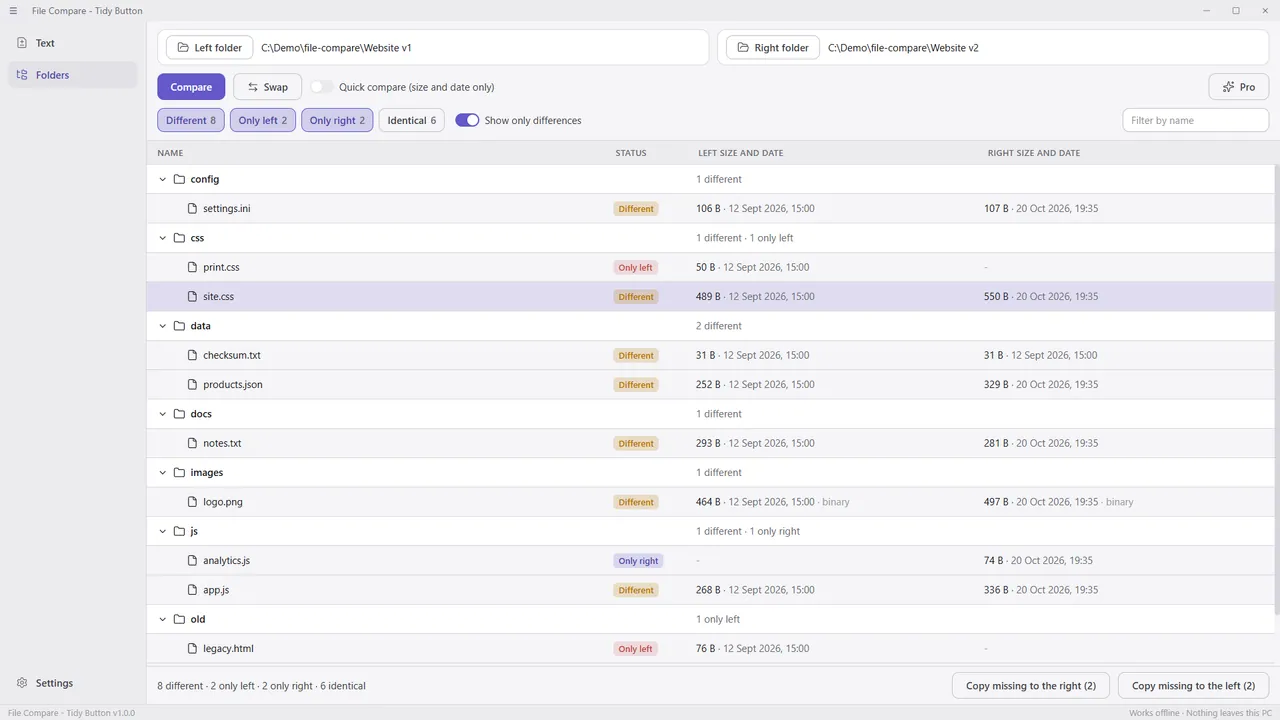
Show only differences, and filter by name
See what changed inside a file
Knowing a file is different is half the answer. Double-click a file that exists in both folders and it opens in the Text tab, with the changed lines tinted and the changed words marked inside them. Use Next and Previous, or F8, to jump from change to change.
Pictures and other binary files are reported as the same or different, with their sizes, instead of being shown as unreadable text. To keep a record, press Patch to export the differences as a standard .diff file, or export an HTML report that you can open in any browser.
Copying missing files, safely
Once you can see which files exist on only one side, you can copy them across. The app shows a list of exactly what will be copied first, then copies the missing files to the other side. It never overwrites an existing file.
That makes it a safe way to bring two folders closer together, but it is not a full synchronisation tool. It copies what is missing and leaves everything else alone.
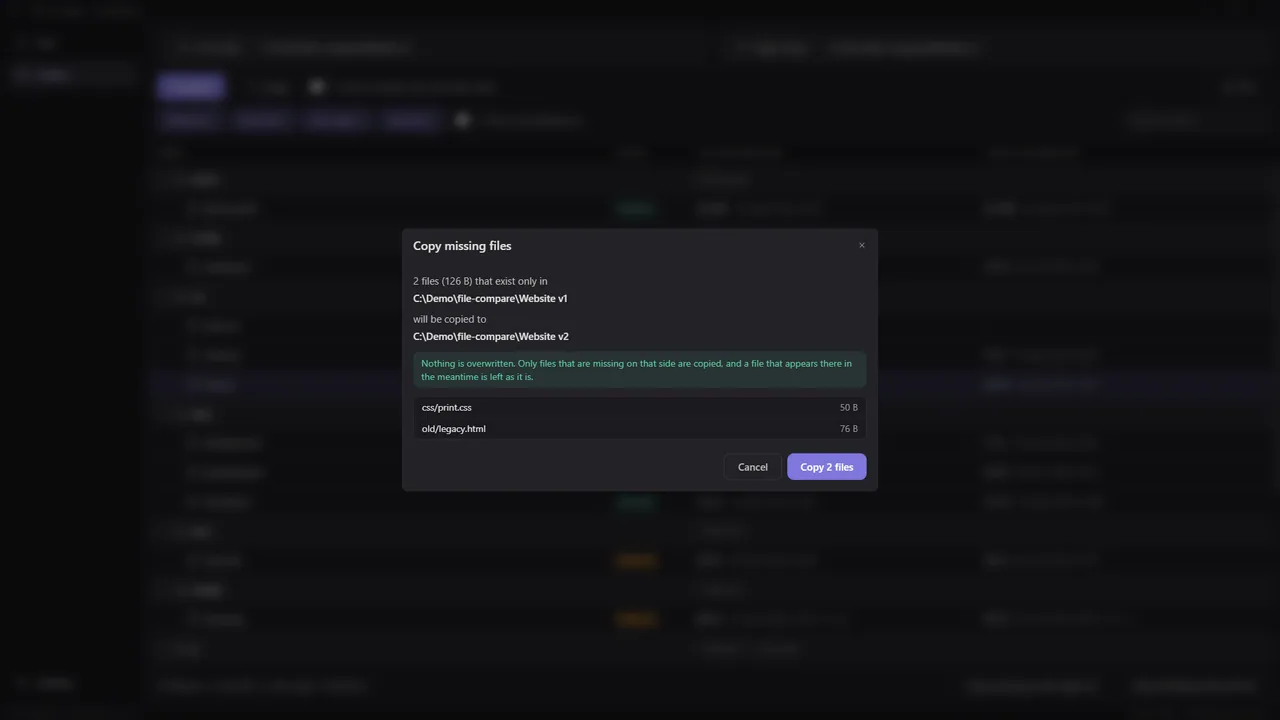
A list of exactly what will be copied, and nothing is overwritten
What the free version limits
Everything described above is available now. A Pro add-on is planned (coming soon) with three-way merge, an Explorer right-click Compare with command, document, PDF and spreadsheet compare, and saved sessions. None of that is needed for comparing folders.
One limit to know: text compare holds both files in memory and stops at about 96 MB per file. For very large files, use the Folders tab to check whether they are identical.
Questions
Can I compare two folders without installing anything?
Yes, for small folders. Open them side by side in File Explorer and compare names, dates and sizes, or use a short command to list names found in only one folder. Neither method checks file content.
Does File Compare check file content?
Yes. In a folder compare, files of the same size are checked by their content, so a file with the same name and size but different content is shown as different.
Will it delete or overwrite anything?
Copying missing files never overwrites an existing file, and it shows a list of exactly what will be copied first. Saving a changed file asks first.
Is anything uploaded?
No. The app has no network connection and your files stay on your PC. There is no account, no ads and no tracking.
If you need a clear answer about what differs between two folders, try File Compare. It is free on the Microsoft Store, works offline and needs no account. Pick two folders, press Compare and see every file accounted for.
More from File Compare
Questions or something missing? Support is by email, and a person reads it.