How to compare two files and find what changed
This guide shows how to compare two versions of a file, copy changes from one side to the other, and compare two folders. Everything stays on your PC.
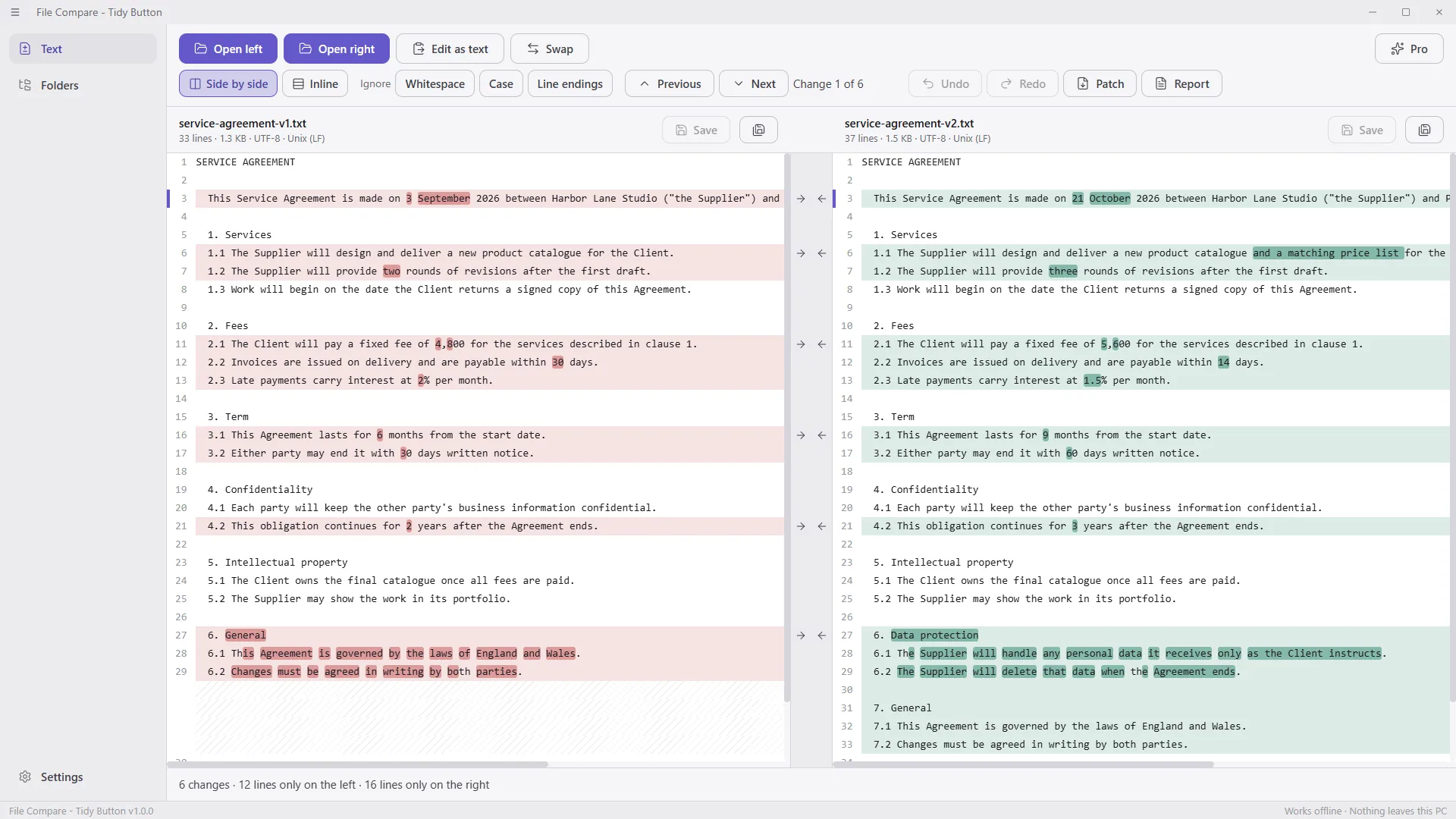
Compare two files side by side
- Open File Compare and stay on the Text tab.
- Press Open left and choose the first file. You can also drop two files onto the window.
- Press Open right and choose the second file.
- The differences appear with the changed words marked inside each changed line.
- Press Next and Previous to jump from change to change, or use F8.
- Choose Side by side or Inline to change how the lines are shown.
The line at the bottom tells you how many changes there are, or that the files are identical.
Compare two texts you paste
- On the Text tab, press Paste texts.
- Paste the first text into Left text and the second into Right text.
- Press Compare.
- To change the texts later, press Edit as text.
Ignore spaces, capital letters or line endings
- Open two files so the differences show.
- Next to Ignore, press Whitespace, Case or Line endings to turn each one on.
- Read the line at the bottom. It says when the files are the same under those options.
- Press the same button again to turn the option off.
Copy a change across and save it
- Open two files.
- Beside a change, press the arrow that points the way you want to copy. One arrow copies from left to right and the other from right to left.
- To edit a line yourself, double-click it, type, and press Enter.
- Press Undo or Redo if you change your mind.
- Press Save above the side you changed, and confirm when the app asks.
To keep the old version, open Settings and turn on Keep a backup when saving. The app then leaves a copy next to the file as name.bak.
Compare two folders
- Open the Folders tab.
- Press Left folder and choose the first folder. Press Right folder and choose the second.
- Press Compare.
- The list shows each file as different, only on the left, only on the right or identical.
- Turn on Show only differences to hide the identical files.
- Double-click a file that is in both folders to open it in the Text tab.
To export the differences from two open files, press Patch. It saves a .diff file that other tools can read.
If something goes wrong
The app says Binary files. Why can I not see the differences?
Binary files such as pictures or programs are not shown as text. The app tells you only whether they are the same or different.
A folder compare took a long time. Can I make it faster?
Turn on Quick compare (size and date only). The app then skips reading files that have the same size and date. A file edited without changing its size or date would be missed.
The Save button is greyed out. Why?
Save is only available once you have changed that side. Copy a change or edit a line first.
Why does the app say a file is too large to compare as text?
Text compare holds both files in memory and stops at about 96 MB per file. Use the Folders tab to check whether two large files are identical.
Good to know
- Text compare is for text files. Binary files are reported only as the same or different.
Still stuck? Support is by email, and a person reads it.