Unlimited backup jobs, each with its own schedule.
Pro keys go on sale when this app's Pro update reaches the Microsoft Store.
One key for this app. Free to use without it. See all pricing
Prefer the command line? winget install 9PJBGBFV72F4 --source msstore
Real app, with a sample documents folder.
Works offline
No account, no ads, no tracking
Plain files
Free
See it
Ten views. One backup, clear.
Start
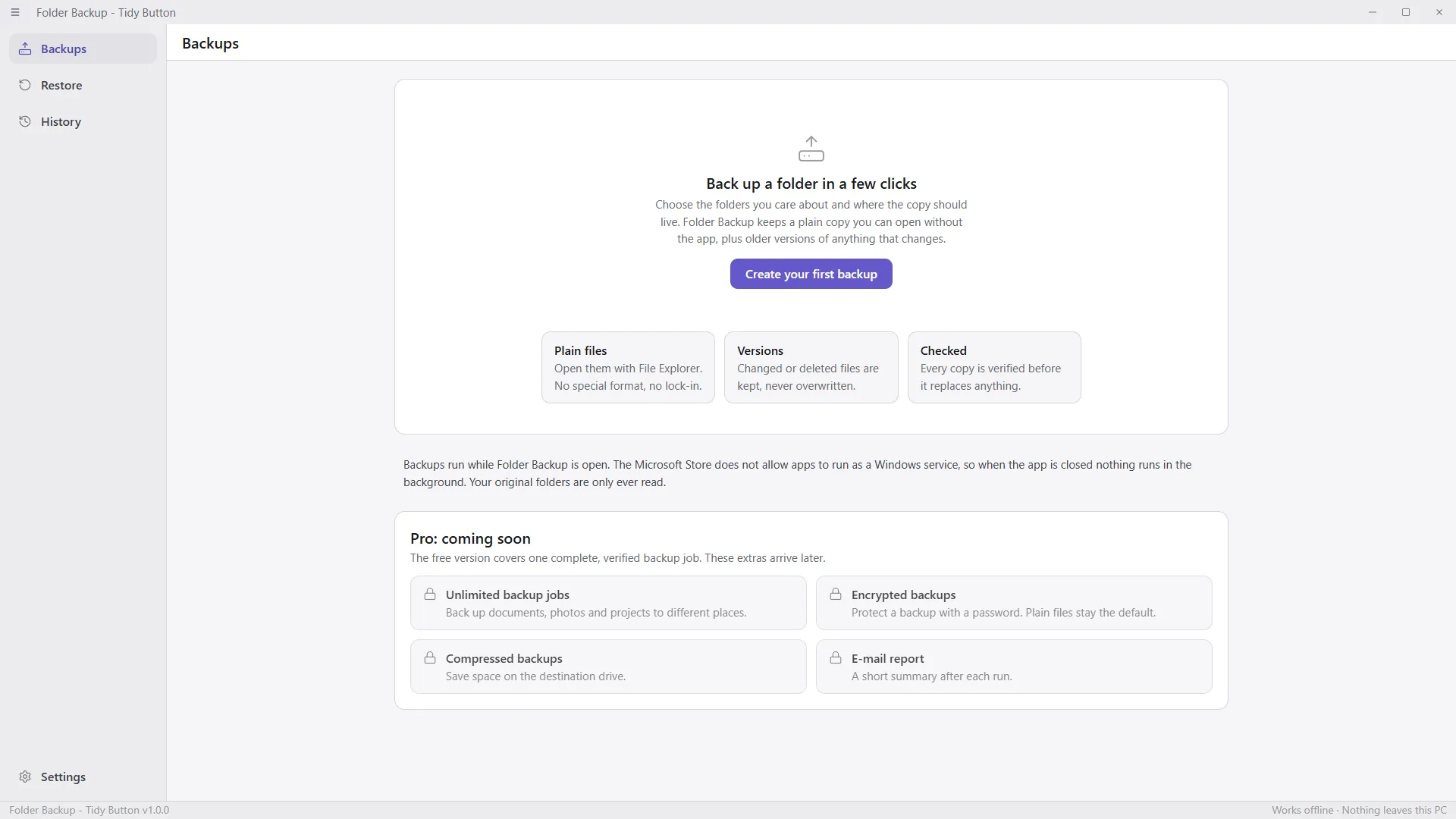
Back up a folder in a few clicks. Plain files, kept versions and checked copies
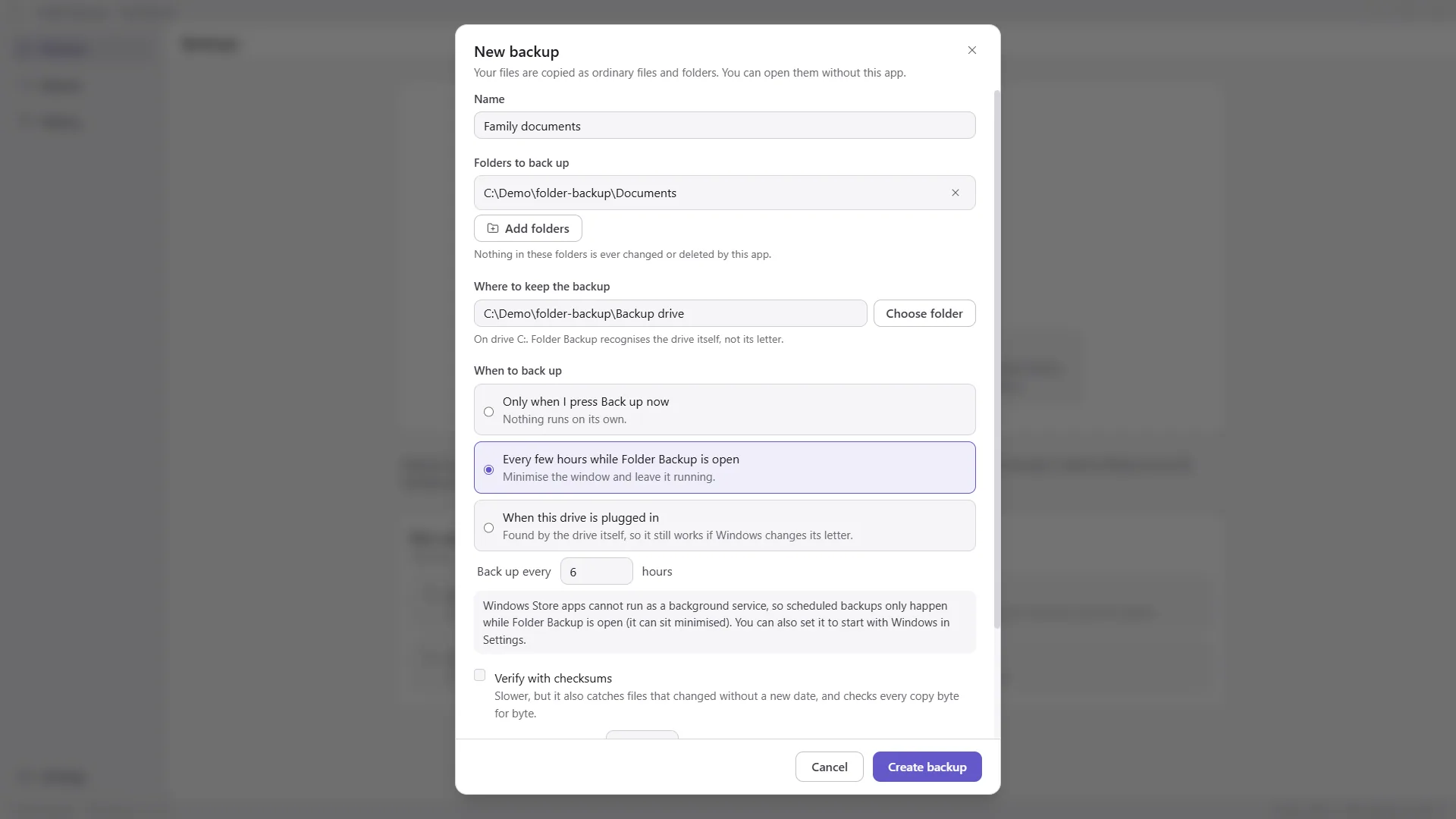
Choose folders
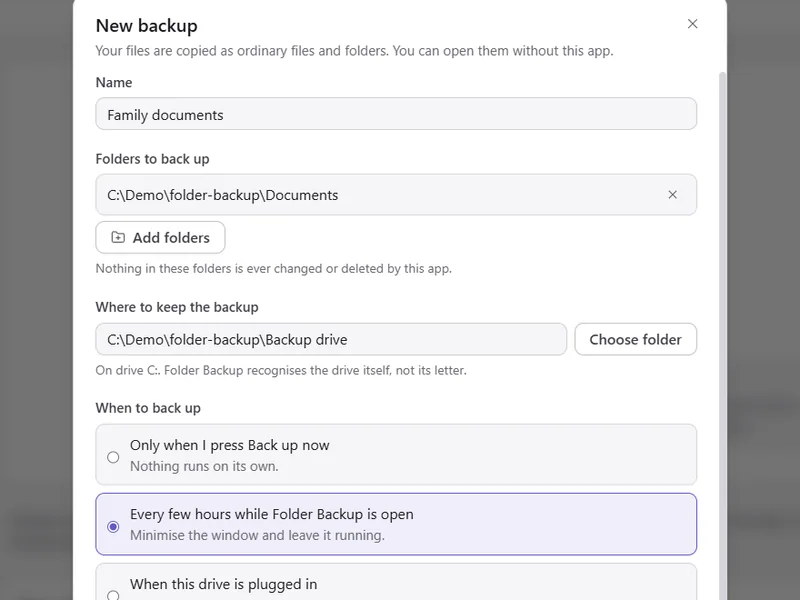
Pick the folders to back up, where the copy should live and when it should run
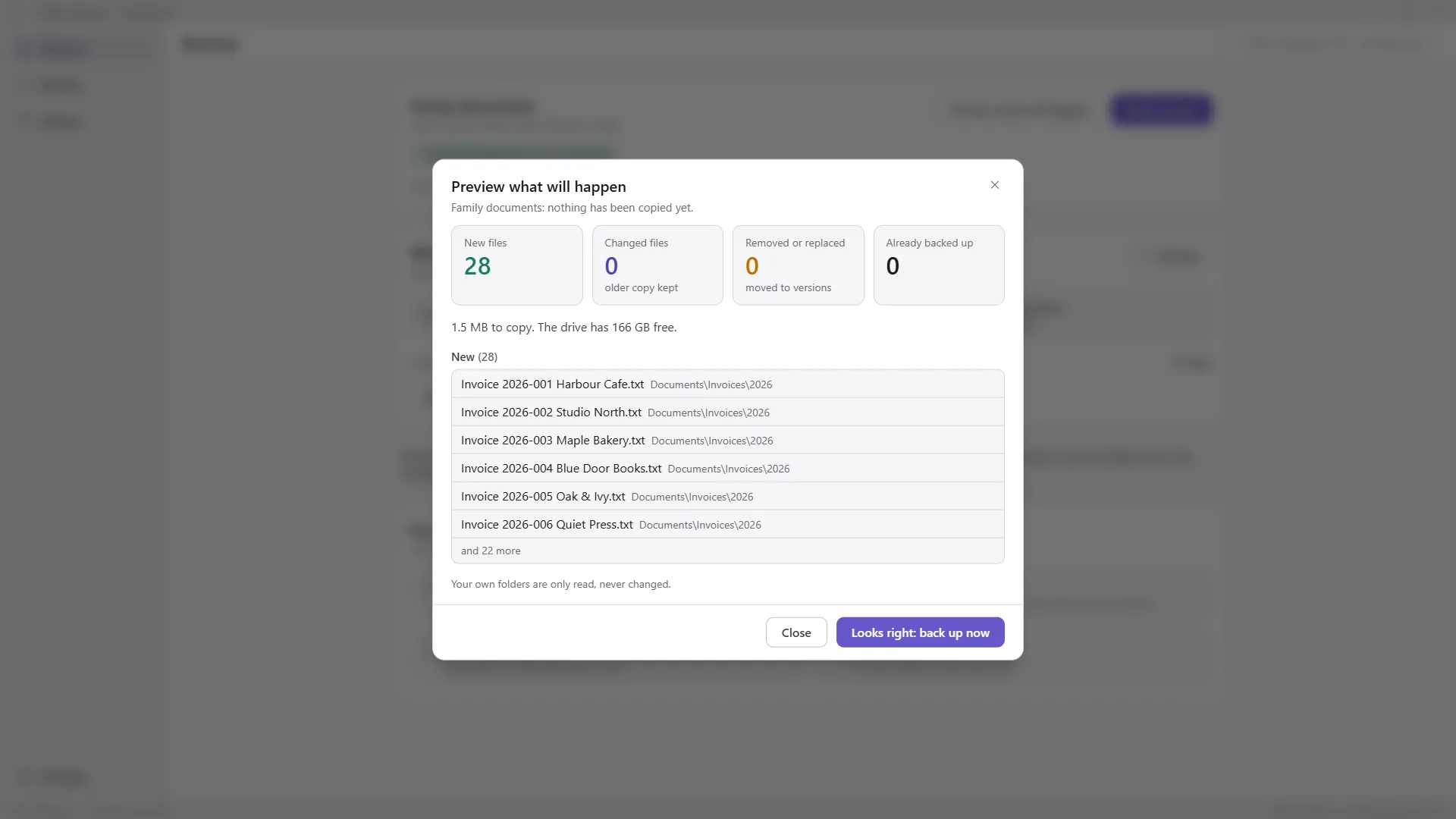
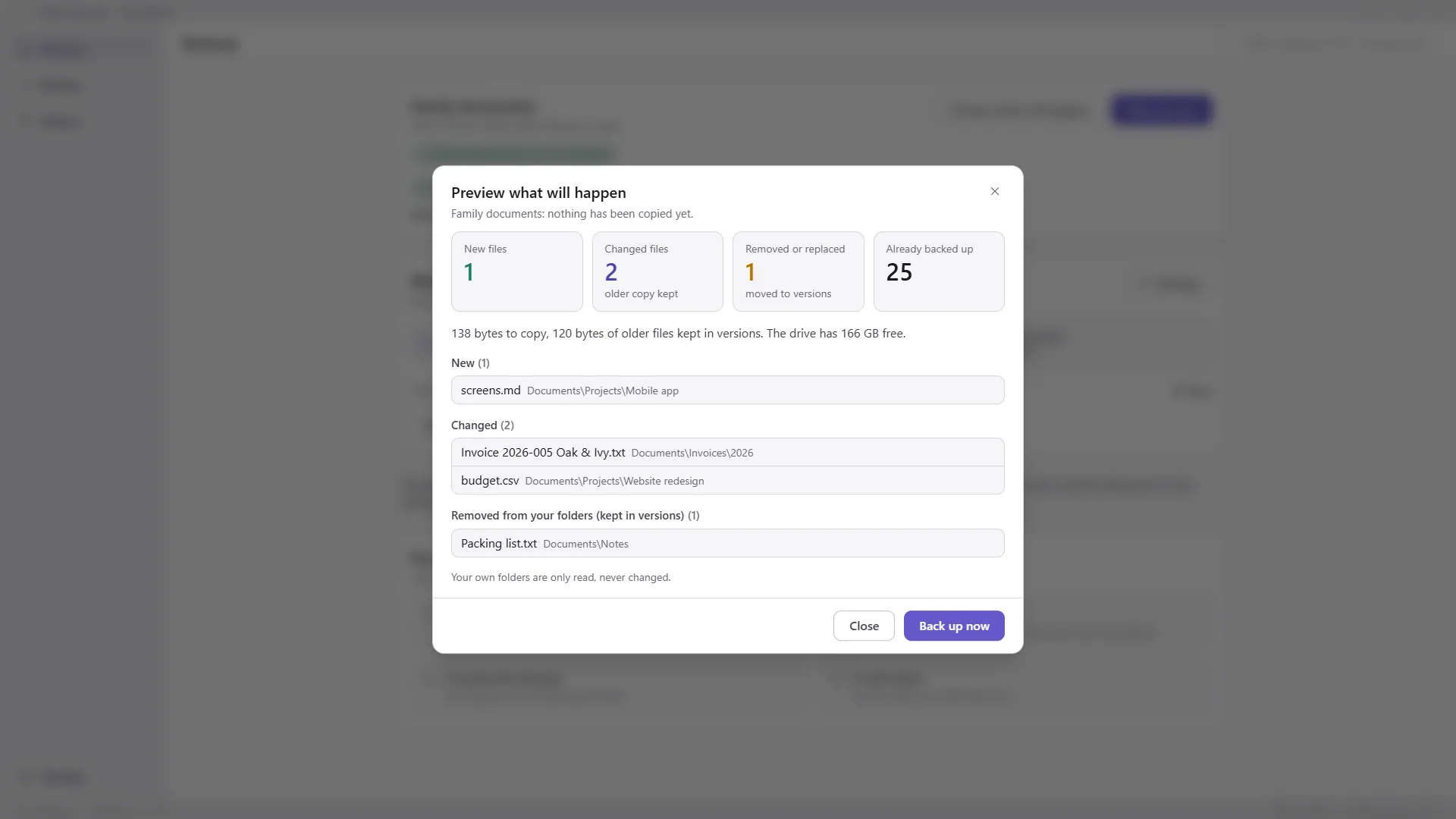
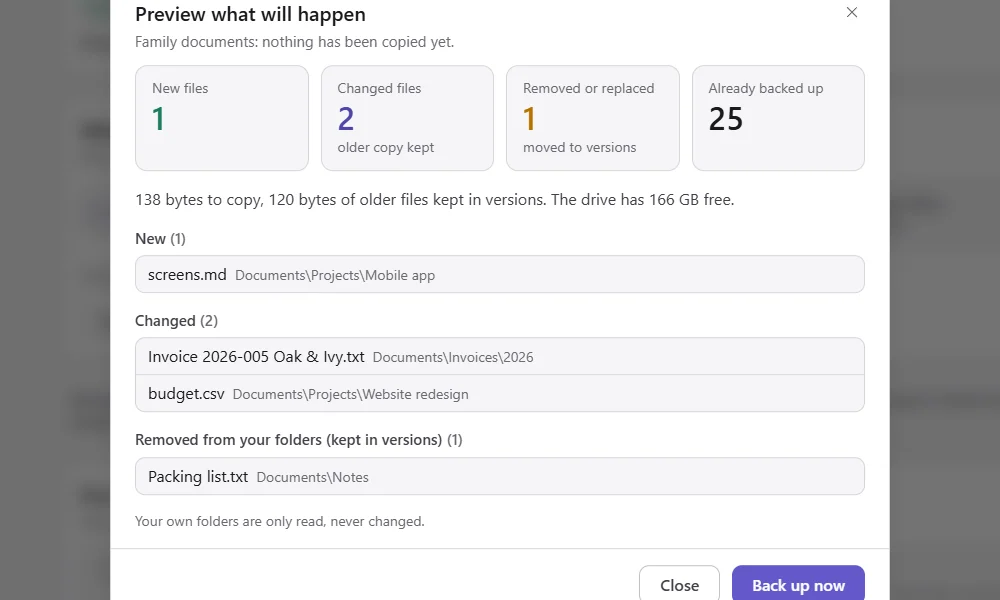
First preview
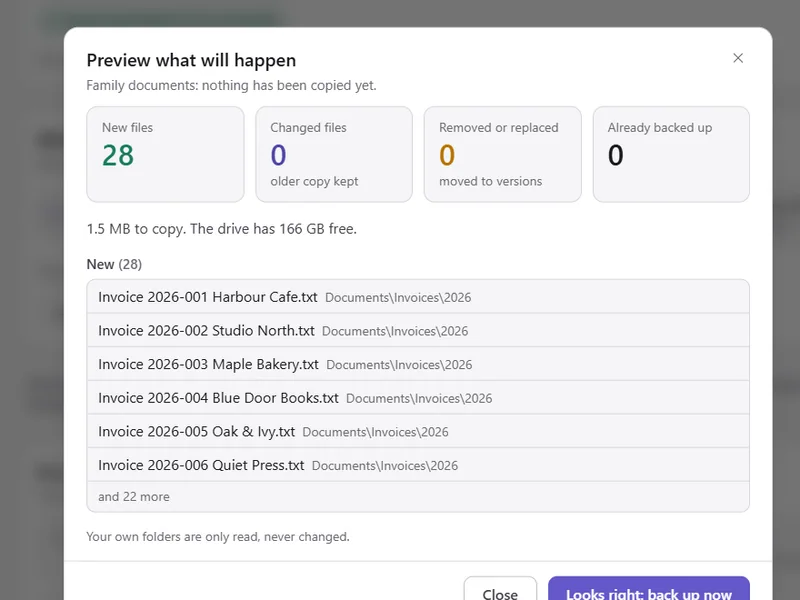
Before the first backup you see exactly what will happen
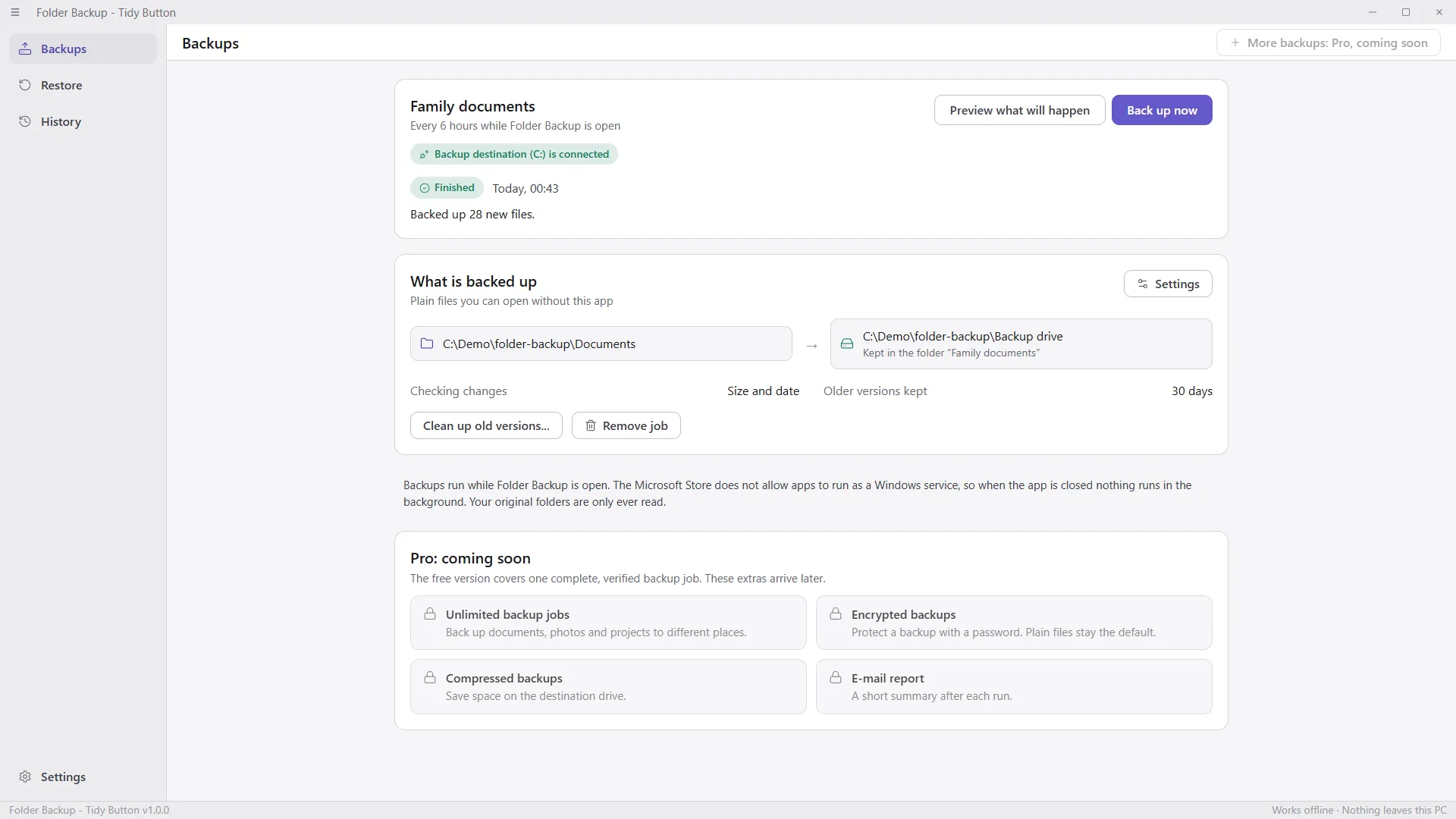
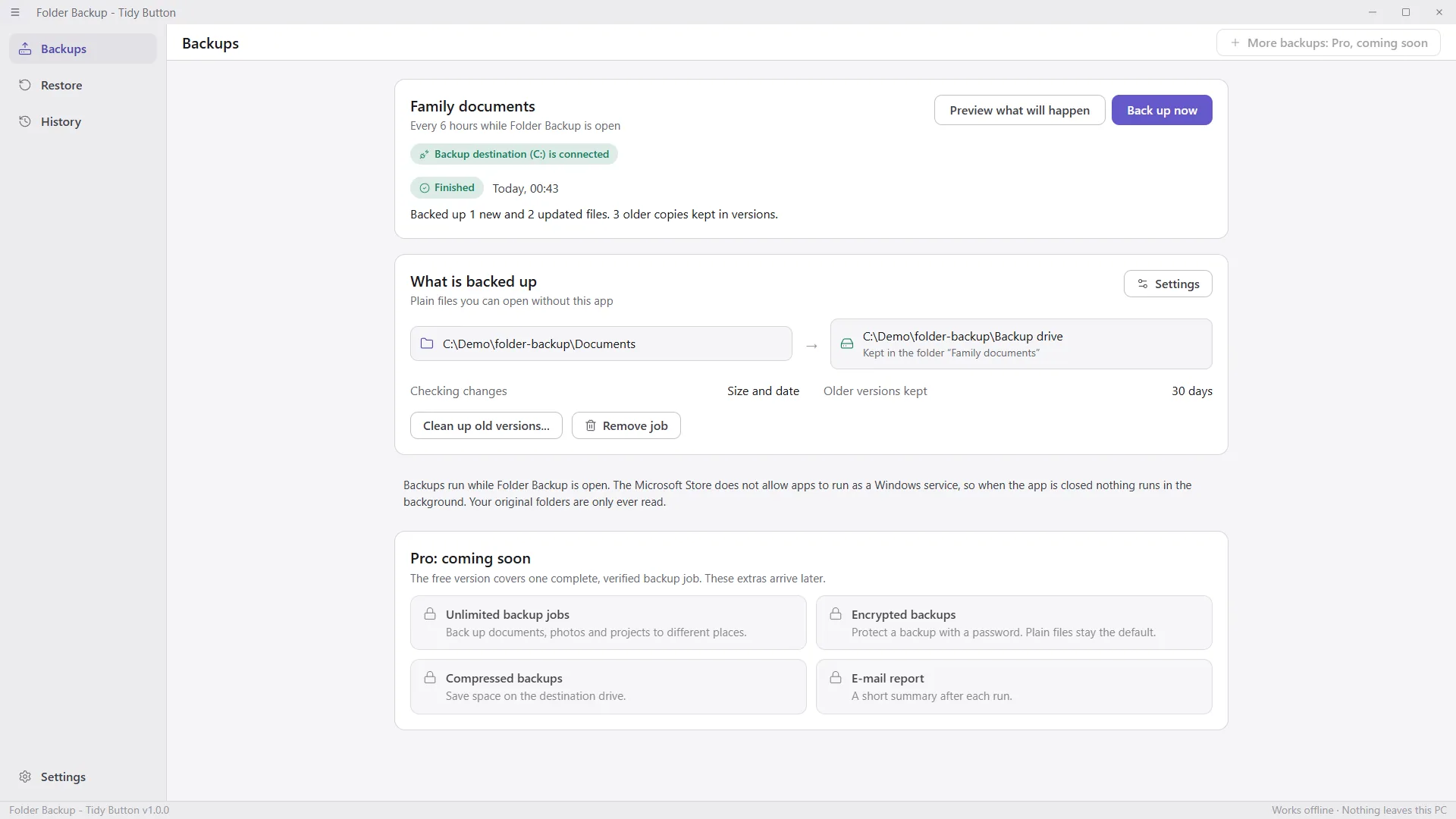
First backup
A finished backup in one glance: when it ran and what was copied
Changes
Changed and deleted files are listed before you run again
Versions
After the second run, older copies sit safely in a versions folder
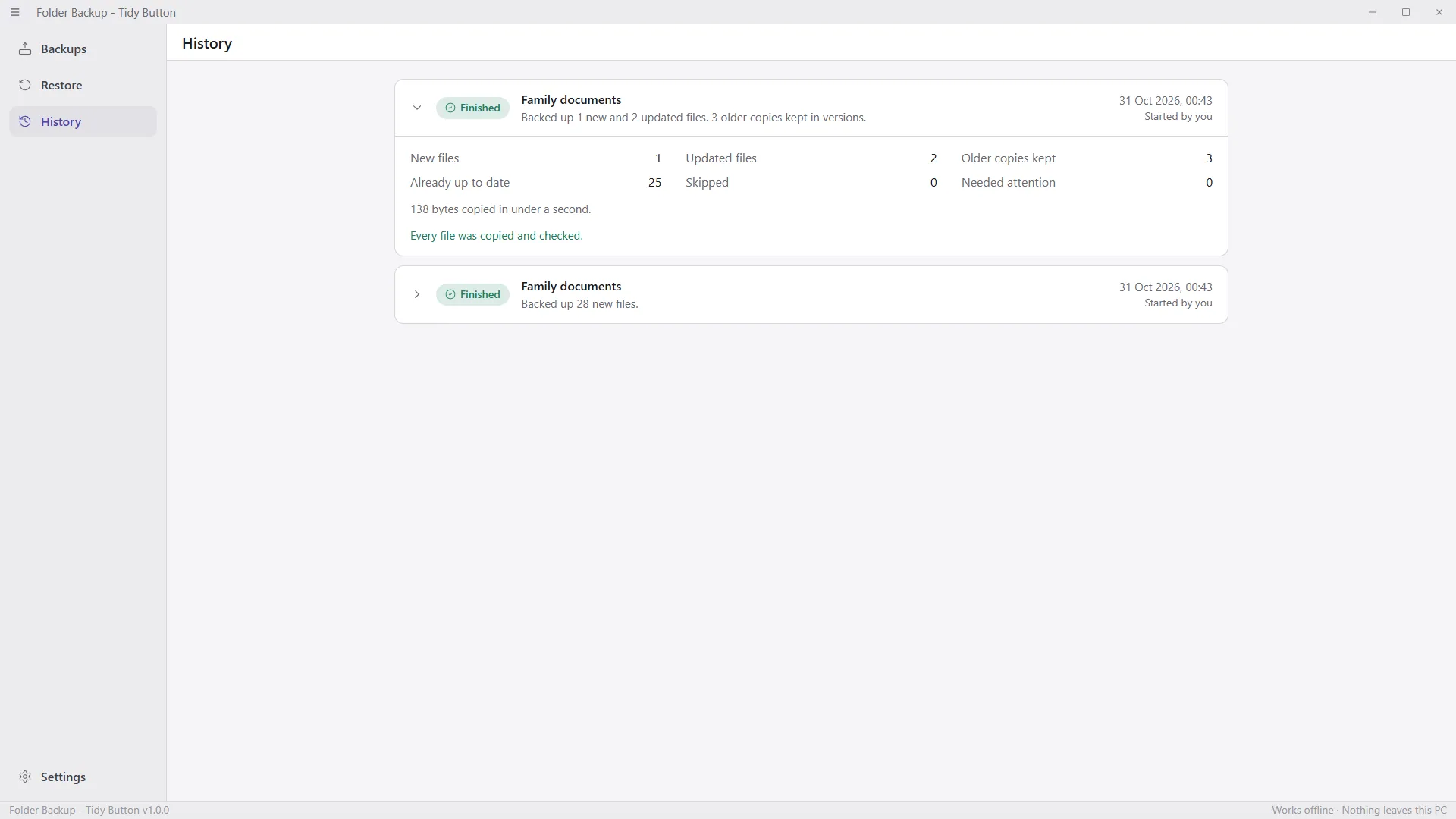
History
A history of every run, with counts and the reason for any file that could not be copied
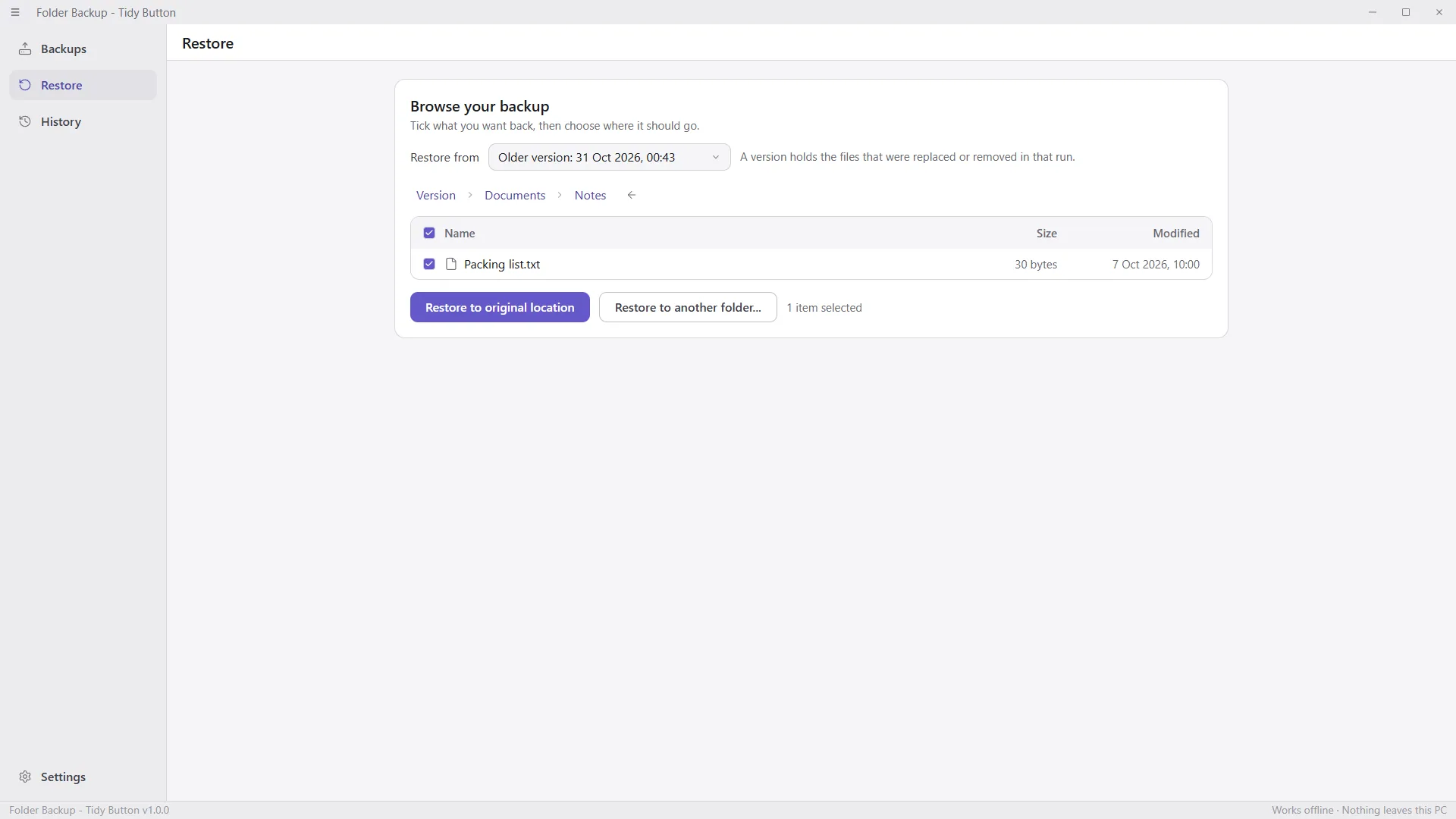
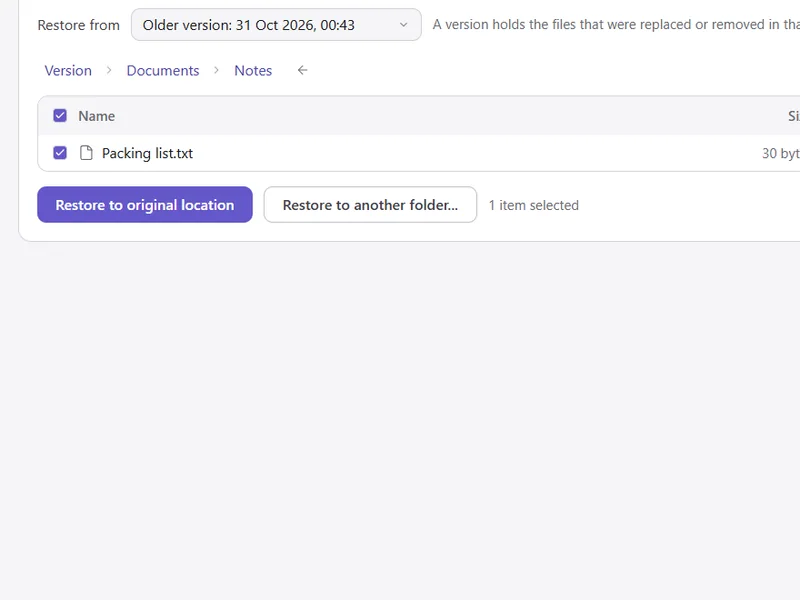
Restore
Browse any older version and tick the files you want back
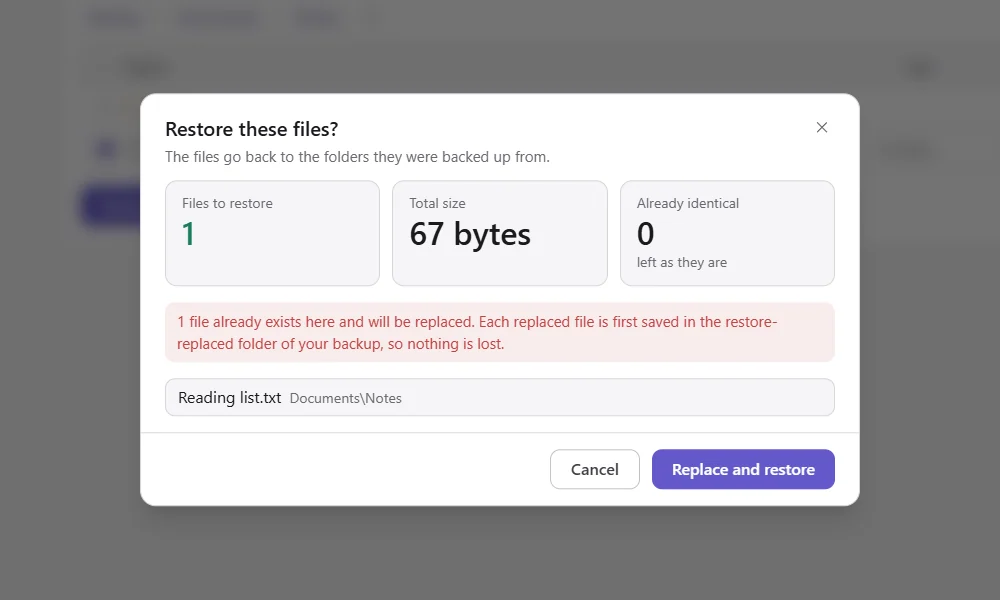
Restore, checked
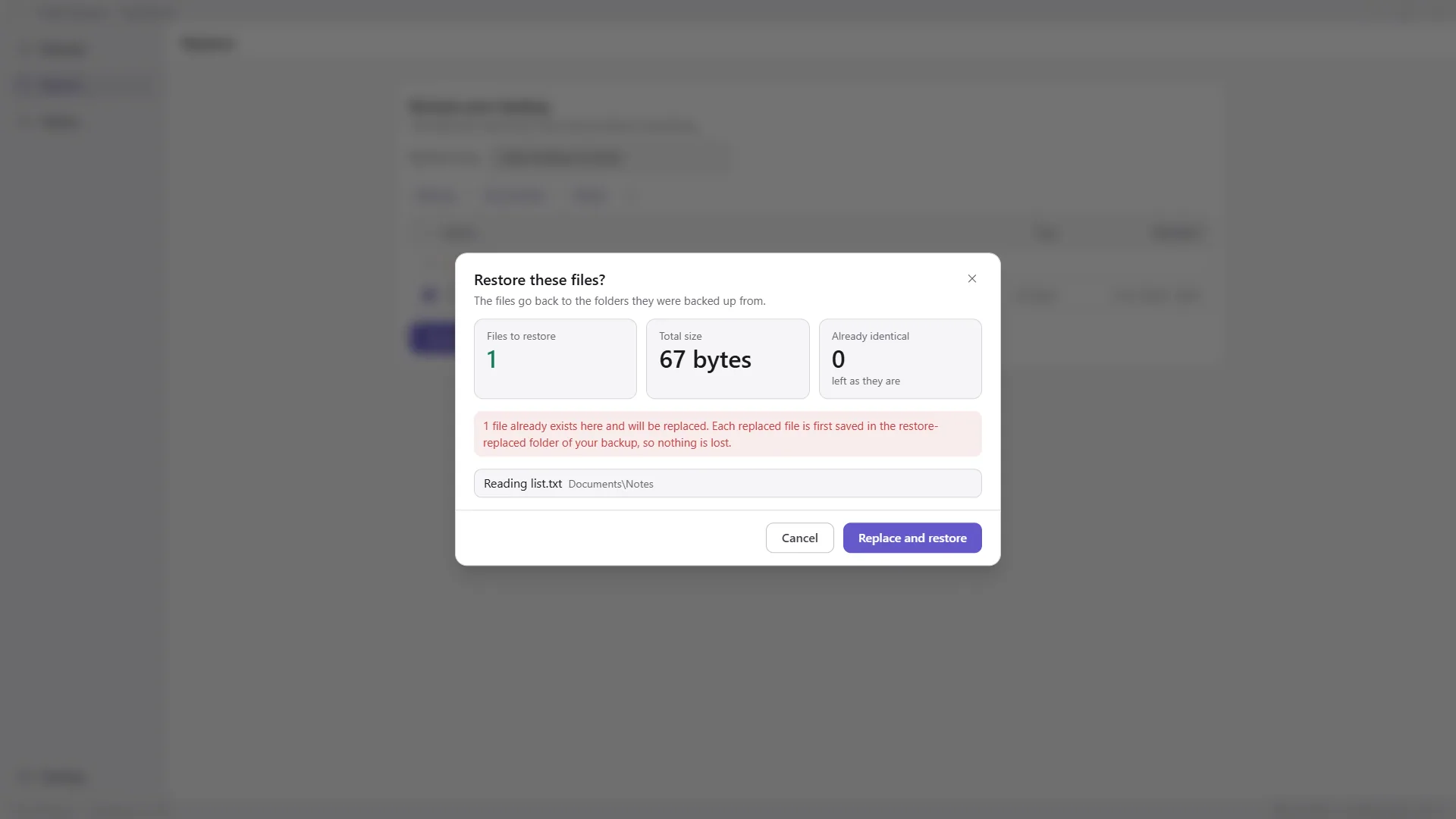
Restoring over a changed file asks first, and saves the file it replaces
Clean up
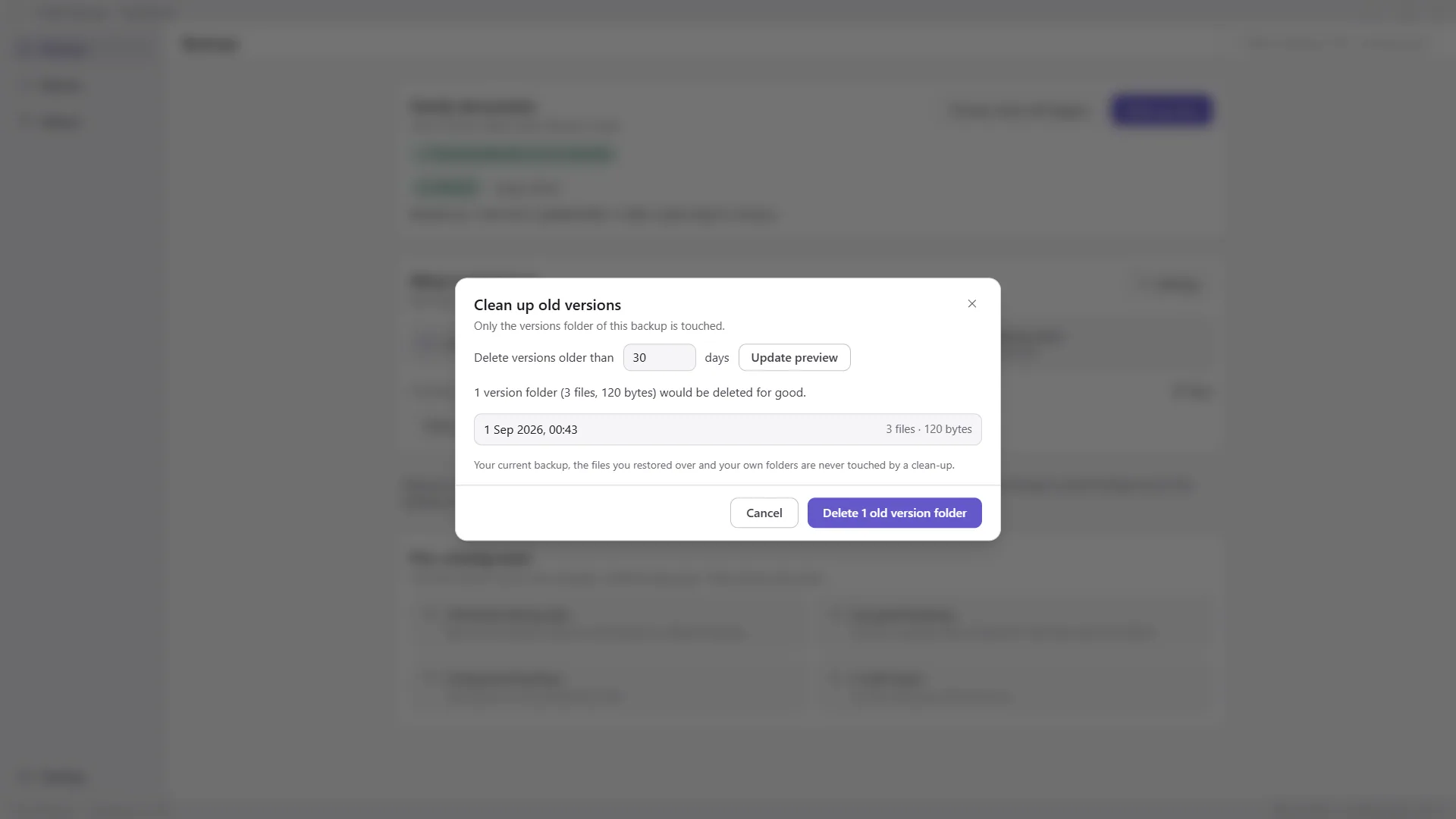
Clean up old versions after a preview. Only the versions folder is touched
Screens show sample files, not real ones. The app has light and dark themes.
How it works
Three steps. No manual.
01
Choose your folders
Pick what to back up, where the copy should live and when it should run.
02
Read the preview
See how many files are new or changed and how much space is needed. Nothing is copied yet.
03
Back up, restore any time
Press Back up now. Later, browse any version in Restore and tick what you want back.
What it does
What it does.
Choose your folders and where the copy should live. Before the first backup, a preview tells you how many files are new, how many changed and how much space is needed. Nothing is copied until you have seen it. The copy is ordinary files and folders, so you can open them in File Explorer with or without this app. There is no special backup format to get locked into.
Plain files
Your backup is ordinary files and folders you can open in File Explorer. No special format.
Preview first
See new, changed and removed files and the space needed before anything is copied, and any time you like.
Older versions kept
When a file changes or disappears, the previous copy goes into a dated versions folder. It is never overwritten and never deleted by a backup.
Every copy checked
Files are written to a temporary name, compared by size (and by checksum if you turn that on), and only then put in place.
Safe if interrupted
If the PC loses power or the app is closed mid-backup, the next start carries on, and no half-written file is left in your backup.
Restore what you need
Browse the latest copy or any older version and restore single files or whole folders, to the original place or another folder.
Runs when you want
Only when you press Back up now, every few hours while the app is open, or when the backup drive is plugged in.
A history of every run
See counts for each run and every file that could not be copied, with the reason.
The small print, in plain English
Safe by design.
Changed and deleted files are listed before a run. Older copies are kept, never overwritten.
Restoring over a file asks first, and saves the file it replaces.
Your own folders are only ever read. The app does not change or delete anything in them.
Changed and deleted files are kept as older versions. A backup never overwrites or deletes them.
Restoring over a file that exists asks first, and saves the file it replaces.
The free version has one backup job.
Works offline. No account. No ads. No tracking. No network use.
How it keeps things
Plain files, older versions.
Nothing special to learn. Open the backup like any other folder.
After a second run, older copies sit in a versions folder.
Where
Your choice
A USB drive, external disk, network share or another folder.
Current
Plain files
The latest copy of your files, in a folder you can open in File Explorer.
Versions
Never overwritten
Older copies of changed and removed files, in folders named by date.
Checked
Every copy
Each copy is compared by size, with optional checksums, before it is put in place.
Schedule
When you choose
By hand, every few hours while the app is open, or when the backup drive is plugged in.
Restore
Back where it was
Single files or whole folders, from the latest copy or any older version.
Honest limits: Folder Backup runs while the app is open, because Windows Store apps cannot run as a background service. You can ask it to start with Windows and keep it minimised. Shortcuts and junctions are not followed and are listed in the history.
Good for
Handy when you cannot lose it.
Documents and projects you cannot afford to lose
A USB drive or external disk you plug in now and then
Getting back the version of a file from last week
Backups you can open without any special software
Questions
Plain answers.
What is the backup made of?
Ordinary files and folders. You can open them in File Explorer with or without this app, so you are never locked into a special format.
Does it change my own folders?
No. Your folders are only ever read. A restore to the original place writes into them only when you ask, and saves any file it replaces first.
What happens to a file I change or delete?
The previous copy is moved into a dated versions folder in the backup. A backup never overwrites or deletes it.
How do I know the copy is good?
Every copy is written to a temporary name, compared by size (and by checksum if you turn that on) and only then put in place. A backup that is interrupted carries on at the next start without leaving half-written files.
Does it run in the background?
It runs while the app is open. Windows Store apps cannot run as a background service, so when the app is closed nothing runs by itself. You can ask it to start with Windows and keep it minimised.
Is there a limit in the free version?
The free version has one backup job. A Pro add-on is planned with unlimited jobs, encrypted and compressed backups and an e-mail report. It is not available yet.
Does it need an account or the internet?
No. There is no account, no ads, no tracking and no network use.