How to back up a folder to a USB drive or external disk
This guide shows how to copy a folder to a USB drive or another folder as ordinary files, and how to bring files back later. The app only reads your own folders and never changes them.
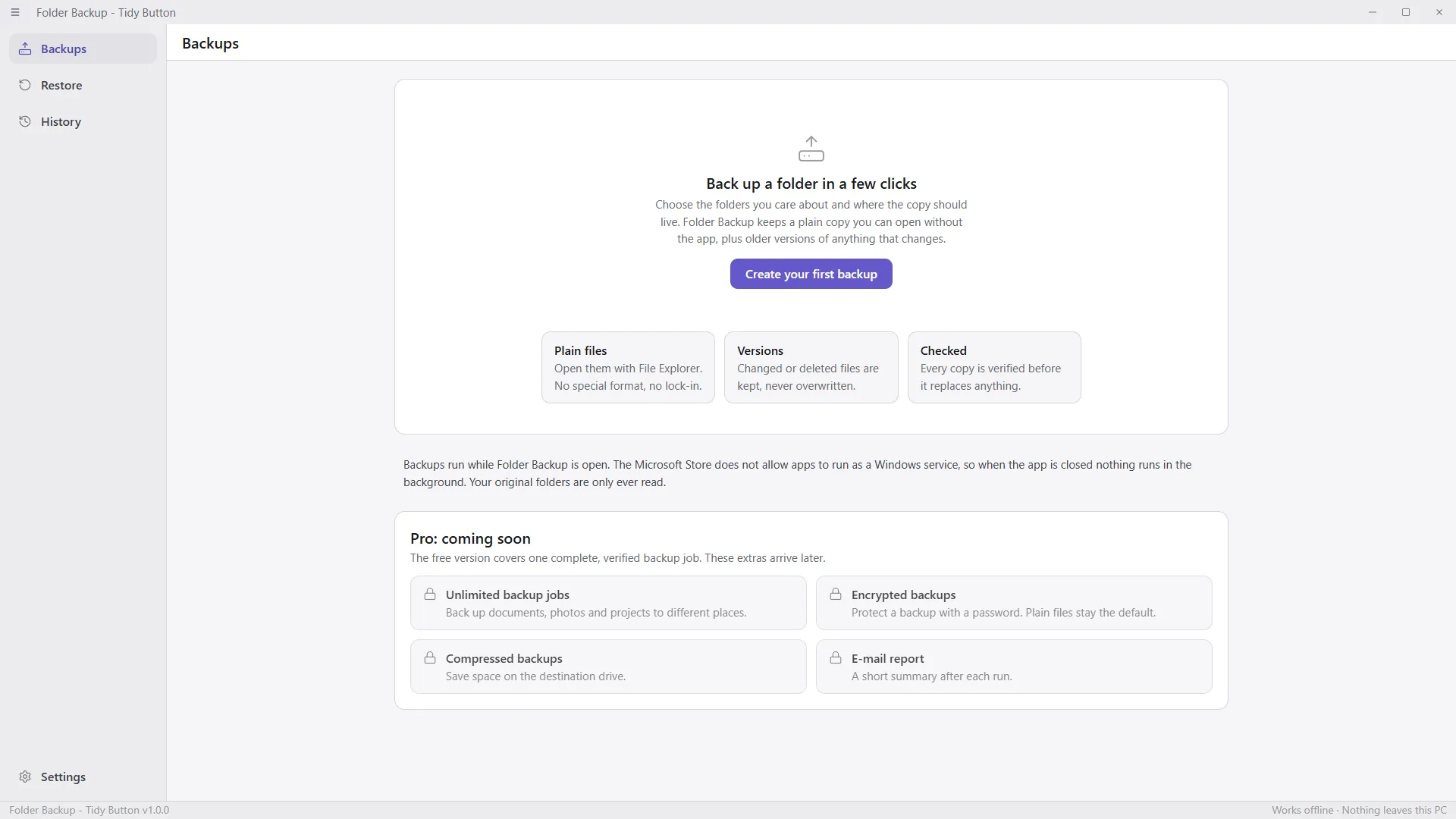
Set up your first backup
Plug in your USB drive or external disk first if you want to back up to it.
- Open Folder Backup and stay on the Backups screen.
- Press Create your first backup.
- Press Add folders and choose the folders you want to protect.
- Press Choose folder under where to keep the backup, and pick a folder on your USB drive, external disk, network share or another folder.
- Under when to back up, leave Only when I press Back up now selected if you want to start each backup yourself.
- Press Create backup.
The copies are ordinary files. You can open them in File Explorer without this app.
Preview and run a backup
- On the Backups screen, press Preview what will happen.
- Read how many files are new, changed and removed, and how much space the backup needs. Nothing is copied yet.
- Press Looks right: back up now if you are happy with it. For later backups the button reads Back up now.
- Watch the progress bar. Press Stop if you need to cancel the run.
- When the run ends, the result and the time appear under the backup name.
Back up automatically
Scheduled backups only run while Folder Backup is open. It can stay minimised.
- On the Backups screen, press Settings next to the folders list.
- Under when to back up, choose Every few hours while Folder Backup is open and type the number of hours, or choose When this drive is plugged in.
- Press Save changes.
Closing the app stops scheduled backups until you open it again.
Get a file back from the backup
- Open the Restore screen.
- Next to Restore from, choose Latest backup (current), or choose one of the older versions in the list.
- Click the folder names to move through the backup, and tick the files or folders you want.
- Press Restore to original location, or press Restore to another folder... and pick a folder.
- Check the numbers in the window, then press Restore. If files would be replaced, the button reads Replace and restore.
Files that would be replaced are saved first in the restore-replaced folder of your backup.
Free up space by clearing old versions
- On the Backups screen, press Clean up old versions....
- Type how many days of versions to keep next to Delete versions older than, then press Update preview.
- Read the list of version folders that would be deleted.
- Press the delete button at the bottom of the window to go ahead, or press Cancel.
Only the older versions of this backup are deleted. Your current backup and your own folders are not touched.
If something goes wrong
Why are the preview and Back up now buttons greyed out?
The backup drive is probably not connected. Plug it in. Folder Backup finds the drive again by the drive itself, even if Windows gives it a different letter. The buttons are also off while a backup is running.
Why did some files not get copied?
Open the History screen and click the run. It lists each file that needed a look and the reason. Shortcuts and junctions are not followed, so they are skipped.
Why did my scheduled backup not run?
Scheduled backups only happen while Folder Backup is open. Windows Store apps cannot run as a background service, so nothing runs when the app is closed.
The preview says there is not enough free space. What can I do?
The backup cannot start until the drive has enough free room. Free up space on the drive or choose a different destination folder in Settings.
What happens if the backup is cut off halfway?
The next backup carries on from what was already copied.
Good to know
- Backups run only while the app is open, so nothing happens by itself when the app is closed.
- Shortcuts and junctions are not followed.
Still stuck? Support is by email, and a person reads it.