Simple inventory software for small business, offline
Many small shops, market stalls and home businesses track stock in a notebook or a spreadsheet. It works until the numbers stop matching, and then you do not know what you really have. Here is a simple way to keep stock right without a subscription.
Start with a spreadsheet, and know where it breaks
A spreadsheet is a fine first inventory list. One row per item, one column for the quantity, and you can sort it. For a few dozen items and one person, that can be enough.
It breaks when you type a new total over the old one and forget why. There is no history, so you cannot tell if a number is a count, a sale or a mistake. It also will not tell you when something runs low.
What simple inventory software should do
A good small-shop tool keeps the quantity as a result of stock movements, not as a number you overwrite. Each time stock comes in or goes out, it is recorded with a reason. The quantity on hand always comes from that history.
It should also show what needs ordering, work with a barcode scanner if you use one, and let you export reports. And since it holds your business data, it helps if it works offline and keeps everything on your own PC.
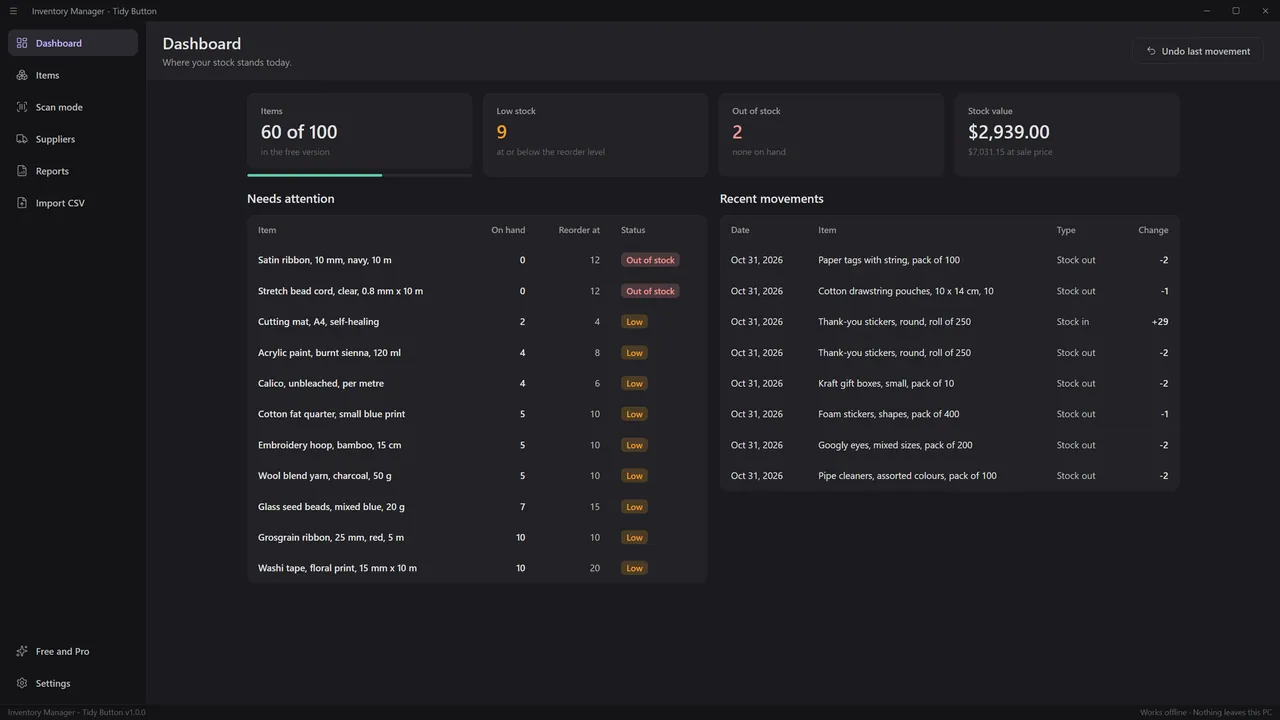
Low stock, stock value and recent movements at a glance.
Add your items and record stock in and out
In Inventory Manager, go to Items and press Add item. Type a Name, and fill in SKU, Barcode, Category, Cost price and Sale price if you want them. Each SKU must be different for every item.
Type how many you have in Quantity on hand. It is saved as your opening stock. Set a Reorder level, and the item shows as low stock at or below that number.
- Go to Items and click the item.
- Press Stock in when you receive more, or Stock out when you sell or use some.
- Type the amount in Quantity and pick a Reason.
- Press the button at the bottom of the window to record it.
- Check the History table on the item page. It lists every movement.
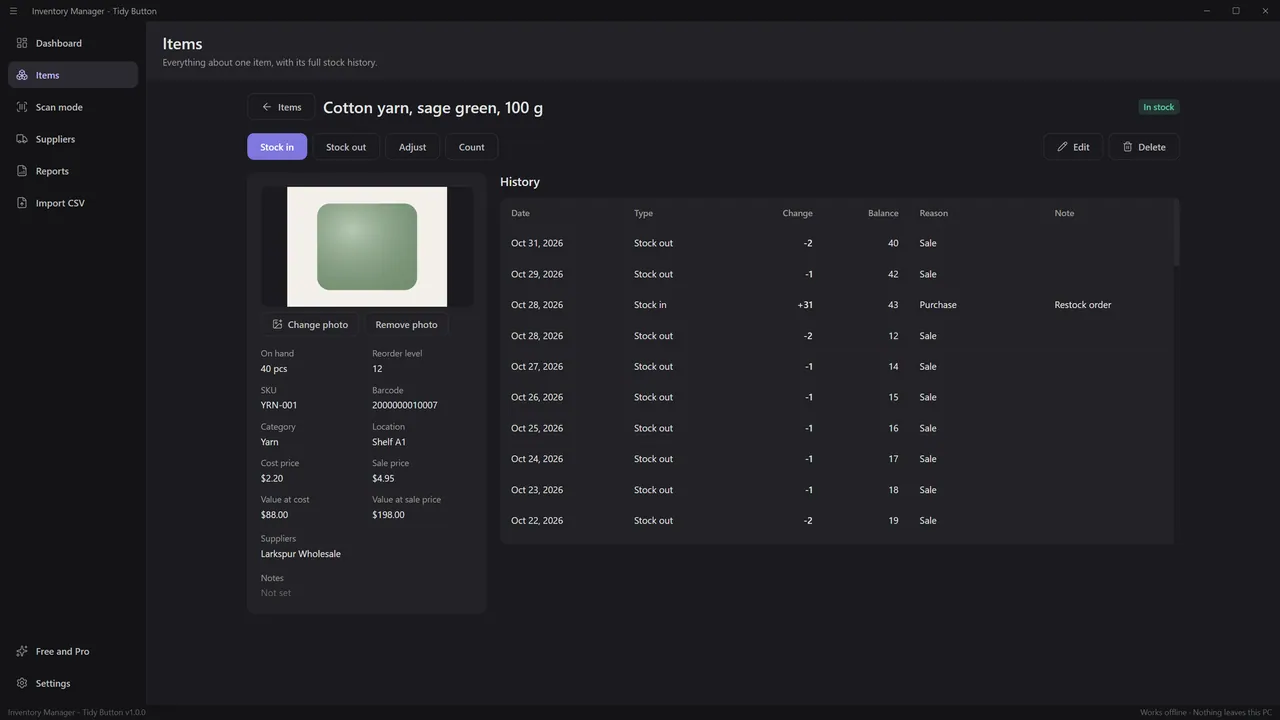
Each item keeps its full history.
Tip. If you record something by mistake, open Dashboard and press Undo last movement. Use Adjust for a small correction and Count after you count the shelf.
See what needs ordering
Open Dashboard and look at the list under Needs attention. It shows low and out of stock items. In Items, press Low stock or Out of stock to filter the list.
If you like, turn on Daily low-stock reminder in Settings to get one Windows notification a day while the app is open.
Bring in your existing list and export reports
You do not have to retype your list. Save your spreadsheet as a CSV file with the column names in the first row, open Import CSV and press Choose CSV file. Match each column to a field, such as Item name and SKU.
Read the preview. Nothing is saved until you press the import button, and an item already in your list, matched by SKU or barcode, is never added twice. You choose to update it or skip the row.
To get numbers out, open Reports, pick a report such as stock value at cost or at sale price, and press the export button to save it as a spreadsheet file or as Export CSV.
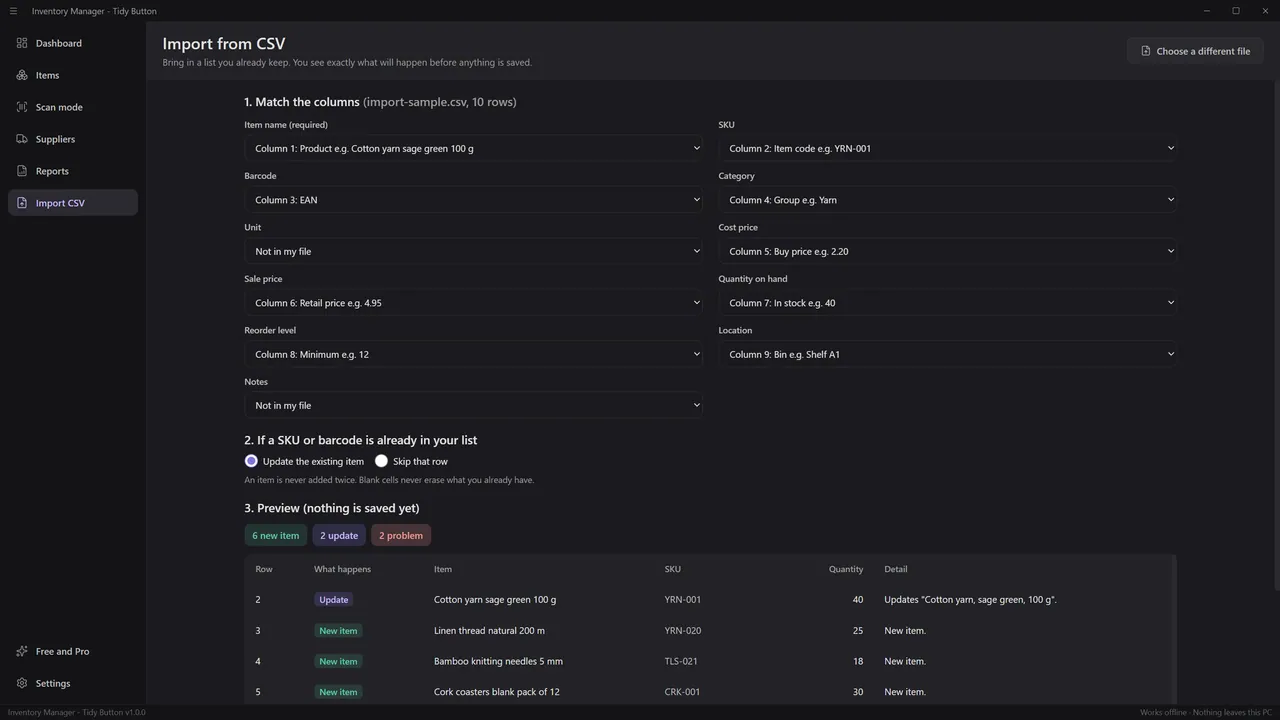
Match the columns and preview every row before anything is saved.
What the free version limits, and keeping a backup
The free version holds up to 100 items, with unlimited movements, barcode input and exports. A paid Pro add-on is planned, but it is not available yet.
Everything lives in one file on your PC, and the app makes no network requests. Open Settings and press Back up now, then save the file on a USB drive or in cloud storage. Uninstalling the app removes the data it keeps in its own folder, so back up or export first.
Questions
Does it work with a barcode scanner?
Yes. Any USB scanner that types the code and presses Enter works. Open Scan mode to add or remove stock quickly.
Is anything uploaded?
No. Your data stays in one file on your PC and the app makes no network requests.
Can I import my existing list?
Yes. Import a CSV file, match the columns and check a row-by-row preview before anything is saved.
Why can I not record a stock out?
When Allow negative stock is off in Settings, the app does not let you remove more than you have. Check the quantity, or turn the switch on if you sell before you receive.
If you want stock that adds up and a warning before you run out, try Inventory Manager. It is free on the Microsoft Store for up to 100 items, works offline and needs no account. Add your first items and record a stock in.
More from Inventory Manager
Questions or something missing? Support is by email, and a person reads it.