Rename photos by date taken on Windows 11: what works
Your photos are called things like IMG_4821 or DSC00123, so sorting them by name tells you nothing. You would like each one to start with a date. Doing that by hand for hundreds of pictures is slow, and Windows 11 has no one-click way to do it. This article is straight about what each route can and cannot use as the date.
What Windows 11 can do on its own
File Explorer can show you the date taken. Open the folder, switch to the Details view, right-click a column heading and add the Date taken column. Then you can sort the photos by it.
For renaming, select all the photos, press F2 and type one name. Windows names them with that name plus a number in brackets, for example Holiday (1), Holiday (2). It is quick, but the dates are gone and the order depends on how the files were sorted when you renamed them.
- Open the photo folder in File Explorer and switch to the Details view.
- Right-click a column heading and add Date taken. If it is not in the short list, choose More and tick it there.
- Click the Date taken heading to sort the photos.
- Select all with Ctrl+A, press F2 and type a base name.
Tip. Explorer shows dates for photos that have them stored inside. Files that were copied or edited may show an empty Date taken.
Add a date to many names at once
A batch renamer lets you build the new name from rules and shows the result before anything changes. Tidy Button's Bulk File Renamer has eight rules. One of them is Add date. Rules run from top to bottom, and the preview updates as you change them.
Be clear about which date it uses. The rule lets you choose Date changed or Date created in the Which date list. Date changed is the date File Explorer calls Date modified. It does not read the Date taken stored inside the photo. If you need exactly the moment the shutter fired, the file dates may not match.
- Open Bulk File Renamer and press Add folder, then choose your photo folder.
- Tick Include subfolders first if the photos are spread over several folders.
- Press Add rule and choose Add date.
- In Which date, pick Date changed or Date created, then choose a format and where the date goes.
- Look at the New name column and check the dates look right.
- When every row says Ready, press the rename button at the bottom right and confirm.
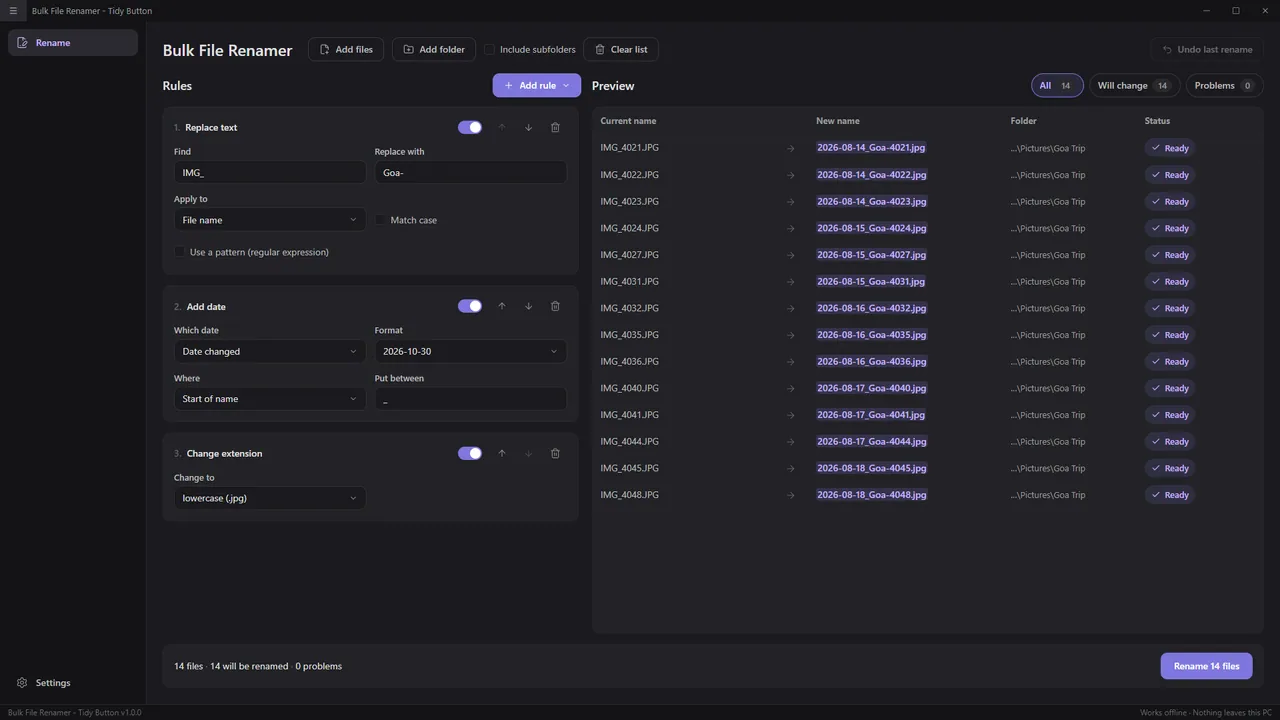
Every new name is shown in the preview before you rename.
Tip. Check a few rows against the Date taken column in File Explorer before you press the rename button. If the dates are not the ones you expect, do not rename. Copying files can change the Date created, so photos moved between drives may show a different day.
When the camera already put the date in the name
Many phones and cameras put the date inside the file name, for example IMG_20260814_0915. That is often the most reliable record of when the photo was taken, and you can reshape it into something easier to read. Add a Replace text rule and tick the pattern option, which uses a regular expression.
In the screenshot below, a pattern turns IMG_20260814_0915 into 2026-08-14 at 0915. It is an advanced option, so you can skip it if the Add date rule is enough for you.
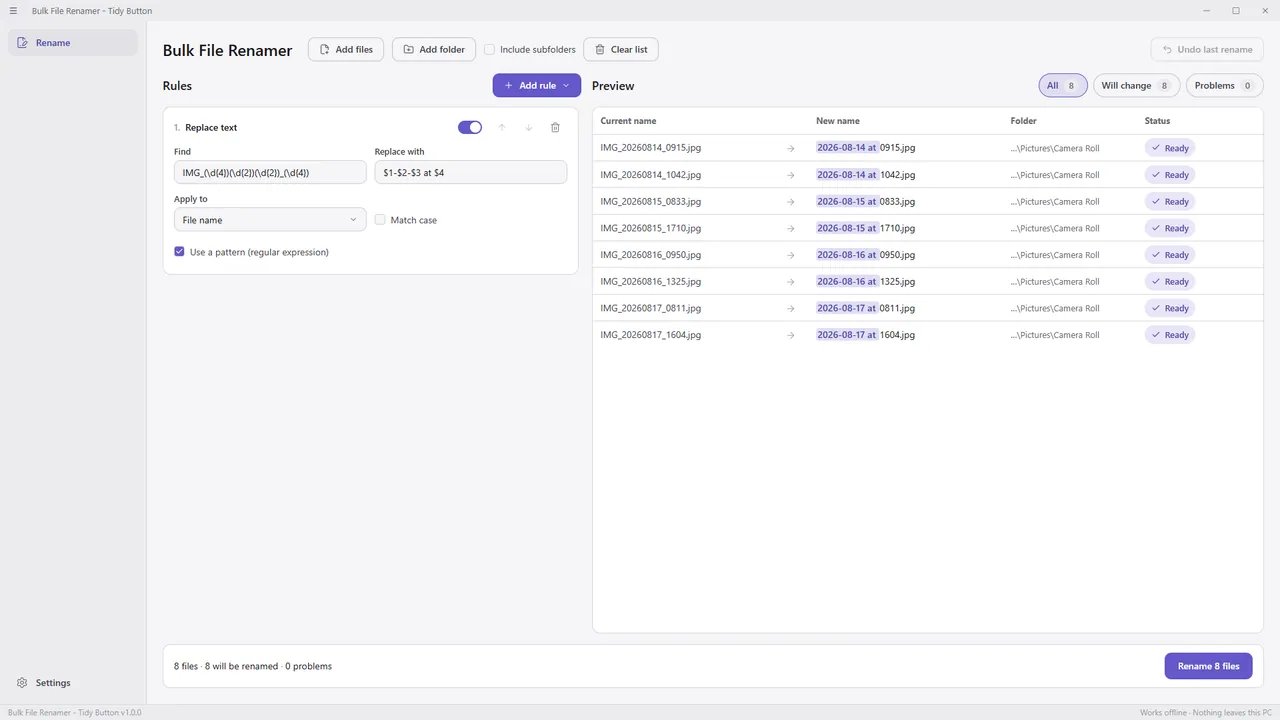
A pattern rule reshapes camera file names.
Conflicts, mistakes and undo
Photos taken in the same moment can end up with the same new name. The app flags this as Conflict in the status column, and the rename button is held back until you fix it. Adding a numbers rule usually solves it. A name Windows does not allow is marked Invalid; point at the label to read the reason.
Nothing changes on disk until you confirm. If you change your mind after renaming, press Undo last rename at the top right. Undo works on the most recent batch.
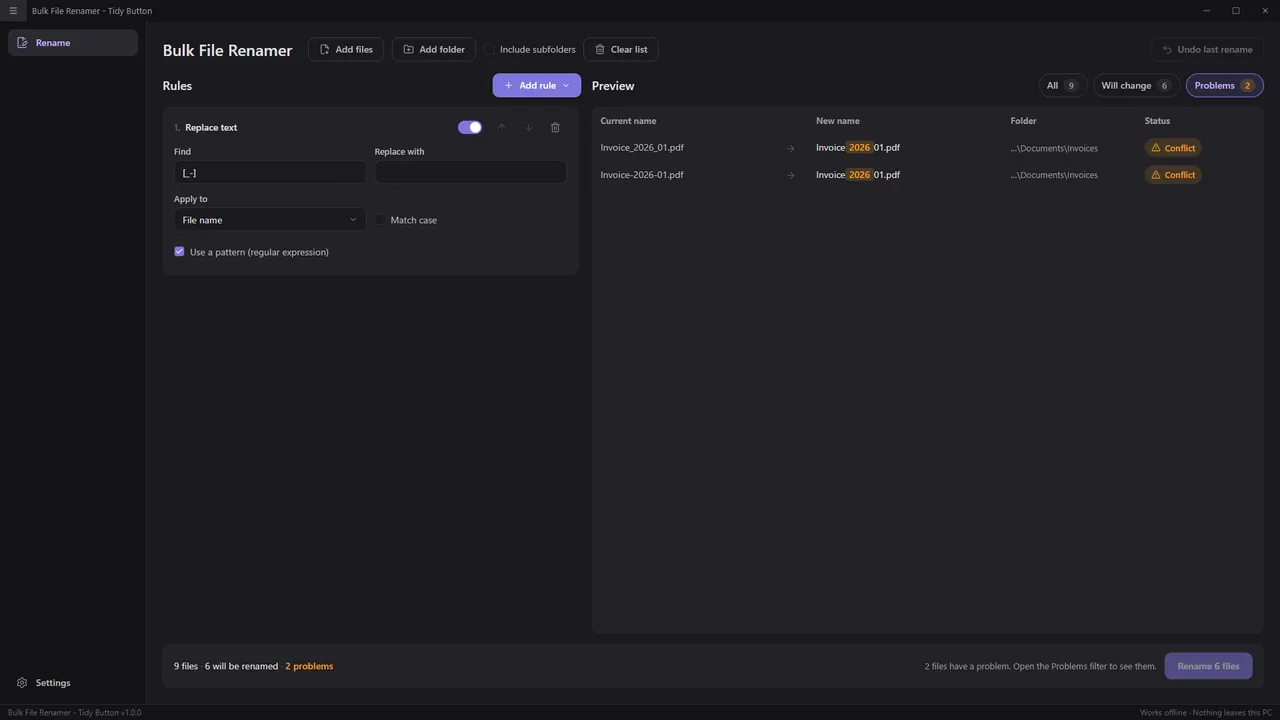
Duplicate names are marked Conflict before anything is renamed.
What the free version limits
The free version renames up to 50 files in one run, taking the first 50 files that change. For a bigger folder, run it again for the next batch. A Pro add-on is planned for people who rename large folders often.
The app changes file names only. It never deletes files and never changes what is inside them.
Questions
Can File Explorer rename photos by the date taken?
It can show and sort by Date taken, but its rename adds only a number in brackets after the name you type. It does not put the date into the file name.
Does Bulk File Renamer use the date taken from the photo?
No. Its Add date rule uses the file's Date changed or Date created, which you pick. Preview the names and compare a few with the Date taken column before you rename.
Does renaming change the photo itself?
No. Only the file name changes. The picture and the details stored inside the file are not touched.
What if two photos get the same name?
Bulk File Renamer marks them as Conflict and holds the rename back. Add a numbers rule, or change another rule, until every row says Ready.
Can I undo a rename?
Yes. Press Undo last rename to restore the names from the latest batch. If the app or the PC stops in the middle of a rename, the batch is written to a journal first, so it can be recovered.
If you have a folder of photos with meaningless names, try Tidy Button's Bulk File Renamer. It is free on the Microsoft Store, works offline and needs no account, and you see every new name before anything changes.
More from Bulk File Renamer
Questions or something missing? Support is by email, and a person reads it.