Pro keys go on sale when this app's Pro update reaches the Microsoft Store.
One key for this app. Free to use without it. See all pricing
Prefer the command line? winget install 9P2VGWDPZF8R --source msstore
Real app, previewing a demo folder.
Works offline
No account, no ads, no tracking
Preview and undo
Free
See it
Nine views. One folder, tidy.
Preview
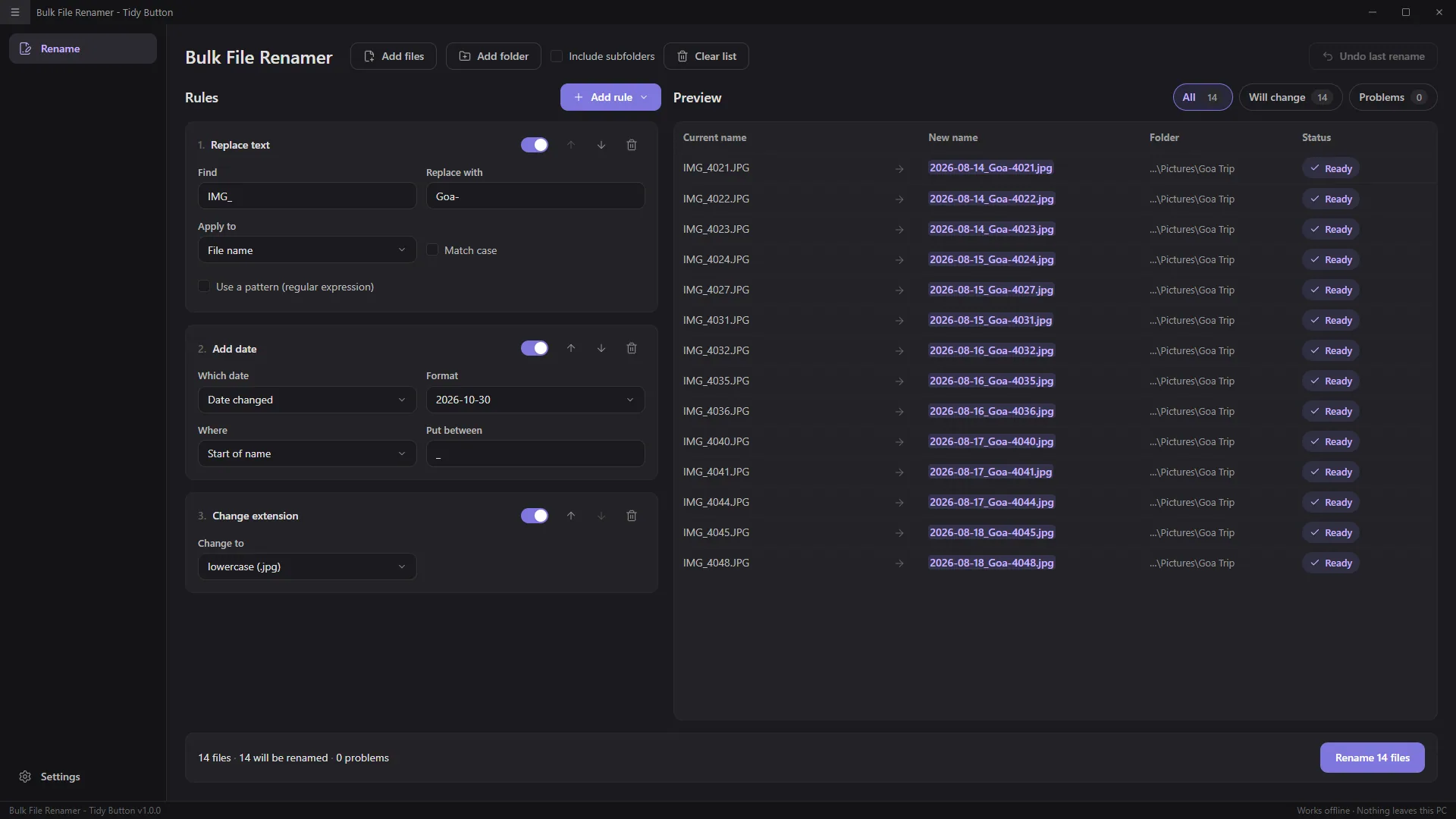
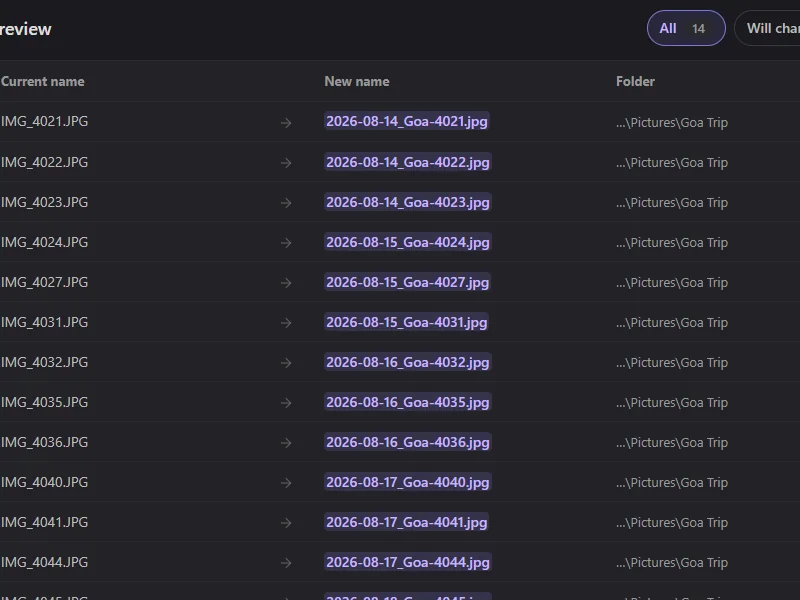
Preview every new name before anything changes
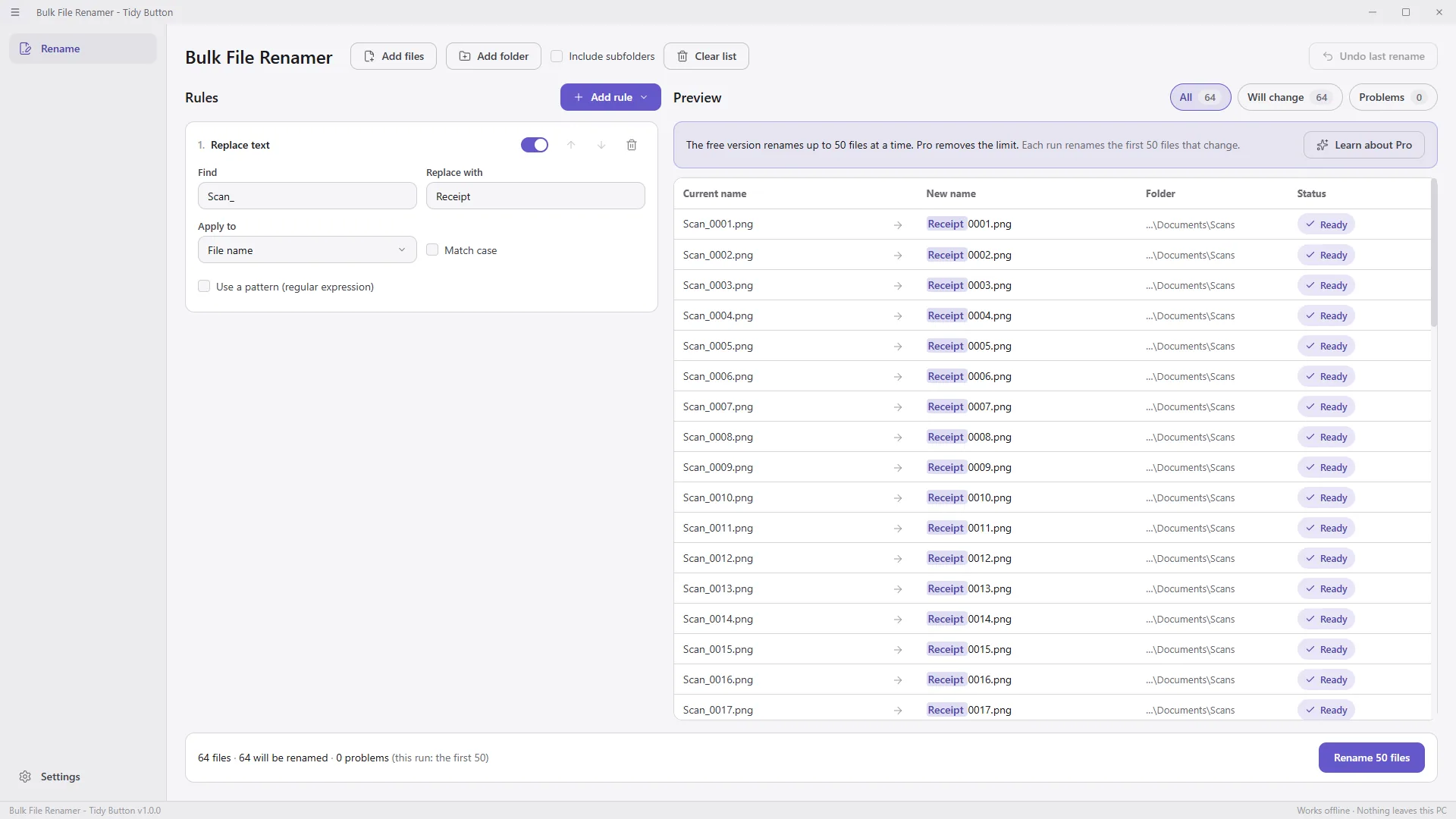
Light theme
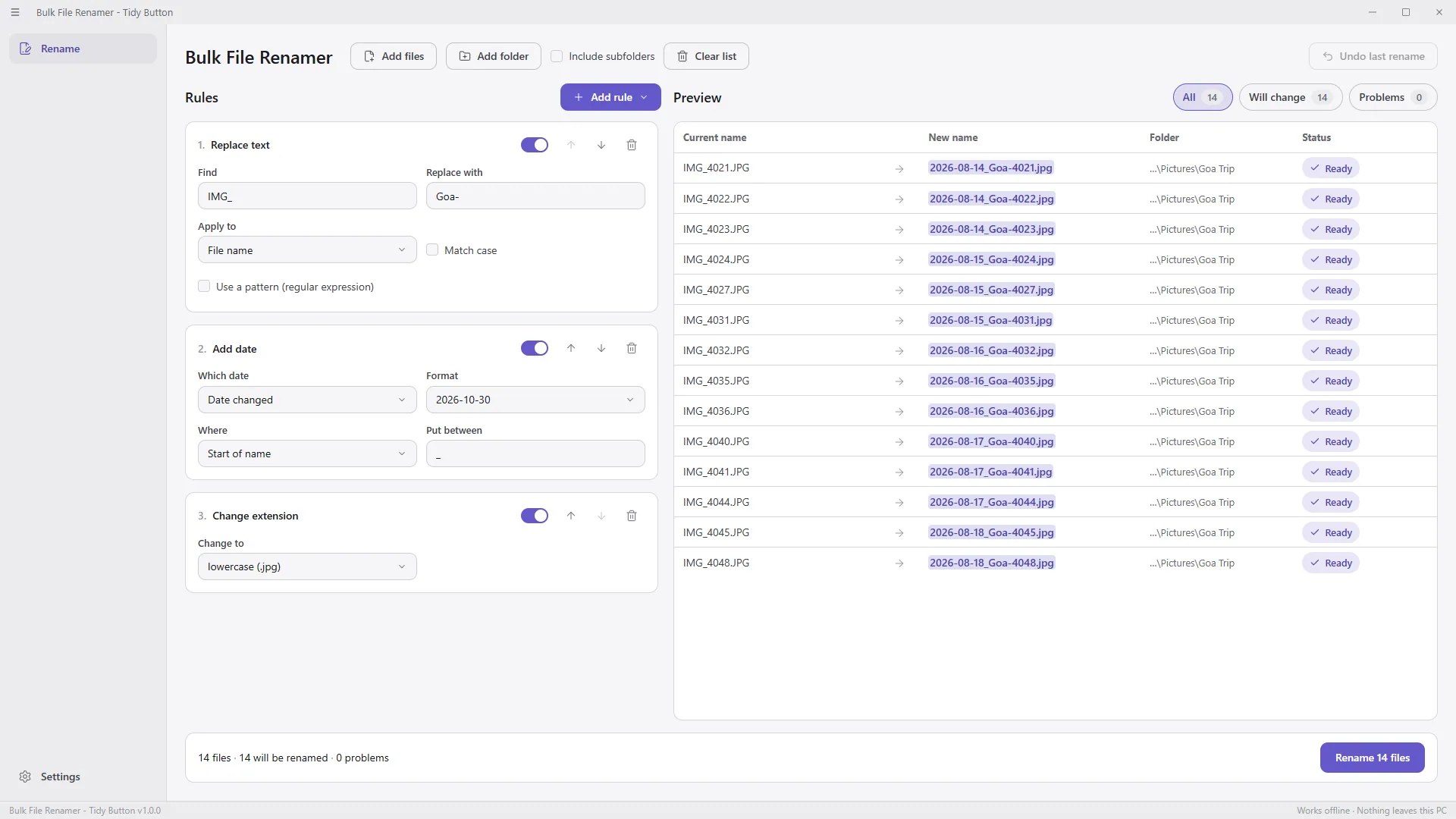
The same live preview in the light theme
Rules
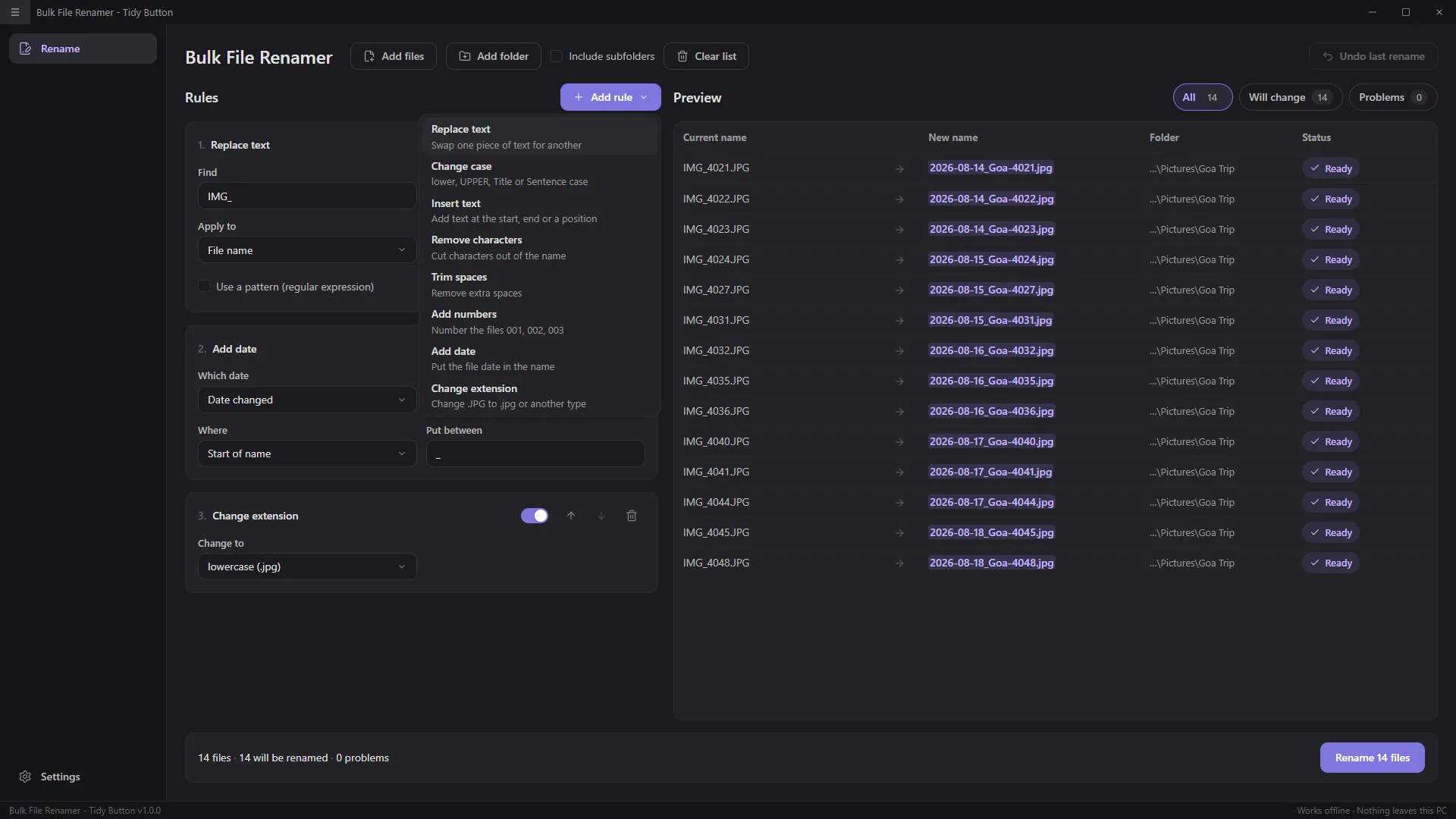
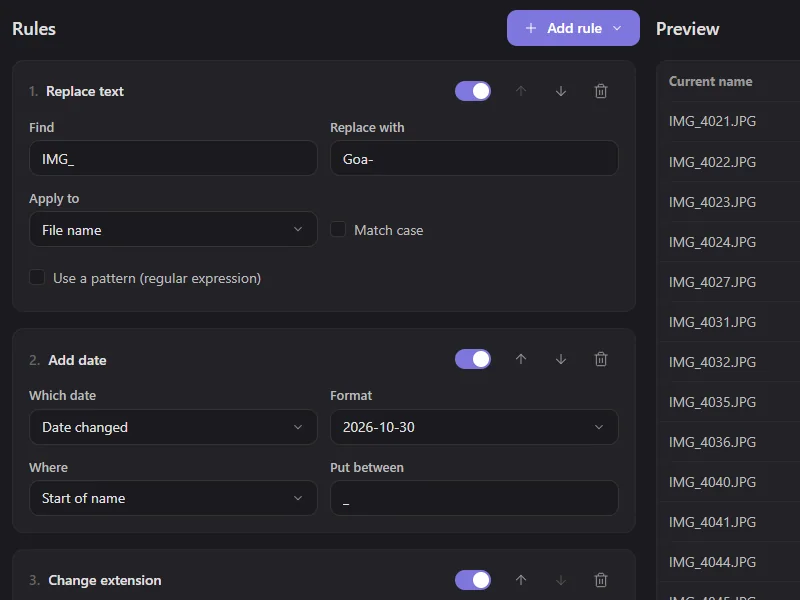
Eight rule types, stacked from top to bottom
Pattern
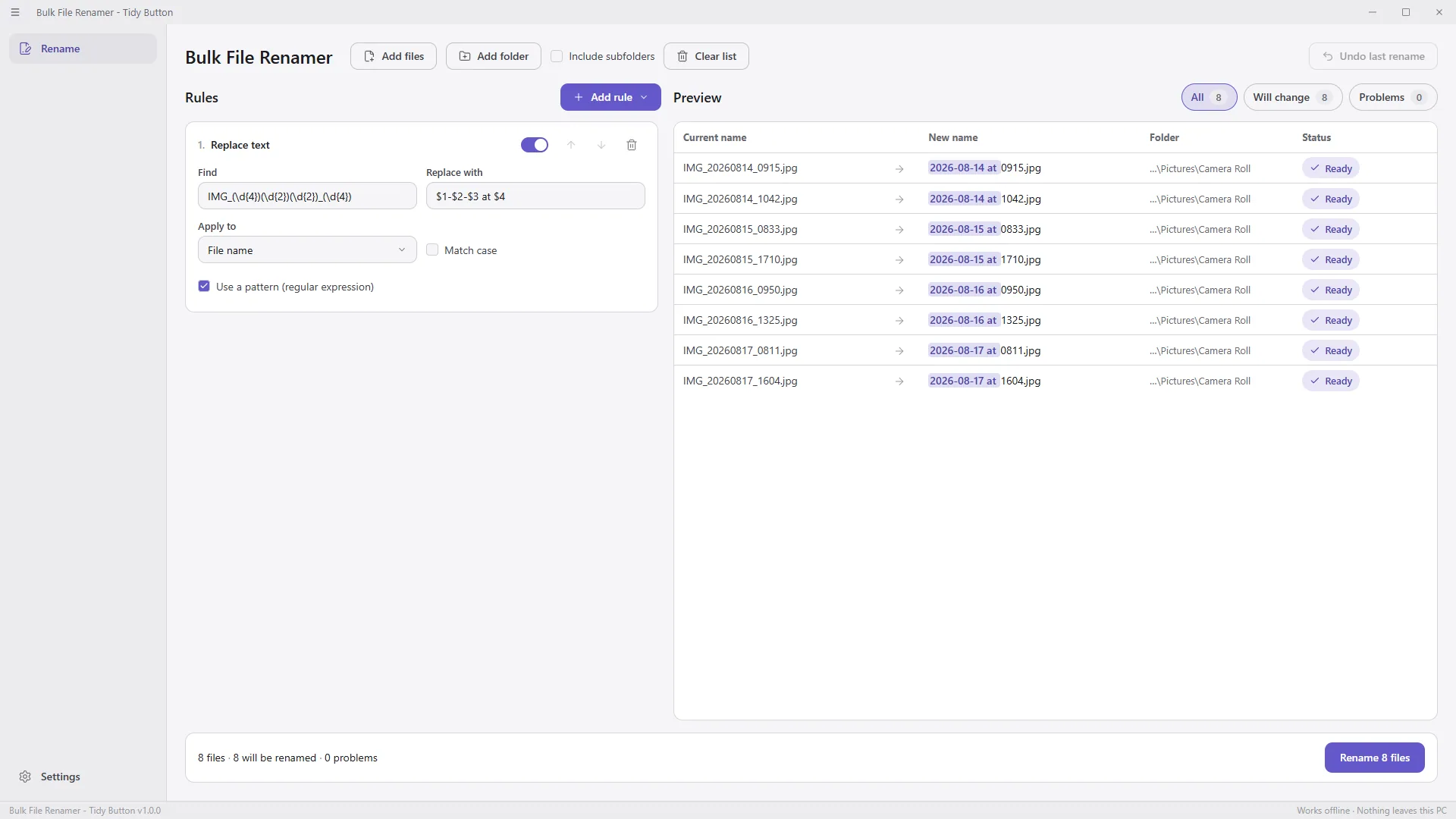
Use a pattern to reshape names
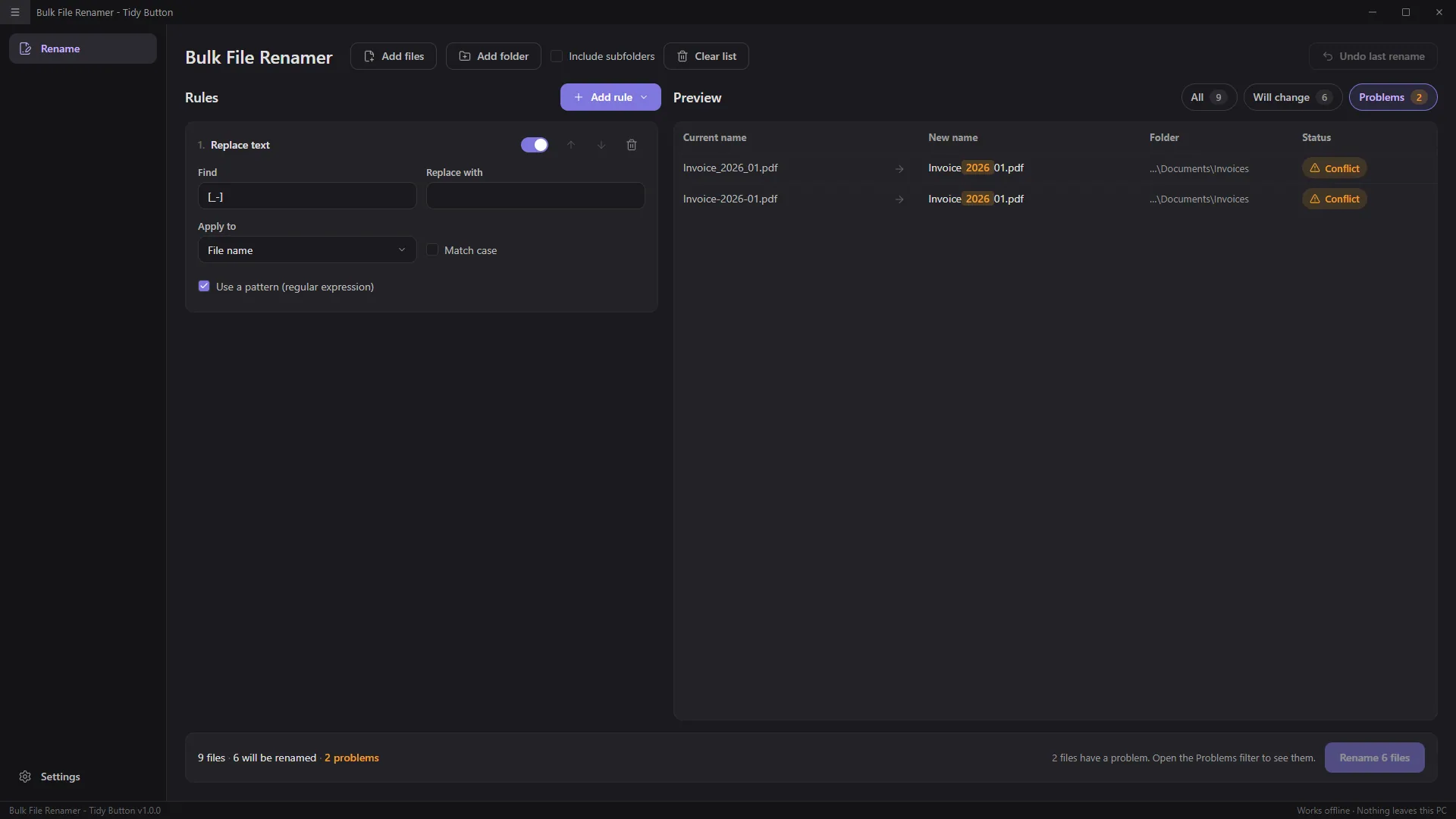
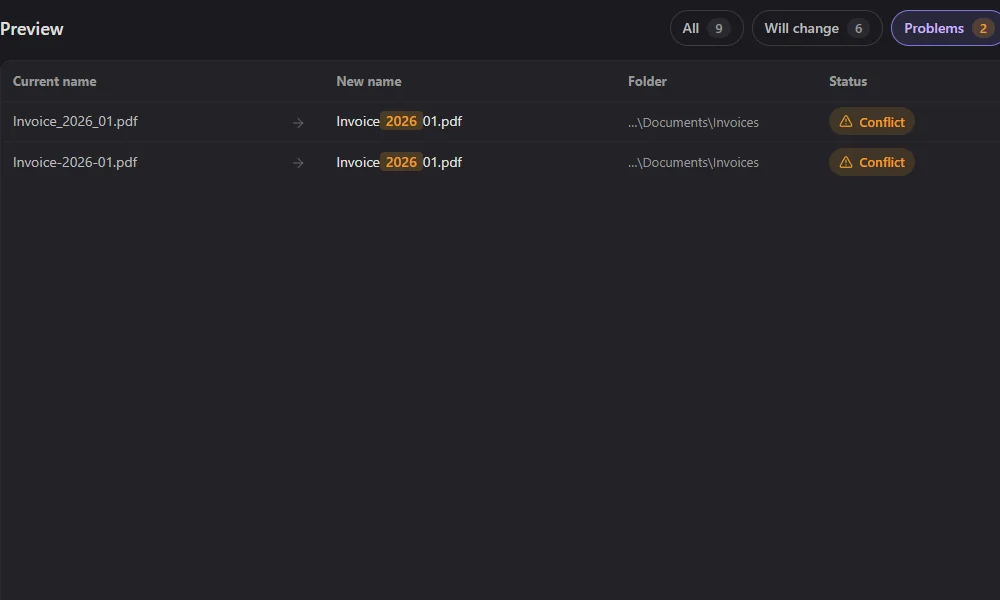
Conflicts
Conflicts are flagged before you rename
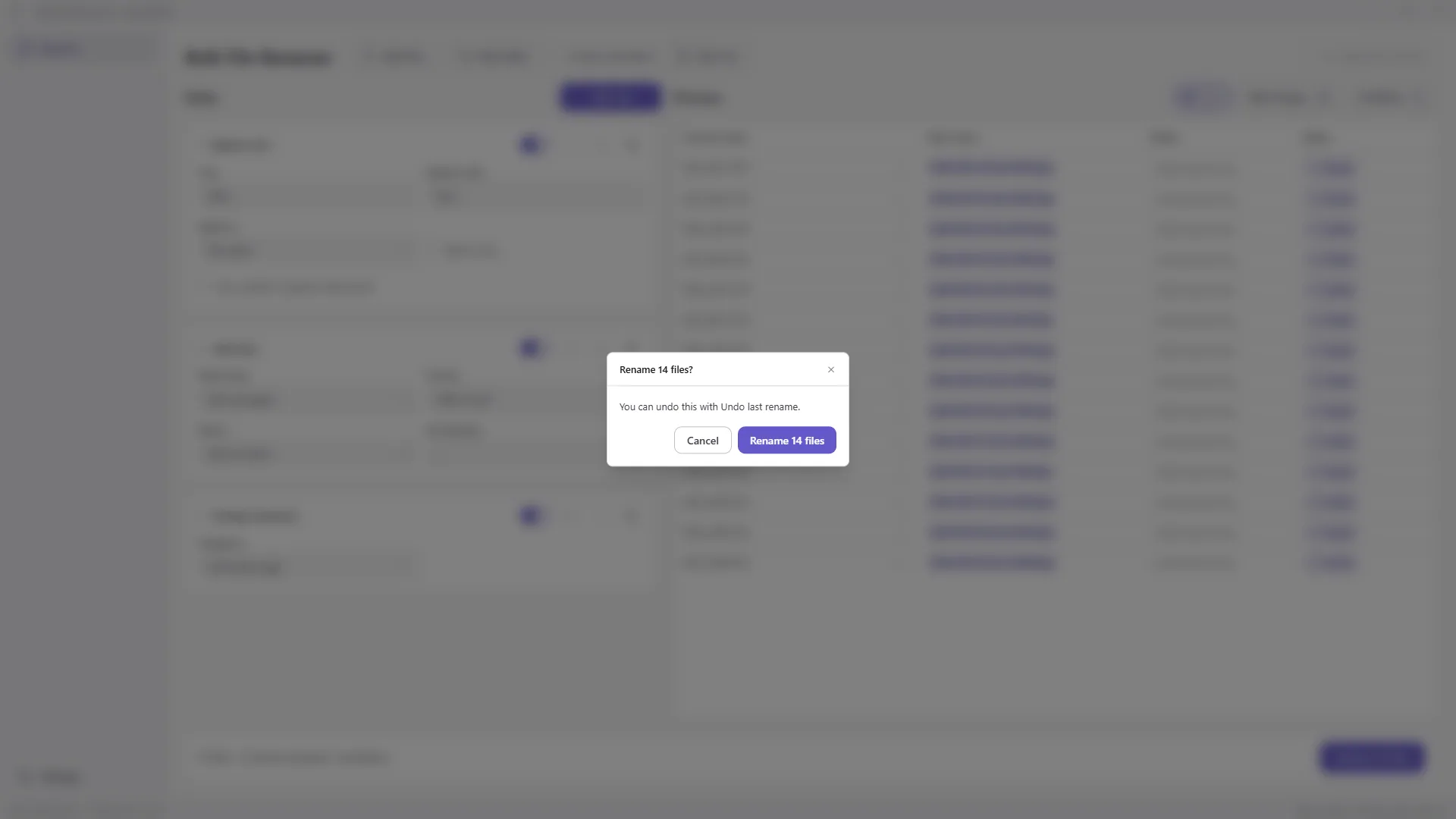
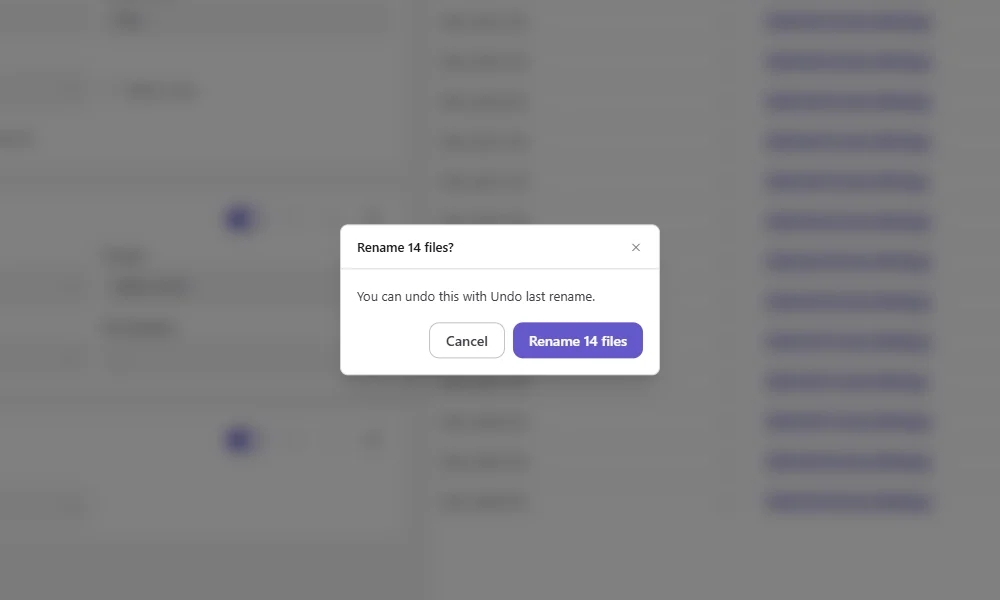
Confirm
Nothing changes until you confirm
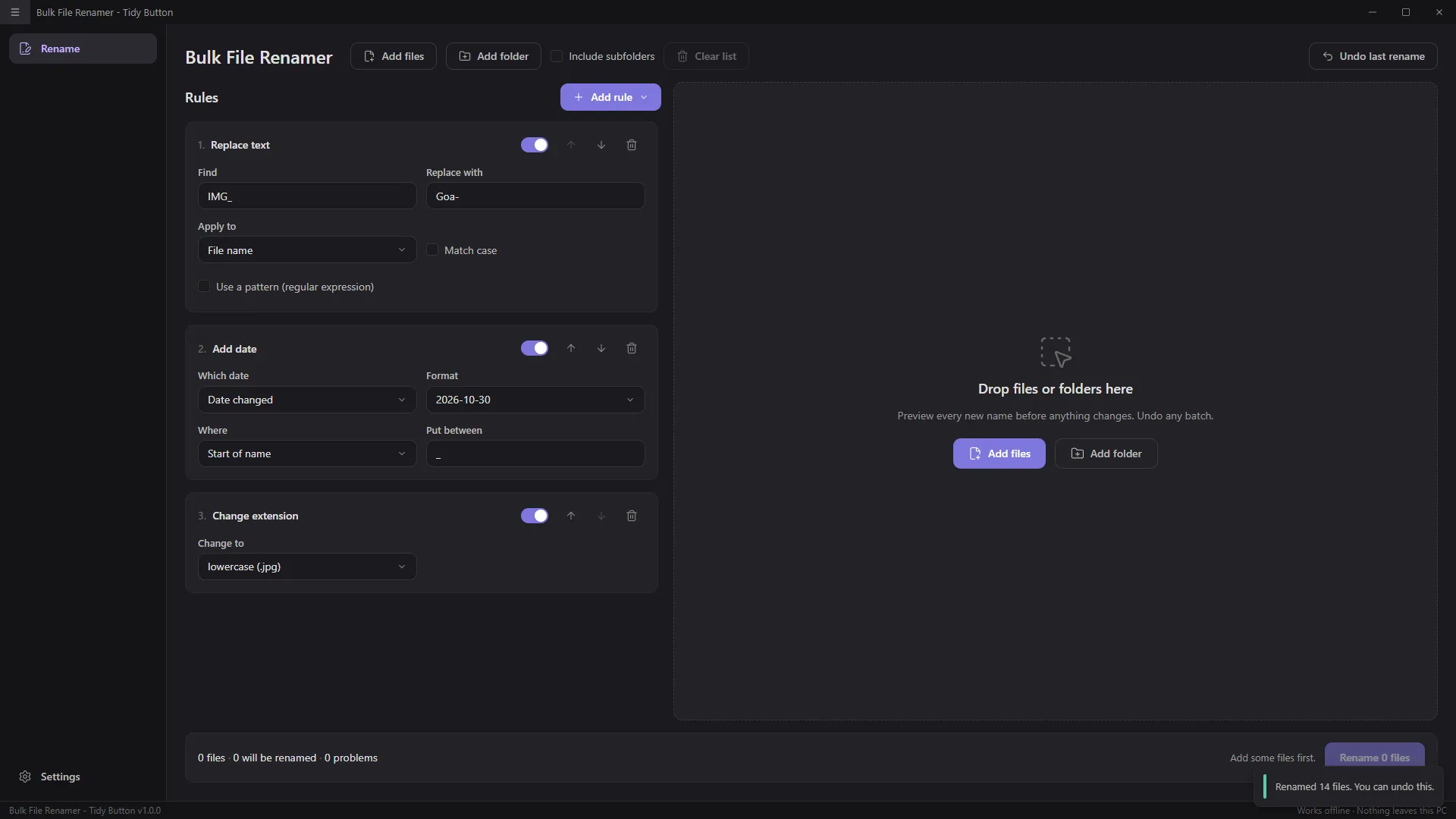
Undo
Renamed. Undo brings the old names back
Free limit
The free version renames up to 50 files per run
Tidy up
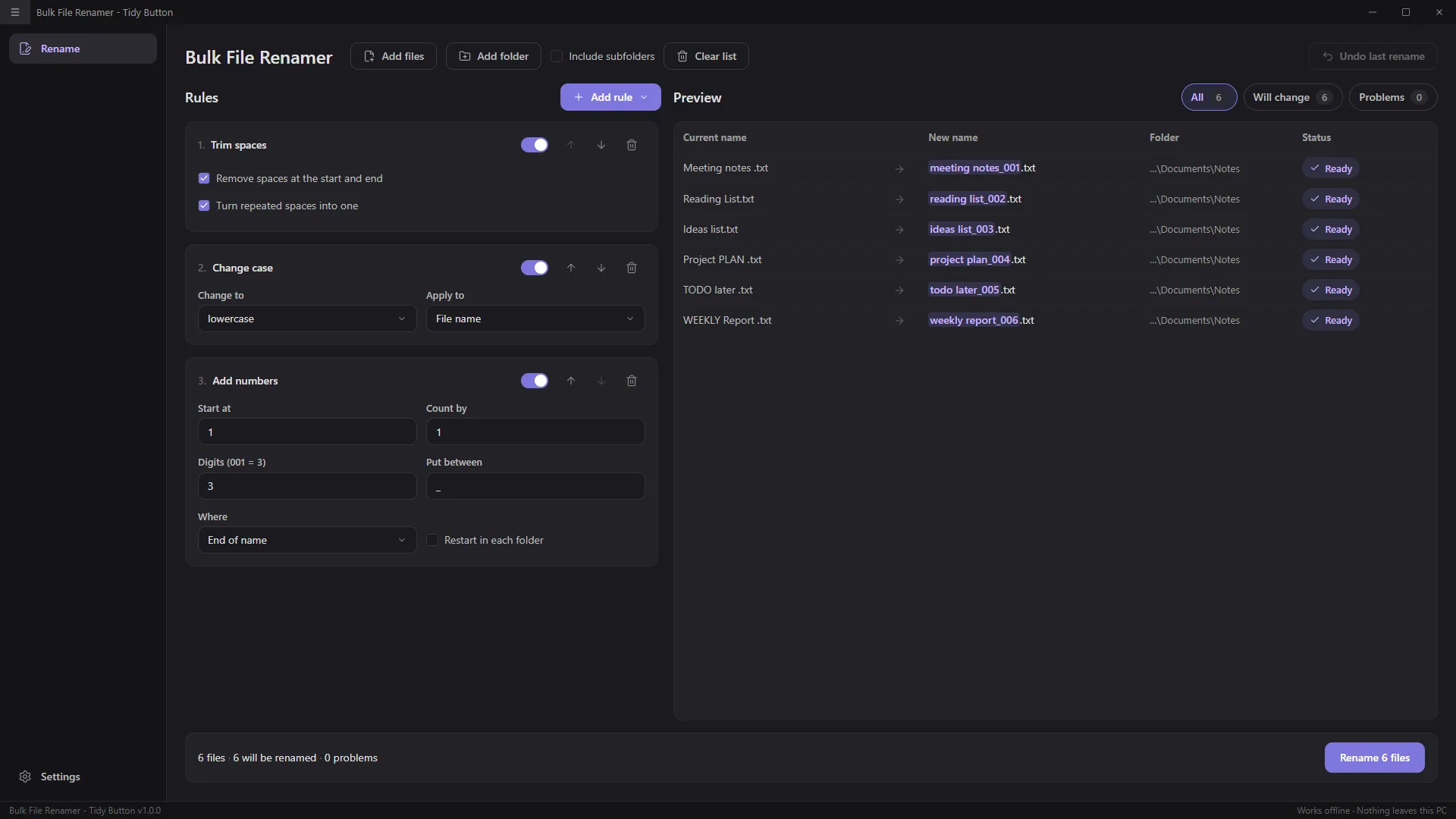
Tidy messy names in three rules
Screens show a demo folder, not a real PC. The app has light and dark themes.
How it works
Three steps. No manual.
01
Add files or a folder
Press Add files or Add folder, or drop them onto the window. Tick Include subfolders to go deeper.
02
Build your rules
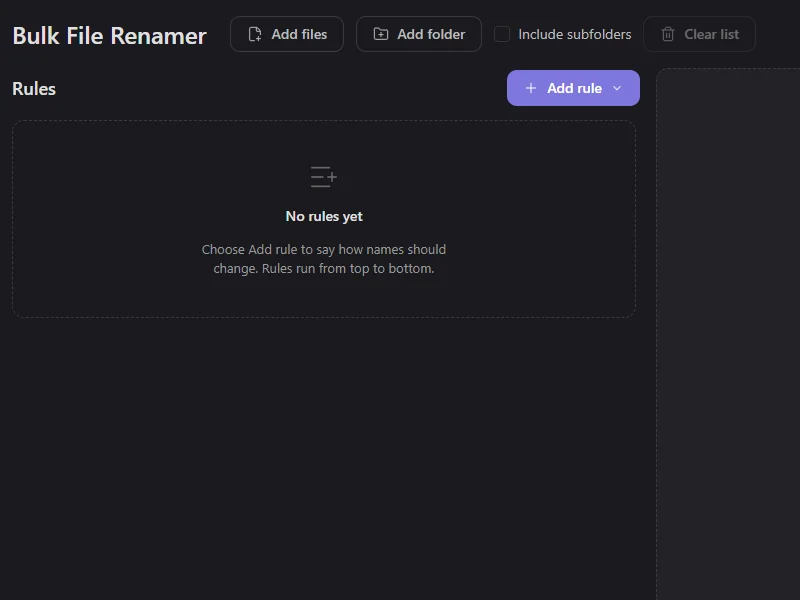
Choose Add rule and pick a type. Rules run from top to bottom and the preview updates as you type.
03
Check, rename, undo if needed
Read the new names and statuses, press Rename and confirm. Changed your mind? Undo last rename restores the old names.
What it does
What it does.
Add files or a whole folder, build your rules and watch the preview update as you type. When it looks right, press Rename. Eight rules cover the usual jobs: replace text, change case, insert text, remove characters, trim spaces, add numbers, add a date and change the extension.
Live preview
Every row shows the current name, the new name and a status, and updates as you change a rule.
Eight stackable rules
Replace, case, insert, remove, trim, numbers, date and extension. They run from top to bottom.
Pattern matching
Tick one box to use a pattern (regular expression) in a replace rule for advanced matches.
Problems caught early
Ready, Conflict or Invalid on every row, so duplicate names and names Windows does not allow never reach the disk.
Confirm, then undo
A dialog asks before anything changes. Undo last rename puts the old names back.
Crash-safe journal
Each batch is written to a journal first, so an interrupted rename can be recovered.
Add files your way
Add files, add a folder with or without its subfolders, or drop them onto the window.
The small print, in plain English
Safe by design.
Nothing changes until you confirm. Cancel and every file stays as it was.
If two files would get the same name, both are flagged and the rename waits until you fix it.
Nothing is renamed until you press Rename and confirm.
One click on Undo last rename restores the old names.
Conflicts and names Windows does not allow are flagged before you rename.
Never deletes files or changes what is inside them.
Works offline. No account. No ads. No tracking.
The eight rules
Stack them, mix them.
Add as many rules as you like. They run from top to bottom, and the preview updates as you type.
Choose Add rule to see all eight.
Replace text
Swap one piece of text for another
Match case if you want, apply it to the name, the extension or both, and tick the pattern box to use a regular expression.
Change case
lower, UPPER, Title or Sentence
Apply it to the file name, the extension or both.
Insert text
Add text where you want it
At the start, at the end or after a character position you choose.
Remove characters
Cut text out of the name
Remove the first or last few characters, a range, or specific characters.
Trim spaces
Remove extra spaces
Strip spaces at the start and end, and turn repeated spaces into one.
Add numbers
Number the files 001, 002, 003
Choose where to start, how much to count by, how many digits and where the number goes. Optionally restart in each folder.
Add date
Put the file date in the name
Use the date created or changed, in one of three formats, at the start or end of the name.
Change extension
Change .JPG to .jpg or another type
Make it lowercase, UPPERCASE, or set a different type.
Each rule can be switched off, moved up or down, or deleted without losing the others.
Good for
Handy when names are a mess.
Photo folders with camera names
Downloads and scans with messy names
Project files that need a tidy pattern
Numbering a set of files in order
Changing .JPG to .jpg across a folder
Questions
Plain answers.
Does it rename anything on its own?
No. Nothing changes until you press Rename and confirm in the dialog. It never deletes files or changes what is inside them.
Can I undo a rename?
Yes. Undo last rename restores the old names from the last batch.
What do Ready, Conflict and Invalid mean?
Ready means the new name is fine. Conflict means two files would end up with the same name in the same folder, or the new name already exists. Invalid means Windows does not allow the name, for example it is empty, too long or uses a character such as a question mark. Rows with a problem hold the rename back until you fix them.
What if the app or my PC stops in the middle of a rename?
Each batch is written to a journal on your PC before the first file is touched, so an interrupted rename can be recovered the next time the app starts.
Does it need an account or an internet connection?
Neither. There is no account, no ads and no tracking, and renaming needs no network connection. The app works offline.
Does it read what is inside my files?
No. It reads file names, dates, sizes and locations so it can show you the new names. It does not open the contents of your files.
Is there a limit on how many files I can rename?
The free version renames up to 50 files in one run, taking the first 50 files that change. A Pro add-on is planned for people who rename big folders often.
Can I include the files inside subfolders?
Yes. Tick Include subfolders before you add a folder.