Remove GPS location from a photo before you post it
A photo from your phone can quietly record where you took it. Share it as a file and that position can travel with it. Before you send a picture to a stranger, a buyer or a public page, it is worth checking what is hidden inside and taking out the parts you do not want to share.
What a photo can give away
Along with the picture, a photo file can hold hidden details called metadata. These can include the GPS latitude and longitude, the camera and lens, the date and time, the software used and sometimes an author name.
Some websites remove this when you upload, but you cannot count on that. Cleaning the file yourself before you share it is the safe habit.
The built-in way for one photo
File Explorer can remove details from a single file. The wording can differ slightly between Windows 11 versions, but the route is the same.
Work on a copy if you want to keep the original details, because this edits the file.
- Right-click the photo and choose Properties.
- Open the Details tab.
- Click Remove Properties and Personal Information at the bottom.
- Choose to remove the properties from this file, or make a copy with all possible properties removed.
- Tick the details you want gone, such as the GPS entries, and press OK.
Tip. On your phone, you can also switch off location for the camera so new photos never record a position.
See what is hidden before you clean
For a folder of photos, one at a time is slow. Tidy Button's Metadata Remover lists your photos with a badge on each row: Location, Camera, Date, Software, Author or None. You can see at a glance which ones give something away.
Click a photo and the Photo details tab writes everything out in groups, including the GPS latitude and longitude as text. There is no map, and no internet connection is used.

Badges show which photos carry location, camera or date details.
Clean many photos at once
Cleaned copies are saved in a new folder, so your originals stay untouched. By default the folder is named cleaned and sits next to your photos.
- Open Metadata Remover and press Add folder, then choose your photos.
- Tick Include subfolders first if the photos are inside other folders.
- On the Clean settings tab, leave Remove everything selected.
- Under Where to save, leave Save cleaned copies selected.
- Press the Clean button at the bottom right.
- In the Done window, press Open folder to see the cleaned copies.
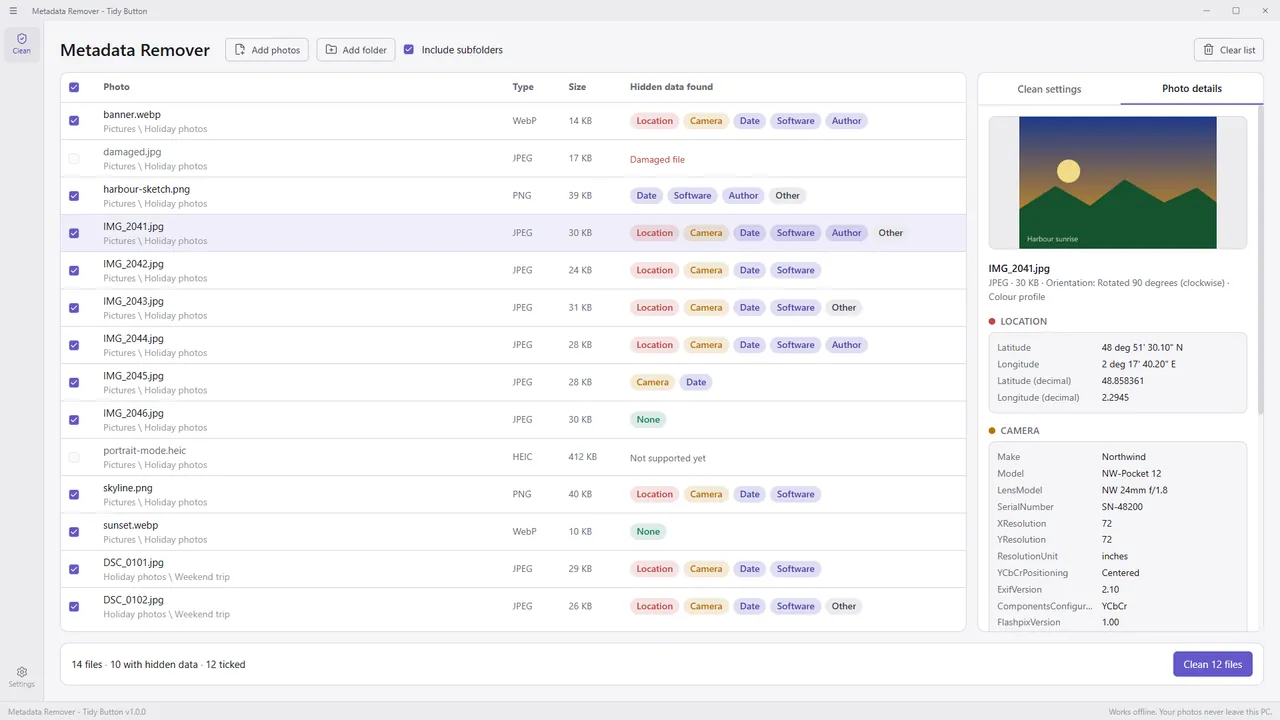
Photo details shows the GPS position written out as text.
Remove only the location
You do not have to remove everything. Choose Choose what to remove, tick the box for location and untick the box for dates and times. Leave Keep orientation and Keep colour profile ticked so photos stay upright and keep their colours.
The picture itself is not re-encoded, so the pixels and the quality stay exactly the same. Each result is checked before it is saved, and a file that fails the check is left alone.
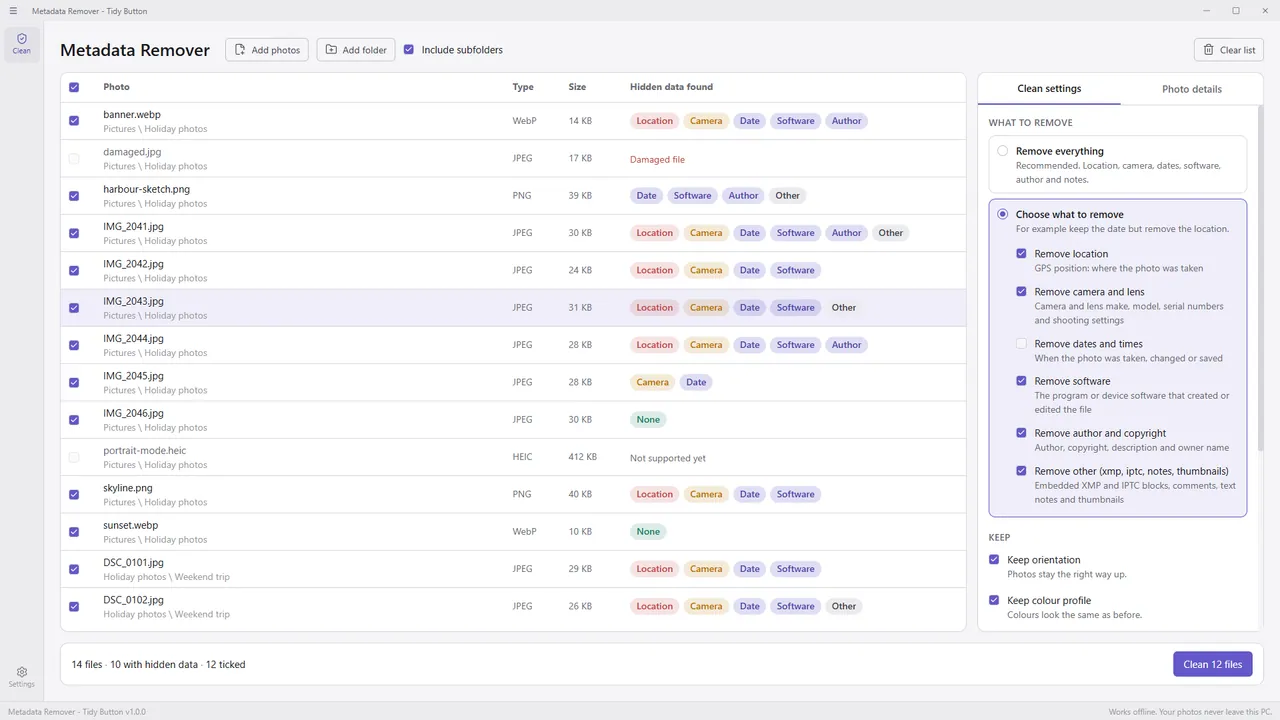
Pick the kinds of data to remove and keep the rest.
What the free version limits
The free version cleans up to 20 files in one run, taking the first 20 you have ticked. Run it again for the rest. A Pro add-on is planned for people who clean a lot of files.
The app works with JPEG, PNG and WebP. HEIC, TIFF and RAW files are listed as not supported yet and are never changed. If your photos are HEIC, Tidy Button's HEIC Converter can convert them and remove the location at the same time.
Questions
Does removing the location make the photo worse?
No. Metadata Remover rewrites only the hidden data and does not re-encode the picture, so the pixels and the quality stay the same.
Will it overwrite my original photos?
Not by default. It saves cleaned copies in a cleaned folder. Replacing the originals is a choice, it asks you to confirm, and each original goes to the Recycle Bin.
Can I keep the date and remove only the location?
Yes. Choose what to remove, tick location and leave dates and times unticked.
Does the app show where the photo was taken on a map?
No. It shows the latitude and longitude as text only, and it needs no internet connection.
Which photo types are supported?
JPEG, PNG and WebP. HEIC, TIFF and RAW files are listed but never changed.
Before you post a batch of photos, check what they reveal with Tidy Button's Metadata Remover. It is free on the Microsoft Store, works offline, needs no account and never uploads your photos.
More from Metadata Remover
Questions or something missing? Support is by email, and a person reads it.