How to open HEIC files on Windows 11 for free
You copied photos from a phone and Windows will not show them. The files end in .heic, the thumbnails are blank and some programs say the format is not supported. HEIC is a perfectly normal photo format, but not every program can read it.
Why a HEIC file will not open
HEIC is a compact photo format used by many phones. It keeps photos small, but many programs, websites and printers cannot open it. Windows needs help to read it, and the help is not always installed.
There are two ways around this. You can teach Windows to open HEIC, or you can turn the photos into JPG, a format that opens everywhere.
Option 1: add the image extension from the Microsoft Store
Windows can open HEIC photos in its own apps once an extension is installed. Open the Microsoft Store and search for HEIF Image Extensions. It is a free add-on. Install it, then try opening a photo again.
Some phone photos may also ask for a video extension, and that one may not be free on every PC. If the photo still will not open, or you are not sure which add-on you need, converting is simpler.
- Open the Microsoft Store.
- Search for HEIF Image Extensions and install it.
- Restart the app you are using, or sign out and back in.
- Double-click a HEIC photo to test it.
Tip. Even when Windows can show a HEIC photo, the person you send it to might not be able to. Check before you share.
Option 2: convert HEIC to JPG
Tidy Button's HEIC Converter turns HEIC photos into JPG, PNG or WebP. It reads HEIC itself, so it works with the internet turned off and nothing is uploaded. Drop a folder onto the window, or add photos one by one.
The list shows a small preview, the date taken, the size and any location for each photo.
- Open HEIC Converter and press Add folder, then choose the folder with your photos.
- Leave Include subfolders ticked if you also want photos inside other folders.
- On the Convert settings tab, choose JPG under Convert to.
- Make sure the photos you want have a tick next to them.
- Press the convert button at the bottom right.
- When the Done window appears, press Open folder to see the new files.
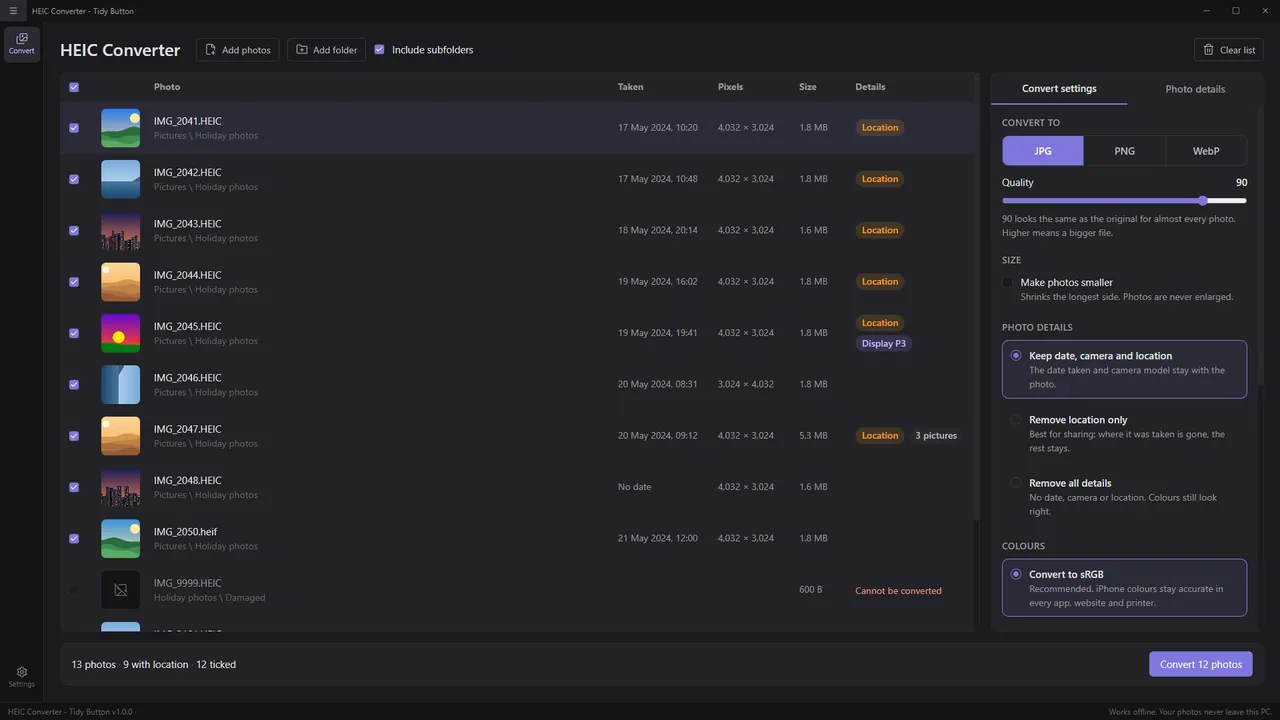
Drop a folder in and see each photo before you convert.
Look inside a photo first
Click any photo and open the Photo details tab. It writes out the date, the camera and the location as plain text, so you know what the file contains before you share it.
If you do not want the place to travel with the photo, choose Remove location only under Photo details on the Convert settings tab, or Remove all details for a completely clean file.
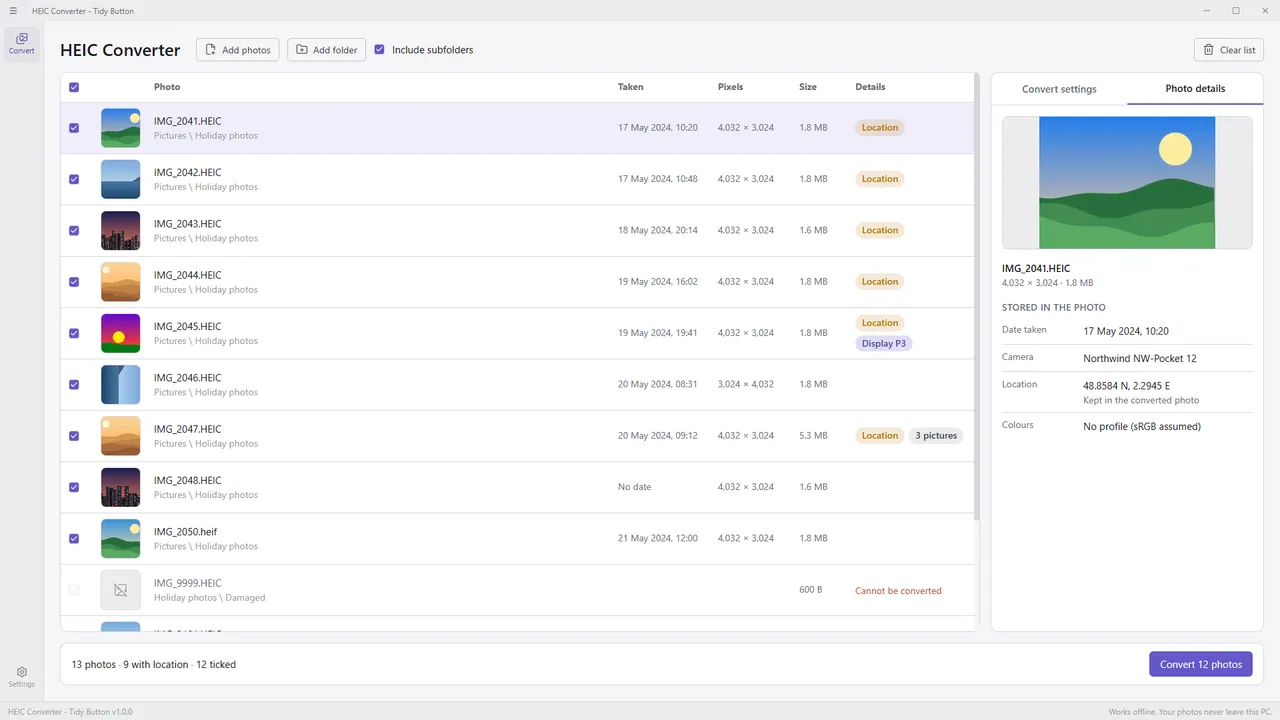
The Photo details tab shows what is stored in each photo.
Colours, size and file names
Many phone photos use the wide Display P3 colour range. By default they are converted to sRGB so they do not look dull in other programs. You can also keep Display P3 embedded. The date taken and the camera model stay with the photo by default, and photos that were turned sideways open the right way up.
You can make photos smaller by setting a longest side in pixels. Photos are never enlarged. You can also name new files by the date taken, and tick Set the file date to the date taken so File Explorer sorts them by when you took them.
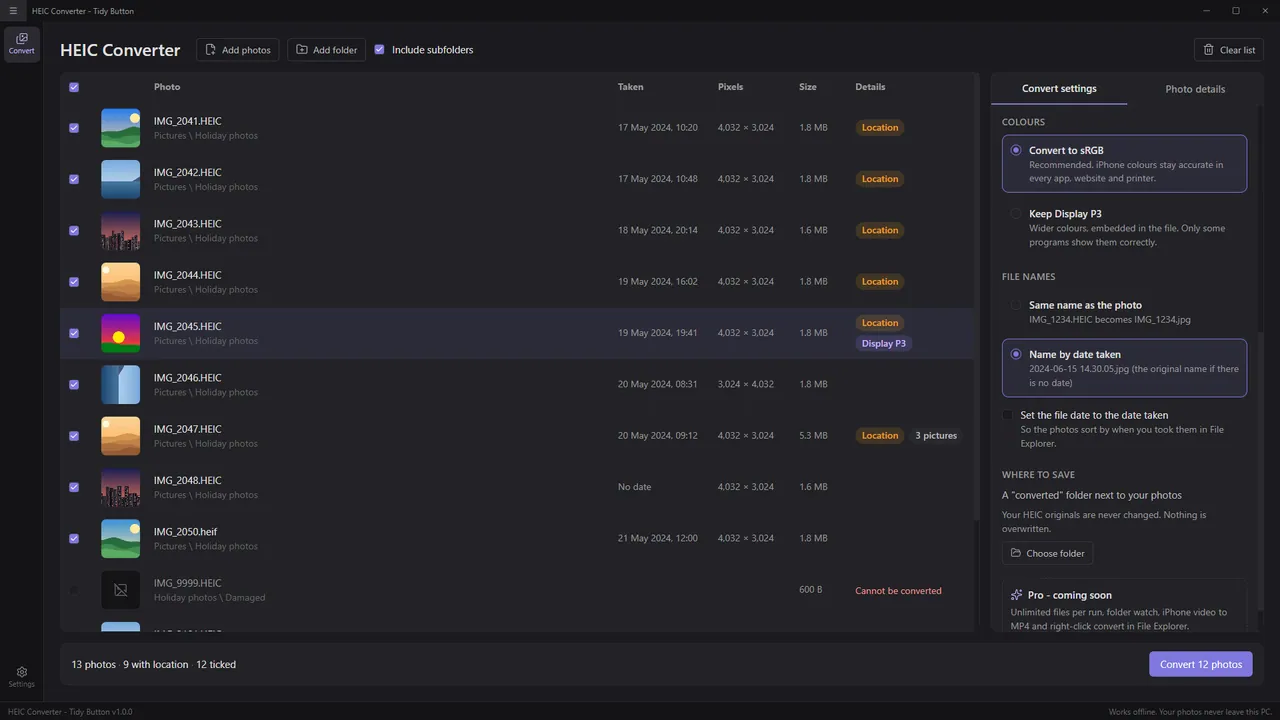
Choose the format, the size and how new files are named.
What the free version limits
The free version converts up to 25 photos in one run. Run it again for the rest. A Pro add-on is planned for unlimited files per run, a watched folder, phone video conversion and a right-click option in File Explorer.
Your HEIC originals are never changed, moved or deleted. New files go into a folder named converted next to your photos unless you choose another place, and nothing is overwritten. If a HEIC file holds several pictures, such as a burst, only the main picture is converted.
Questions
Is HEIC the same as JPG?
No. They are different formats. HEIC keeps photos small but is not supported everywhere, while JPG opens in almost every program, website and printer.
Will converting change my original photos?
Not with HEIC Converter. The originals are never changed or deleted, and new files are saved in a separate folder.
Do I need the internet to convert?
No. The app reads HEIC itself, nothing is uploaded and it works offline.
Will the date taken be kept?
By default, yes. The date taken and the camera model stay with the converted photo.
If you want HEIC photos that simply open everywhere, try Tidy Button's HEIC Converter. It is free on the Microsoft Store, works offline, needs no account and adds no watermark.
More from HEIC Converter
Questions or something missing? Support is by email, and a person reads it.