Pro keys go on sale when this app's Pro update reaches the Microsoft Store.
One key for this app. Free to use without it. See all pricing
Prefer the command line? winget install 9MTFJQT5ZJC4 --source msstore
Real app, with a folder of sample photos ready to convert.
Works offline
No account, no ads, no tracking
No watermark
Free
See it
Nine views. One folder, converted.
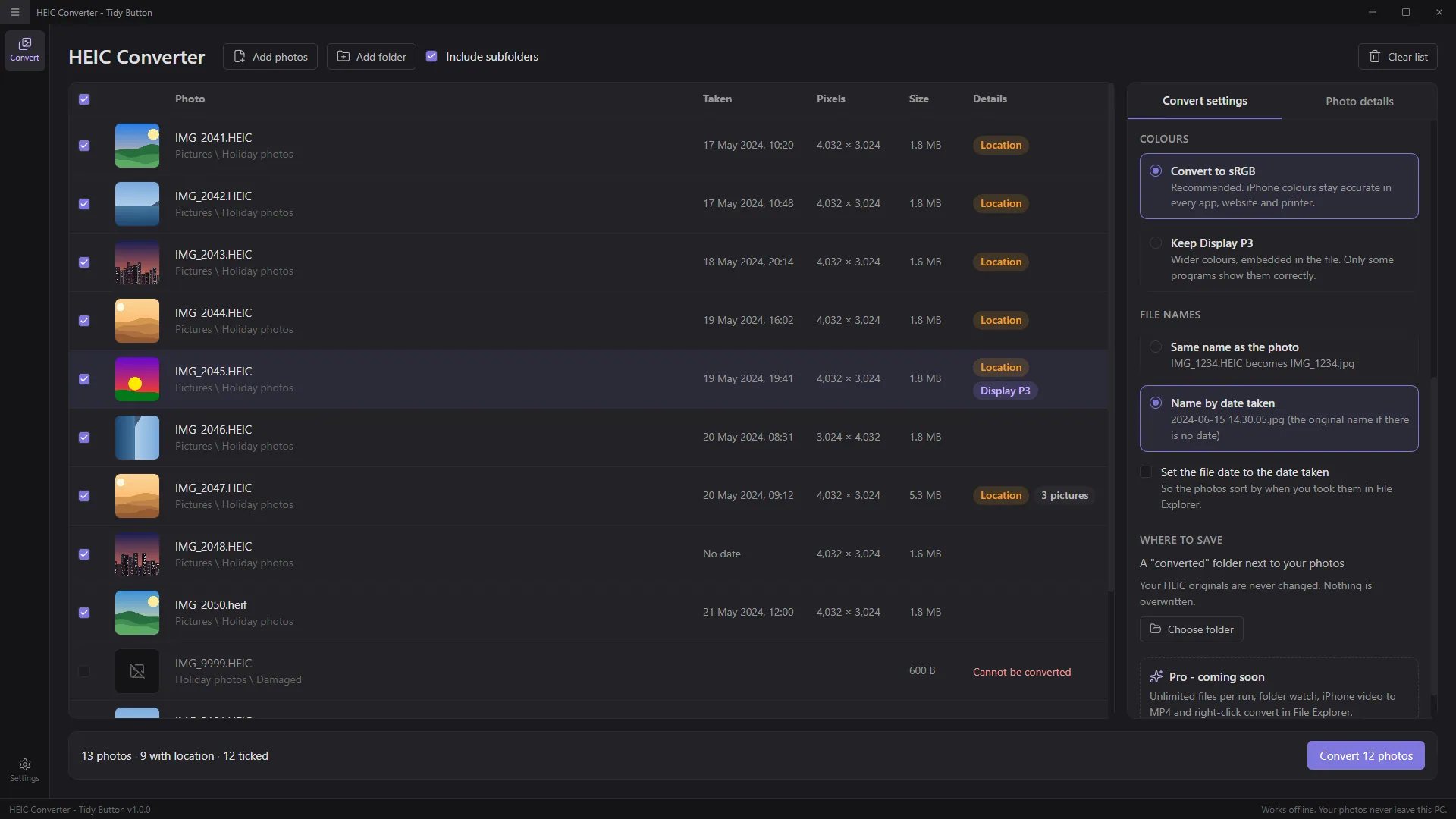
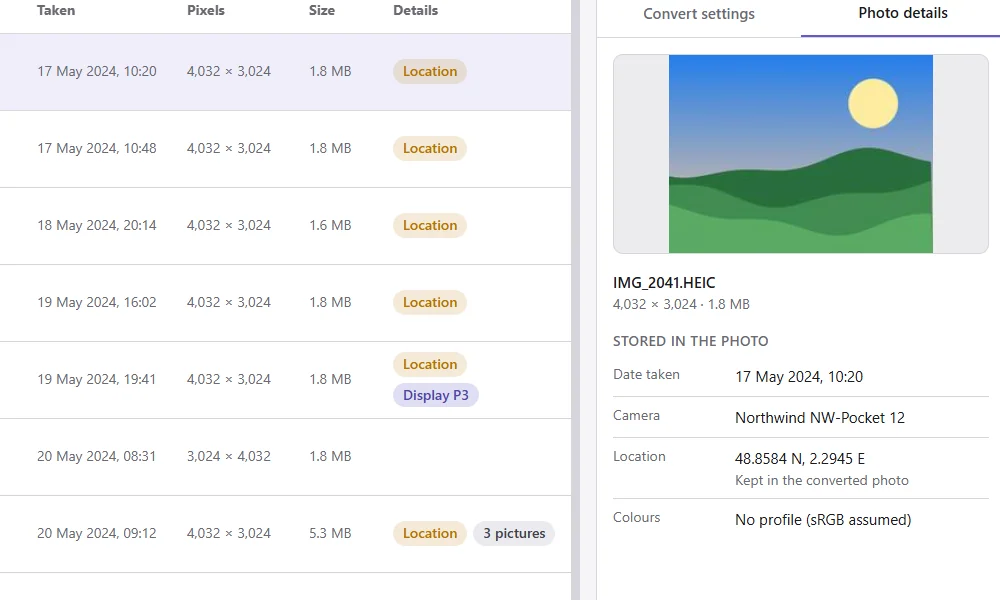
Photo list
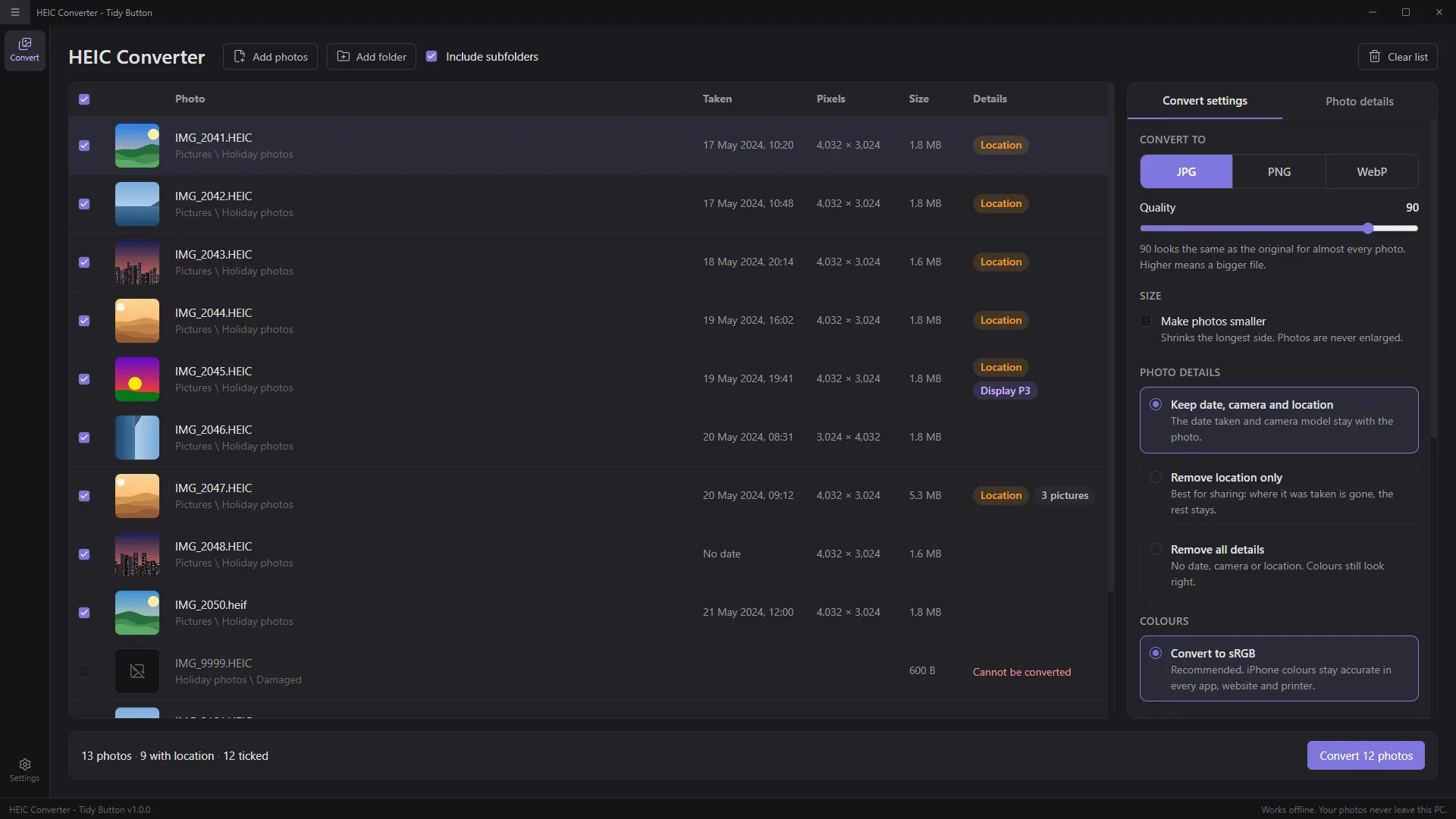
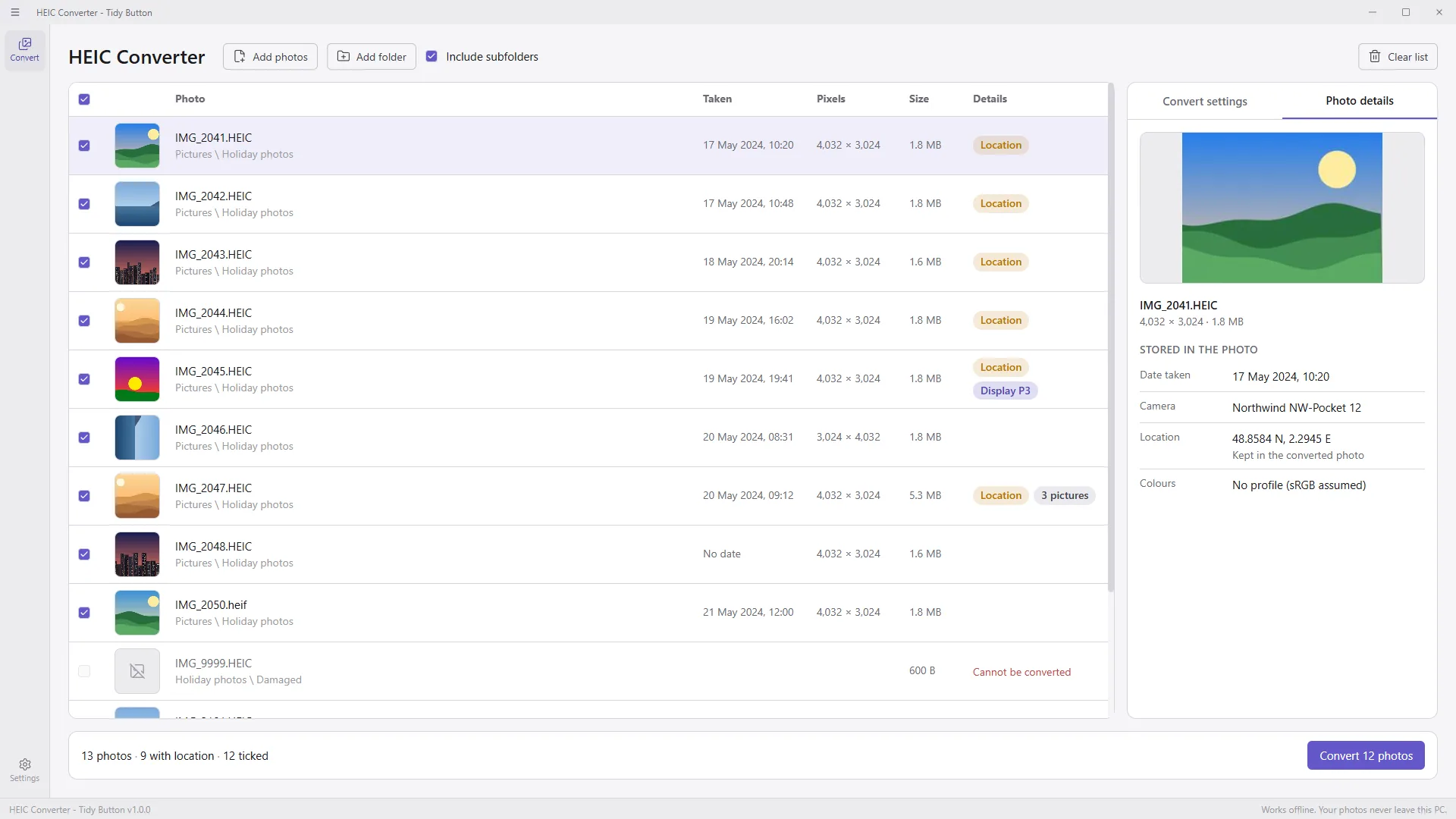
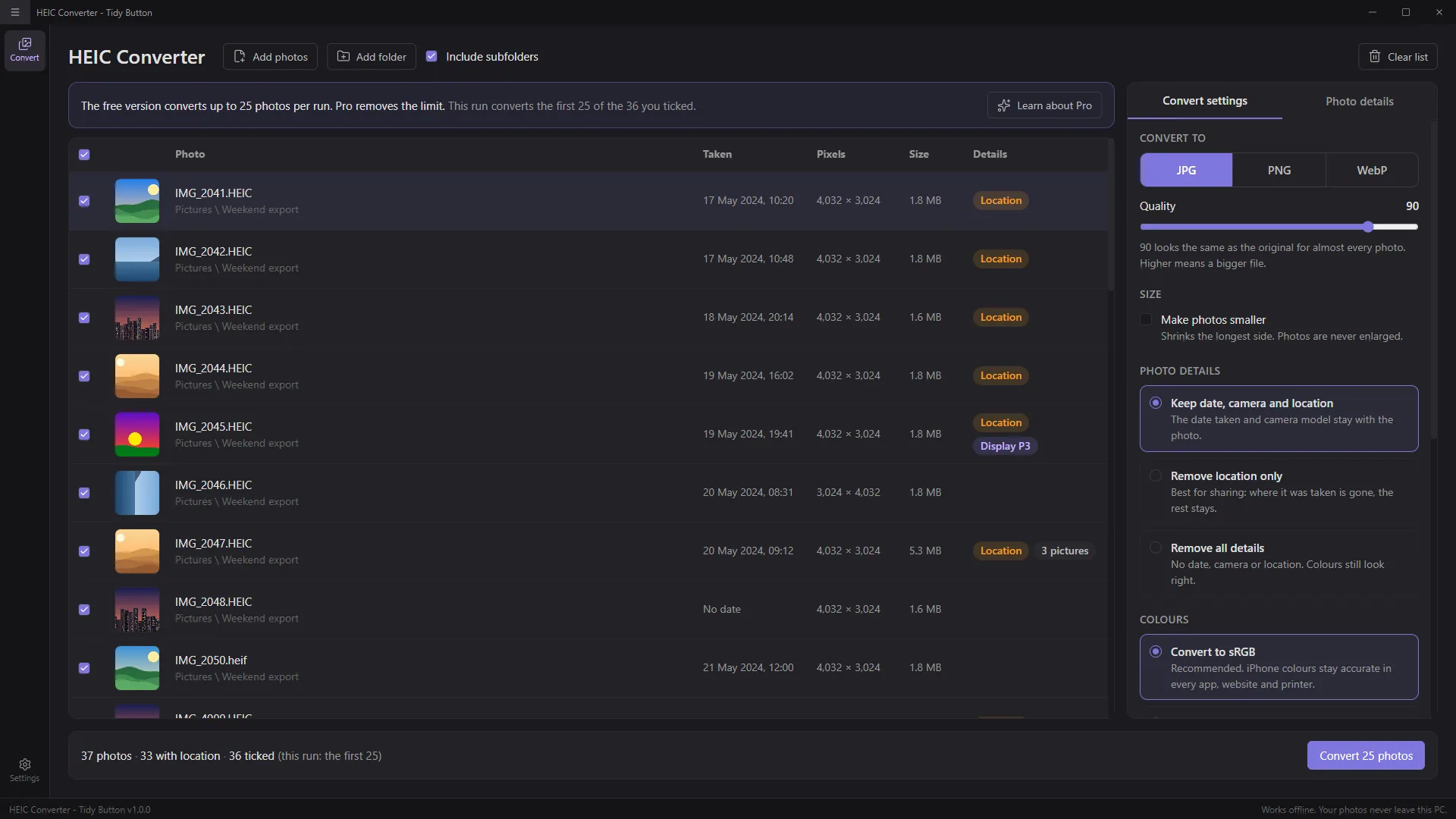
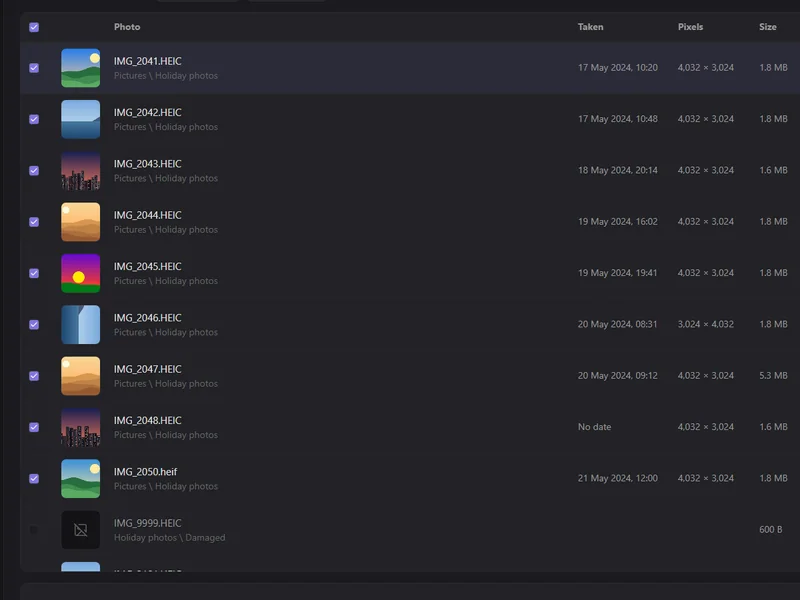
Drop a folder of iPhone photos and see a preview, the date taken, the size and any location for each one
Details
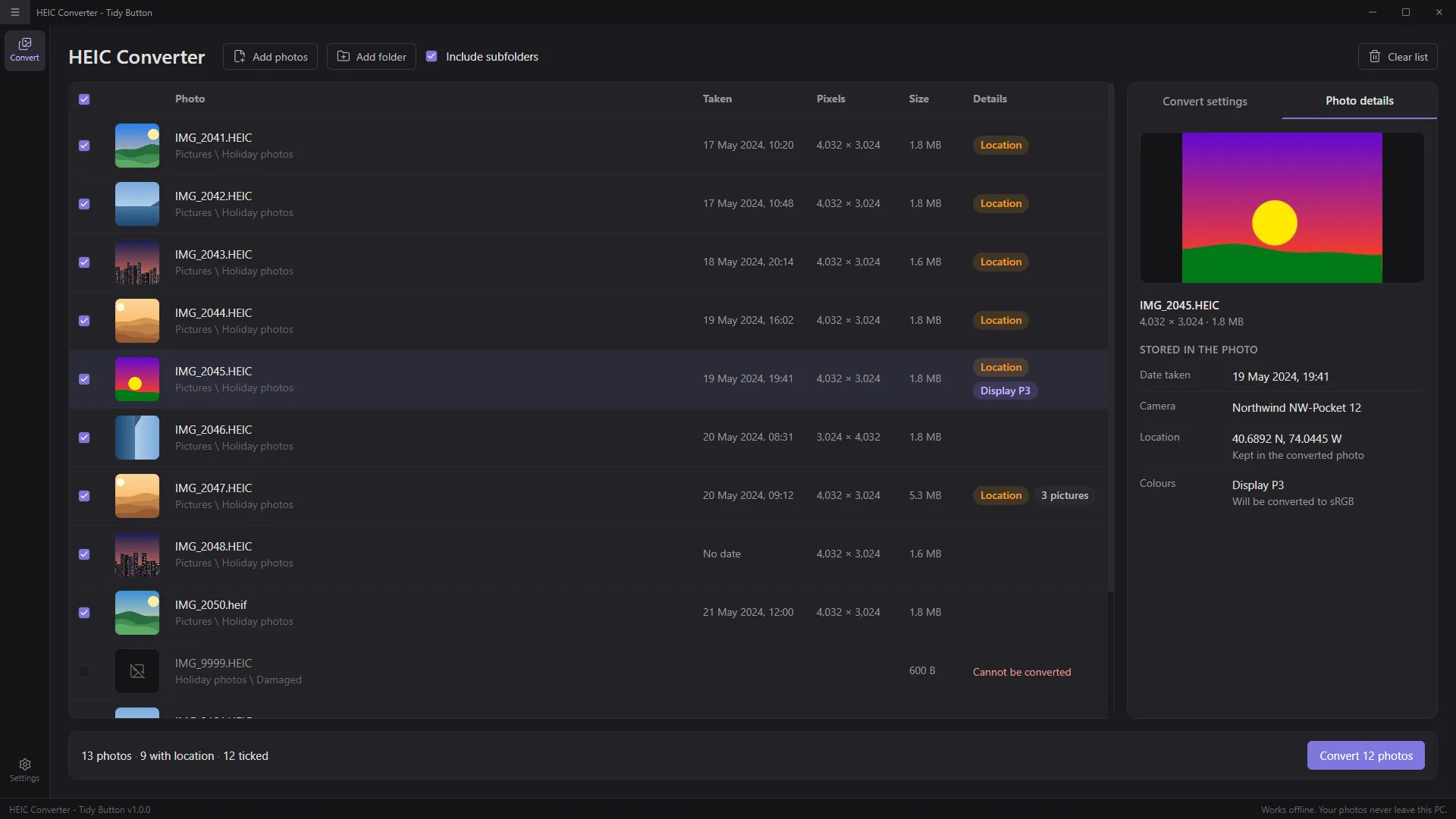
Click a photo to see its date, camera and location written out as plain text
Display P3
Wide Display P3 colours are converted to sRGB by default
Location
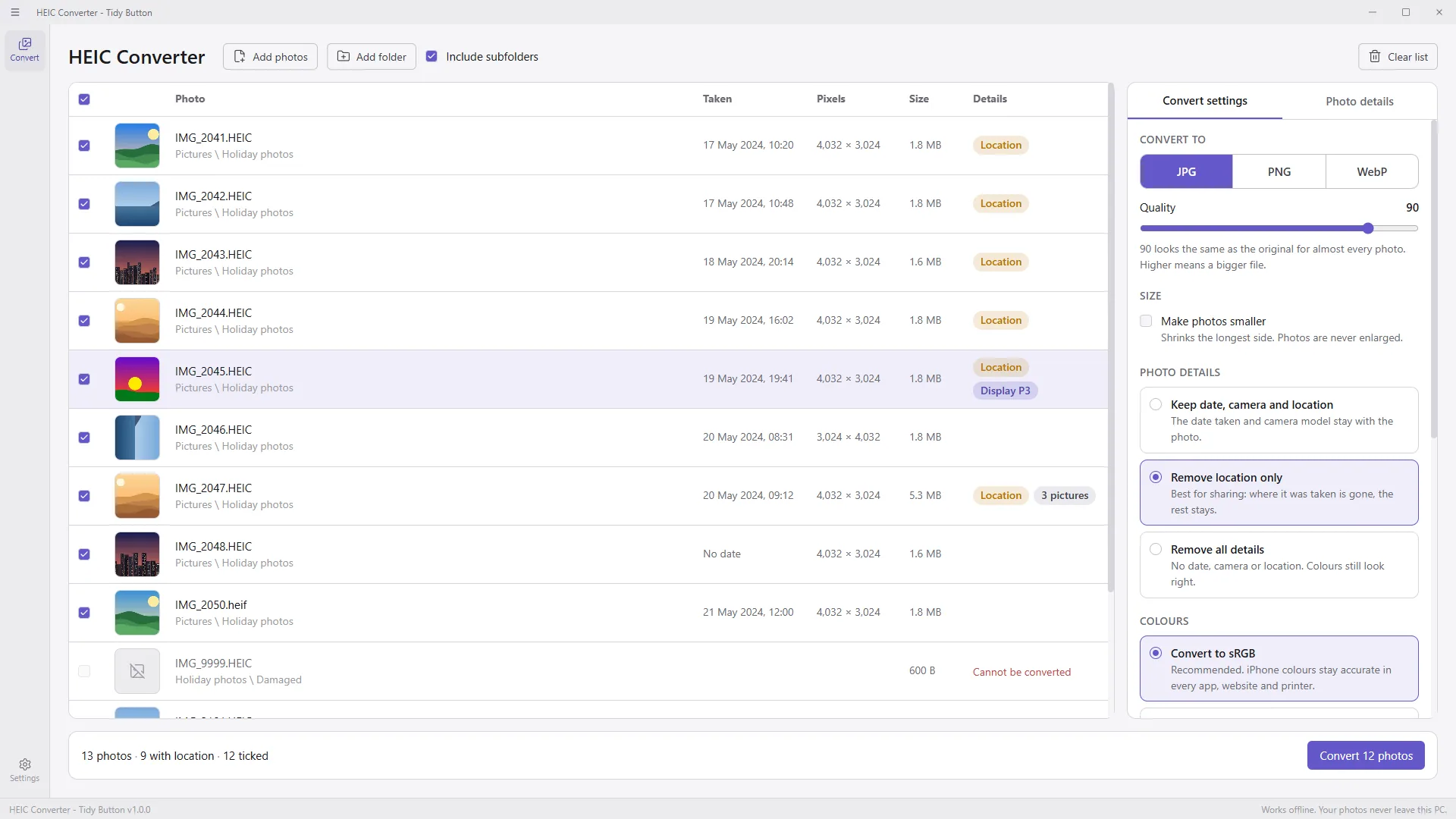
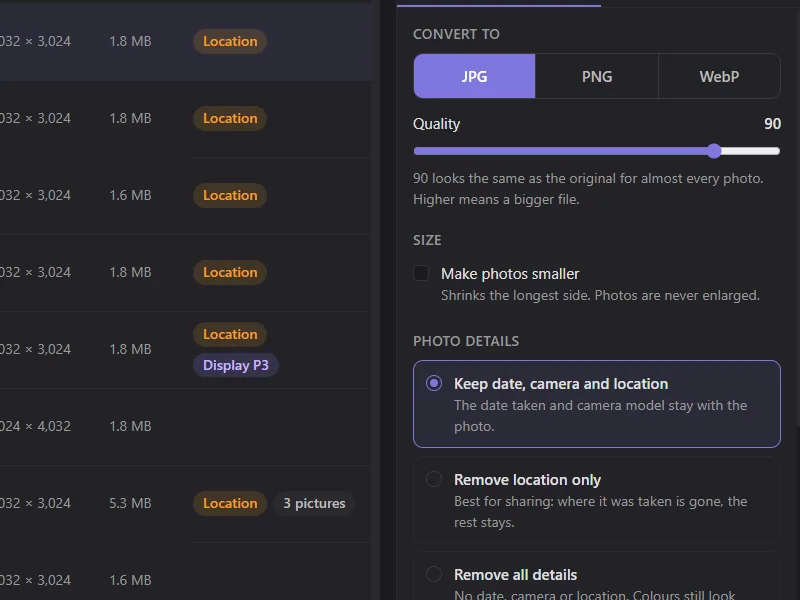
Remove the location only, keep everything else, or remove all details
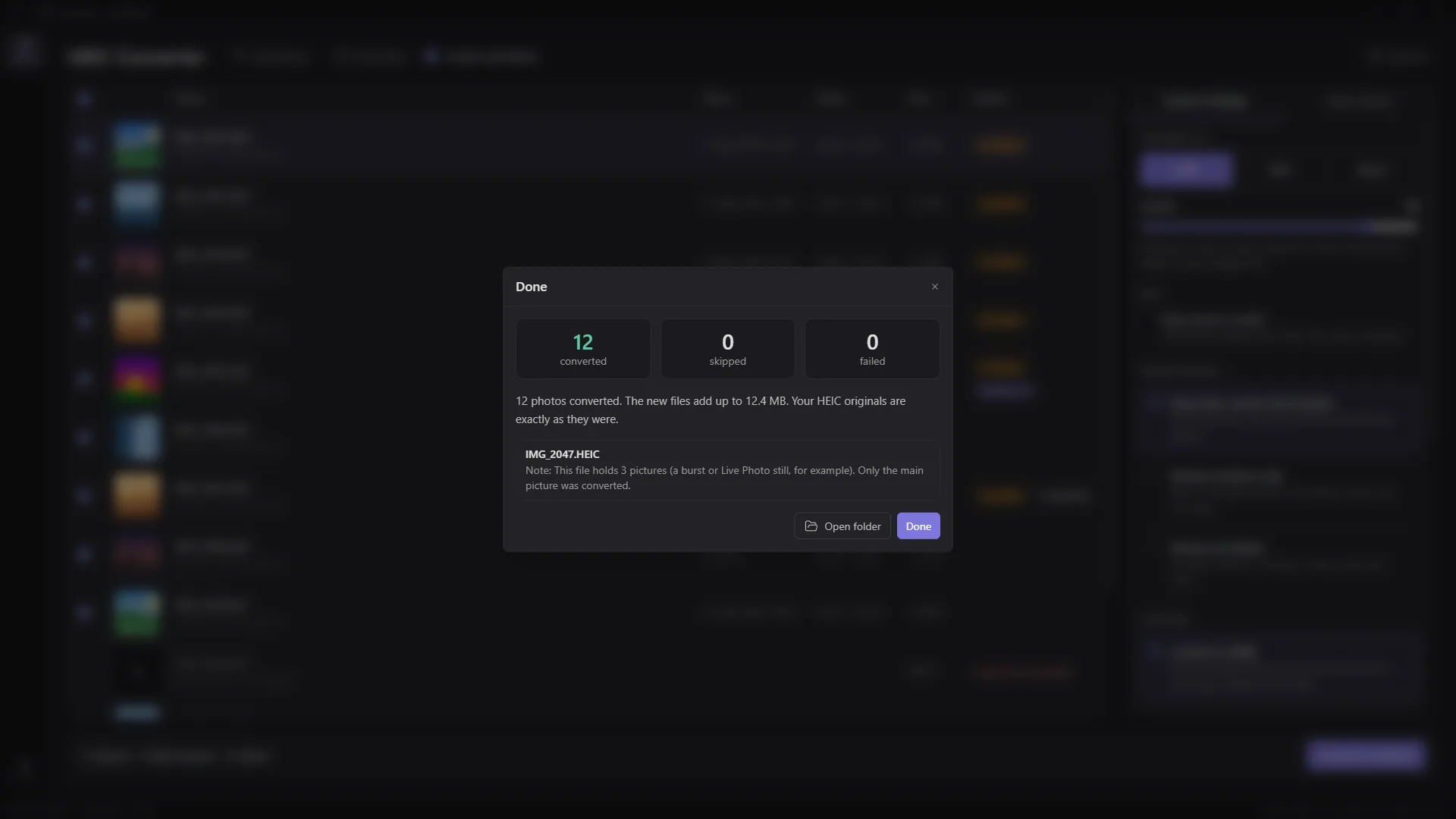
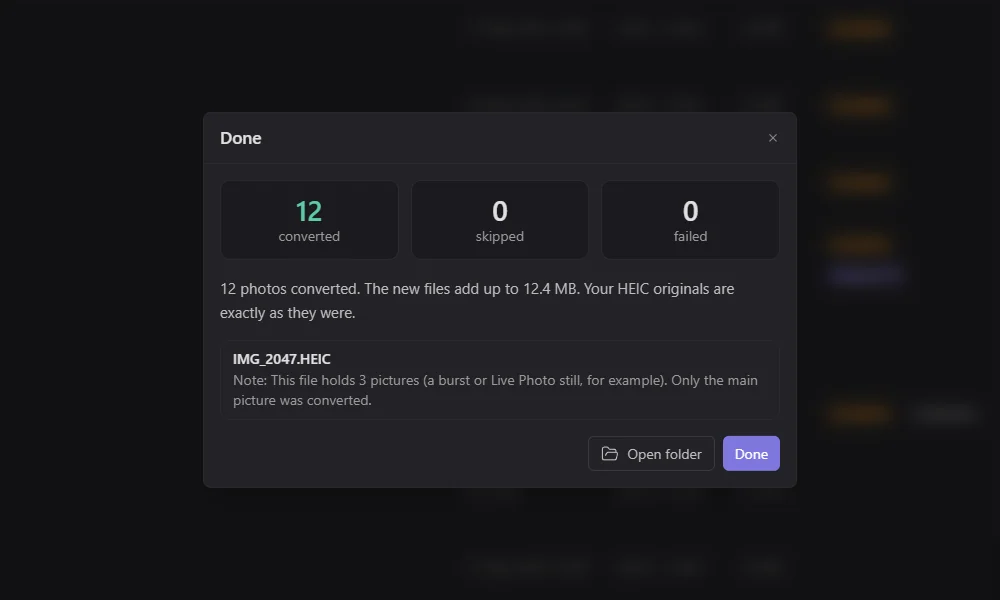
Done
A clear summary after each run: converted, skipped or failed
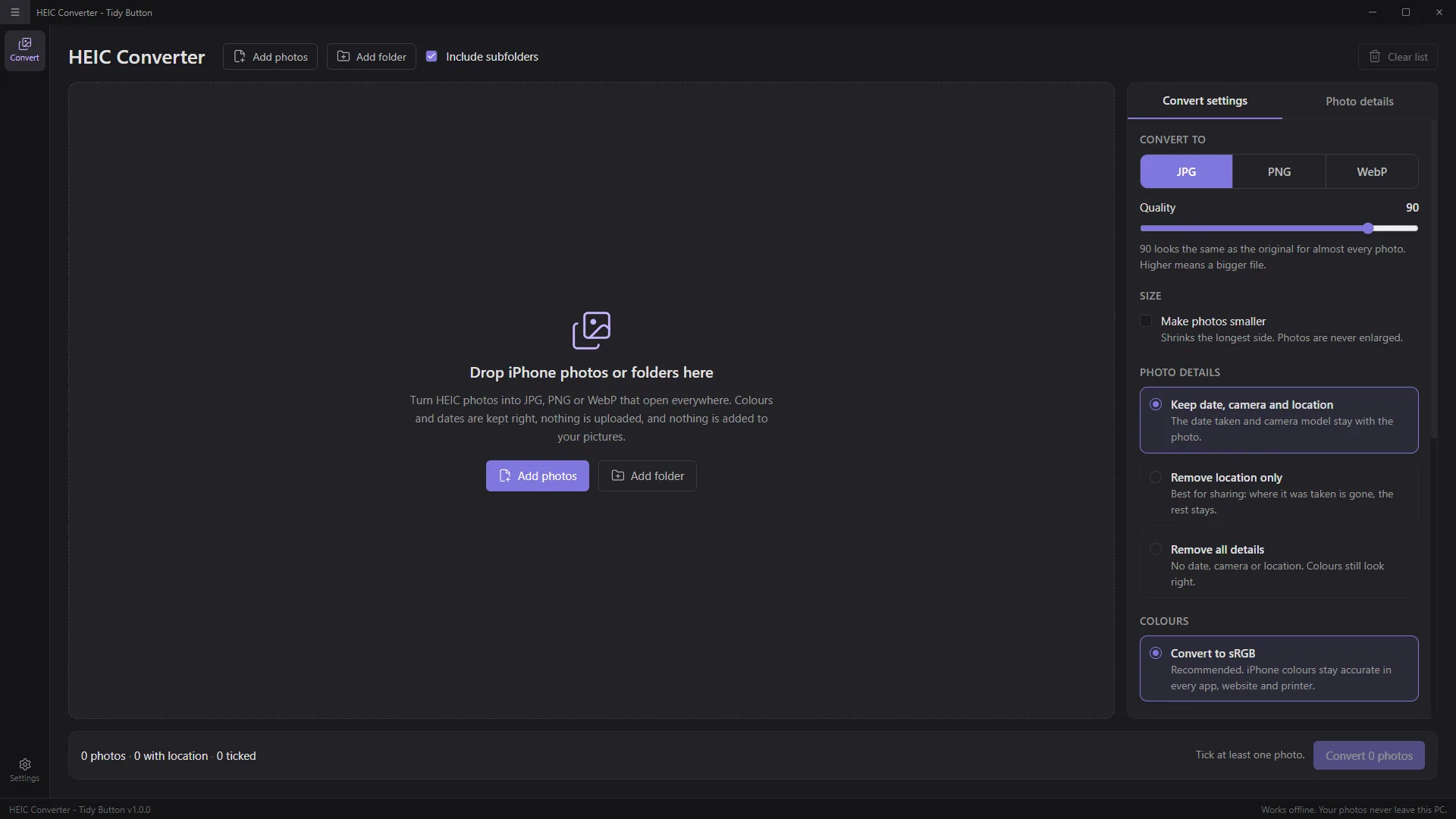
Start
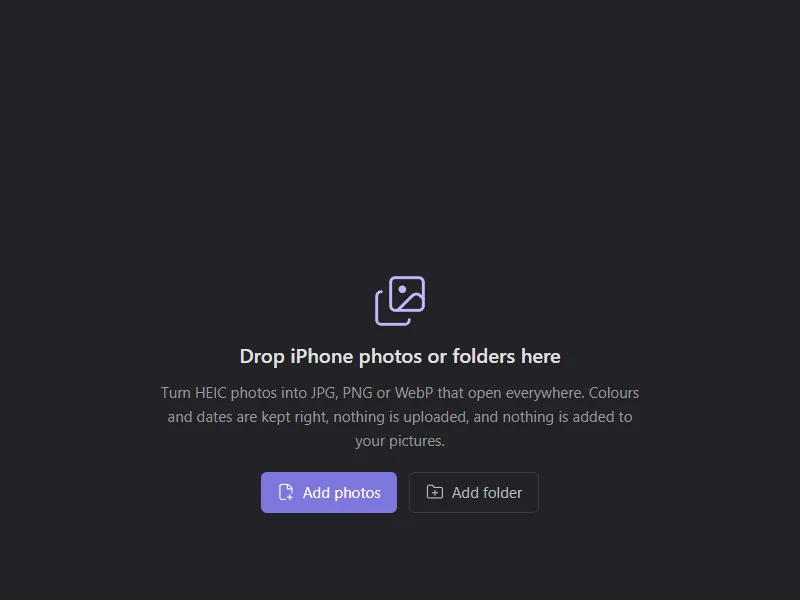
Start by dropping HEIC photos or folders on the window
Format and names
Choose the format, shrink photos to a longest side you set, and name new files by the date taken
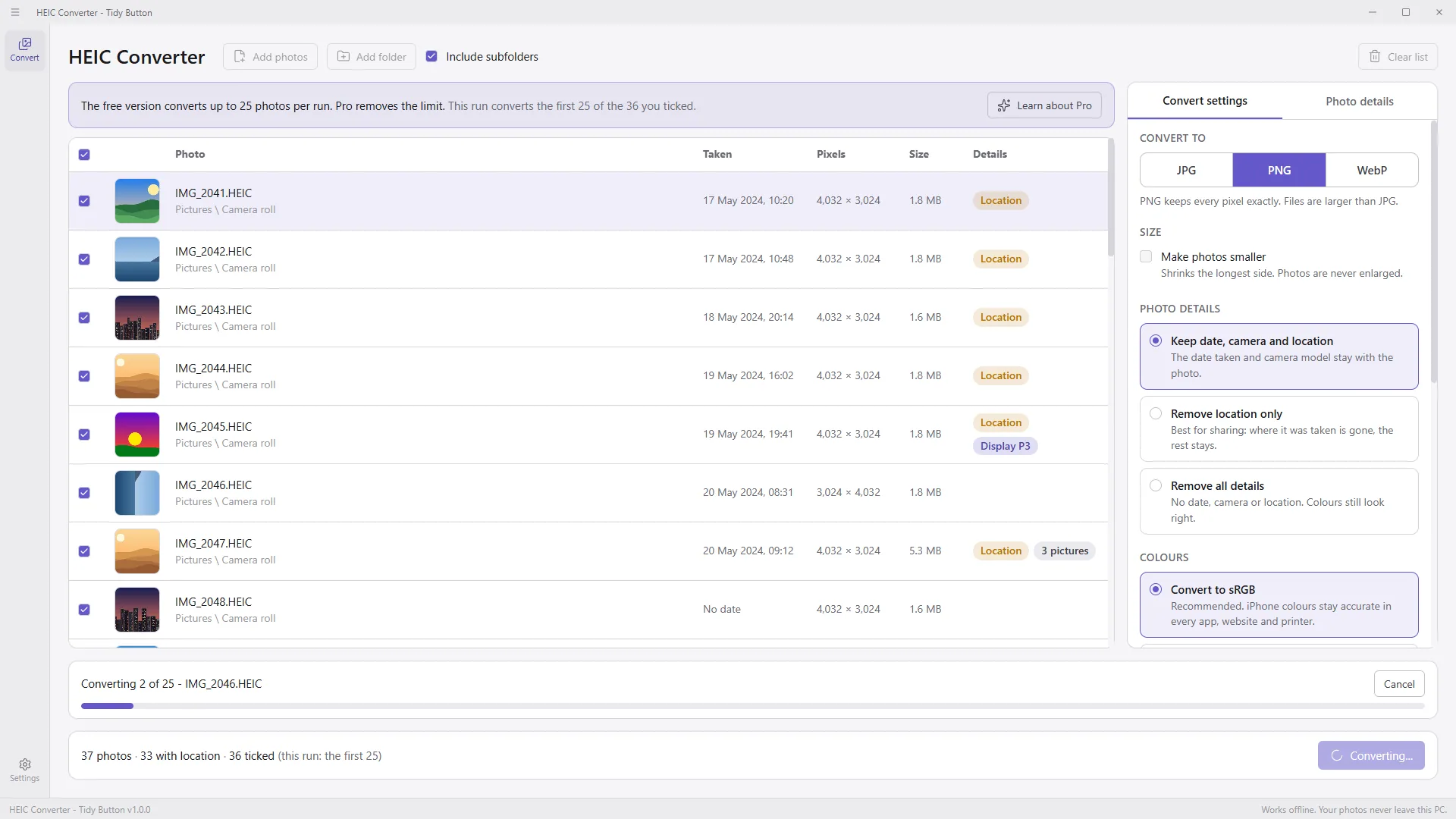
Progress
Converting runs in the background with a progress bar and a Cancel button
Free limit
The free version converts up to 25 photos per run and says so plainly
Screens show sample pictures, not real photos. The app has light and dark themes.
How it works
Three steps. No manual.
01
Drop your photos
Drag photos or a folder onto the window, or use Add photos and Add folder.
02
Check the list
Each photo shows a preview, the date taken, its size and whether it has a location.
03
Choose and convert
Pick JPG, PNG or WebP and what to keep, then press Convert.
What it does
What it does.
iPhone photos are saved as HEIC, a format that many programs, websites and printers cannot open. Drop your photos or a folder onto the window, choose a format and press Convert. Everything happens on your PC. The app reads HEIC itself, so it works with the internet turned off.
JPG, PNG or WebP
JPG with a quality slider, lossless PNG, or WebP. Convert one photo or a whole folder with its subfolders.
Colours stay right
iPhone photos use wide Display P3 colours. They are converted to sRGB so they do not look dull elsewhere, or you can keep Display P3 embedded.
Date and camera kept
The date taken and the camera model stay with the photo by default, and photos open the right way up.
Remove the location
Choose Remove location only, or Remove all details, before you share a photo.
See what is inside
Click any photo to read its date, camera and location as plain text before you decide.
Smaller if you want
Set the longest side in pixels to make photos smaller. Photos are never enlarged.
Names you choose
Name new files like the photo, or by the date taken. Optionally set each new file's date to the date taken.
Never freezes
Converting runs in the background with a progress bar and a Cancel button.
The small print, in plain English
Safe by design.
Click a photo to read its date, camera and location before you share it.
A clear summary after every run: converted, skipped or failed, with the reason.
Nothing is uploaded. Your photos are read on your PC and never leave it.
Your HEIC originals are never changed, moved or deleted.
Nothing is ever overwritten. A number is added to a taken name.
The free version converts up to 25 photos per run. Run it again for the rest.
Works offline. No account. No ads. No tracking. No watermark.
What it keeps
Your photos, your choice.
Decide what goes with each photo before you share it.
Keep everything, drop the location, or drop all details.
Formats
Three outputs
JPG with a quality slider, PNG for lossless, or WebP.
Colours
Done properly
Display P3 is converted to sRGB by default. Keep P3 embedded if you prefer.
Date and camera
Stay with the photo
Kept by default, so your photos still sort by when you took them.
Location
Your call
Remove the GPS position only, or remove every detail.
Size
Optional
Set the longest side in pixels. Photos are never enlarged.
Several pictures
Noted in the summary
A photo with several pictures inside, such as a burst, converts the main picture, and the summary tells you about the rest.
The app reads HEIC itself, so it does not need the Windows HEIF or HEVC extensions.
Good for
Handy when it will not open.
iPhone photos that will not open on a PC
Photos for a website, a printer or an email
A whole folder of holiday pictures at once
Sharing a photo without giving away where you were
Questions
Plain answers.
Is anything uploaded?
No. Your photos are read on your PC and never leave it. The app works with the internet turned off.
Does it change my HEIC photos?
No. New files go into a folder named converted next to your photos, or a folder you choose. Your originals are never changed and nothing is overwritten.
Will the colours look right?
Yes. iPhone photos use wide Display P3 colours, and they are converted to sRGB by default so they do not look dull in other programs. You can also keep Display P3 embedded.
Are the date and camera kept?
By default, yes. The date taken and the camera model stay with the photo. Photos that were turned sideways open the right way up.
Can I take the location out?
Yes. Choose Remove location only to take out the GPS position, or Remove all details for a completely clean file.
Is there a limit in the free version?
The free version converts up to 25 photos in one run, and you can run it again for the rest. A Pro add-on is planned for unlimited files per run, a watched folder, iPhone video conversion and a right-click option in File Explorer.
Does it need an account?
No. There is no account, no ads, no tracking and no watermark.