How to open DICOM files on Windows from a disc or USB
After a scan, a hospital may hand you a disc or USB stick full of files ending in .dcm, or a folder with a file called DICOMDIR. Double-clicking them often does nothing useful. This article shows how to look at those pictures on a Windows PC. It is only about viewing them. Talk to your doctor or the hospital that took the scan about any health question.
What a DICOM file is
DICOM is the standard file format for medical images such as CT, MRI and X-ray. One scan is usually many files, one for each image slice, grouped into series and studies. The files also hold details such as dates and, often, the patient name.
Windows does not usually show these files as pictures in File Explorer. Many discs include their own small viewer program, and it may or may not work on your version of Windows. If it does not, a separate viewer is the way to go.
Open the scan in DICOM Viewer
DICOM Viewer is a free app from Tidy Button on the Microsoft Store. It opens a disc, a USB stick, a folder or a single file. If the disc has a DICOMDIR file, the app uses it to find the images, and unrelated files on the disc are not opened.
- Put the disc or USB stick into your PC, or find the folder you were given.
- Open DICOM Viewer. The first time, read the notice and press I understand.
- Press Open folder or disc and choose the disc, drive or folder. You can also drag it onto the window.
- Wait while the app reads your scan. The studies and series appear in the list on the left.
- Click a series in the list to look at it.
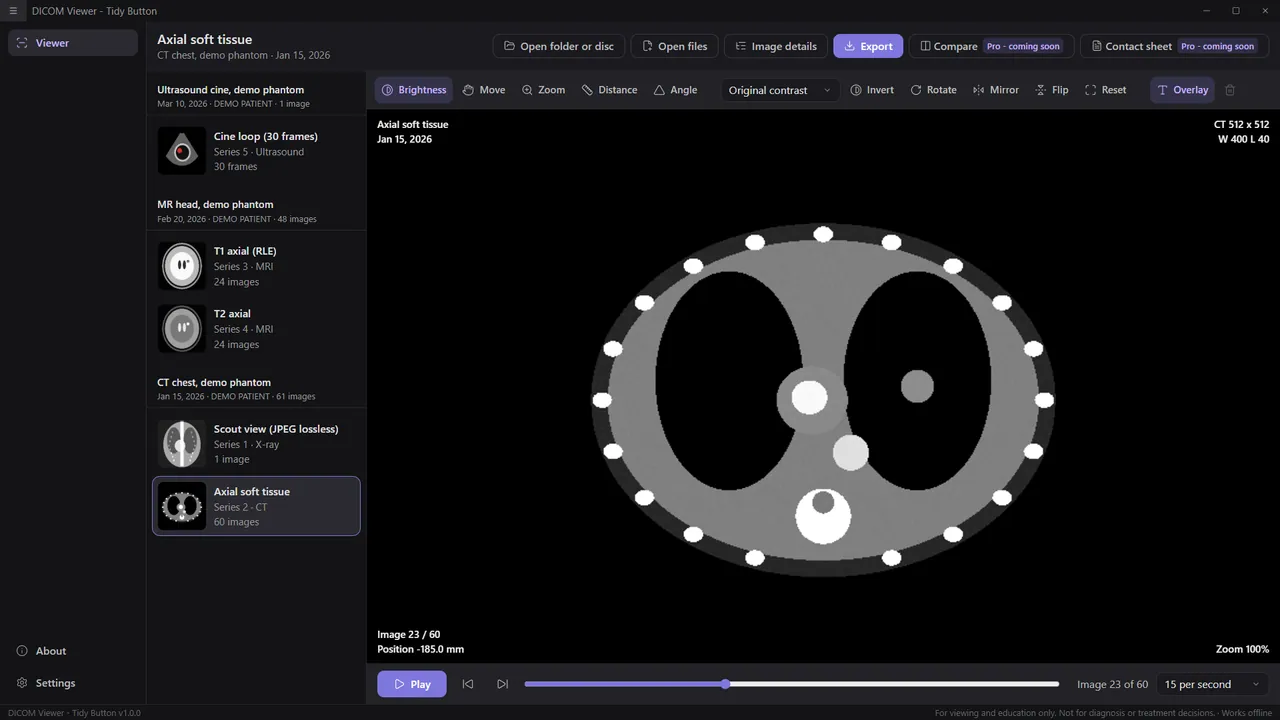
Every study and series, with a preview of each
Tip. Want to try it first? Press Try the demo scan. It opens a small drawn example, not a real person. For a single file, press Open files.
Scroll, adjust and measure
Scroll the mouse wheel over the picture, press the arrow keys, or drag the Image position slider to move through the series. Press Brightness, then drag on the picture to change brightness and contrast. CT scans also list presets such as soft tissue, lung, bone and brain. Other scans show Original contrast and Full range.
To measure, press Distance and drag between two points, or press Angle and click three points. The result is in millimetres when the file gives the pixel size, and in pixels when it does not. These measurements are only for looking. The app does not interpret images.
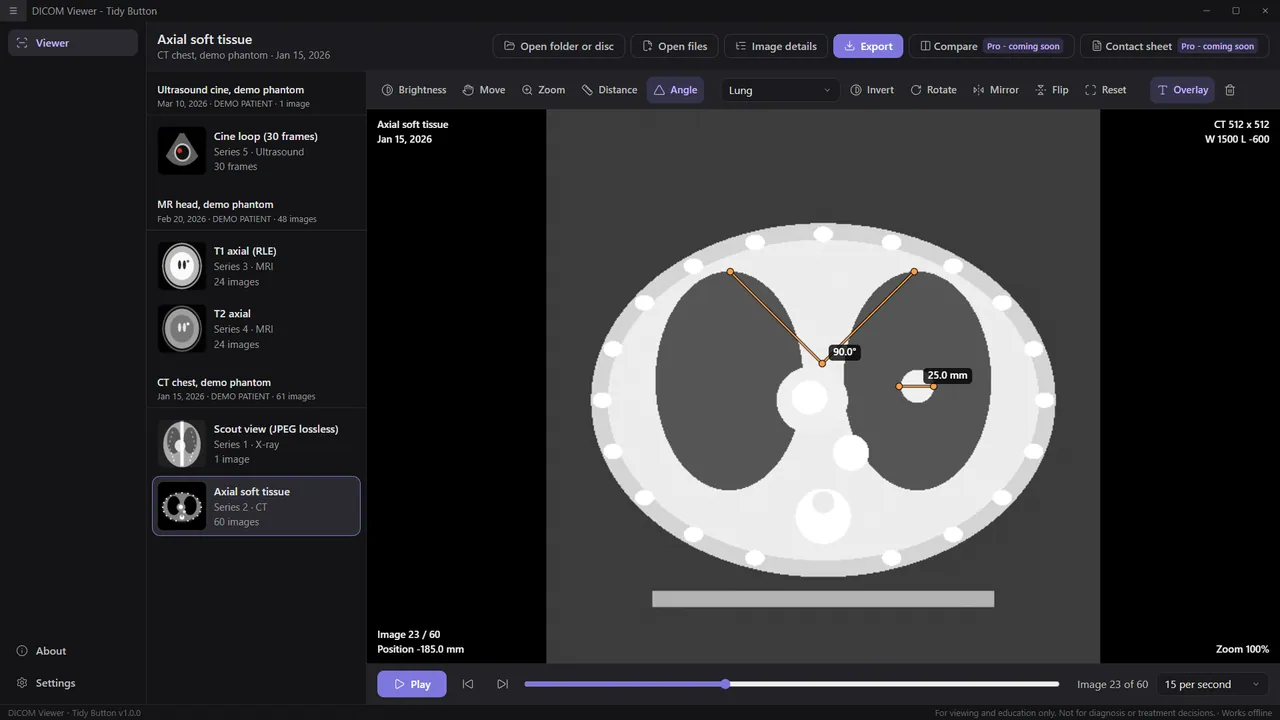
Distances are in millimetres when the file gives the pixel size
Save pictures or an anonymised copy
You may want to send a picture to someone or keep a copy in an ordinary format. Press Export, choose This image or the whole series, and pick PNG picture (.png), JPEG picture (.jpg) or DICOM copy (.dcm). Press Choose folder, then Save. Pictures are saved as you see them, with no patient text added.
For a DICOM copy, leave Anonymise ticked to remove the patient name, ID, birth date and other identifying tags. Some scans have text burned into the picture itself, and anonymising cannot remove that, so look at the picture before you share it. Your original files are never changed or deleted.
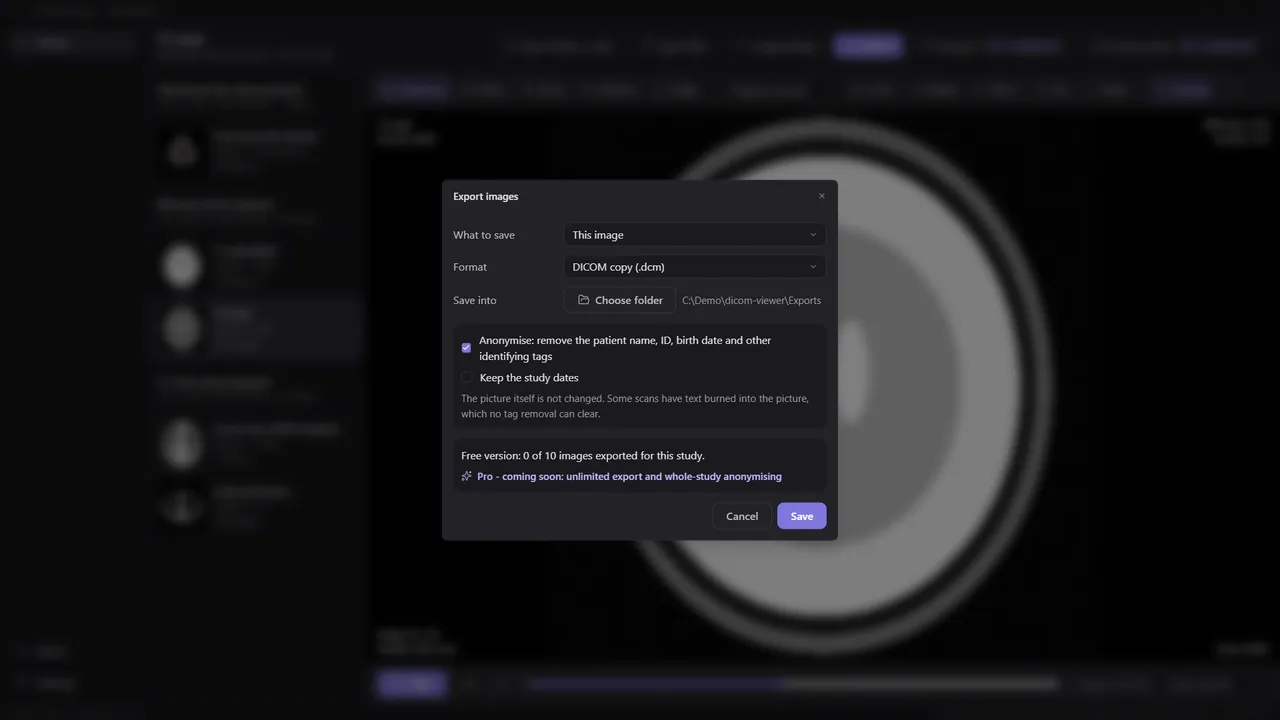
Save pictures as PNG or JPEG, or an anonymised DICOM copy
What the free version limits
Viewing, measuring, image details and loops are free. The free version saves up to 10 images per study. A Pro add-on is planned (coming soon), but it is not available yet.
If one image uses a format the app cannot show, you get a message for that image and the rest of the series still works. The app opens uncompressed, RLE, JPEG baseline, lossless JPEG, JPEG-LS and JPEG 2000 images.
For viewing only, not for diagnosis
This matters, so it is worth repeating. DICOM Viewer is for viewing and education only. It is not a medical device. It does not interpret, analyse or report on images, and it is not for diagnosis or treatment decisions. This article gives no medical advice.
If you have a question about what your scan shows, ask your doctor or the hospital that took it. The app only helps you open and look at the pictures on your own PC.
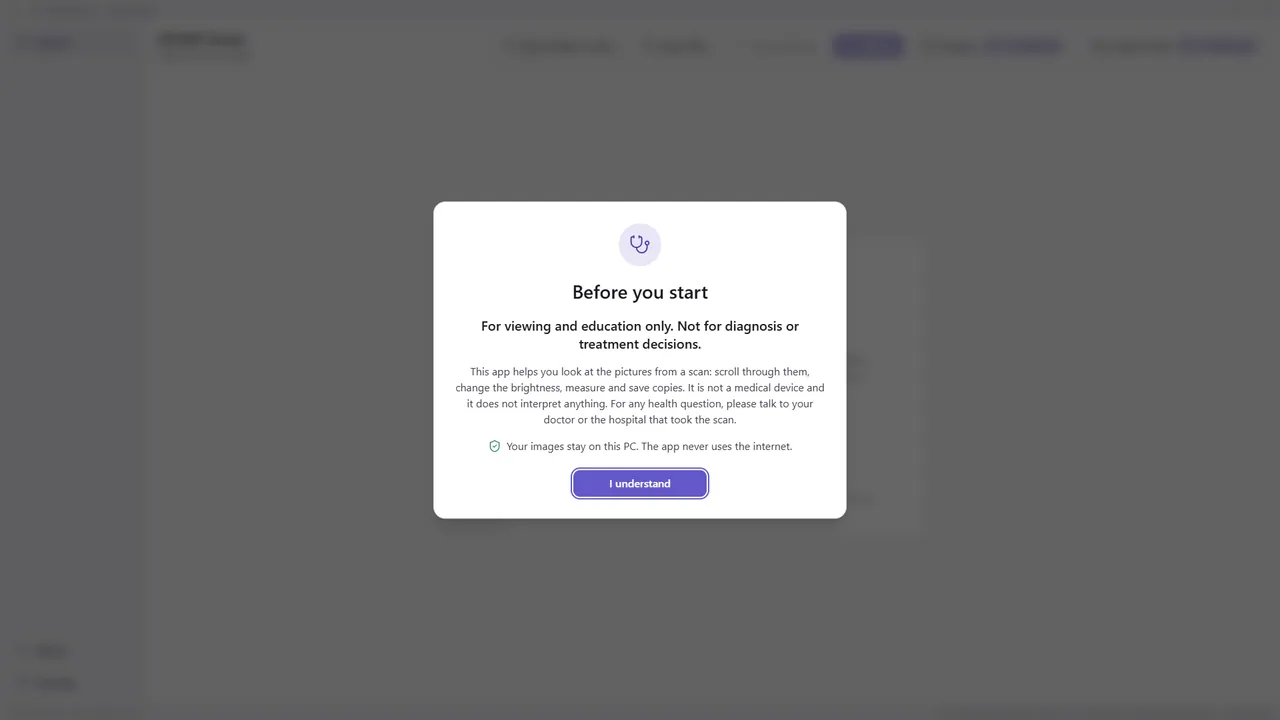
A calm first-run notice: for viewing and education only
Questions
Can I use it to diagnose something?
No. DICOM Viewer is for viewing and education only. It is not a medical device and it does not interpret images. For any health question, talk to your doctor or the hospital that took the scan.
Are my scans uploaded?
No. Everything happens on your PC. The app has no network features, no account, no ads and no tracking, and it works offline.
What can it open?
A disc, USB stick, folder or single file. It opens uncompressed, RLE, JPEG baseline, lossless JPEG, JPEG-LS and JPEG 2000 images.
Does it change my original files?
No. Exports go only into the folder you choose, and a file that already exists is never overwritten.
If you were handed a scan disc and just want to look at the pictures, try DICOM Viewer. It is free on the Microsoft Store, works offline and needs no account. It is for viewing only, so keep your questions about the scan for your doctor.
More from DICOM Viewer
Questions or something missing? Support is by email, and a person reads it.