How to add album art to MP3 files on Windows 11
Your songs show a blank square instead of a cover. Or the cover is wrong on half the album. Album art is not a separate file the player finds by magic. It is a picture stored in the tags of each song, and you can add one to a whole album at once.
Where album art lives
An MP3 file holds the music, plus a block of tags with the title, artist, album and track number. The cover picture is part of those tags, in the ID3 format. That is why a cover you add to one song does not appear on the others by itself.
To fix a whole album, the same picture has to be added to every song. Doing that one file at a time is slow, so a tag editor that works on many files at once saves time.
What File Explorer can do
In File Explorer you can right-click a song, choose Properties and open the Details tab. There you can change text fields such as title, artist, album, track number and year. Wording can differ slightly between Windows 11 versions.
For the cover picture itself, a tag editor is the usual route. That is where Music Tag Editor comes in.
Add the same cover to a whole album
Music Tag Editor is a free app from the Microsoft Store. It works on MP3 (ID3v2.3 and 2.4), FLAC, M4A, OGG Vorbis and OPUS files. The cover picture must be a JPEG or PNG.
- Open Music Tag Editor and press Add folder, or Add a folder if the list is empty. Choose the folder with your songs.
- Click the first song, then hold Shift and click the last one to select them all.
- Open the Cover tab.
- Press Add a picture, or Replace with a picture if a cover already exists, and choose a JPEG or PNG file.
- Press Review and save, read the changes and confirm.
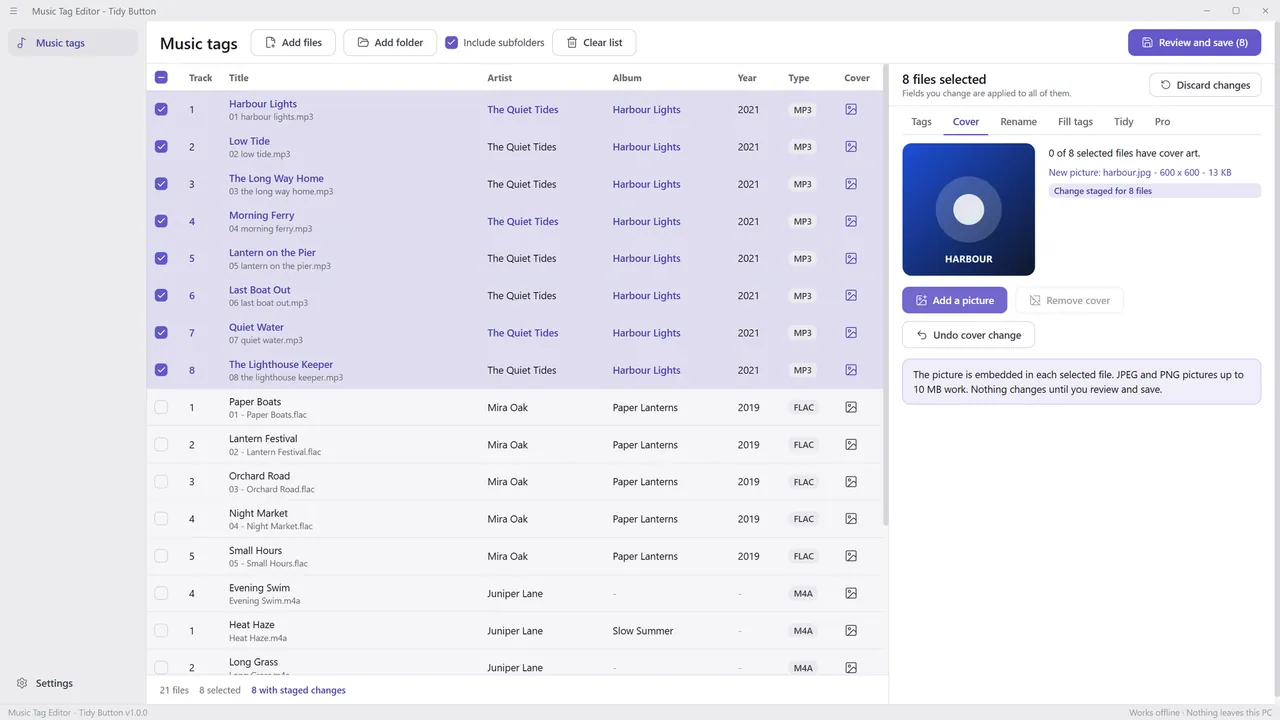
Choose a JPEG or PNG and see it before you save.
Tip. Press Undo cover change if you picked the wrong picture before saving. To take a cover out, press Remove cover instead.
Check every change before it is saved
Nothing is written until you press Review and save. The review lists the old and new value for every file, so you can see what will change. The app writes the new file next to the original, checks it and only then swaps it in.
The audio is never altered. Before a file is replaced, the app checks that the sound data is byte for byte the same and that the tags read back as you asked.
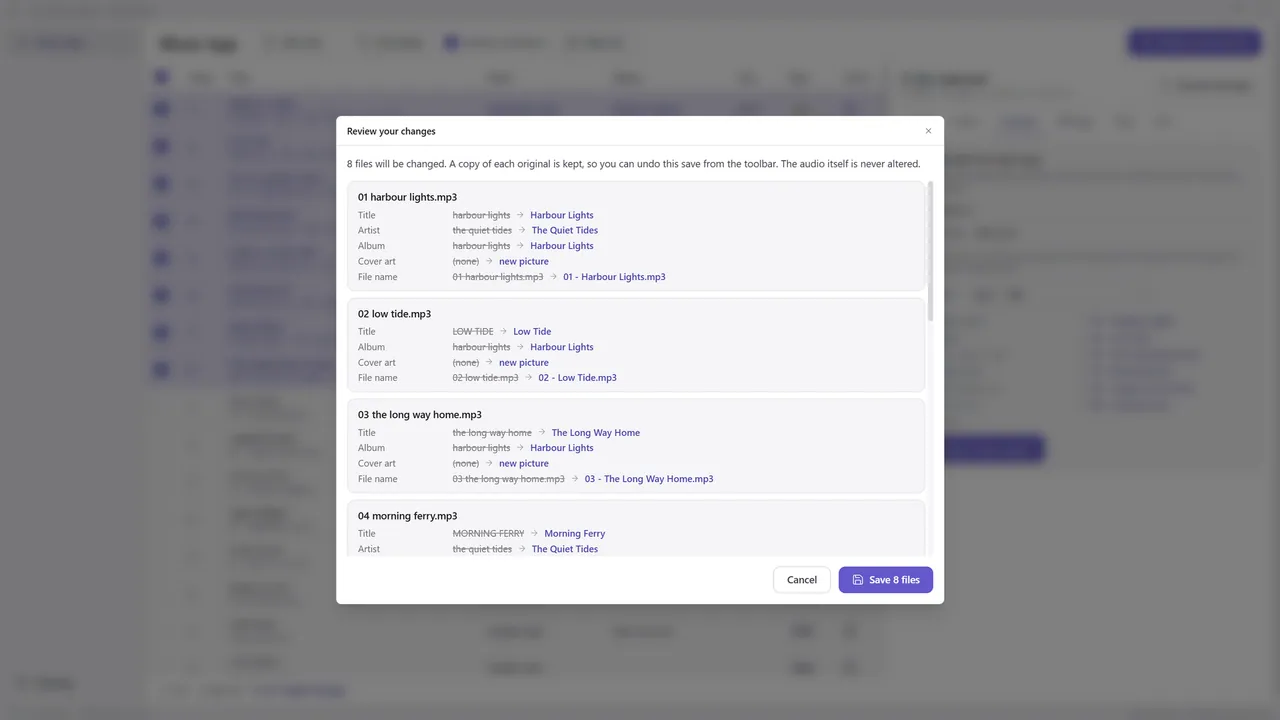
Every file lists what will change.
Changed your mind? Undo the save
After saving, press the button that begins with Undo last save at the top right. It puts the files from your last save back exactly as they were. The app keeps a copy of those originals in its own data folder until you save again.
While you are there, you can also fix other tags for the same album. Press Number the tracks on the Tags tab to number the songs in list order, or use the Tidy tab to fix titles written in capital letters. Each change goes through the same review.
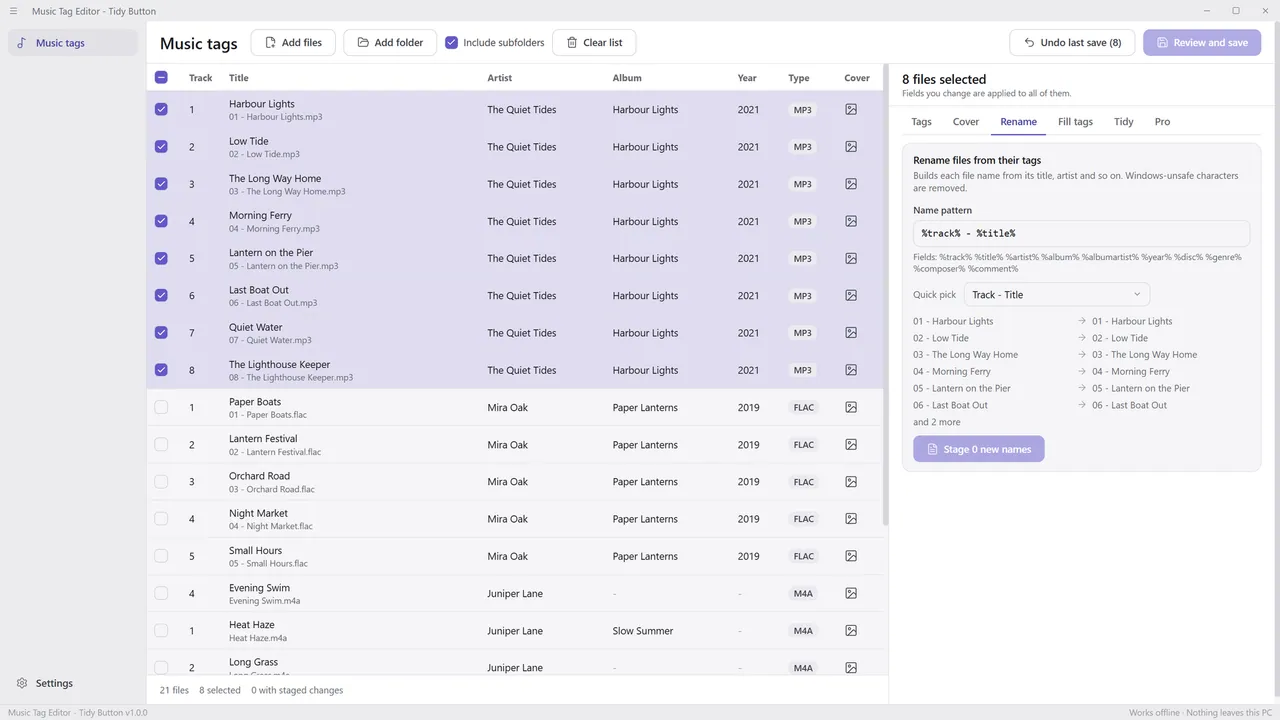
Saved, with Undo last save one click away.
What the free version limits
The free version saves up to 30 files at a time. If your album is bigger, save it in two rounds. A paid Pro add-on is planned, but it is not available yet.
The app reads only the files and folders you choose, makes no network requests and keeps your music on your PC.
Questions
Does adding album art change the music?
No. Only the tag part of a file is rewritten. The app checks that the sound data is byte for byte the same before it replaces a file.
Which picture formats can I use?
Cover pictures must be JPEG or PNG.
Can I add art to many songs at once?
Yes. Select the songs, open the Cover tab, add the picture and save. The free version saves up to 30 files at a time.
Which music formats does it support?
MP3 (ID3v2.3 and 2.4), FLAC, M4A, OGG Vorbis and OPUS.
If your albums show blank squares, try Music Tag Editor. It is free on the Microsoft Store, works offline and needs no account. Select an album, add one picture and save it with a review and an undo.
More from Music Tag Editor
Questions or something missing? Support is by email, and a person reads it.