Free on the Microsoft Store
Music Tag Editor Tidy tags, a whole album at a time.
Fix song titles, artists, albums, track numbers and cover art for a whole album at once. See every change first, then undo the save with one click. The audio itself is never altered. Works offline, with no account.
No 30-file limit, find and replace, track list export.
Pro keys go on sale when this app's Pro update reaches the Microsoft Store.
One key for this app. Free to use without it. See all pricing
Prefer the command line? winget install 9P25FB760X31 --source msstore
- Works offline
- No account, no ads, no tracking
- Undo your last save
- Free
See it
Six views. Every change checked first.
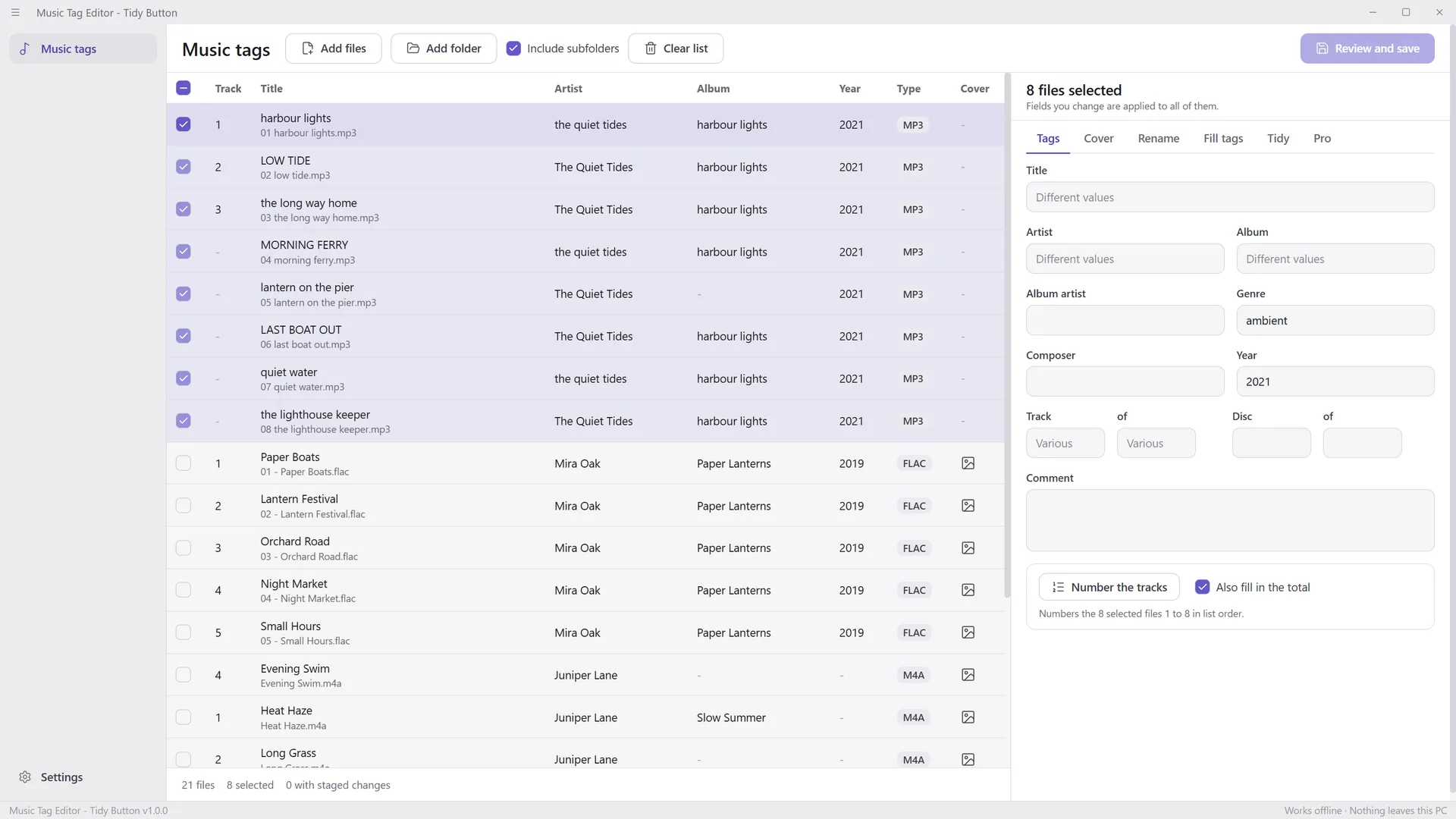
Edit an album
Select a whole album and edit it together. Fields where the files differ say so and are left alone
Capitalisation
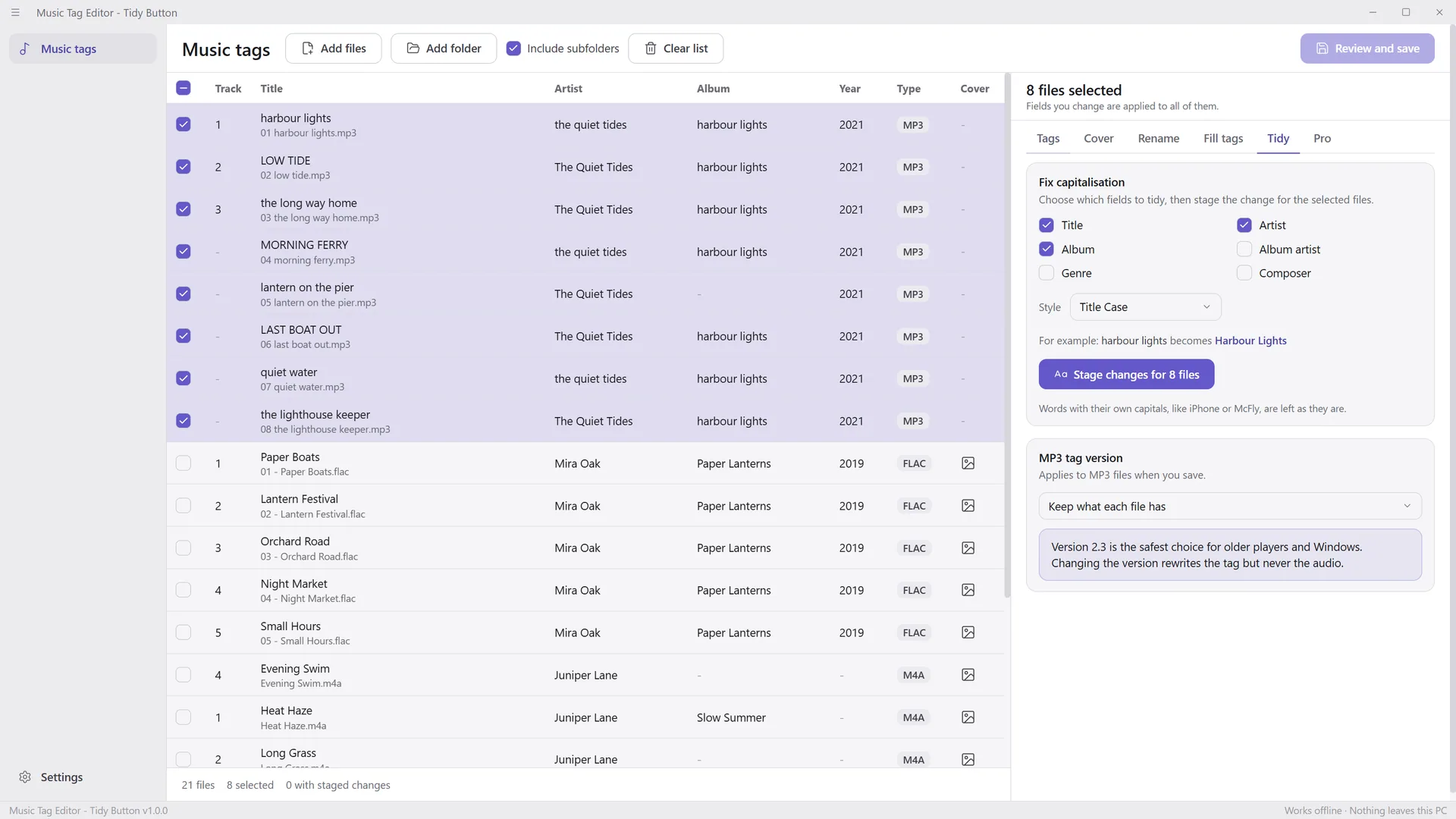
Fix shouting and lowercase titles in one click. Choose the fields and the style, then check the result
Cover art
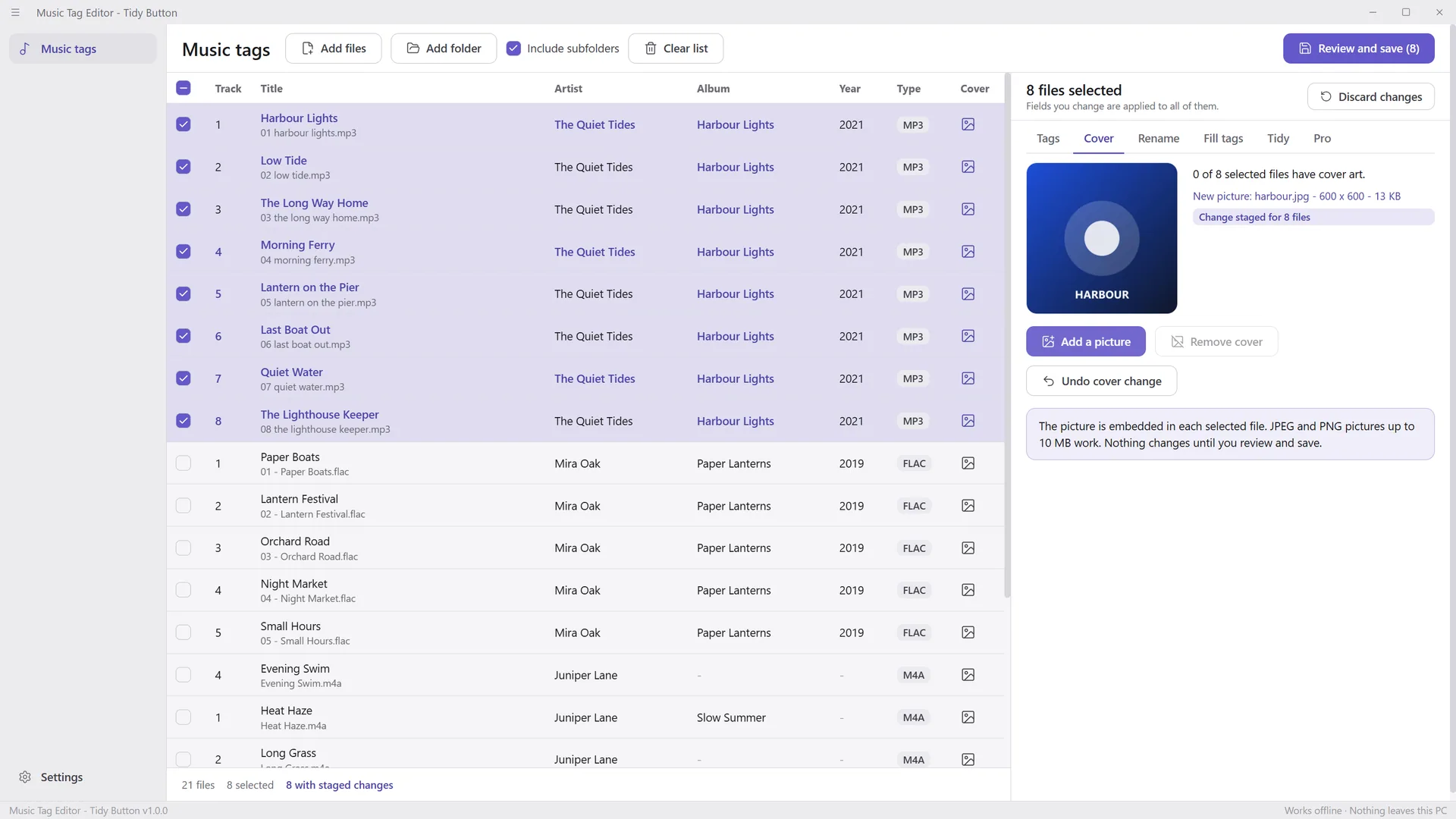
Add or replace the cover art for every selected file with a JPEG or PNG picture, and see it before you save
Rename
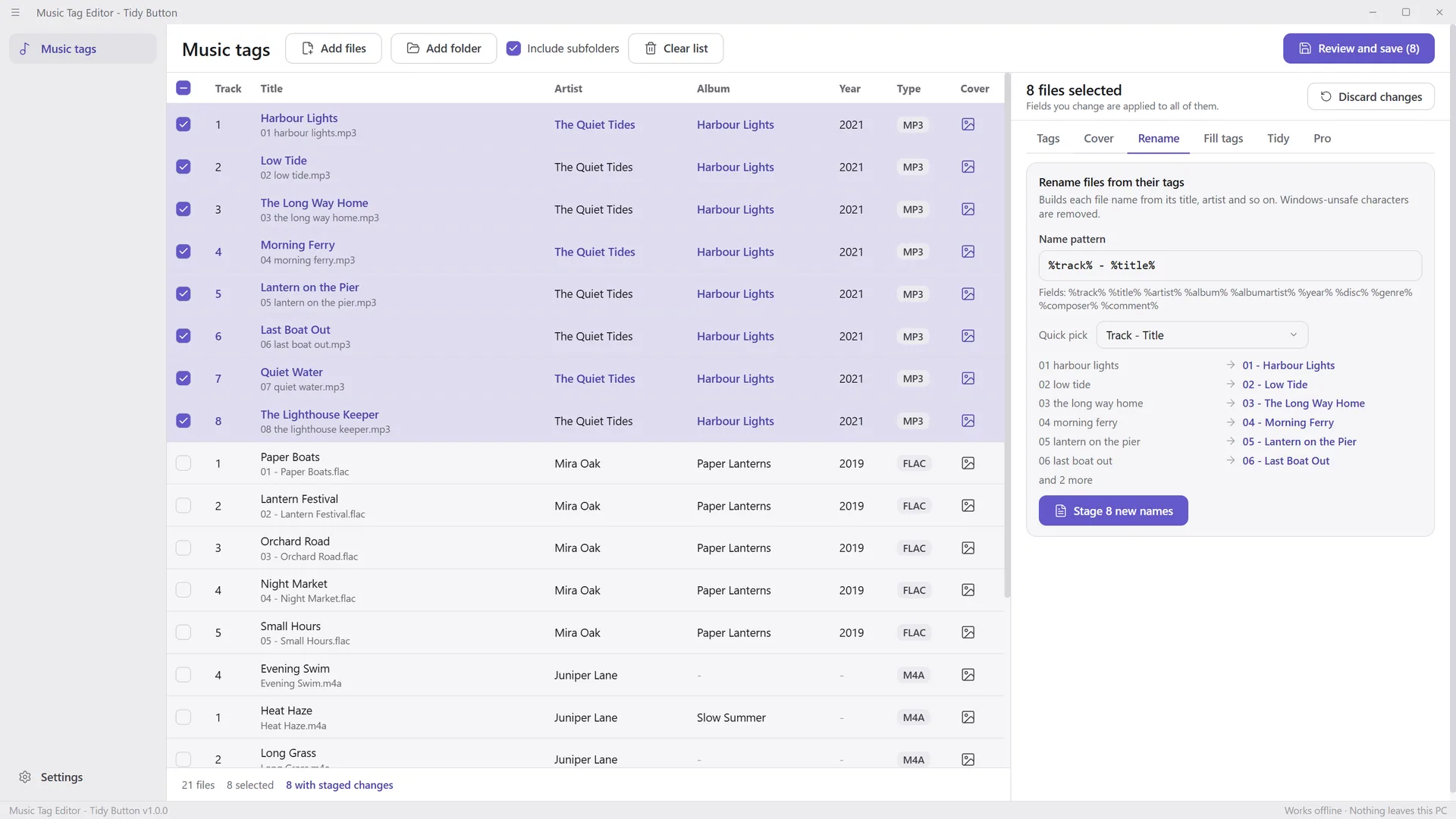
Build file names from tags with a pattern like track - title, and see each new name before it is applied
Review
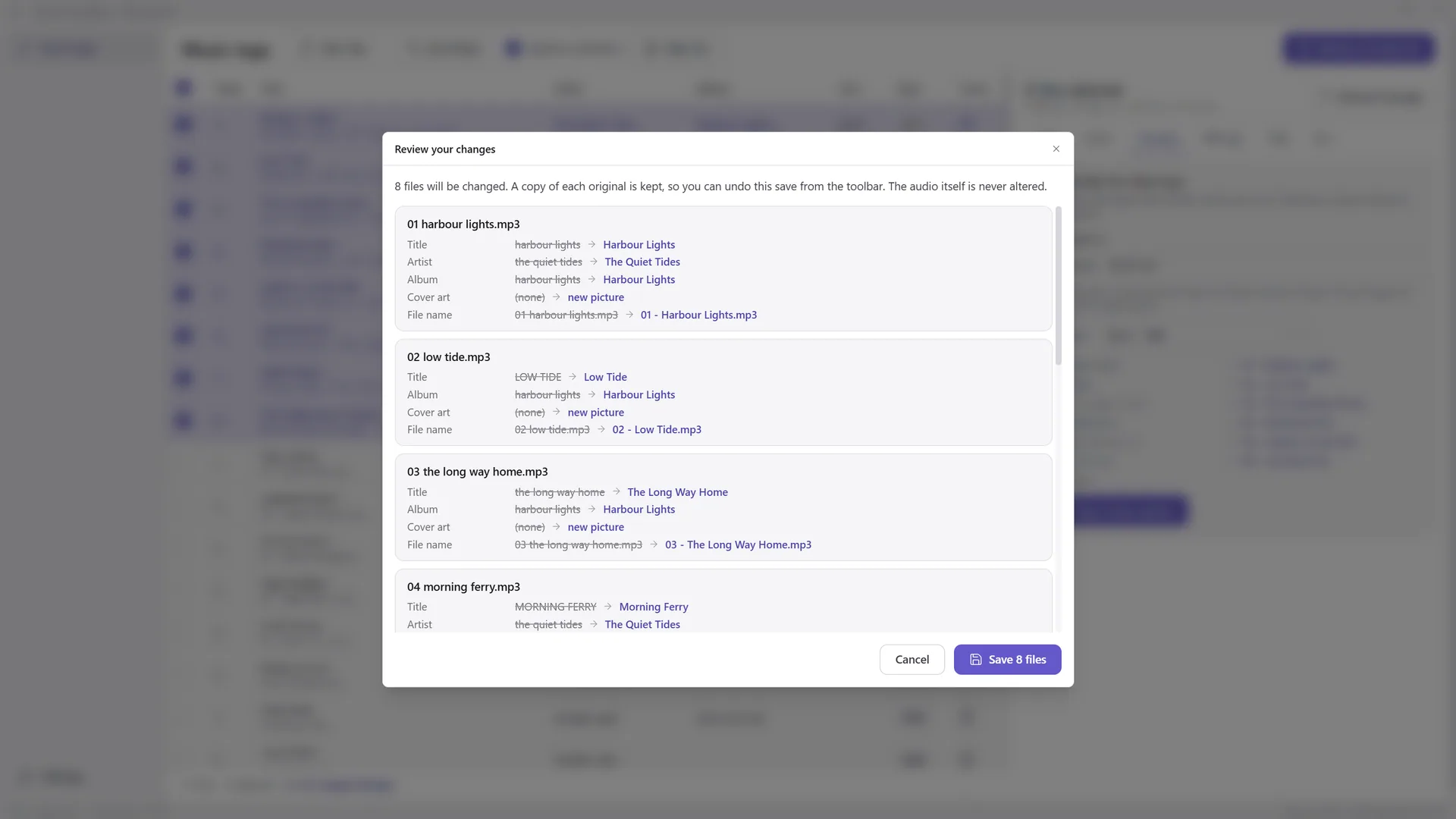
Every file lists what will change, old value to new value. The audio is never altered
Saved with undo
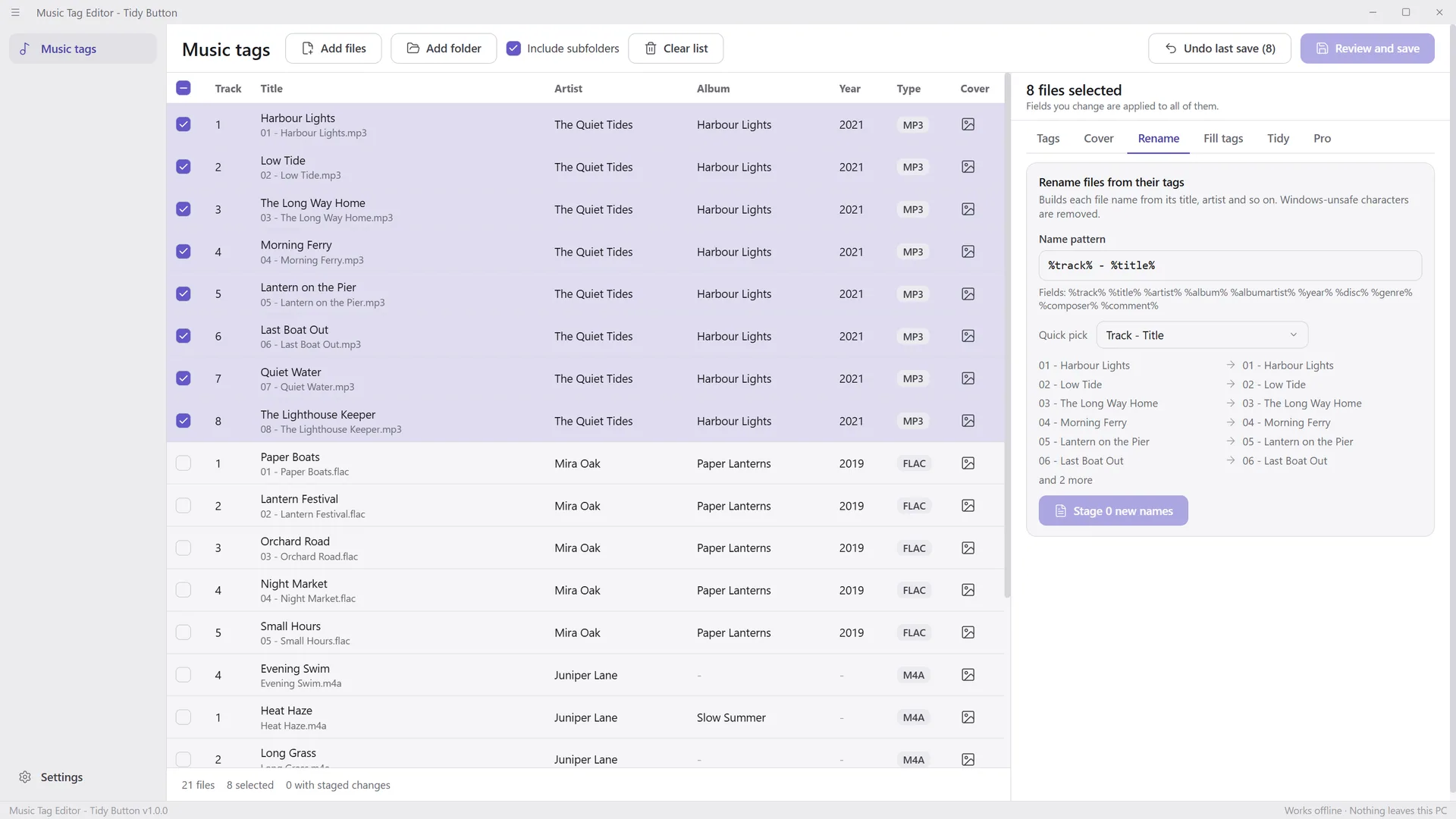
Saved. Undo last save puts the originals back with one click
Screens show invented sample albums. The app has light and dark themes.
What it does
What it does.
Add a folder or some files, pick the ones you want and type. Fields you change apply to every selected file. Fields where the files differ say so and stay as they are until you touch them. Press Review and save, read the before and after for each file and confirm. One click on Undo puts the files from your last save back exactly as they were.
One file or a whole album
Edit title, artist, album, album artist, genre, composer, year, track and disc numbers and comments. Fields that differ are marked, not overwritten.
See every change first
A before and after for each file is shown before anything is written.
Undo your last save
One click restores the files from your last save exactly as they were.
Cover art
Add, replace or remove cover art (JPEG or PNG) for many files together.
Rename files from tags
Build file names such as 03 - Song Title from the tags, with a live preview.
Fill tags from file names
Fill in tags from names such as 03 - Artist - Song Title, with a preview of each result.
Fix capitalisation
Title Case, Sentence case, UPPER or lower, in one click. Number the tracks in list order with the total filled in.
Many formats
MP3 (ID3v2.3 and 2.4), FLAC, M4A, OGG Vorbis and OPUS.
The small print, in plain English
Safe by design.
- The audio is never altered. Before a file is replaced, the app checks that the sound data is byte for byte the same and that the tags read back as you asked.
- It reads only the files and folders you choose and makes no network requests. Your music never leaves your PC.
- Undo keeps a copy of each original from your last save in the app's own data folder, and removes it when you save again or use Undo.
- No account, no ads, no tracking.
Good for
Handy when the album art is missing.
- Albums with missing or messy titles
- Adding cover art to a folder of songs
- Renaming files so they sort the way you expect
Questions
Plain answers.
Does it change the music itself?
No. Only the tag part of a file is rewritten. Before a file is replaced, the app writes the new version beside it and checks that the sound data is byte for byte the same.
Can I undo a save?
Yes. Undo last save puts the files from your last save back exactly as they were. The app keeps a copy of those originals in its data folder until you save again.
Which formats work?
MP3 (ID3v2.3 and 2.4), FLAC, M4A, OGG Vorbis and OPUS.
What if the files in an album differ?
Fields where the files differ say so and stay as they are until you change them.
Is anything uploaded?
No. The app makes no network requests and your music never leaves your PC.
Is there a limit in the free version?
The free version saves up to 30 files at a time. A Pro add-on is planned (coming soon).
Which versions of Windows does it run on?
Windows 10 and Windows 11.