How to open a RAR or 7z file and extract it on Windows
This guide shows how to open an archive, see what is inside, and extract it where you want. It also shows how to make a ZIP file.
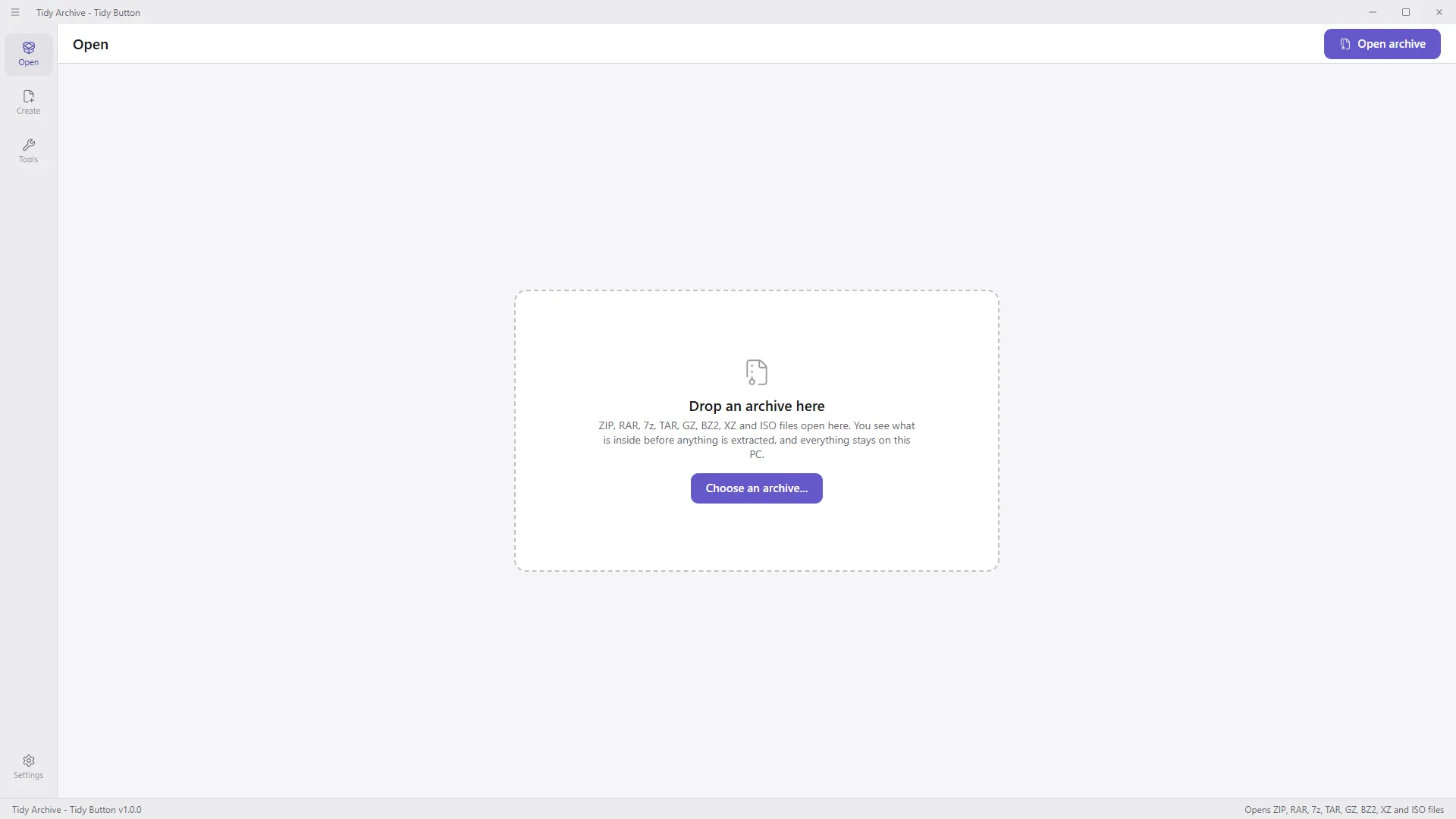
This app is not on the Microsoft Store yet. This guide is ready for the day it arrives.
Open an archive and look inside
- Open the app and stay on Open in the left menu.
- Drag the archive onto the window, or press Open archive at the top or Choose an archive... in the middle of the window.
- Look at the folder tree. It shows the files and their sizes.
- Type part of a name in Filter files to find a file.
Nothing is written to your disk until you extract.
Extract everything
- Open the archive.
- Under Where to extract, choose New folder next to the archive, Here, next to the archive or Choose a folder....
- Press Extract all.
- Wait for the progress bar to finish. Press Show in folder to see the files.
New folder next to the archive is the tidiest choice. It puts everything in one folder named after the archive.
Extract only some files
- Open the archive.
- Tick the box beside each file or folder you want. Press Select all to tick everything.
- Choose where the files should go.
- Press the Extract button that shows how many files are selected.
Open a password-protected archive
- Open the archive, or start to extract it. A box called Password needed appears.
- Type the password in Archive password.
- Press Continue.
A wrong password gives an error message and leaves no half-written files behind. Press the eye button to see what you typed.
Make a ZIP file
- Open Create in the left menu.
- Press Add files or Add folder. You can also drop them on the window.
- Choose ZIP as the Format.
- Pick a level in Compression level, such as Normal.
- Press Save as... and choose a name and a folder.
- Press Create archive.
If something goes wrong
A box says to check before extracting. What does it mean?
The app found something unusual in the archive, such as a program file. Read the list. Press Extract anyway only if you trust where the archive came from, or press Cancel.
What does the Program label on a file mean?
The file can run code when it is opened. Be careful with files marked Program from a source you do not know.
The extraction is taking too long. Can I stop it?
Yes. Press Cancel in the progress box. The message says that nothing was changed.
The app says the password is not right. What now?
Type it again in Archive password. Passwords are case sensitive, so check the capital letters.
Which file types can I open?
ZIP, RAR, 7z, TAR, GZ, BZ2, XZ and ISO files open in the app.
Good to know
- RAR files can be opened and extracted, but the app cannot create them.
Still stuck? Support is by email, and a person reads it.