How to find the best Wi-Fi channel for your router
This guide shows how to see the Wi-Fi networks around you, find out which channel is the quietest, and check the strength of your own connection. The app only looks. It never connects to or changes a network or your router.
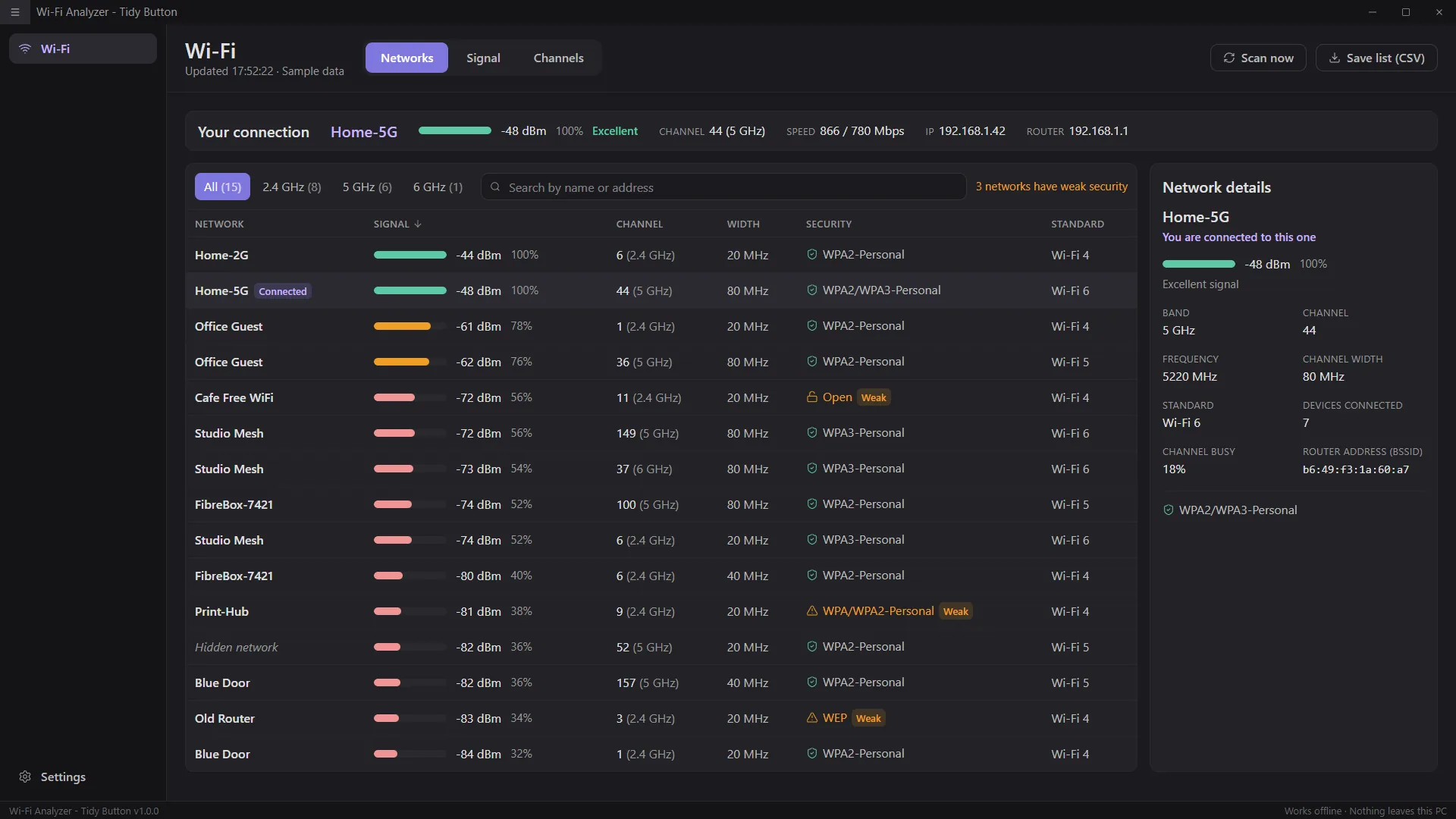
This app is not on the Microsoft Store yet. This guide is ready for the day it arrives.
See the Wi-Fi networks around you
- Open Wi-Fi Analyzer. The first scan takes a few seconds.
- Stay on the Networks tab to see each nearby network with its signal, channel, width, security and standard.
- Click a network to read everything Windows reports about it in the Network details panel.
- Press Scan now to look again.
Your own network is marked Connected.
Find the best channel for your router
- Open the Channels tab.
- Find the card for your band, such as 2.4 GHz or 5 GHz.
- Read the sentence under Best channel for your router. It names the channel to try.
- Look at the chart on the card to see how busy each channel is.
- Open your router's settings page and choose that channel.
The app only suggests a channel. You make the change in your router's own settings.
Check your signal as you walk around
- Open the Signal tab.
- Read your current signal in dBm. A number closer to 0 is better.
- Carry your PC to another room and watch the live graph.
- Compare the Best, Average and Worst readings beside the graph.
The graph adds one reading every two seconds. The tab also shows your link speed, IP address, router address and DNS servers.
Filter and sort the list of networks
- On the Networks tab, press 2.4, 5 or 6 to show only one band. Press All to show them all.
- Type in the Search networks box to find a network by name or address.
- Click a column heading such as Signal, Channel or Security to sort by it. Click again to reverse the order.
- Press Save list (CSV) at the top right to save the list as a file that opens in Excel or any spreadsheet app.
Spot weak Wi-Fi security
- Open the Networks tab.
- Look for the line that says how many networks have weak security.
- Click a network and read the note in the Network details panel. It says why the security is weak.
Open networks and older security types are marked as weak.
If something goes wrong
The app asks me to turn on location. Why?
Windows only lets apps see nearby Wi-Fi networks when Location is on. Press Open Location settings, turn on Location services, then press Check again. The app never reads where you are.
It says no Wi-Fi adapter was found. What now?
The PC may have no Wi-Fi adapter, or Wi-Fi may be turned off. Turn Wi-Fi on in the Windows quick settings, or plug in an adapter, then press Check again.
Why is the list empty?
Windows may have returned no networks. Check that Location is on, then press Scan again or Scan now.
Why does the Signal tab show no graph?
The graph needs your PC to be connected to a Wi-Fi network. Connect first, then wait a few seconds for readings to arrive.
Good to know
- The app is read-only. It never connects to, disconnects from or changes any network.
- It needs a PC with a Wi-Fi adapter, and results can differ between adapters and drivers.
Still stuck? Support is by email, and a person reads it.