How to record your webcam only when something moves
This guide shows how to point your webcam at your own space, record only when something moves, and find the clips later. Everything stays on your PC.
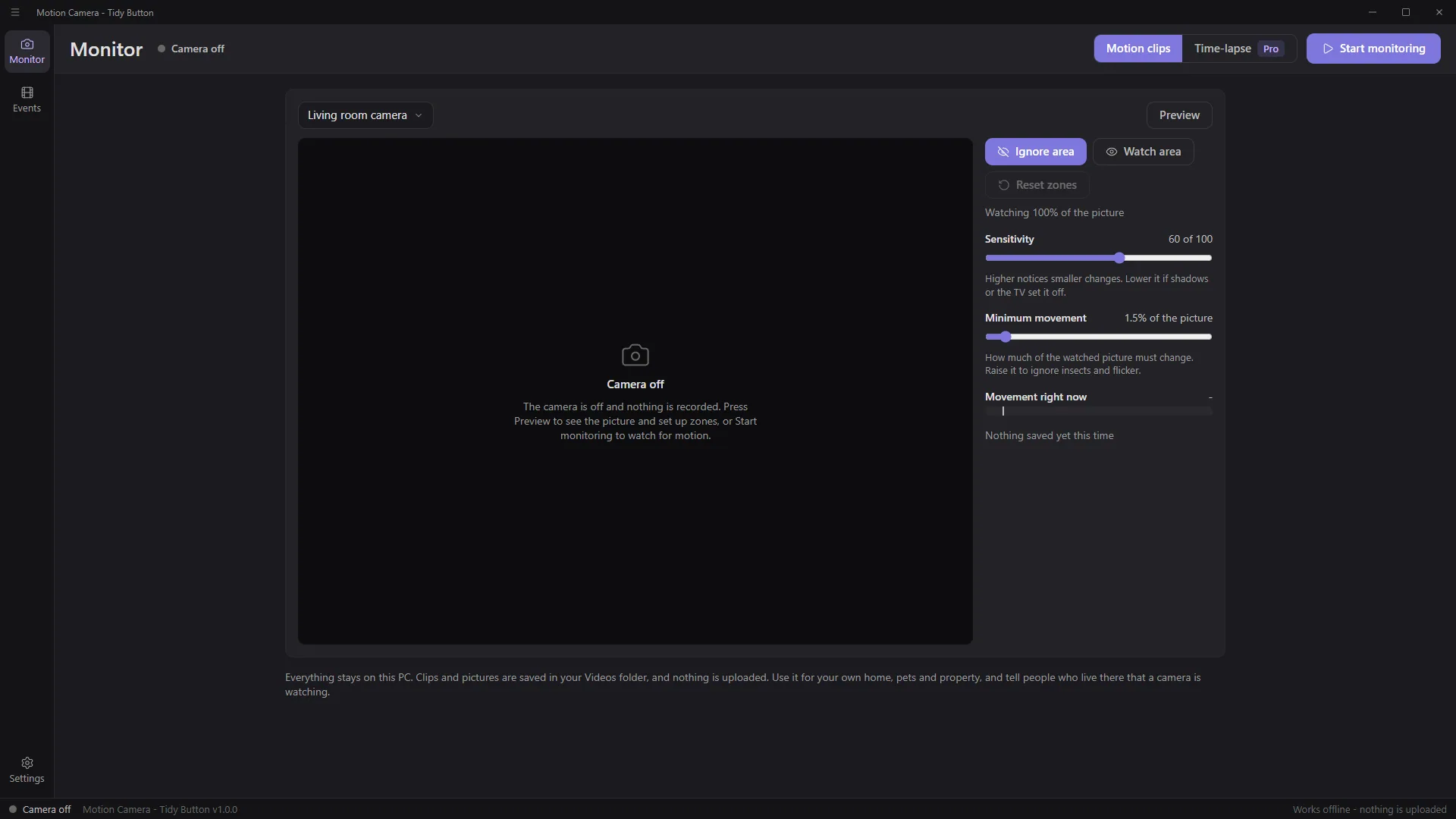
This app is not on the Microsoft Store yet. This guide is ready for the day it arrives.
Check the picture and start watching
Use it for your own home, pets and property, and tell people who live there that a camera is watching.
- Open Monitor in the left menu.
- Open the camera list at the top of the camera panel and choose your webcam.
- Press Preview to see the live picture. Press Stop preview when you are done.
- Make sure Motion clips is chosen at the top.
- Press Start monitoring.
- Press Stop monitoring when you want the camera off.
The badge on the picture shows PREVIEW, WATCHING or REC, so you can always see what the camera is doing.
Ignore a window, a TV or a curtain
- Press Preview so the picture shows.
- Press Ignore area.
- Drag a box over the part of the picture that should not count, such as a window.
- Check the line that says how much of the picture is being watched.
- To watch a part again, press Watch area and drag a box over it. Press Reset zones to start over.
Tune how easily motion is noticed
- Press Preview and move in front of the camera.
- Watch the bar called Movement right now. It turns green when motion is noticed.
- If shadows or a TV set it off, lower Sensitivity.
- To ignore insects and flicker, raise Minimum movement. The white mark on the bar shows the movement needed to record.
Both sliders explain themselves in a short line under each one.
Watch the clips it saved
- Open Events in the left menu.
- Find the day in the list. Each clip shows a thumbnail, the time, the length and the size.
- Press Play to watch a clip.
- To remove clips, tick them and press Delete selected.
Press Open folder to see the files. They are saved in your Videos folder.
Keep a few seconds from before the motion
- Open Settings in the left menu.
- Under Recording, open the list for Seconds kept from before the motion and choose how many seconds to keep.
- Open the list for Keep recording after the motion stops and choose how long to keep recording after the motion stops.
- Turn Save a full-size picture on if you want a picture when motion starts.
If something goes wrong
The app says no camera was found. What do I check?
Plug in the webcam. Then open Windows Settings, go to Privacy and security, then Camera, and make sure desktop apps may use the camera. The camera appears in the app by itself.
It records too often when nothing is happening. What can I do?
Lower Sensitivity, raise Minimum movement, or drag a box over the busy part of the picture with Ignore area chosen.
It misses movement I wanted. What can I do?
Raise Sensitivity or lower Minimum movement. Check that the area you care about is not marked as ignored.
My disk is filling up. How do I control it?
Open Settings and choose a Storage limit. Under When the limit is reached, choose whether the app asks first or deletes the oldest clips by itself. You can also press Clean up on the Events screen.
Good to know
- The app only watches for movement in the picture. It does not use the microphone.
- It watches one camera at a time.
Still stuck? Support is by email, and a person reads it.