How to check the weather radar and alerts for your town
This guide shows how to pick a town in the United States, play the radar loop, read the forecast and check for weather alerts.
This app is not on the Microsoft Store yet. This guide is ready for the day it arrives.
Pick your town
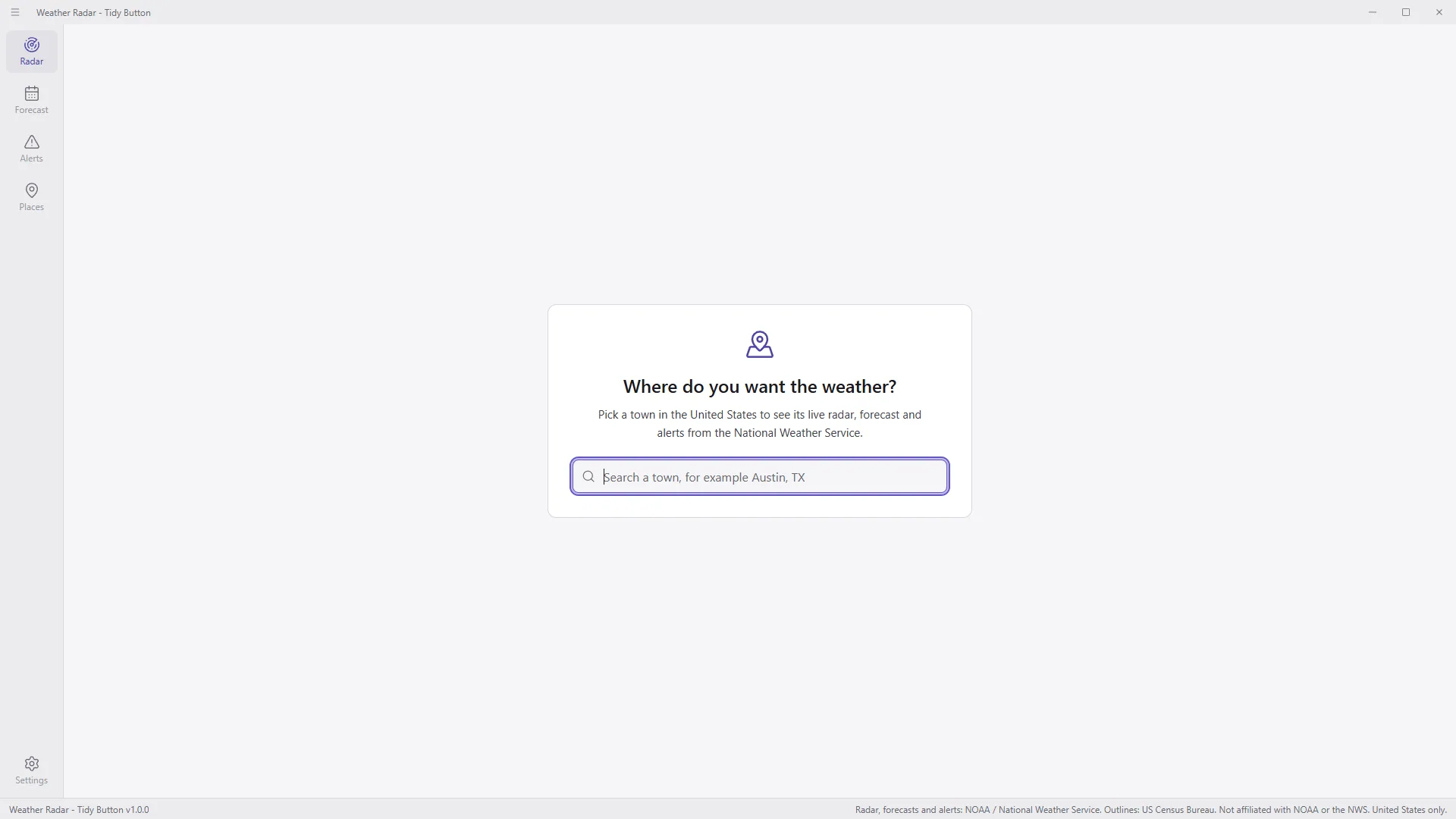
- Open Radar in the left menu. The first time, it asks where you want the weather.
- Type your town in the search box, for example Austin, TX. You can also type coordinates.
- Click your town in the list of matches.
- The radar, forecast and alerts now show your town.
- To change the town later, open Places in the left menu. Remove the saved town with its bin button, then search under Add a place and click the new town.
The app covers places in the United States only.
Play the radar loop
- Open Radar. The map shows the last hour of radar pictures, and the loop starts playing by itself.
- Press the pause button below the map to stop the loop. Press the same button again to play it.
- Drag the slider to a moment you want to see. The time of that picture shows beside it, with how many minutes earlier it is than the newest one.
- Use the skip buttons beside the play button to step one picture at a time.
- Use the plus and minus buttons, or drag the map, to look closer.
- Press the button with the crosshair icon to bring the map back to your town.
Read the current weather and the 7-day forecast
- Open Radar and look at the panel on the right. The current conditions show the temperature, wind, humidity, pressure and visibility.
- Open Forecast in the left menu.
- Read each day card for the high and low, the chance of precipitation, the wind and a short summary.
The window must be wide enough for the side panel on the Radar screen to show.
Check weather alerts
- Open Alerts in the left menu to see the alerts in force for your town.
- Or look under Active alerts in the panel on the right of the Radar screen.
- Click an alert to open it. You can read what it says and who issued it.
Switch between Fahrenheit and Celsius
- Open Places in the left menu.
- Find Units.
- Press Fahrenheit, mph or Celsius, km/h.
If something goes wrong
The radar picture is missing for my place. Why?
Live radar covers the contiguous United States. A place outside it has a forecast and alerts but no radar picture. The app says so on the map.
My town does not show up in the search. What should I type?
Try the town and the state, like Denver, CO. You can also type coordinates, like 39.74, -104.99.
The data looks old. How do I update it?
Press Refresh at the top of the Radar screen. The line under the town name says when the data was last updated. If the connection drops, the last good data stays on screen.
Does the app work without internet?
The town search uses a list stored on your PC. The radar, forecast and alerts need an internet connection to update.
Good to know
- The app searches United States places only, and the radar picture covers the contiguous United States only.
Still stuck? Support is by email, and a person reads it.