How to use a teleprompter on your PC while recording video
This guide shows how to load a script, make it scroll at your pace, keep it near your webcam and record yourself reading it.
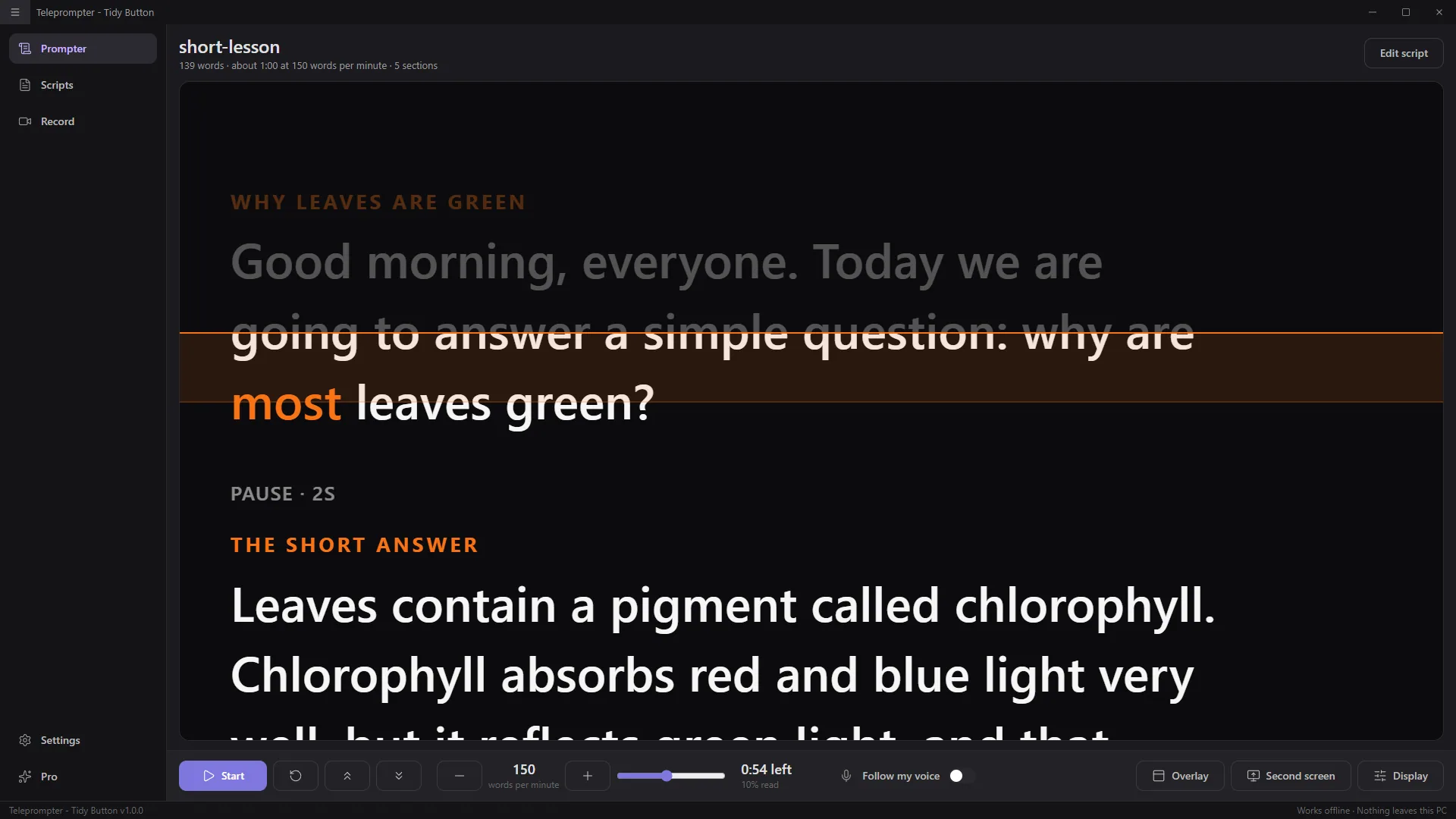
This app is not on the Microsoft Store yet. This guide is ready for the day it arrives.
Add a script and start scrolling
- Open Teleprompter and go to Scripts.
- Press New, or press Open file to bring in a .txt, .md, .docx or .pdf file.
- Type a title, then paste or type your words into the large box. The app saves them for you.
- Press Read it to go to the prompter.
- Press Start. The text scrolls up.
- Use Slower and Faster, or the slider, to change the speed in words per minute.
Press Pause to stop the scroll. Press Back to the top to return to the start.
Let the text follow your voice
- Open the Prompter screen.
- Turn on Follow my voice.
- Allow the microphone if Windows asks.
- Start reading aloud. The line you are saying stays at the reading line.
- If you stop, the text waits. It carries on when you start again.
Turn the switch off to go back to a steady scroll.
Add sections and pauses to a script
- Open Scripts and click in the script where you want a break.
- Press Add pause to hold the scroll for a moment. Writing [PAUSE 5] holds it for five seconds.
- Press Add section to start a section with a line that begins with ##.
- Press Read it to try it out.
Keep the script near your webcam
- Open the Prompter screen.
- Press Overlay to show the script in a window that stays on top of other apps. Drag it under your webcam.
- Press Hide overlay when you are done.
- To use another monitor, press Second screen.
- Press Display to change text size, colours and the reading line. Use the flip switches if you use beam-splitter glass.
Display choices are saved with each script.
Record yourself reading the script
- Open Record and wait for the camera preview.
- Choose your Camera and Microphone if the defaults are not right.
- Press Change folder if you want the video saved somewhere else.
- Leave Scroll the script while I record on if you want the text to move as you record.
- Press Start recording and read.
- Press Stop and save. Use Open folder to find the video.
The app saves the video to disk as you record.
If something goes wrong
The Start button is greyed out. Why?
The script is empty. Open Scripts and add your words, then go back to the prompter.
The text does not follow my voice. What can I check?
Make sure Windows lets the app use your microphone, and that the right microphone is your Windows default. Read at a normal volume. If the app shows an error under the controls, it says what went wrong.
The app crashed while I was recording. Is the video gone?
Open Record. If part of the take was saved, a message offers Recover last take. This is not guaranteed in every case.
I cannot see the camera picture.
The preview only runs while the Record screen is open. Check that no other app is using the camera and that you picked the right one in the Camera list.
Good to know
- Follow my voice works best in a quiet room with a microphone close to you.
Still stuck? Support is by email, and a person reads it.