We will link the Store listing here the day it is live. Until then there is nothing to download.
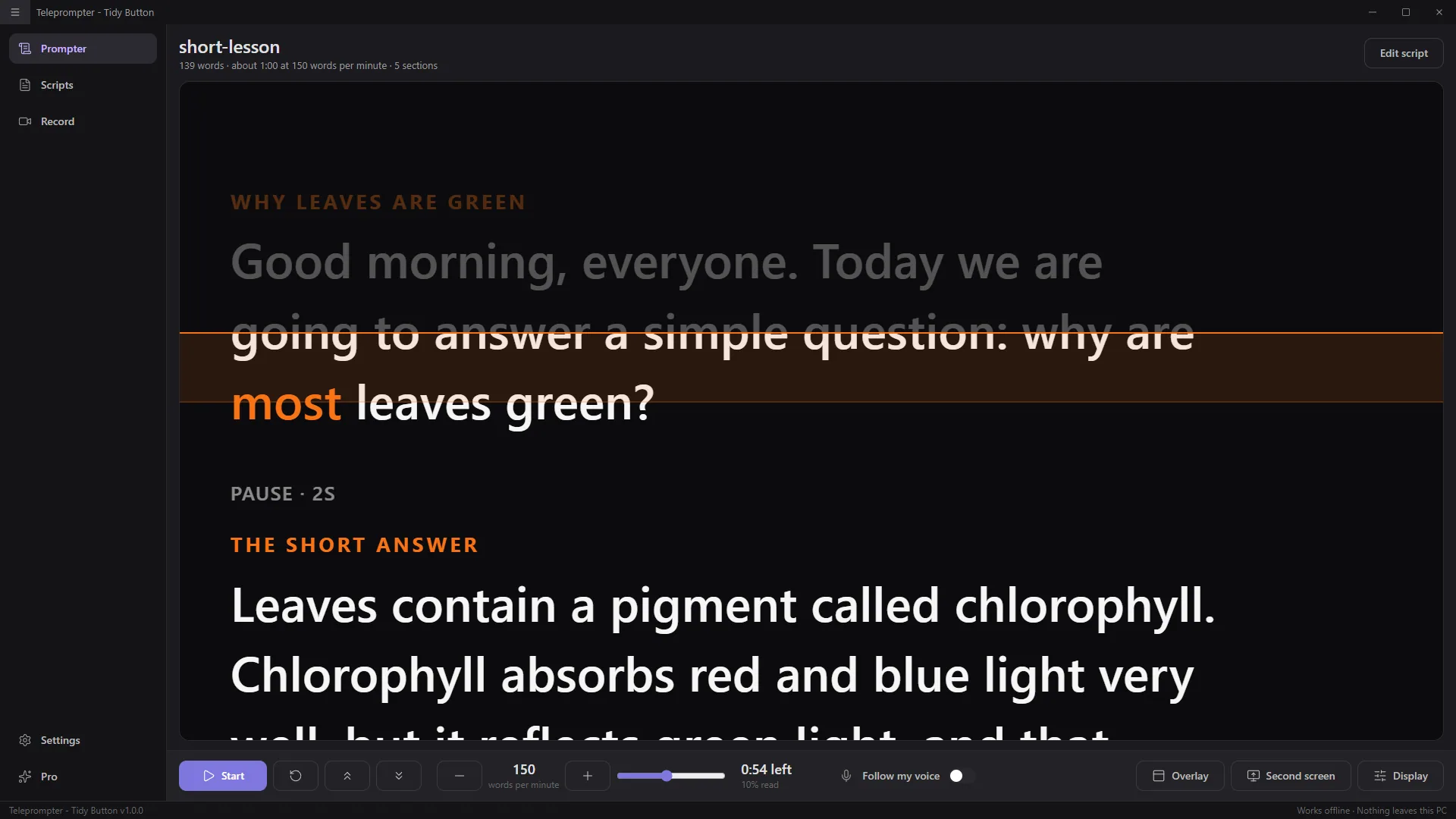
Real app, with a sample script open.
Works offline
No account, no ads, no tracking
Voice stays on your PC
Free
See it
Ten views. One script, read well.
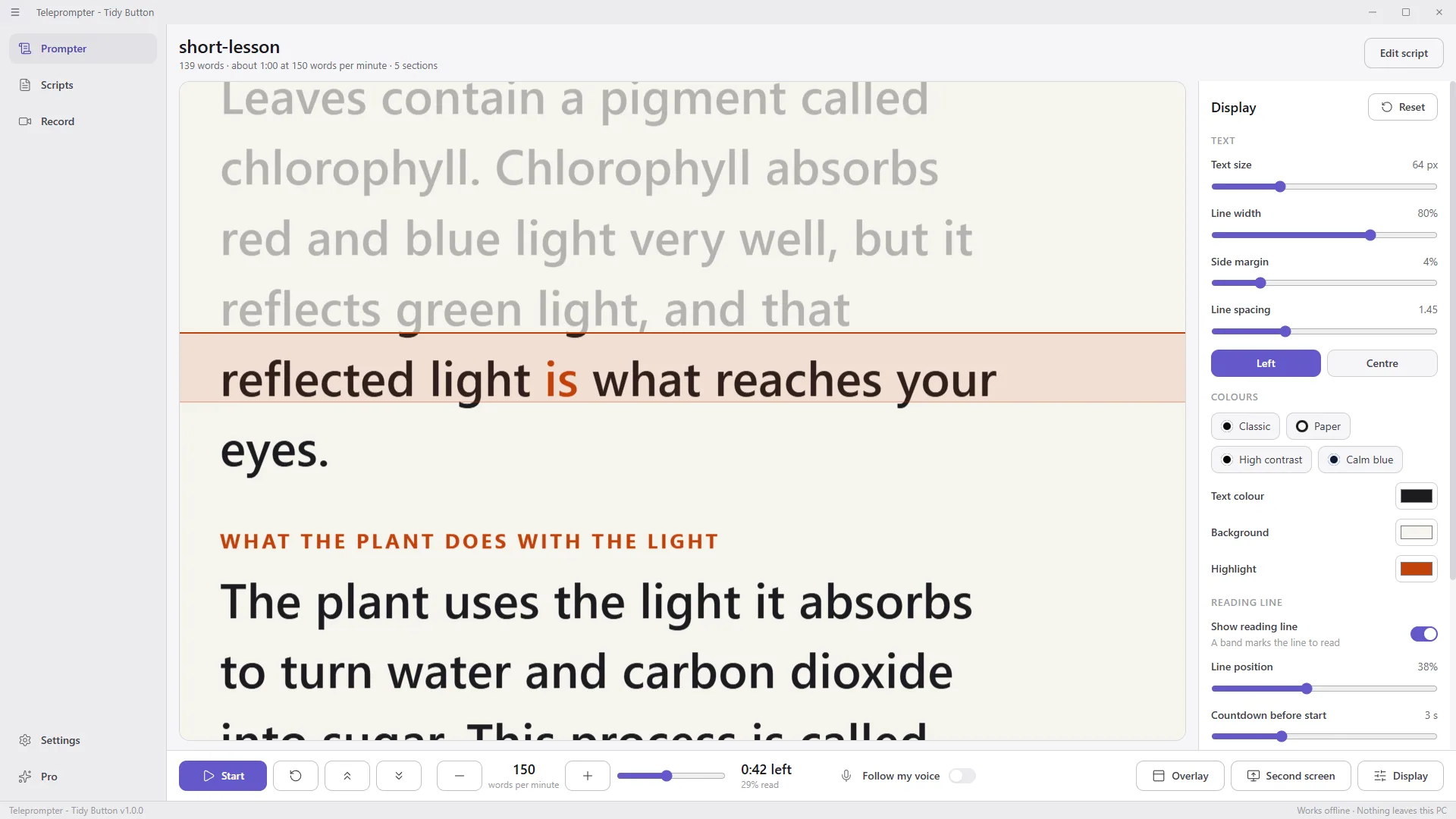
Prompter
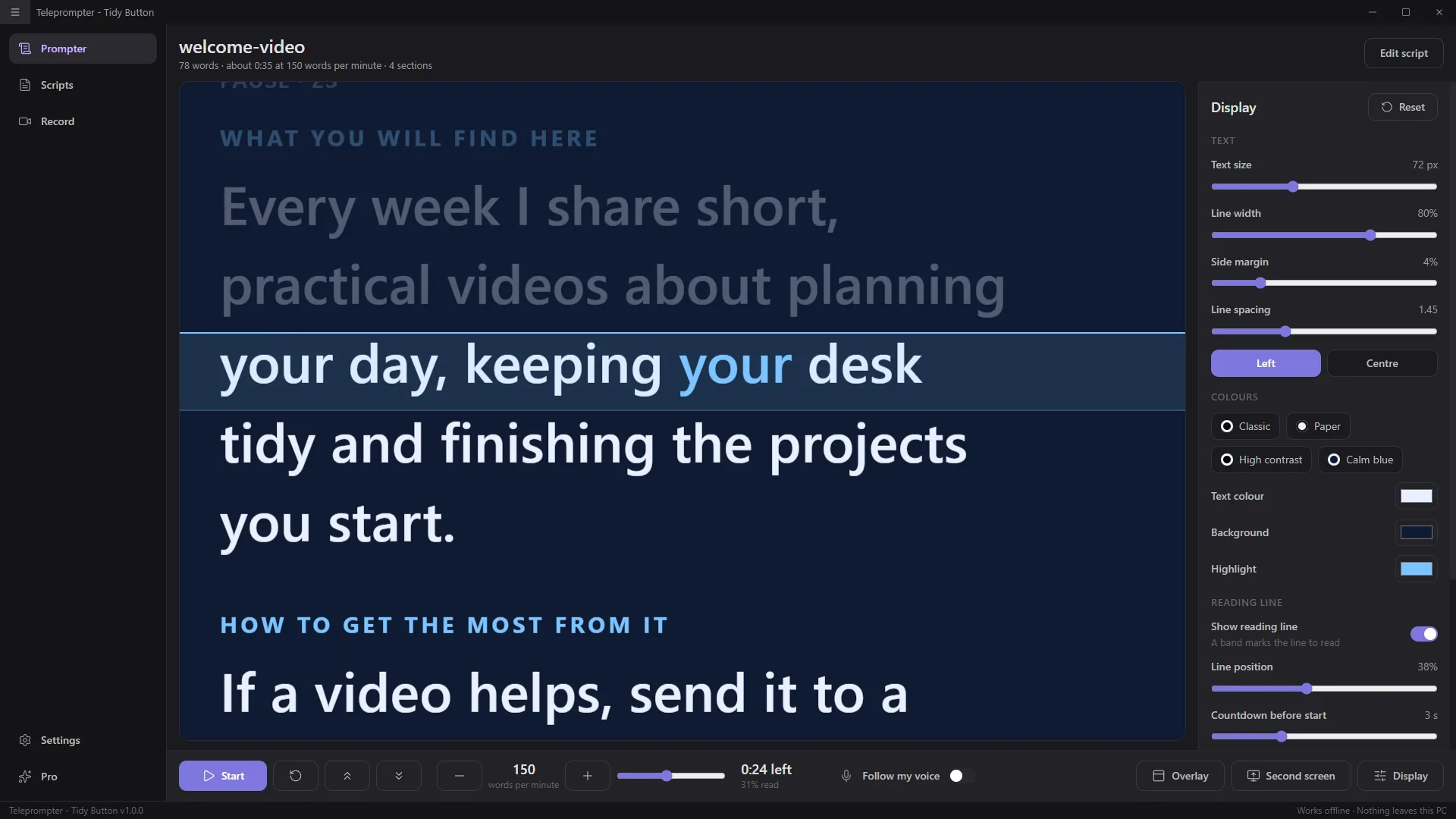
Large, smooth scrolling text with a reading line. Choose your speed, size and colours, and start with one button
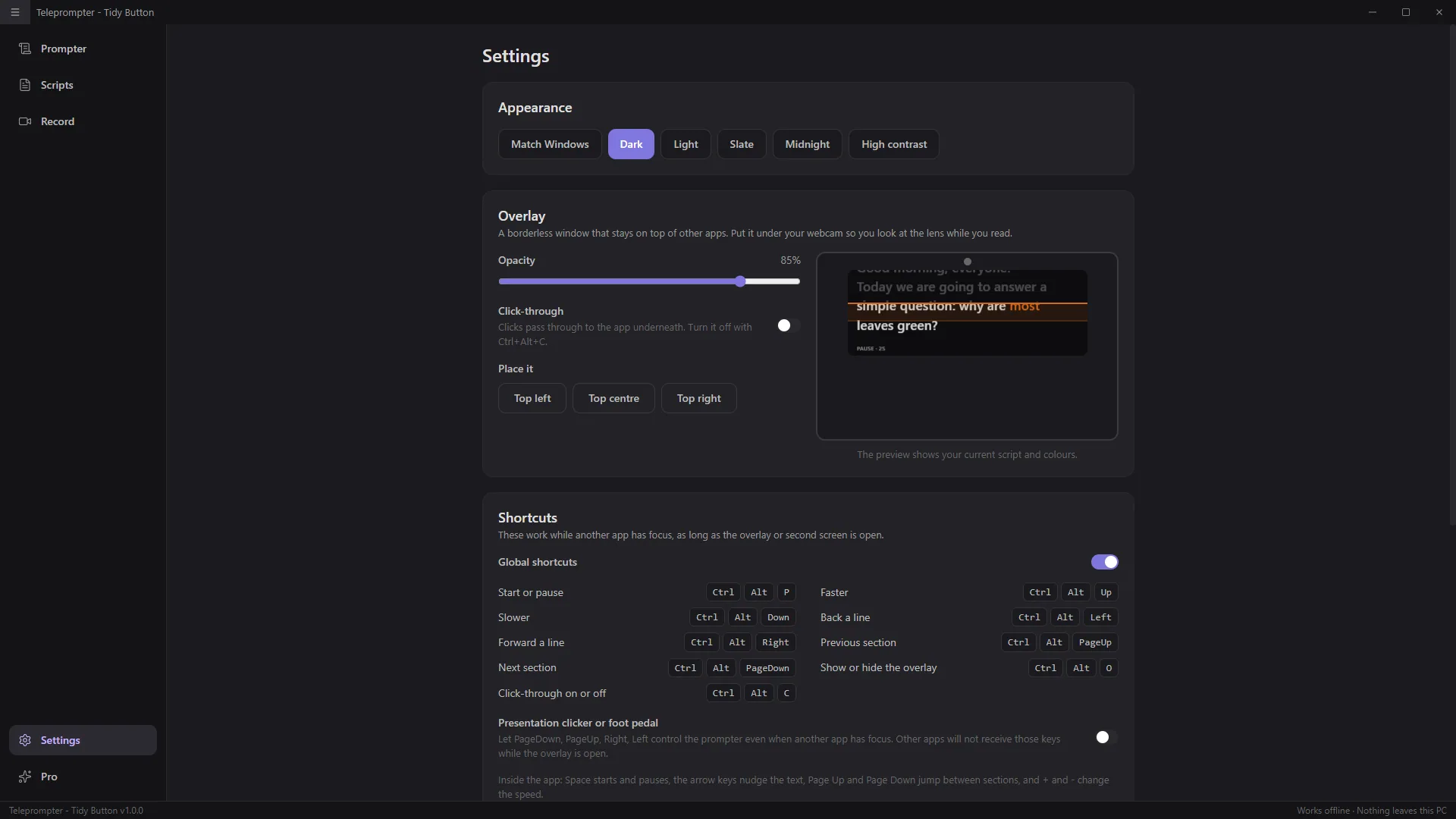
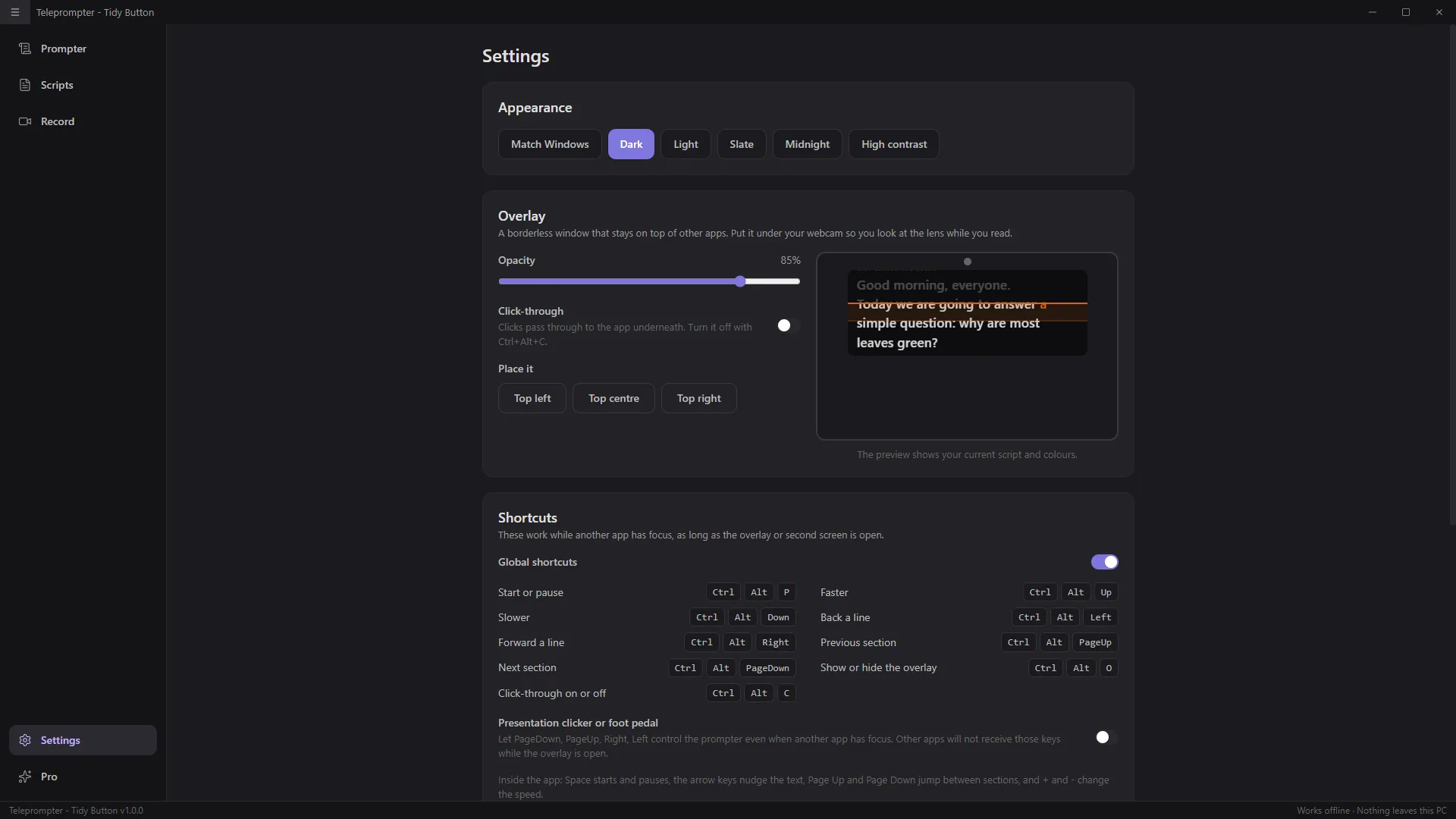
Overlay
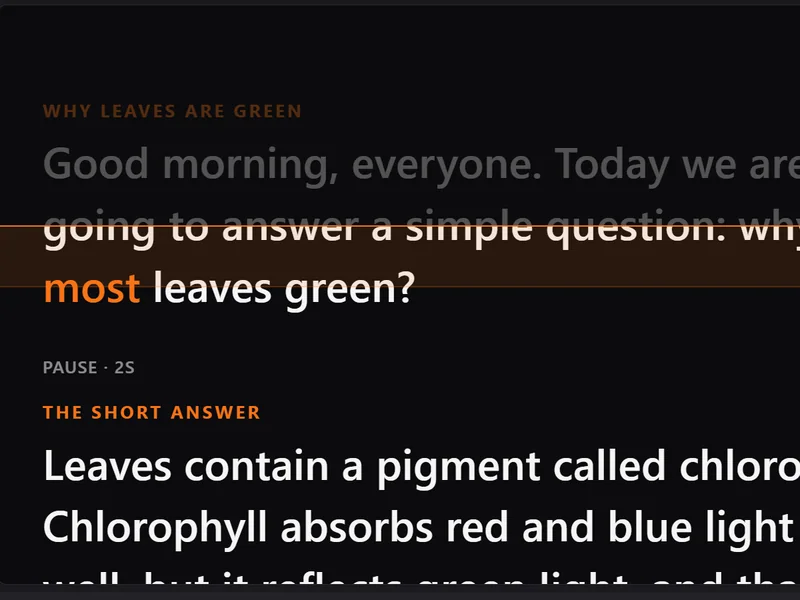
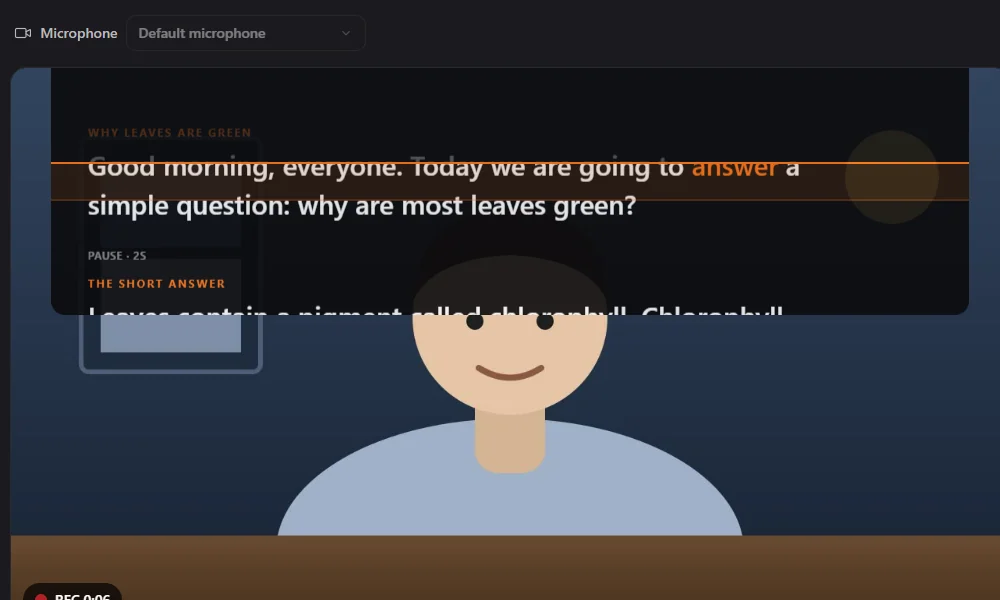
Put the script in a borderless window under your webcam. It stays on top of other apps, with adjustable opacity and click-through
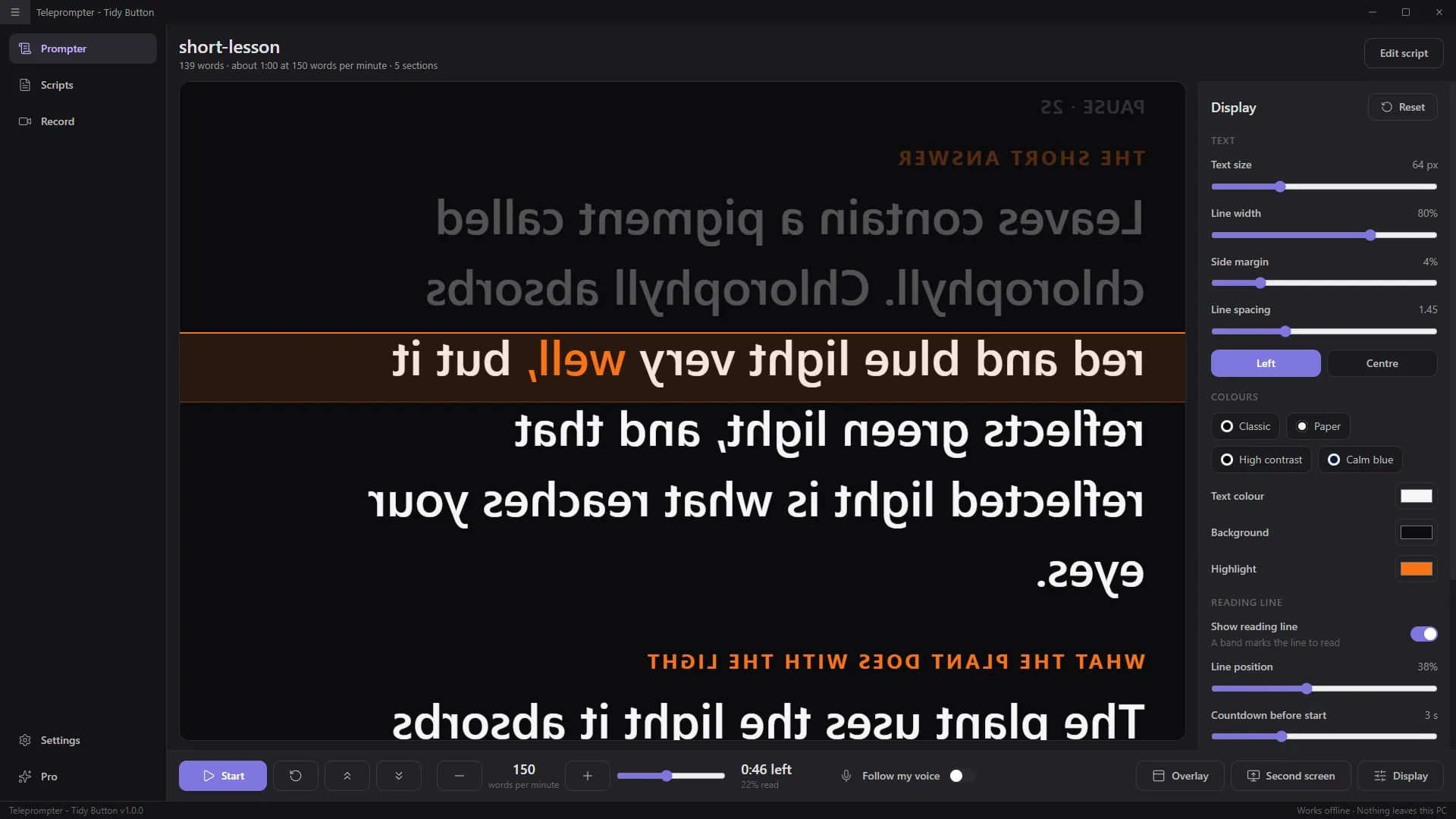
Mirror
Flip the text left to right or upside down for beam-splitter glass. Display settings are remembered for each script
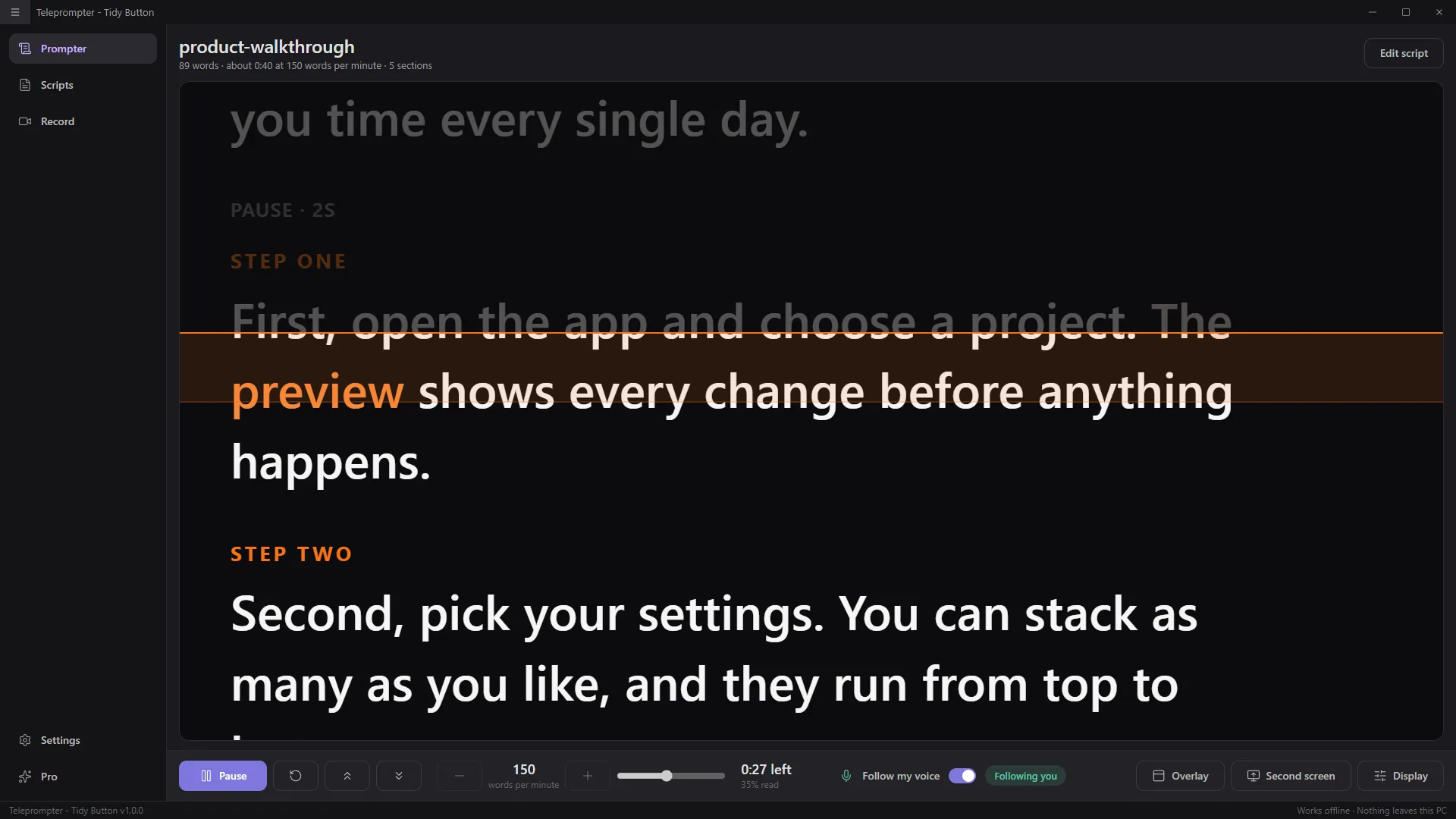
Follow my voice
Follow my voice keeps the line you are saying at the reading line. It waits when you pause and runs entirely on your PC
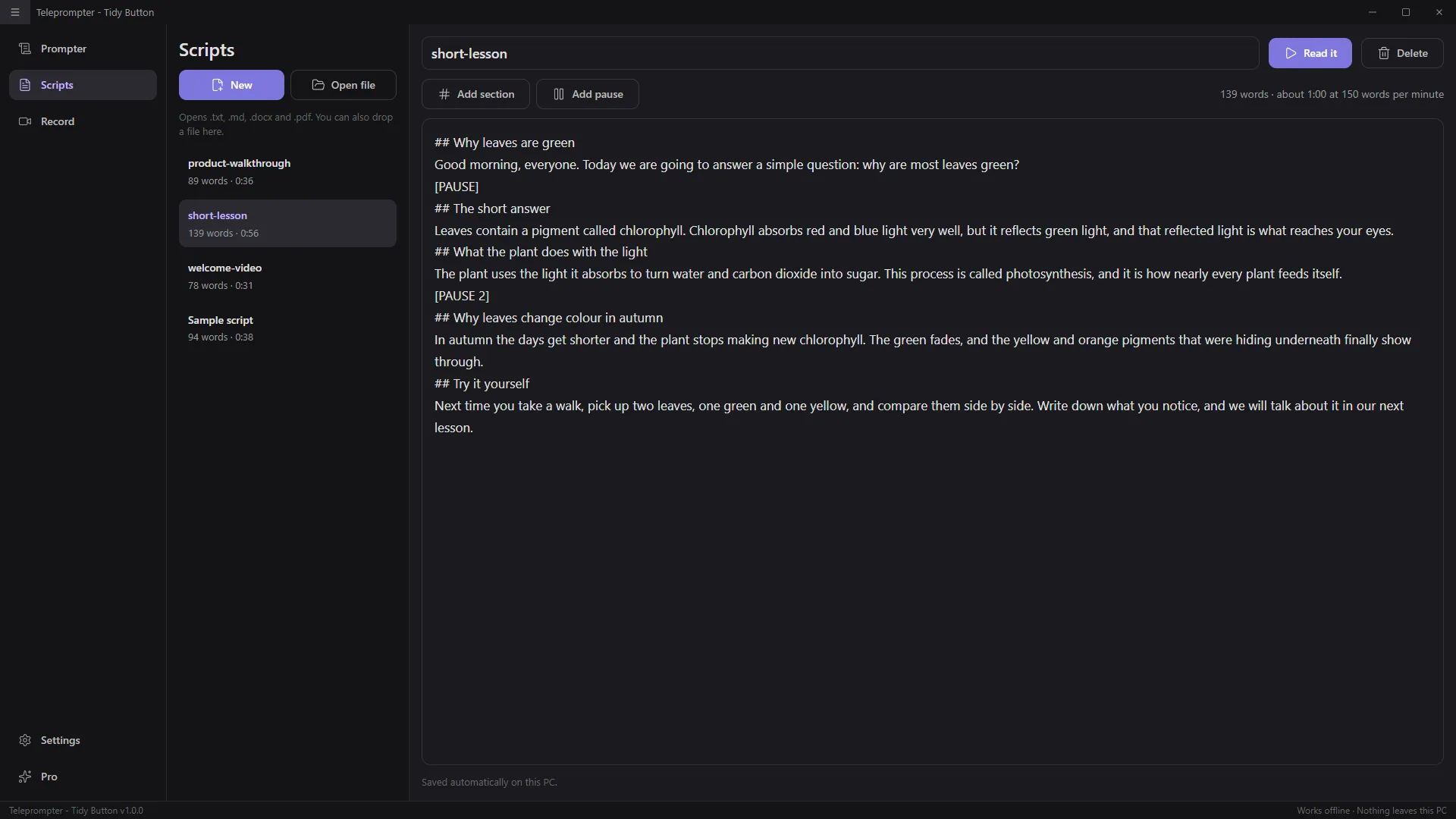
Scripts
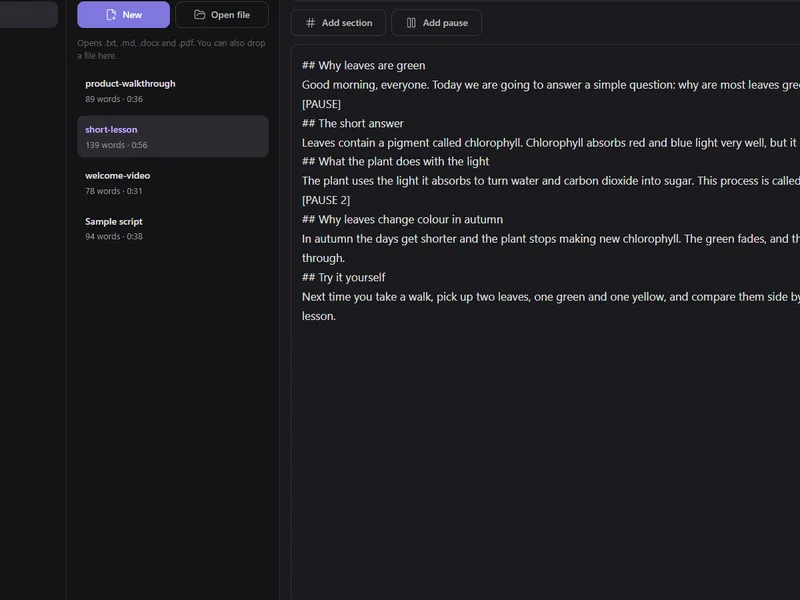
A library of your scripts. Open text, Word or PDF files, add sections and [PAUSE] marks, and see how long the script takes
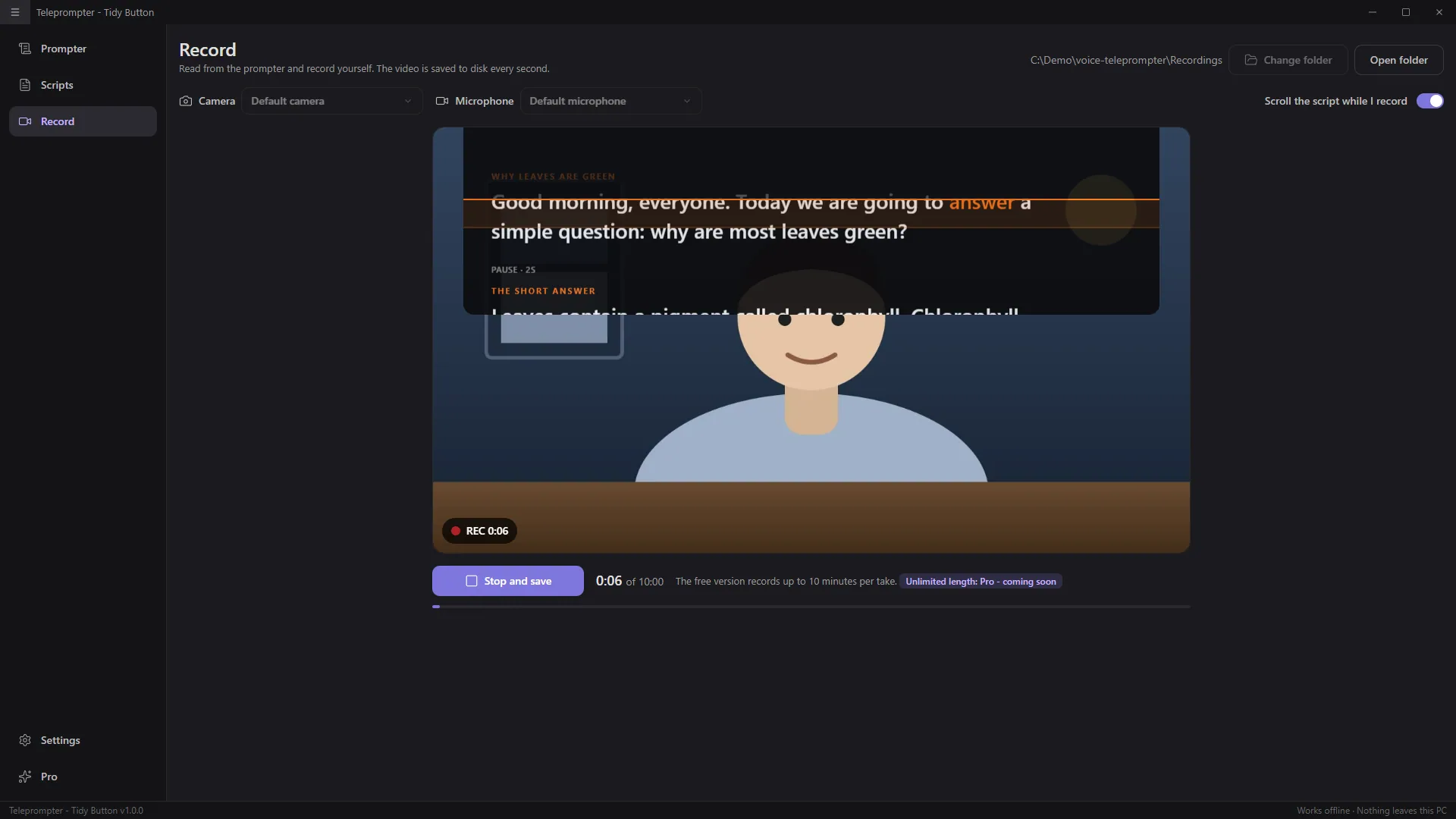
Record
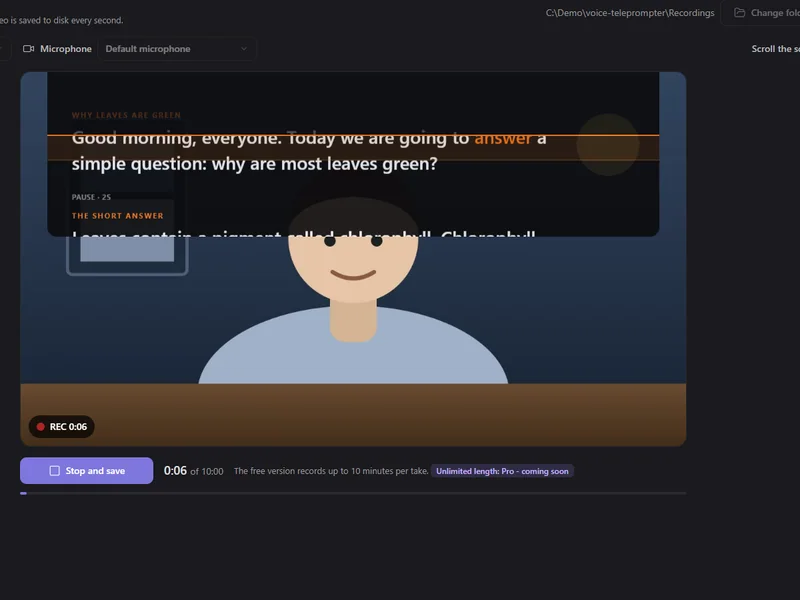
Record with your webcam and microphone while you read. The video is written to disk every second, so a crash does not lose your take
Shortcuts
Global shortcuts work while your recording app has focus. Clickers and foot pedals work too. Pick your microphone for voice follow
Light theme
The app follows your Windows theme, and the prompter has light and dark colour choices, including a paper style for bright rooms
Pro, planned
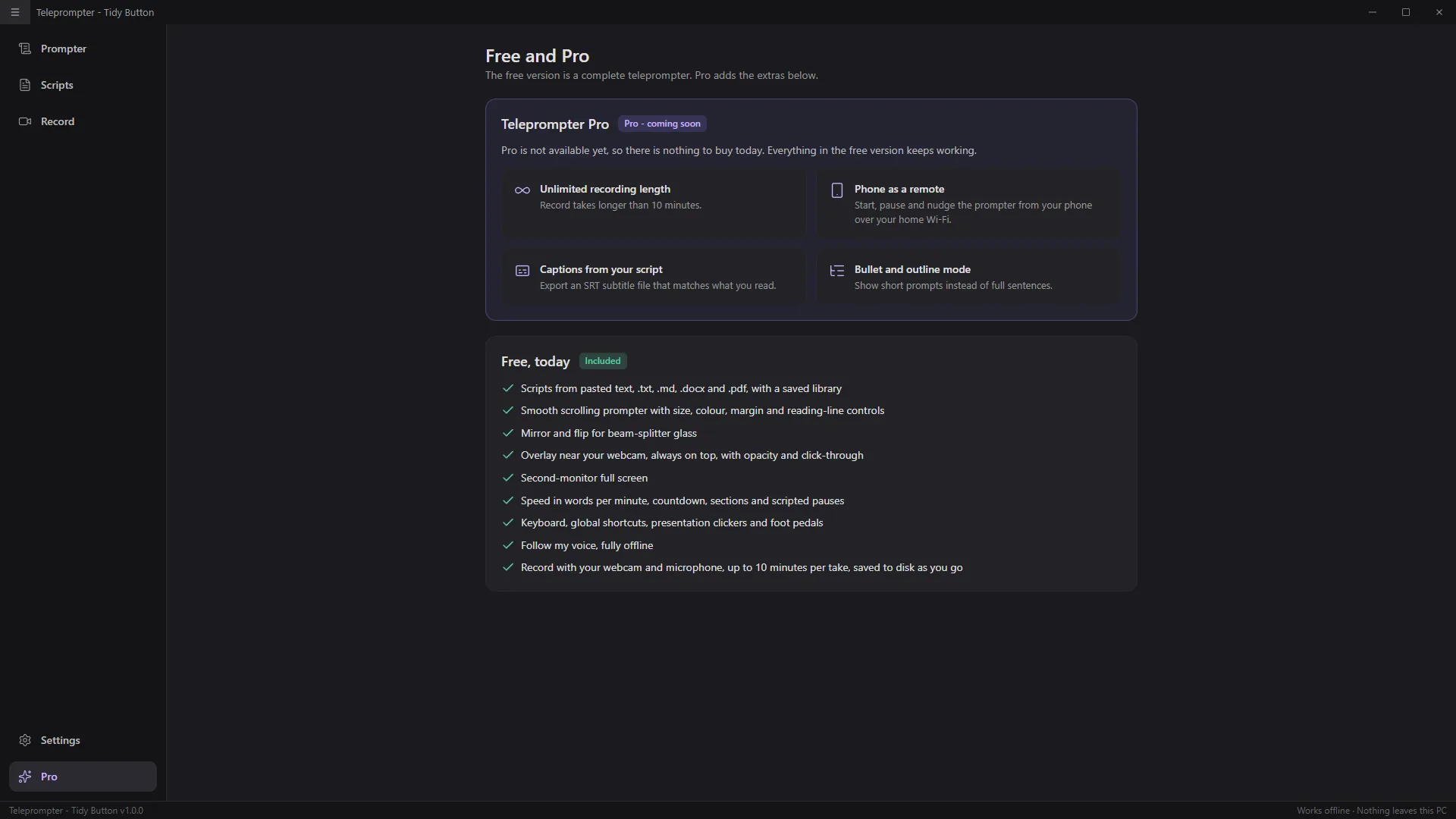
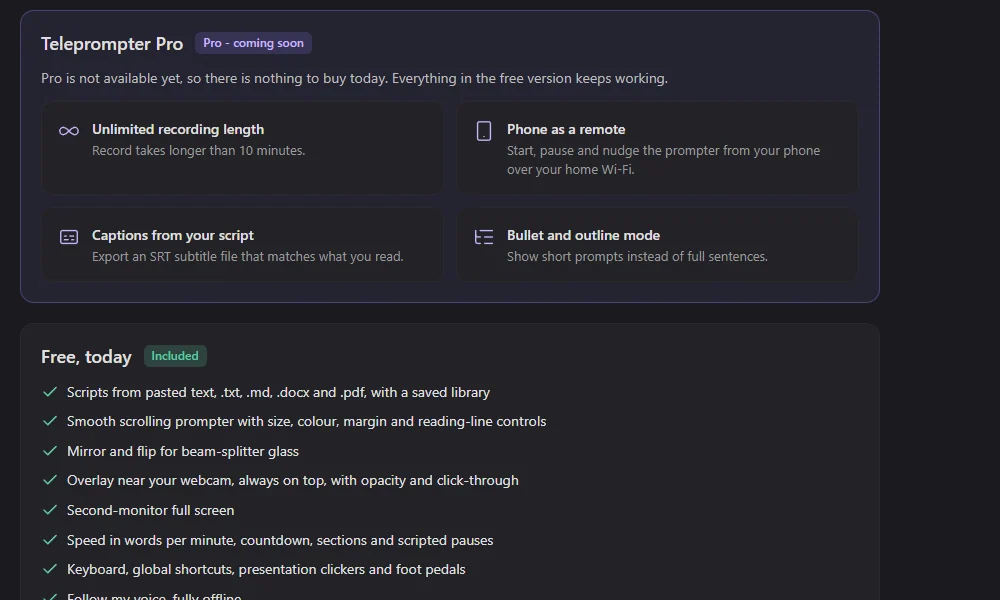
The free version is a complete teleprompter. A Pro add-on is planned for unlimited recording length, a phone remote, captions and an outline mode
Colours
Pick a colour preset or choose your own text, background and highlight colours, with a reading line you can move
Screens show sample scripts and a sample picture, not real ones. The app has light and dark themes.
How it works
Three steps. No manual.
01
Add your script
Press New and paste your text, or open a .txt, .md, .docx or .pdf file.
02
Start reading
Press Start, or turn on Follow my voice so the text keeps pace with you.
03
Record the take
Choose your camera and microphone, press Start recording, and press Stop and save when you finish.
What it does
What it does.
Paste your script, press Start, and the words glide up at the speed you choose. Or turn on Follow my voice and the text keeps pace with you, waits when you pause and holds still when you wander off script. Everything runs on your PC. Speech recognition is local, and your scripts and recordings stay where you put them.
Follow my voice
The line you are saying stays at the reading line. Speech recognition runs on your PC.
Overlay by your webcam
A borderless window that stays on top of other apps, with adjustable opacity and click-through.
Second screen and mirror
Send the script full screen to another display, and flip it left to right or upside down for beam-splitter glass.
Your look
Choose text size, line width, margins, colours and a reading line you can move. Settings are remembered for each script.
Speed and time
Set the speed in words per minute, see how long the script takes, and watch the time left count down. Add [PAUSE] marks where the scroll should hold.
Keys, clickers and pedals
Space starts and pauses, arrow keys nudge, Page Up and Page Down jump between sections. Global shortcuts work while your recording app has focus.
Bring your script
Type or paste text, or open a .txt, .md, .docx or .pdf file. Mark sections with a line that starts with ##.
Record while you read
Pick your camera and microphone and record. The video is written to disk every second, and the last take can be recovered after a crash.
The small print, in plain English
Safe by design.
The video is written to disk every second, to the folder you chose.
The free version is a complete teleprompter. Pro is planned and not available yet.
Your scripts and recordings stay on your PC. The app makes no network requests.
The camera and microphone are used only on your PC, for Follow my voice and for recording, and nothing is sent anywhere.
Recordings are saved only in the folder you choose, and written to disk every second.
Speech recognition runs on your PC. Audio is never uploaded.
Works offline. No account. No ads. No tracking.
What it reads from
Your script, your way.
Bring text from wherever you keep it.
Scripts, sections and pauses.
Plain text
.txt and .md
Open or paste .txt and .md files.
Word and PDF
.docx and .pdf
Open .docx and .pdf files. Only the text is read.
Sections
Page Up and Down
A line that starts with ## starts a section you can jump to.
Pauses
Scripted holds
Add [PAUSE] or [PAUSE 5] where the scroll should hold.
Speed
Time estimate
Set words per minute and see how long the script takes.
Library
Remembered
Scripts are saved on your PC, and the size, colours and margins are remembered for each one.
Pro is planned, not available yet, and would add unlimited recording length, a phone remote, captions from your script and an outline mode. Everything in the app runs on your PC only.
Good for
Handy when you want to look at the camera.
Recording talking-head videos and lessons
Reading a script while looking at the camera
Speeches and presentations with a clicker or foot pedal
Keeping scripts in one library on your PC
Questions
Plain answers.
Is anything uploaded?
No. Scripts, audio and video stay on your PC. There is no upload, no account, no telemetry and no ads.
Where does speech recognition run?
On your PC. Follow my voice uses a recognition engine that is included in the app and works offline, so your voice never leaves it.
When are the camera and microphone used?
The microphone only while Follow my voice is on or while you record. The camera only on the Record screen, for the preview and while recording.
Where are recordings saved?
Only in the folder you choose. The default is Videos\Teleprompter Recordings. The video is written to disk every second, and the app offers to recover the last take after a crash.
Is there a limit in the free version?
A recording can be up to 10 minutes per take. Everything else is included. A Pro add-on is planned (coming soon) for unlimited recording length, a phone remote, captions and an outline mode.
Which files can I read from?
Text and Markdown files, Word (.docx) files and PDF files, or text you paste.
Does it work with a clicker or foot pedal?
Yes. A presentation clicker or foot pedal that sends Page Up, Page Down or the arrow keys works.
Does it need an account?
No. There is no account, no ads, no tracking and no subscription.