How to record your voice on a Windows PC and save it as MP3
This guide shows how to record your voice, cut off the parts you do not want, and save the recording as a file you can share.
This app is not on the Microsoft Store yet. This guide is ready for the day it arrives.
Record your voice
Use this for a lecture, a memo or a quick idea.
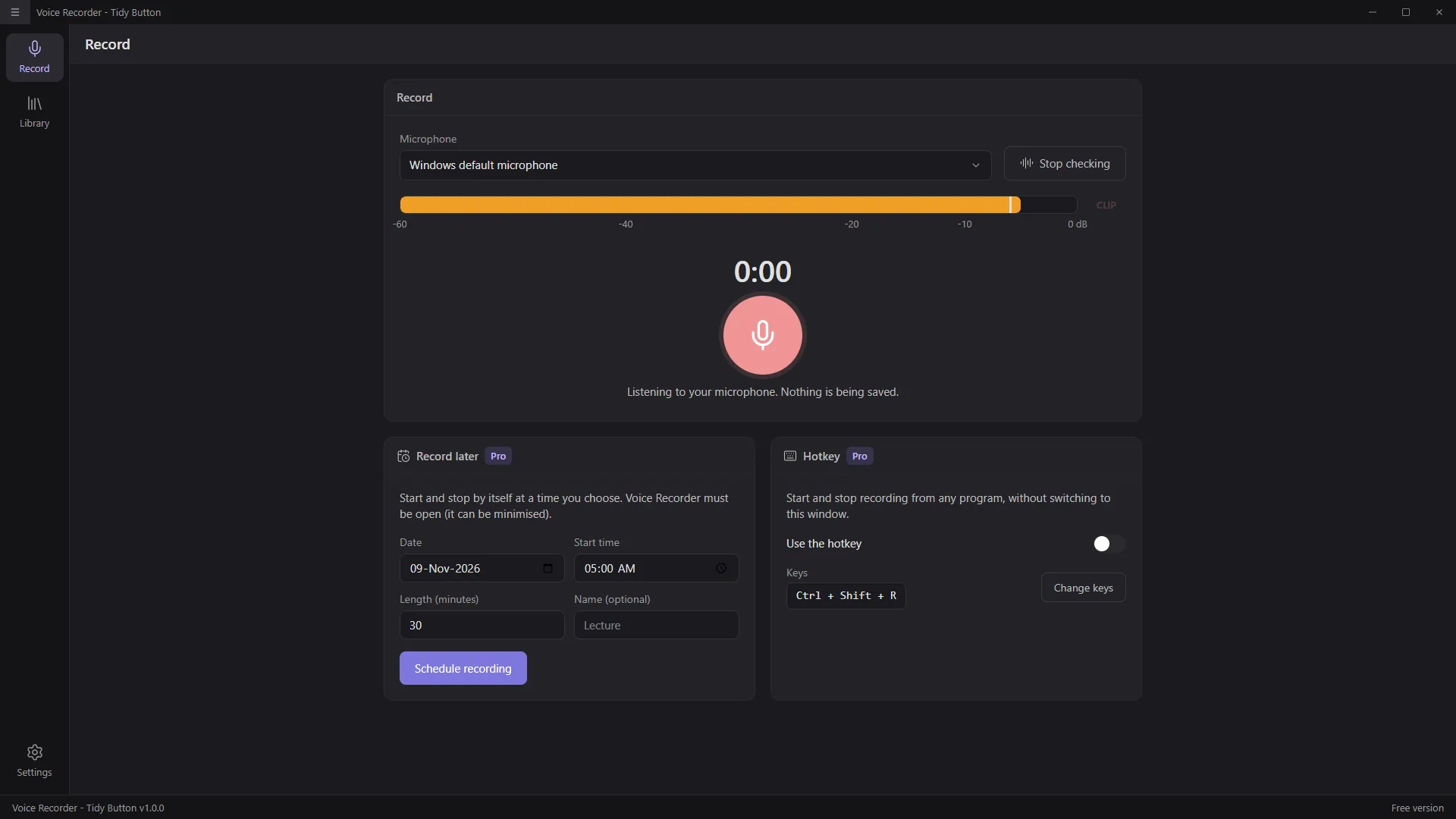
- Open Voice Recorder. The Record screen is the first screen.
- Choose your microphone in the Microphone list.
- Press Check level and say a few words. The bar should move. Press Stop checking when you are done.
- Press the round button to start recording. The timer starts counting.
- Press the same button again to stop. The recording is saved to your Library.
If Windows asks for microphone permission, choose Allow.
Trim the start and end of a recording
- Press Trim and save under Last saved, or open Library and choose a recording in the list.
- Drag the two orange handles on the waveform. The part you keep stays highlighted.
- For an exact time, type it in Start and End.
- Press Play to hear the part you keep.
- If you change your mind, press Whole recording to put both handles back.
You can also click a handle and move it with the arrow keys. Hold Shift to move one second at a time.
Save a recording as MP3 or WAV
- Open Library and choose the recording.
- Under Save as, choose MP3 or WAV.
- For MP3, pick a setting in Quality.
- Press the save button under Save and choose a folder and a file name.
- The new file is saved there. The original recording stays in your Library.
Rename a recording
- Open Library.
- Press the pencil button next to the recording.
- Type the new name in Recording name and press Enter.
If something goes wrong
The level bar does not move when I speak. What should I check?
Make sure the right microphone is chosen in the Microphone list, and that Windows allows apps to use the microphone in its privacy settings. Then press Check level again.
Where are my recordings stored?
In a Voice Recorder folder inside your Music folder. If Music is not available, the app uses Documents. Press Open recordings folder in the Library to open it.
Does saving change the original recording?
No. Saving writes a new file where you choose. The original stays in your Library until you remove it.
The app closed while I was recording. Is the recording lost?
The app is built to recover a recording that was cut short by a crash or power loss the next time you open it. Check your Library.
Good to know
- The app records from a microphone. It does not record the sound playing on your PC.
Still stuck? Support is by email, and a person reads it.