How to set a video or GIF as your Windows desktop wallpaper
This guide shows how to play a video or GIF as your desktop background, how to pause it, and how to turn it off. The app never changes your own Windows wallpaper.
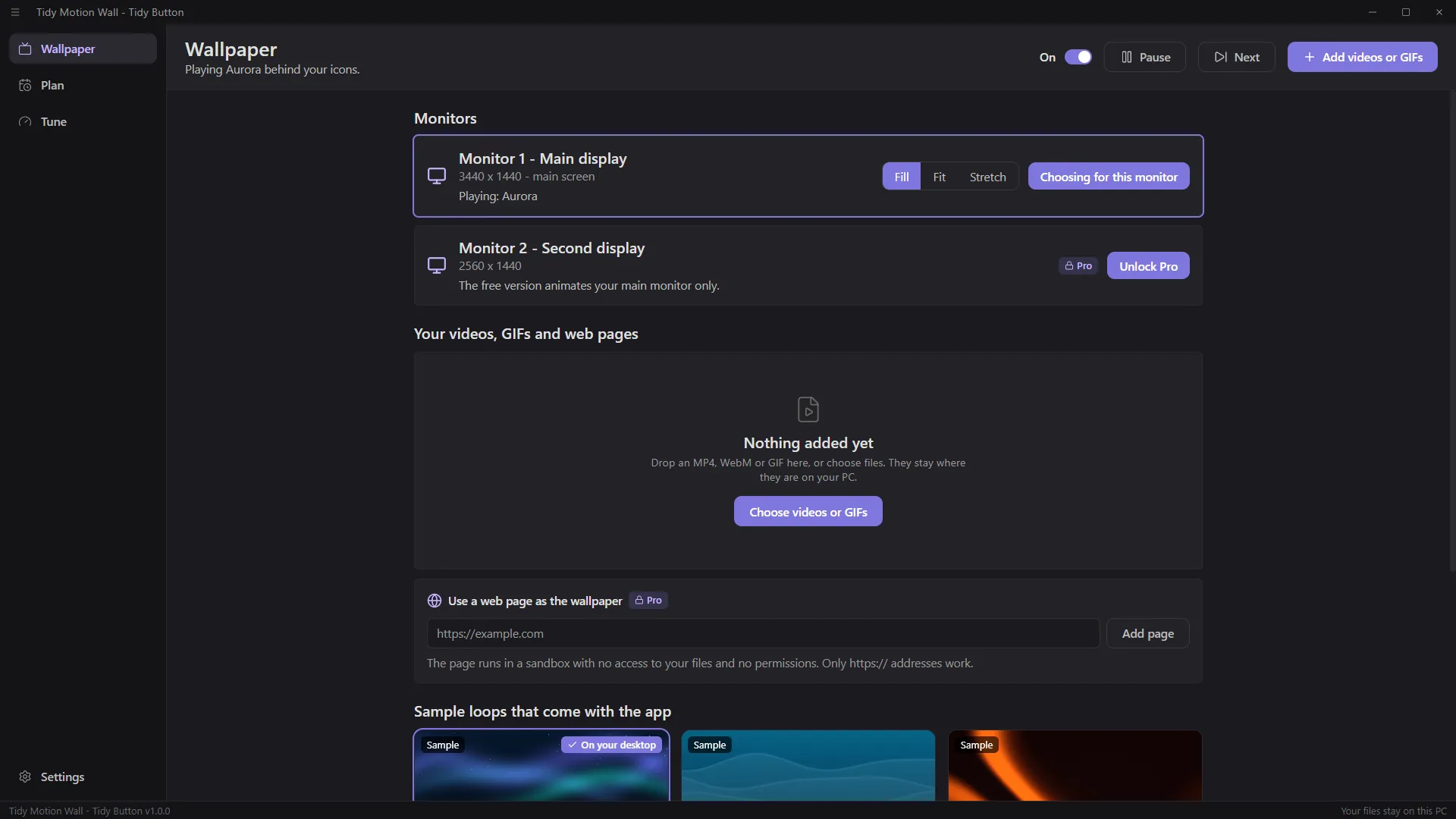
This app is not on the Microsoft Store yet. This guide is ready for the day it arrives.
Use a sample loop or your own video
The app comes with sample loops, so you can try it straight away.
- Open Wallpaper in the left menu.
- To use a sample, look under Sample loops that come with the app and press Use on one of them.
- To use your own file, press Add videos or GIFs and choose an MP4, WebM or GIF file. You can also drop files on the window.
- Find your file under Your videos, GIFs and web pages and press Use on its card.
- Check that the switch at the top of the screen, with the label Wallpaper on or off, shows On. The video now plays behind your icons.
Your files stay where they are. The app only remembers where they are.
Choose how the picture fills the screen
- Open Wallpaper and look at Monitors.
- Press Fill to cover the whole screen and crop the edges.
- Press Fit to show the whole picture with black bars.
- Press Stretch to stretch the picture to the screen shape.
Pause, skip or turn off the wallpaper
- Open Wallpaper.
- Press Pause to stop the video. The button then reads Resume.
- Press Next to move to the next wallpaper in your library.
- To turn it off, switch the Wallpaper on or off switch to Off. Your own Windows wallpaper shows again.
- You can also use the small panel that opens from the tray icon. It has the same Pause, Next and on or off controls.
Closing the window keeps the wallpaper running in the tray.
Pause for games and turn sound on or off
- Open Tune in the left menu.
- Under When to pause, check that the switch for Pause while a full-screen app or game is running is on. The wallpaper then rests while a full-screen app or game runs.
- Under Sound and your own wallpaper, switch on Play sound from videos if you want sound.
Sound is off by default, and the full-screen pause is on by default.
Check that your own wallpaper is safe
- Open Tune in the left menu.
- Under Sound and your own wallpaper, press Check and restore.
- Read the message and confirm. The app checks that your own Windows wallpaper is the one set, and puts it back if something changed it.
If something goes wrong
My video shows This file was moved or deleted. What now?
The file is no longer where it was. Put it back in its folder, or add it again with Add videos or GIFs.
The wallpaper stopped playing during a game. Is it broken?
No. With the full-screen switch on in Tune, it pauses by itself while a full-screen app is open and plays again when you leave. You can turn that switch off.
How do I remove a video from the library?
Press the bin button on its card and confirm. The file on your PC is not touched.
Will the app change my Windows wallpaper setting?
No. Turning the wallpaper off, quitting from the tray or uninstalling leaves your own wallpaper as it was.
Good to know
- A file the app cannot play is marked in your library, and it will not play as a wallpaper.
Still stuck? Support is by email, and a person reads it.