How to join video clips into one file on Windows
This guide shows how to put several video clips in order and join them into a single video. The app works on your PC, so nothing is uploaded.
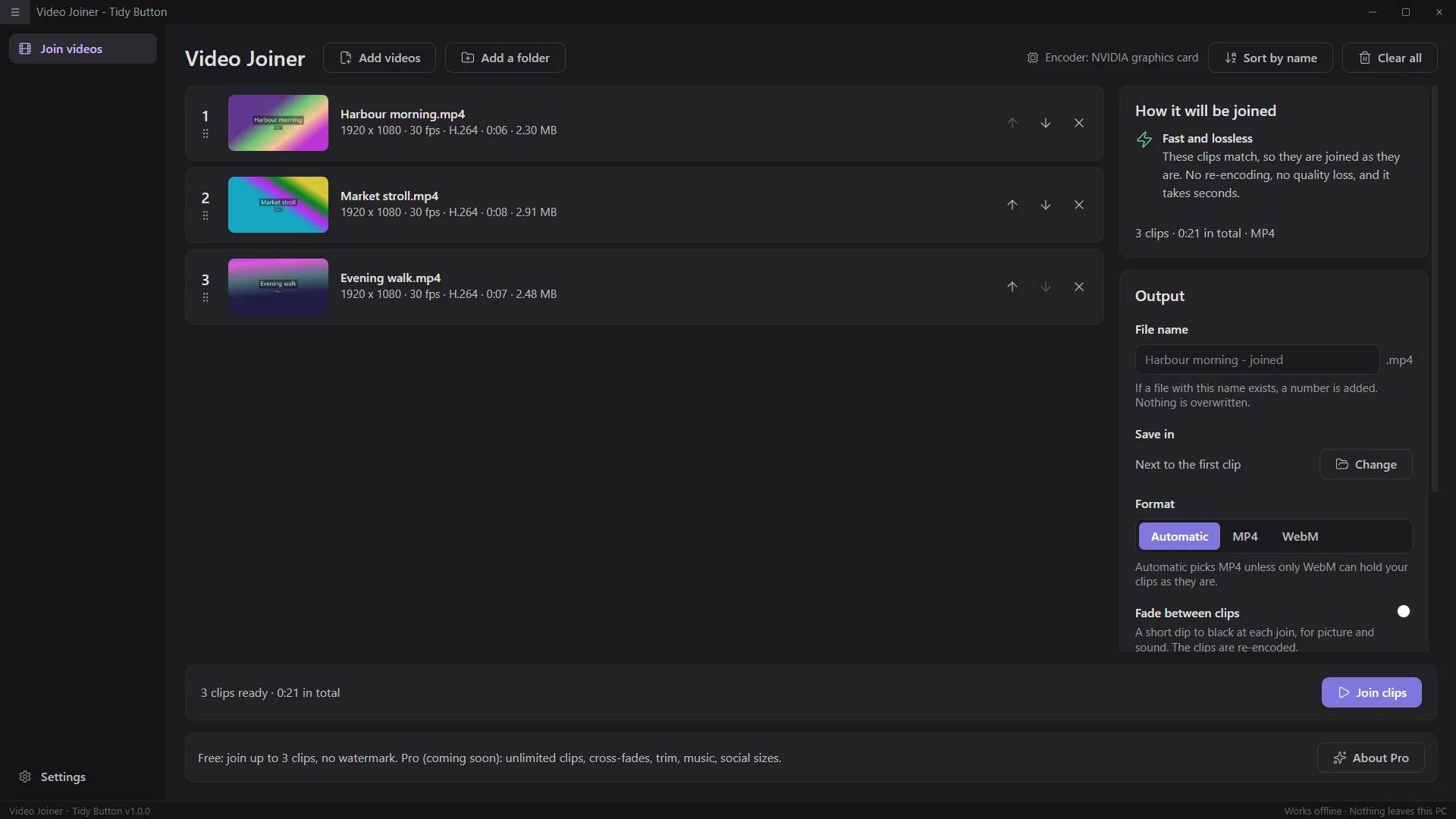
This app is not on the Microsoft Store yet. This guide is ready for the day it arrives.
Join clips in the order you want
- Open Video Joiner.
- Press Add videos and choose your clips. You can also drag them onto the window.
- Wait while the app reads the clips. Each one shows a picture and its details.
- Use the up and down arrows on a row, or drag a row, to change the order. Clip 1 plays first.
- Read the panel called How it will be joined. It says if the clips are joined as they are, or need to be matched first.
- Press Join clips.
Clips that match in size, frame rate and format are joined without re-encoding. This is quick and loses no quality.
Join a whole folder of clips
- Press Add a folder and choose the folder.
- Press Sort by name to put the clips in name order. Clip 2 comes before clip 10.
- Remove any clip you do not want with the cross on its row.
- Press Join clips.
Name the new video and choose where it goes
- Look at the Output panel.
- Type a name in the box under File name. If you leave it empty, the app suggests one from the first clip.
- Under Save in, press Change to pick a folder. Until then, the file is saved next to the first clip.
- Under Format, choose Automatic, MP4 or WebM.
- Press Join clips.
If a file with that name already exists, the app adds a number. It never overwrites a file.
Join clips that are different sizes
- Add the clips as usual.
- Read the reasons in How it will be joined. The app lists what differs.
- Under Match size to, choose First clip or Largest clip.
- Under Quality, choose High, Balanced or Small.
- Turn on Fade between clips if you want a short dip to black at each join.
- Press Join clips. This takes longer, because the clips are re-encoded.
A clip with no sound gets silence, so the sound stays in step with the picture.
Check the result
- Wait until the bottom bar says Done.
- Press Show in folder to find the new video.
- Press Play to watch it.
If something goes wrong
Why does joining take so long this time?
The clips did not match, so the app re-encodes them to one size and frame rate. The panel How it will be joined says Re-encoded to match, with the reasons.
How do I stop a join?
Press Cancel. The join stops and no half-finished file is kept. Your clips are not touched.
A clip shows an error instead of details.
The app could not read that file as a video. Remove it with the cross on its row and add a different file.
The top right says no MP4 encoder works. What now?
Choose WebM under Format. It always works.
Good to know
- Your original clips are never changed or replaced.
- Re-encoding takes longer than joining clips as they are.
Still stuck? Support is by email, and a person reads it.