How to make a video file smaller to send by email
This guide shows how to make a big video small enough to send. The app works on your PC, so nothing is uploaded and your original video is not changed.
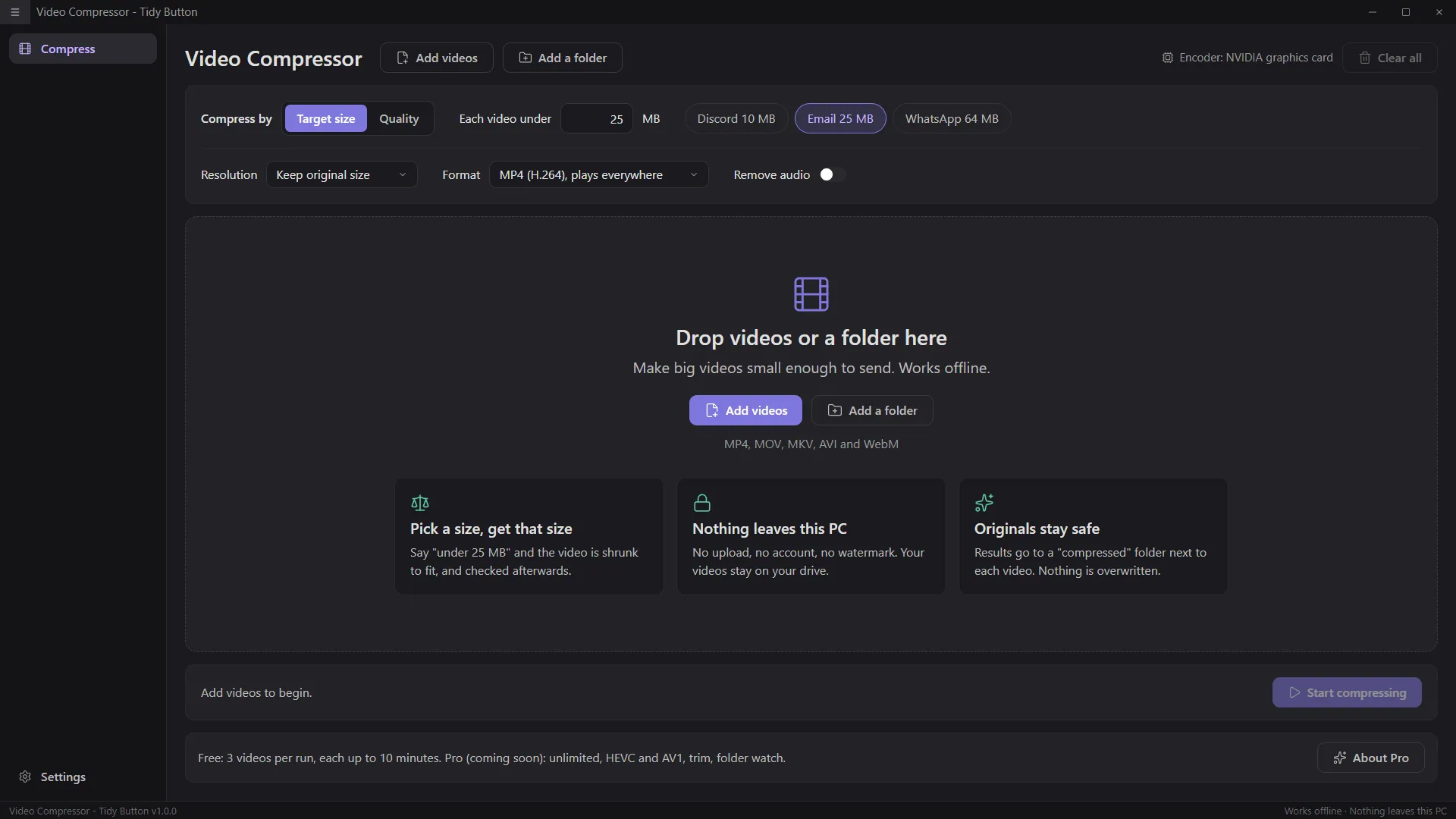
This app is not on the Microsoft Store yet. This guide is ready for the day it arrives.
Shrink a video to a set size
- Open Video Compressor.
- Press Add videos and choose your video. You can also drag it onto the window.
- Next to Compress by, make sure Target size is selected.
- Type a number in the box after Each video under, or press a preset such as Email 25 MB.
- Check the size shown on the right of each video. It says about how big the new file will be.
- Press Start compressing.
When a video says Done, the new file is in a folder named compressed, next to the original.
Compress a whole folder of videos
- Press Add a folder and choose the folder.
- Wait while the app reads the videos. It shows Reading videos.
- Remove any video you do not want with the small cross on its row.
- Choose the size you want, then press Start compressing.
- When the run ends, press Show results to open the folder with the new files.
The app finds MP4, MOV, MKV, AVI and WebM files.
Choose quality instead of a size
- Next to Compress by, select Quality.
- Pick High, Balanced or Small. A short note under the choice says what each one does.
- Press Start compressing.
Lower the resolution or remove the sound
- Open the Resolution list and choose Up to 1080p, Up to 720p or Up to 480p.
- Turn on Remove audio if the video does not need sound.
- Open the Format list. MP4 plays almost everywhere. WebM is smaller but slower.
- Press Start compressing.
The picture keeps its shape when it is made smaller.
If something goes wrong
The new video is still a little over my size. What can I do?
The row says it was saved but is still a little over the size, and suggests a smaller size. Type a smaller number in the box after Each video under and compress the video again.
How do I stop a compression that is running?
Press the cross on a video's row to stop that video, or press Cancel all to stop everything.
Why was my video skipped or left alone?
A video that is already smaller than the size you chose is left alone, and a note on its row says so. Choose a smaller size if you still want it shrunk.
The top right says no MP4 encoder works. What now?
Open the Format list and choose WebM. It does not need a graphics card or the Windows encoder.
Good to know
- Presets are only sizes. The app does not know what any email or chat service will accept.
- Your original videos are never changed or replaced.
Still stuck? Support is by email, and a person reads it.