How to keep a car service history and fuel log on your PC
This guide shows how to keep a service history, a fuel log and reminders for your car or motorbike on your PC. Nothing is sent to a server.
This app is not on the Microsoft Store yet. This guide is ready for the day it arrives.
Add your vehicle
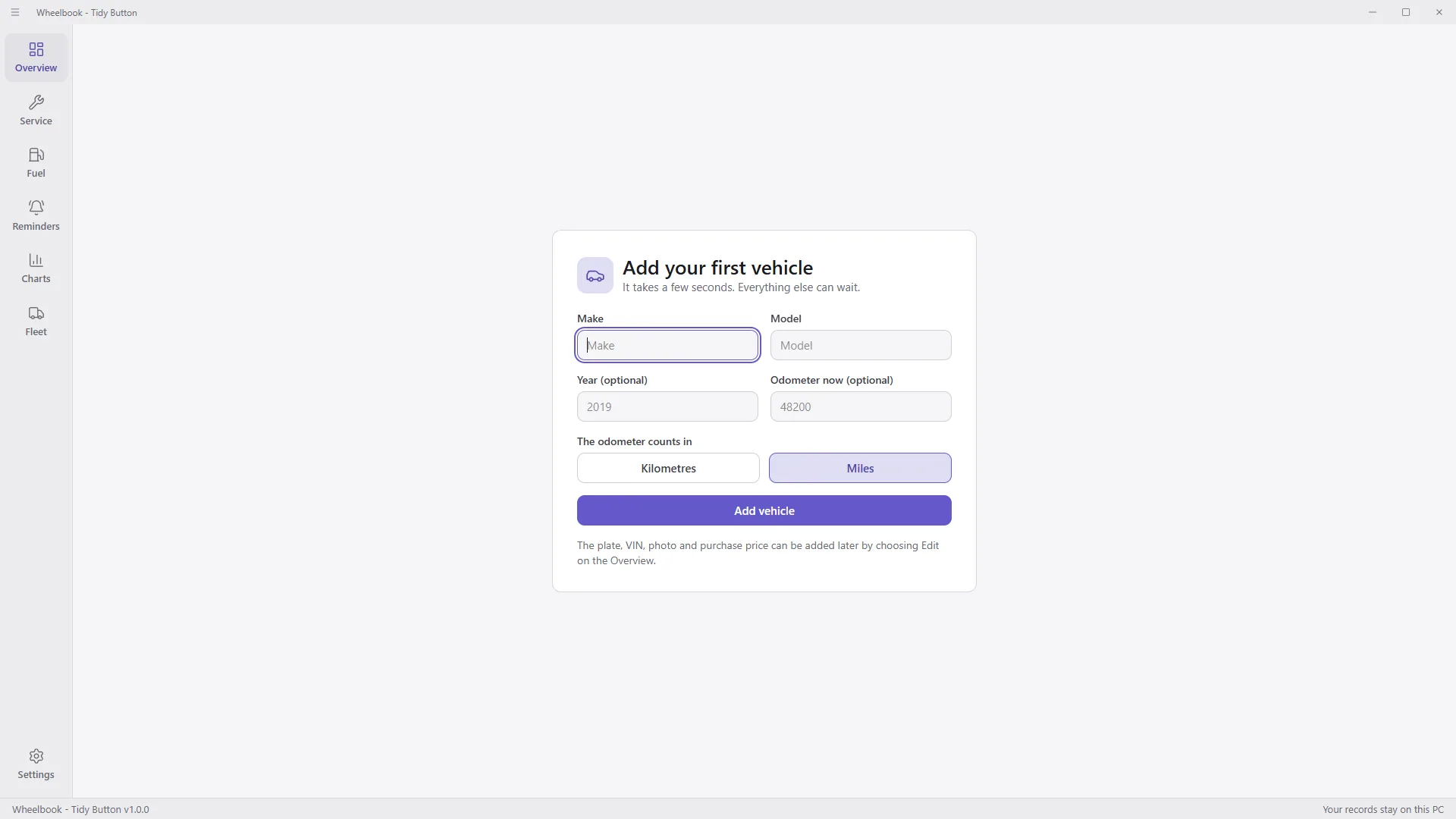
- Open the app. On the first run you see Add your first vehicle.
- Type the Make and the Model.
- Add the Year (optional) and the Odometer now (optional) if you want to.
- Press Add vehicle.
Other details, such as a photo, can be added later.
Log a service or repair
- Open Service in the left menu.
- Press Log a service.
- Check the Date and type the odometer reading.
- In Work done, say what was done, for example Oil and filter change.
- Fill in Shop or mechanic, Parts used and Notes if you want to.
- Type the cost, then press Save entry.
Use Search the log above the table to find an old entry. Press the entry to edit it.
Log a fill-up and see your economy
- Open Fuel in the left menu.
- Press Add a fill-up.
- Enter the date and odometer, the fuel added and the total paid.
- Tick Filled the tank to the top if you filled the tank. Leave it clear for a part-fill.
- Press Save fill-up.
- Read Average economy, Best tank and Spent on fuel at the top of the screen.
Economy needs two full fill-ups before the app can work it out.
Set a reminder by date or distance
- Open Reminders in the left menu.
- Press Add a reminder.
- Pick a quick choice such as Oil change or Insurance, or type your own in Reminder.
- Set Repeat every (months), and the distance box if you want one. Whichever comes first makes it due.
- For an expiry date, use Fixed due date.
- Press Add reminder.
When the job is done, press Done beside the reminder and then Mark as done.
Keep a copy of your records
- Open Settings in the left menu.
- Find the Backup section.
- Check that Weekly copy in Documents is on.
- Press Copy now to make a copy straight away.
The copy goes in a folder called Wheelbook inside Documents. Once a copy exists, Open folder shows that folder.
If something goes wrong
The fuel economy is not shown. Why?
The app needs two full fill-ups to work out economy. Tick Filled the tank to the top each time you fill the tank.
I entered a fill-up wrongly. How do I fix it?
Open Fuel, press the date of the fill-up, change the details and press Save changes. You can also delete it from the same window.
A reminder did not go away after I did the job. What now?
Press Done beside it and choose Mark as done. Both the date and distance counters start again, and you can add the job to your service log at the same time.
I reinstalled the app and my vehicle is gone. Can I get it back?
The app saves a weekly copy in the Wheelbook folder inside Documents, if the weekly copy was on. On the first screen, press Restore it if it shows up. Or open Settings, find Backup and press Restore latest copy. A copy is only there if one was made before.
Good to know
- The app records what you enter. It does not read your odometer or tell you when a service is needed beyond the reminders you set.
Still stuck? Support is by email, and a person reads it.