How to learn touch typing and test your typing speed on a PC
This guide shows how to learn to type without looking at the keys, how to test your speed, and how to see which keys need more practice.
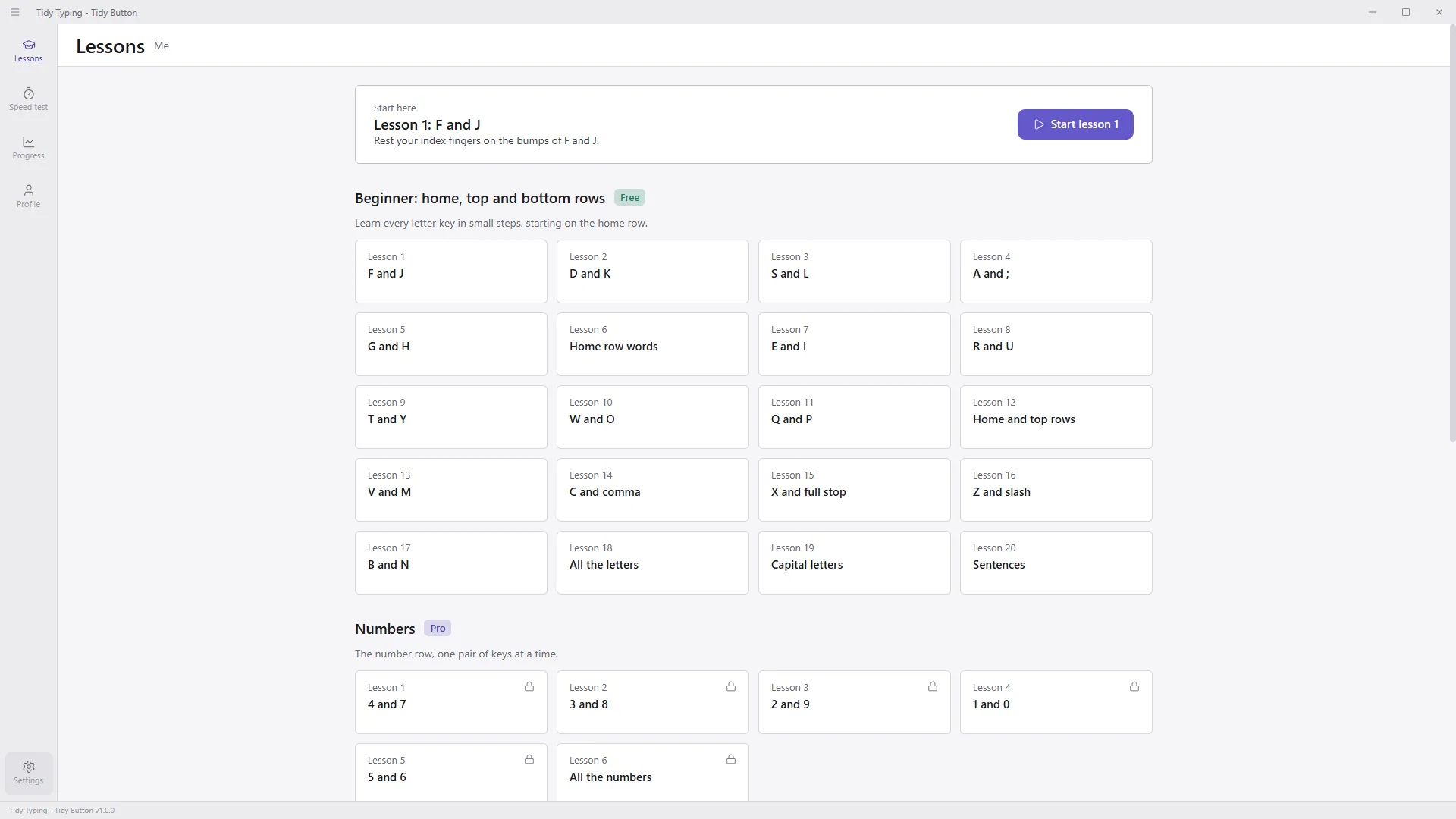
This app is not on the Microsoft Store yet. This guide is ready for the day it arrives.
Start the beginner typing lessons
- Open Lessons in the left menu.
- Click the first lesson. The lessons start on the home row.
- Click the typing area and start typing. The clock starts on your first key.
- Watch the on-screen keyboard. It lights the next key and tells you which finger to use.
- When you finish, look at your speed and accuracy on the result screen.
- Press Next lesson to carry on, or Try again to repeat the lesson.
If the keyboard is hidden, tick Show keyboard to bring it back.
Take a timed speed test
- Open Speed test in the left menu.
- Choose 1, 3 or 5 minutes, then press the Start button for that length.
- Click the typing area and type the text as fast and as accurately as you can.
- Watch your Speed and Accuracy while you type.
- When the time is up, read your result. Your best speed for each length is kept on the Speed test screen.
Press Finish now to end a test early. Press Quit to leave without a result.
Choose your keyboard layout and how mistakes work
- Open Profile in the left menu.
- Under Keyboard layout, choose US QWERTY, UK QWERTY or Dvorak.
- Under When you make a mistake, choose Fix with Backspace, Stop at mistakes or No Backspace.
- Switch on Kid mode for larger text and a larger keyboard.
If the layout Windows is using is different from the one you chose, the app shows a warning.
See your progress and weak keys
- Open Progress in the left menu.
- Look at Speed by day to see how your speed changes from day to day.
- Look at Weak keys to see the keys you miss most often.
- Look at Recent sessions to see each lesson and test you finished.
Weak keys appear once a key has been pressed at least 5 times.
If something goes wrong
The Progress screen says there is nothing to show yet. Why?
Finish a lesson or a speed test first. Your speed, accuracy and weak keys appear after that.
The on-screen keyboard shows the wrong letters. What can I change?
Open Profile and check Keyboard layout. Pick the layout that matches your keyboard. The same screen says which layout Windows is using right now.
Why is my speed lower than I expected?
Speed counts a word as 5 characters and takes off mistakes you leave uncorrected. Fix your mistakes, or choose Stop at mistakes, where the cursor waits until you press the right key.
Where are my results saved?
On your PC, in your Documents folder, inside Tidy Button and then Tidy Typing. Your history is still there after you restart the app.
Good to know
- The beginner course covers the letter keys, capital letters and sentences.
Still stuck? Support is by email, and a person reads it.