How to host a pub quiz or trivia night on a laptop
This guide shows how to write a quiz, run the night from your laptop with a separate screen for the room, keep score, and print sheets for the teams.
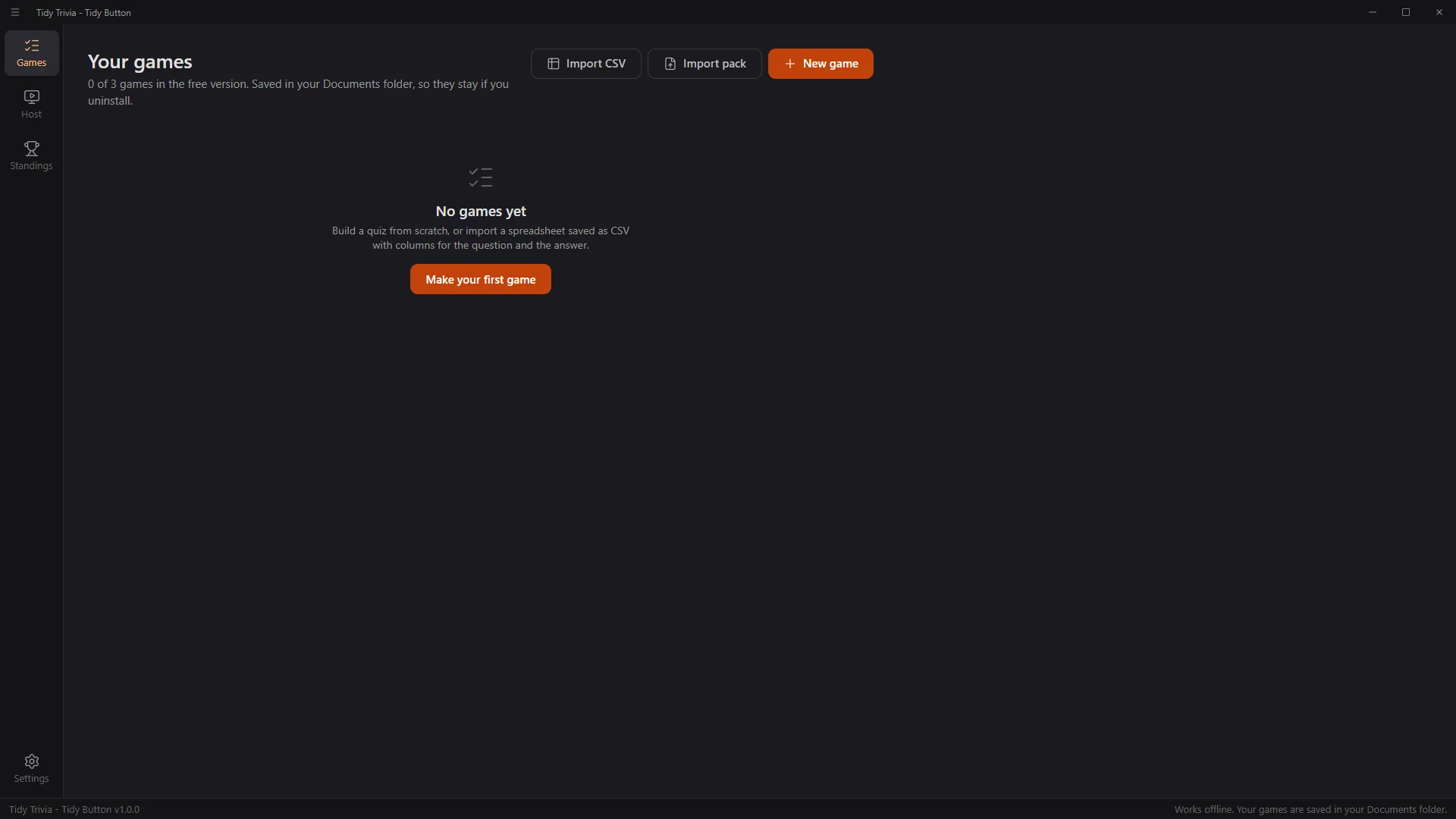
This app is not on the Microsoft Store yet. This guide is ready for the day it arrives.
Build a quiz game
A game is made of rounds, and each round holds questions.
- Open Games in the left menu and press New game.
- Type a name in Game name.
- Press Add a question. Type the question in Question.
- Choose the kind of question in the box at the top of the card: Multiple choice, True or false or Open answer.
- For Open answer, type the right answer in Answer. For True or false, pick True or False. For Multiple choice, type the options and pick the right one.
- Set Points and the Countdown (seconds, 0 for none).
- Press Add a round to start another round, and Add a question inside it.
- Press Save game.
For multiple choice, select the round button beside the right option. Press Add an option if you need more options.
Bring in questions from a spreadsheet
- Save your spreadsheet as a CSV file. Put a heading row first, with columns named Question and Answer.
- Open Games and press Import CSV.
- Choose your file.
- Read the message. It says how many questions were added and how many rows were skipped, with the line number and reason for the first skipped row.
Run the night
- Open Host in the left menu.
- Choose your quiz in Game.
- Check the team names. Press Add a team to add another, or the X beside a team to remove it.
- Press Start the night.
- Press Open audience screen. Choose where it goes in Which screen first if you need to.
- Press Show to the room to put the question on the audience screen. Press Start timer if the question has a countdown.
- When the teams have answered, press Reveal answer.
- Give points with the plus button under each team, then press the arrow for the next question.
Only you see the answer on your screen. The room sees it after you press Reveal answer.
Change what the room sees, and fix a score
- Find Room shows under the question.
- Press Welcome, Scores, Blank or Final to change the audience screen at any time.
- If you gave points to the wrong team, press Undo the last score change in the Teams panel.
Print the host sheet and answer sheets
- Open Games.
- Press the printer button on your game's row.
- Type how many teams in Answer sheets for how many teams?.
- Press Host sheet for a page with every question and answer, or Answer sheets for blank sheets for the teams.
- The PDF is saved in your Documents folder, in Tidy Trivia, Printouts, and opened.
If something goes wrong
The audience screen opened on my laptop, not the projector. What now?
Choose A window on this screen in Which screen, press Open audience screen, then drag the window to the projector and press F11 for full screen.
I cannot press Start the night. Why?
The game has no questions yet. Open Games, edit the game and press Add a question.
The power went out in the middle of the night. Is my game lost?
The night and its scores are saved after every action. Open the app and go to Host to carry on.
I want to end the night. What do I press?
Press Finish the night. A window lists the final standings. Press Keep playing to go back, or Finish without saving to end it.
Good to know
- Scoring is manual. You give points to each team yourself.
Still stuck? Support is by email, and a person reads it.