How to make a school timetable on a Windows PC
This guide shows how to build a weekly timetable, check it for clashes and hand it out as a printout or a PDF.
This app is not on the Microsoft Store yet. This guide is ready for the day it arrives.
Start a timetable: example school or your own
To look around first, press Try the example school on the opening screen and change anything you like.
- Press Setup in the bar on the left.
- Type the name of your timetable in Timetable name.
- On the Classes and subjects tab, type a class name and press Add.
- List the subjects for the class, with the teacher, the room and how many lessons a week.
- Open the Teachers, Rooms and Days and periods tabs to fill in the rest.
Press New to start an empty timetable at any time.
Place the lessons on the grid
- Press Timetable in the bar on the left.
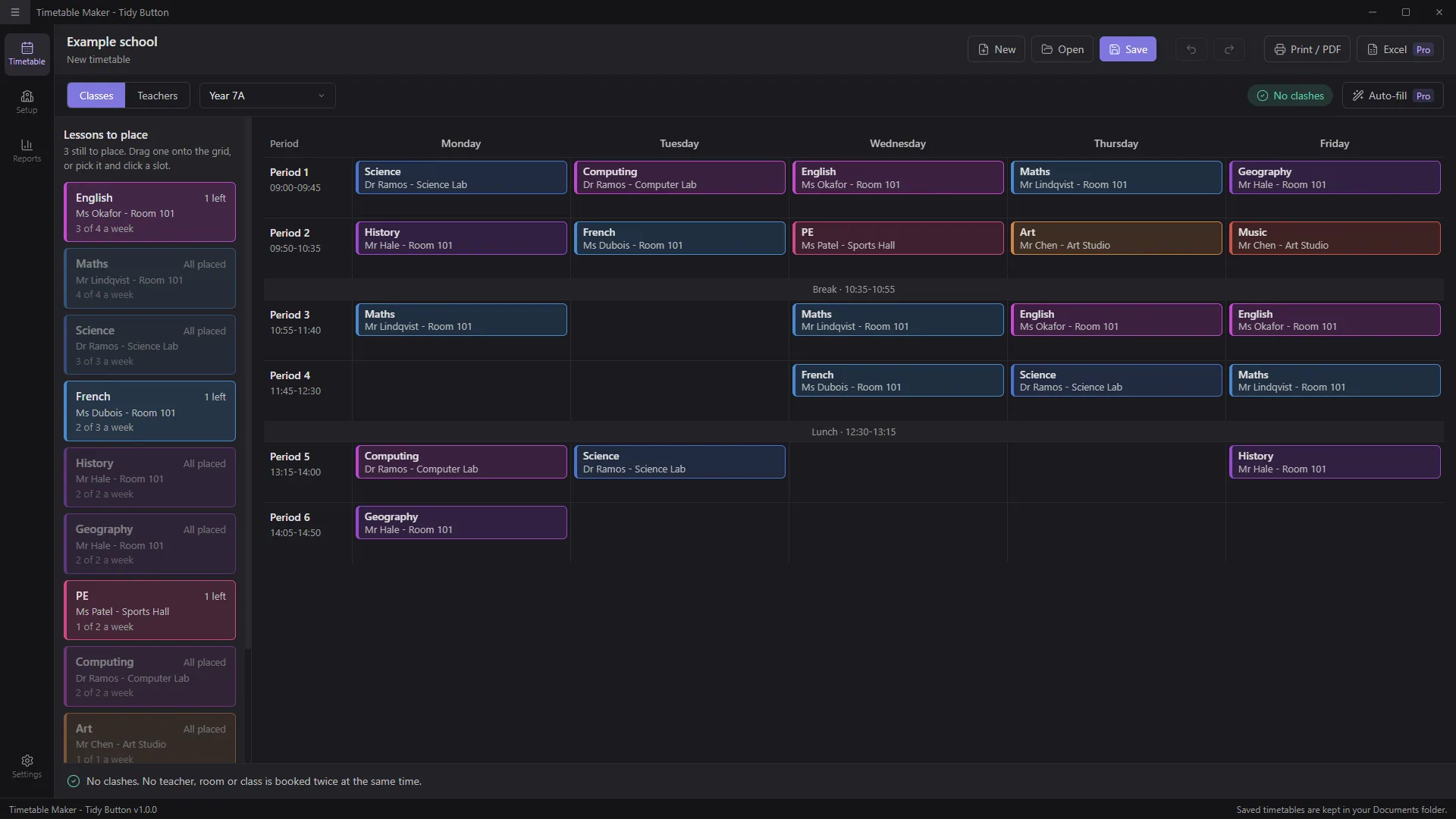
- Look at the tray on the left. It lists the lessons still to place.
- Drag a subject from the tray onto a slot in the grid.
- Or click a subject to pick it up, then click a slot.
- Press Esc to put a picked-up subject down without placing it.
Use the undo and redo buttons at the top if you change your mind.
Find and fix clashes
- Look at the message at the bottom of the grid. It says No clashes or how many there are.
- When there is a clash, read the list. It names the teacher, the room or the class that is booked twice.
- Press Show beside a clash to jump to it.
- Move one of the lessons to another slot until the message says No clashes.
See the timetable for a teacher
- At the top of the grid, press Teachers.
- Pick a teacher in the list next to it.
- Press Classes to go back to a class view.
Print it or save it
- Press Print / PDF at the top.
- Choose This class, Every class or Every teacher.
- Press Print, or press Save as PDF and choose where to save the file.
- To keep the timetable itself, press Save and choose a place. Open it later with Open.
If something goes wrong
How do I start again from nothing?
Press New at the top.
The grid shows a different class than I expected.
Choose the class in the list at the top of the grid. The grid shows one class at a time in the class view.
Will a crash lose my work?
The app keeps a recovery draft of your timetable, so a crash should not lose your work. Press Save to keep your own file as well.
Where is my timetable saved?
Where you choose when you press Save. The status at the bottom of the window says where.
Still stuck? Support is by email, and a person reads it.