How to track billable hours and make an invoice for a client
This guide shows how to record the hours you work for each client and turn them into a timesheet or an invoice. Time Tracker prints the numbers you enter. It does not give tax or legal advice.
This app is not on the Microsoft Store yet. This guide is ready for the day it arrives.
Add a client and set an hourly rate
- Open Time Tracker and press Add a client on the Timer screen. You can also open Clients in the left menu and press Add client.
- Type the Client name.
- Type the Hourly rate, for example 85.00, and choose the Currency.
- Fill in Email (printed on invoices) and Address (printed on invoices) if you want them on invoices.
- Press Add client.
Every client starts with a General project. To add another, press Project on the client's card.
Time your work with the timer
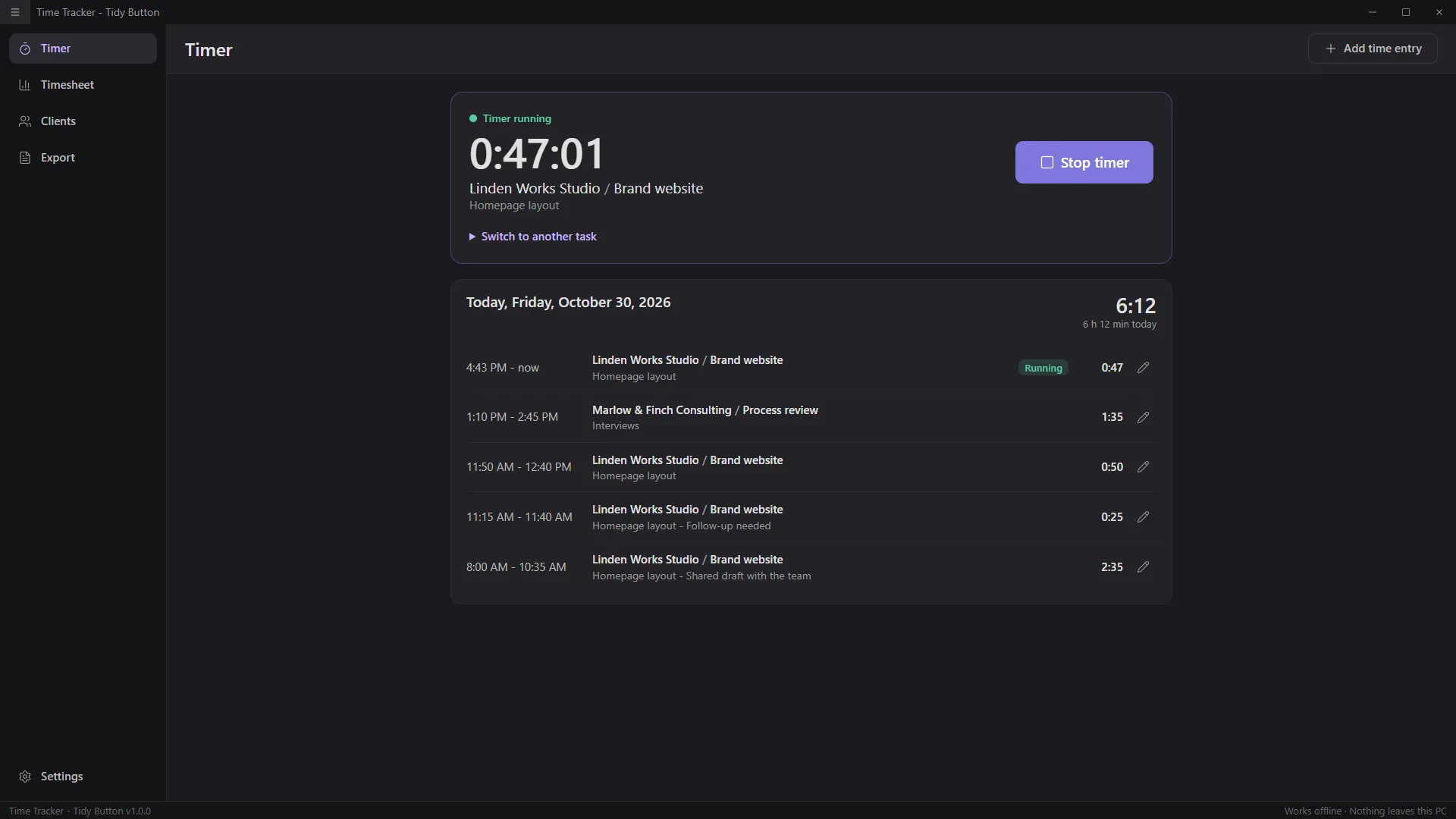
- Open Timer in the left menu.
- Choose the Client and the Project.
- Type what you are working on in Task. You can add a Note (optional).
- Press Start timer.
- When you finish, press Stop timer. The time is saved.
If you start a different task while the timer runs, the first timer stops and the new one begins.
Add time you forgot to track
- On the Timer screen, press Add time entry.
- Choose the Client and Project, and type the Task.
- Pick the Date and the Starts time.
- Choose Start and end and fill in Ends, or choose Start and length and type a Length such as 1:30, 90m or 1.5h.
- Press Add entry.
If the new entry overlaps another one, a warning appears. You can still save it. To change an entry later, press the pencil button beside it in the list and press Save changes when done.
Save a timesheet or an invoice as a PDF
- Open Export in the left menu.
- Choose a Client. Pick one client if you want an invoice.
- Under Dates, choose This week, Last week, This month, Last month or Choose dates.
- Check the preview on the right. It shows what the file will contain.
- Press Save timesheet as CSV, Save timesheet as PDF or Save invoice as PDF.
- Choose where to save the file.
Use Rounding if you want exports rounded up. It only changes the exports. Your tracked time is never changed. For an invoice you can set the Tax label and Tax %, or leave the rate at 0 for none.
Look at your hours for a day, week or month
- Open Timesheet in the left menu.
- Choose Day, Week or Month.
- Press Previous, Today or Next to move to another period.
- Read the hours per day and the totals for each client and project.
If something goes wrong
Why is the Start timer button greyed out?
A project must be chosen first. Pick a Client and a Project. If you have not added a client yet, add one first.
What does the Welcome back window mean?
You were away while the timer was running. Choose Keep it - I was working to keep the time, or discard it, or stop the timer at the moment you left.
The app said my timer was still running when it last closed. Is my time lost?
No. The start time is saved as soon as you press Start. The app asks whether to stop at the time it was last open, keep it running or stop now.
Why can I not save an invoice?
An invoice needs one client chosen, and the dates must include billable time for that client. The note under the buttons says what is missing.
Good to know
- Time Tracker prints the numbers you enter. It does not give tax or legal advice.
- Uninstalling the app removes the data it keeps, so export your timesheets first.
Still stuck? Support is by email, and a person reads it.