How to make a video thumbnail on a Windows PC with no watermark
This guide shows how to start from a template, edit it and save a picture at the exact size.
This app is not on the Microsoft Store yet. This guide is ready for the day it arrives.
Pick a size and a template
- Open Tidy Thumbnails and choose Templates in the left menu.
- Under Size, pick Video thumbnail, Channel banner, Square post or Tall post.
- Click a template. It re-fits itself to the size you chose.
- Or press Browse templates on the empty canvas, or start from a blank canvas.
Edit your design
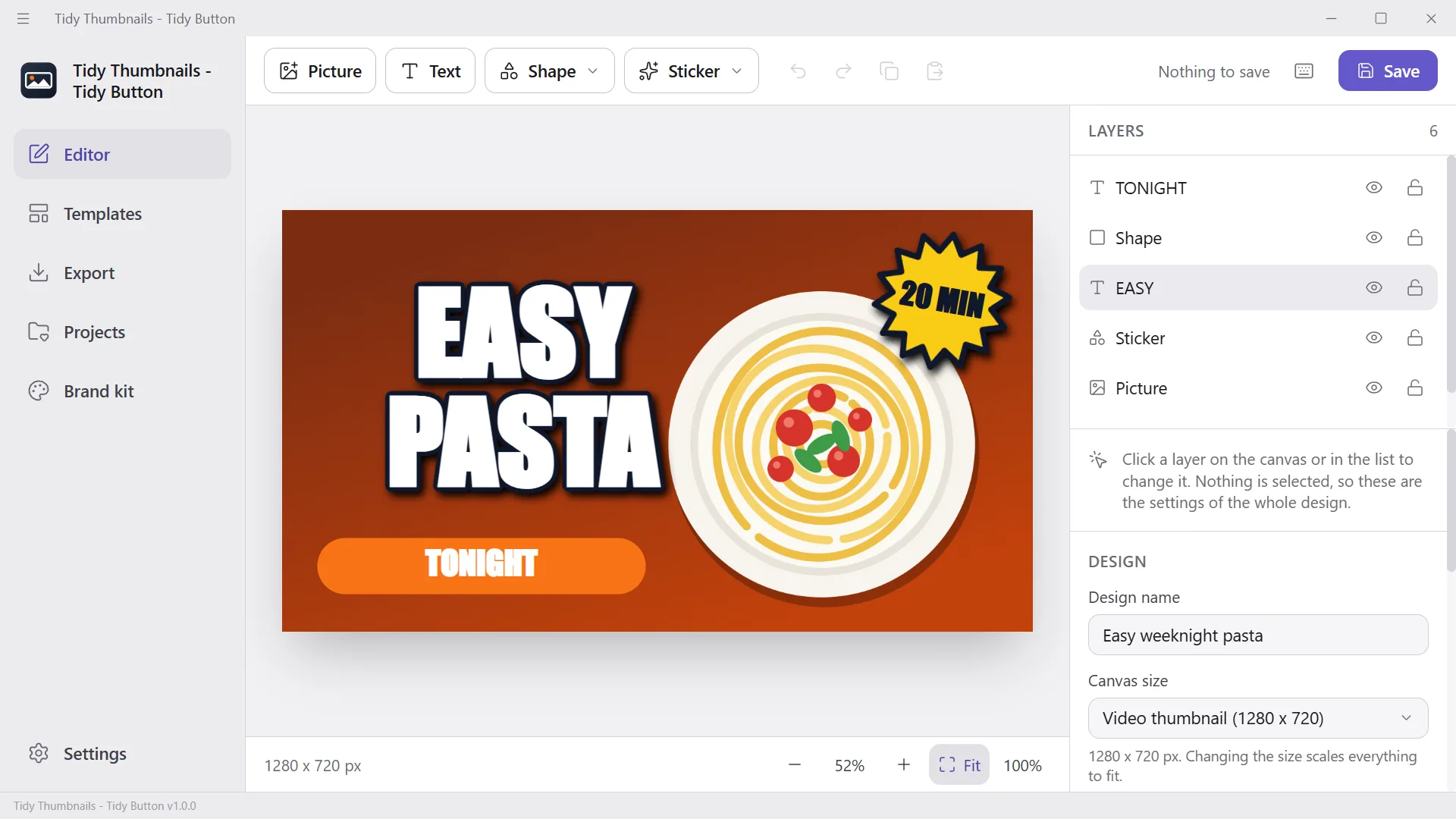
- Click the Editor menu.
- Press Text, Picture, Shape or Sticker in the top bar to add a layer.
- Click a layer to move, resize, turn or fade it.
- Use the layers list on the right to select, hide or lock a layer.
- Press Save to keep the project.
Save the picture
- Open Export in the left menu.
- Choose PNG or JPG.
- Press Save as a file, or Copy to the clipboard.
Many video sites take pictures up to 2 MB. A JPG that is bigger has its quality lowered step by step until it fits, and you are told.
If something goes wrong
Is there a watermark on my picture?
No. Exports are exactly the size you chose, with no watermark.
Which templates are free?
Three templates are free, and each one re-fits itself to the size you choose.
Do I need to download fonts?
No. Text uses fonts already on your PC.
Is my work uploaded anywhere?
No. Your designs and pictures stay on your PC. A replaced or deleted project keeps its last saved copy in a Backups folder.
Coming to the Microsoft StoreAbout Tidy Thumbnails
Still stuck? Support is by email, and a person reads it.