How to remove duplicate lines and sort a list on your PC
This guide shows how to clean up a list or a piece of text on your PC. Your original text is never changed, so you can try things safely.
This app is not on the Microsoft Store yet. This guide is ready for the day it arrives.
Remove duplicate lines from a list
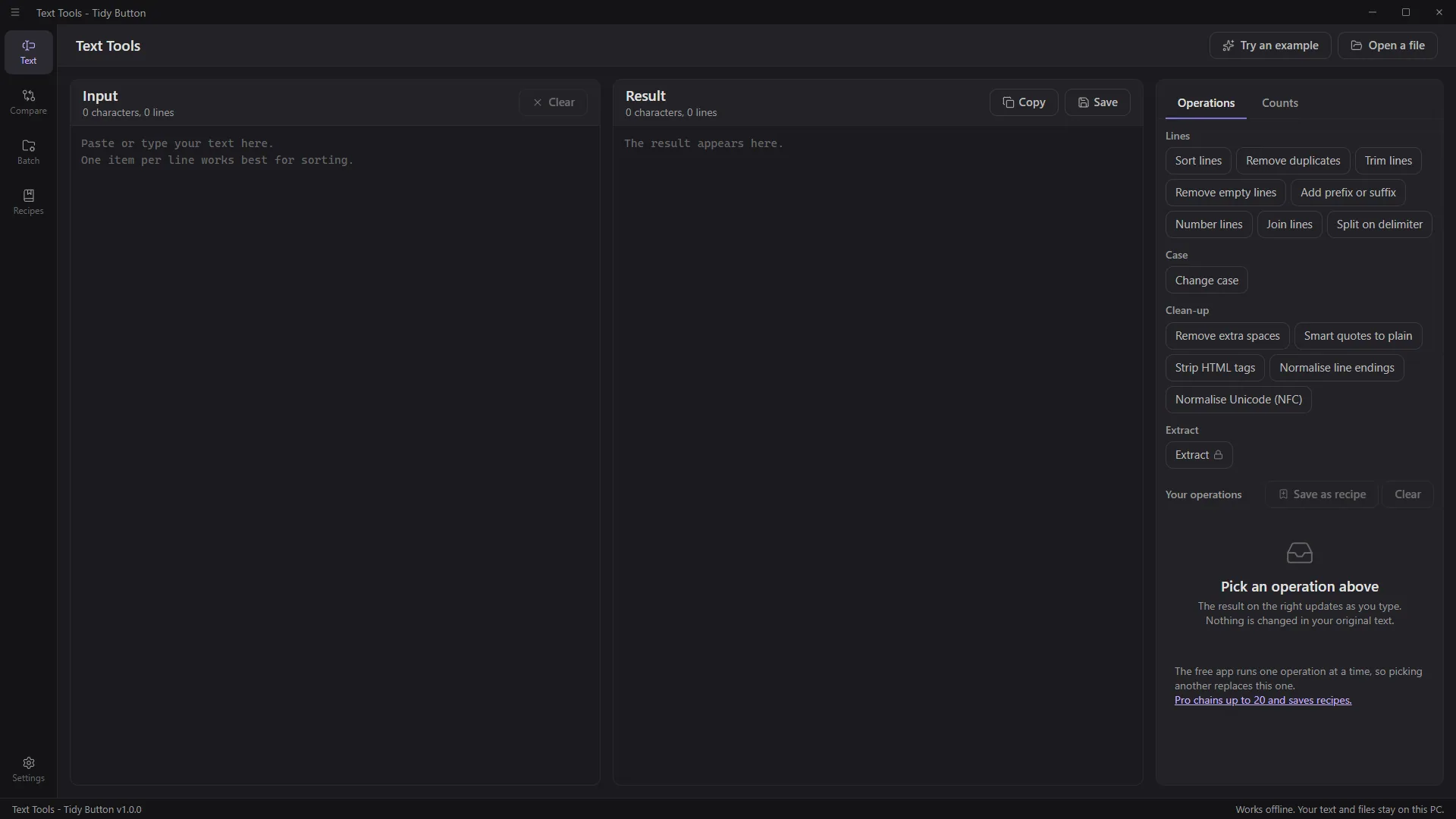
- Paste your list into Input, one item on each line. You can also press Open a file.
- Open the Operations tab on the right. If a different operation is already chosen, press Choose a different operation.
- Choose Remove duplicates.
- Turn on Ignore capital letters or Ignore extra spaces if you want Apple and apple to count as the same.
- In Keep, choose The first copy or The last copy.
- Read the list in Result. Press Copy or Save when it looks right.
Press Try an example to see how it works with a sample list.
Sort a list
- Paste your list into Input.
- Open the Operations tab. If a different operation is already chosen, press Choose a different operation. Then choose Sort lines.
- In Order, pick A to Z, By length, Reverse the order or another choice.
- Pick Natural (file2 before file10) if your lines contain numbers, such as file names.
- Press Copy to take the sorted list.
Change the case of text
- Paste your text into Input.
- Open the Operations tab. If a different operation is already chosen, press Choose a different operation. Then choose Change case.
- In Style, pick UPPER CASE, lower case, Title Case, Sentence case, camelCase or snake_case.
- Press Copy to take the result.
Clean up pasted text
Use these when text copied from a web page or a document comes out messy.
- Paste the text into Input.
- Open the Operations tab.
- Choose Remove extra spaces to turn runs of spaces into one.
- To try another clean-up, press Choose a different operation and pick one of the next three.
- Smart quotes to plain turns curly quotes into straight ones.
- Strip HTML tags keeps the words and drops the tags.
- Remove empty lines drops blank lines.
Your original text stays in Input. Only Result changes.
Count words and characters
- Paste your text into Input.
- Open the Counts tab on the right.
- Read Words, Characters, Without spaces, Lines, Sentences and Paragraphs.
- Read Speaking time and the reading time below them.
- Under Top words, see the words you use most.
Choose Result at the top of the tab to count the result instead of your input.
If something goes wrong
The result is empty. What should I check?
Make sure you have pasted text into Input and picked an operation in the Operations tab. The result updates as you type.
How do I save the result?
Press Copy to put it on the clipboard, or Save to write it to a file you choose. Line operations keep the line endings your text already uses.
Does the app change my original file?
No. Open a file only reads it. Your text stays in Input, and the changed text appears in Result.
Does my text leave my PC?
No. The text stays on your PC. The text operations need no internet connection.
Still stuck? Support is by email, and a person reads it.