How to type a short code that turns into full text in Windows
This guide shows how to save text you type often under a short code, so typing the code writes the whole text for you.
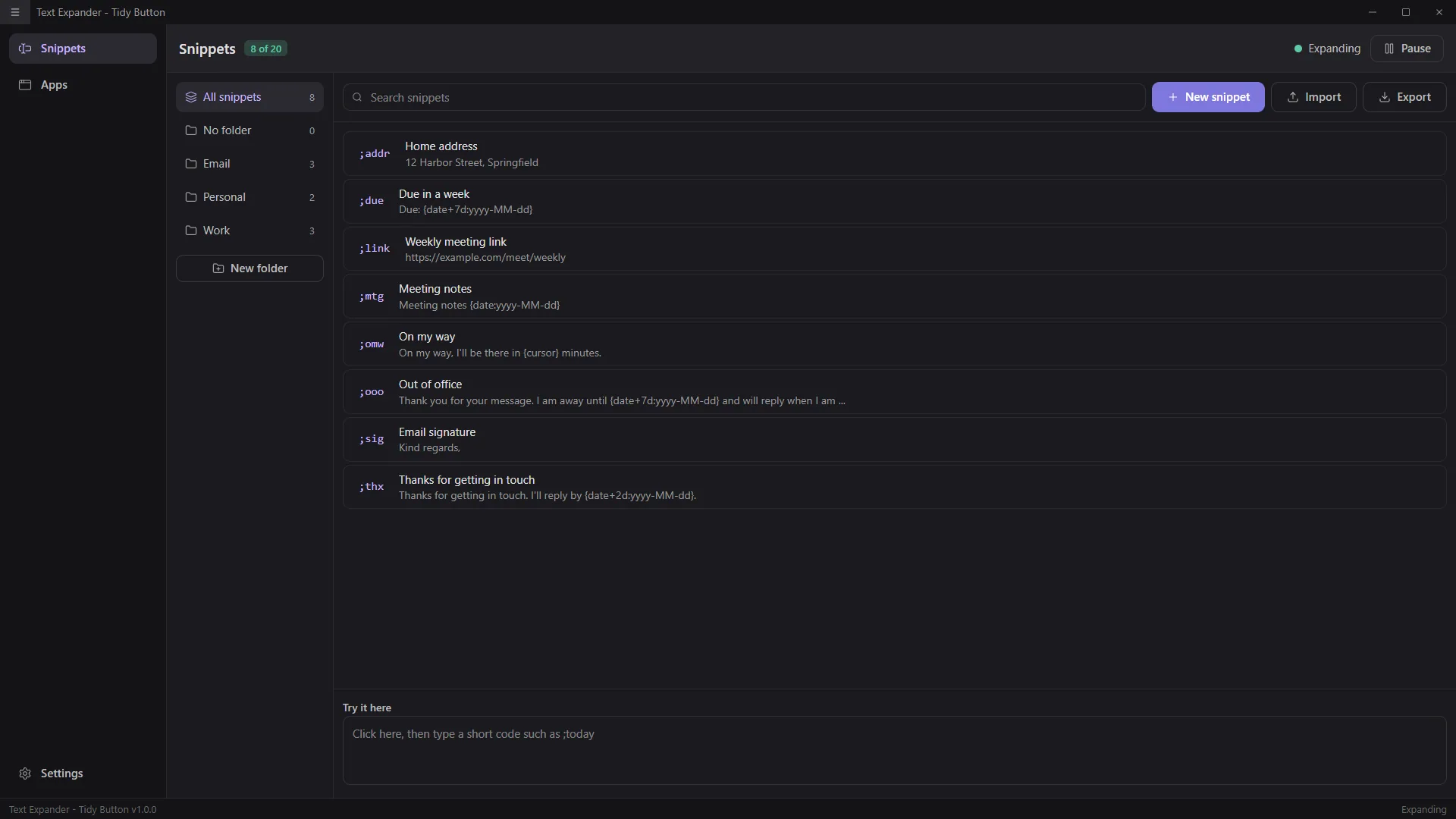
This app is not on the Microsoft Store yet. This guide is ready for the day it arrives.
Make your first snippet
- Open Text Expander and press New snippet.
- In Short code, type a code that starts with a symbol, for example ;sig.
- Type the text it should become in the large box. For a signature, type the lines you want.
- Press Save snippet. The snippet appears in the list.
Start a code with a symbol such as ; so it never fires inside a normal word.
Test a snippet
- Click the Try it here box at the bottom of the Snippets screen.
- Type your short code, for example ;sig.
- The code is replaced by the full text. Use any other program the same way.
Put today's date or the cursor in a snippet
- Press New snippet or click a snippet in the list.
- Click where you want the field inside the text.
- Press Date, Time, Weekday or Clipboard to add that field.
- Press Cursor to mark where the caret should land after the text is typed.
- Look at the preview under the box to see the result with today's date, then press Save snippet.
Organize snippets in folders
- On the Snippets screen, press New folder.
- Type a name in Folder name and press Save.
- Click a snippet and choose the folder in Folder, then press Save snippet.
- Click the folder name in the list on the left to see only its snippets. Press All snippets to see everything.
Pause expansion, or choose when it happens
- Press Pause at the top of the Snippets screen to stop expansion. Press Resume to start it again.
- To choose when a code expands, open Settings.
- Pick As soon as I finish typing it or When I press Space after it.
The pause and resume hotkey can be set in Settings, so you can use it from any program.
If something goes wrong
My short code does not expand.
Check that the status at the top says Expanding and not Paused. Make sure the code is spelled exactly the same, and that the program is not running as administrator.
A code expands in the middle of a word.
Start your codes with a symbol such as ; so they cannot match ordinary words.
Does the app record what I type?
No. It keeps only the last few characters in memory to spot a short code. Nothing is saved or sent anywhere.
Where are my snippets stored?
In a file in your Documents folder, in a folder called Text Expander. They stay there if you uninstall the app.
Good to know
- Text Expander cannot type into programs that run as administrator.
- Some programs ignore typed keys.
Still stuck? Support is by email, and a person reads it.