How to test a TCP or UDP connection from your PC
This guide shows how to open a network connection to a device on your own network, send it a message, and read the answer. Everything stays on your PC.
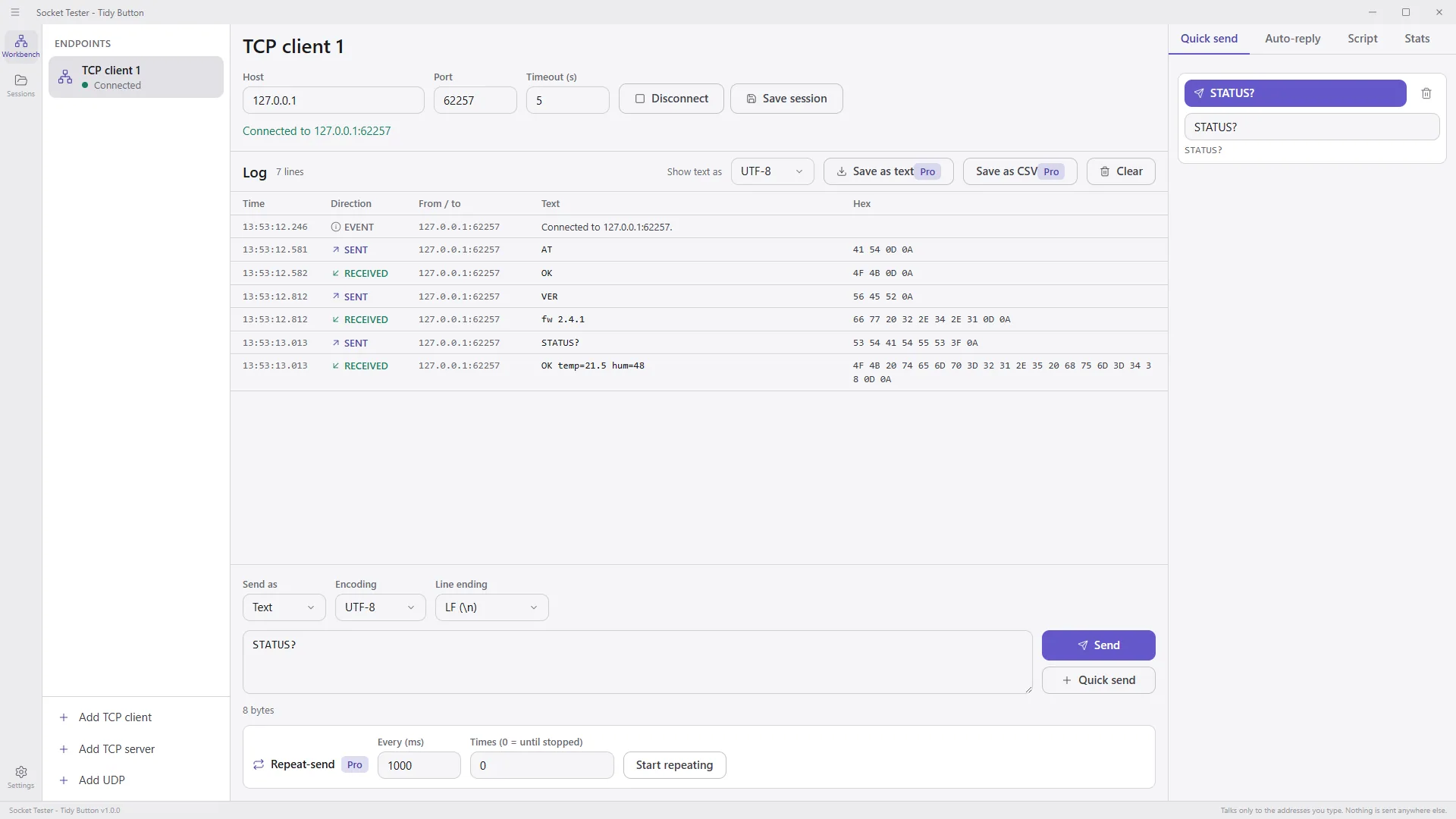
This app is not on the Microsoft Store yet. This guide is ready for the day it arrives.
Connect to a device and send a text message
Use this for a sensor, a gateway or a service that answers a text command.
- Open Workbench in the left menu.
- Press TCP client. If you already have an endpoint, press the button at the bottom of the left list that adds a TCP client. A new endpoint appears.
- Type the address of the device in Host, for example 192.168.1.20.
- Type the number in Port. If the device is slow to answer, you can raise Timeout (s).
- Press Connect. The endpoint shows Connected in the list on the left when it works. The line under the settings shows the result.
- Type your command in Message, then press Send.
The Host box takes one address. Press Ctrl+Enter in the message box to send without the mouse.
Send hex bytes
- Open the Send as list and choose Hex.
- Type the bytes in Message, for example 48 65 6C 6C 6F.
- Check the byte count under the box. A mistake in the hex is explained there before anything is sent.
- Press Send.
In Text mode you can pick Encoding and a Line ending, such as CRLF.
Read what came back
- Look at the Log under the connection settings.
- Each line shows the time, whether it was sent or received, the address it went to or came from, and the data.
- The text and the hex bytes are shown side by side.
- Open Show text as to read the bytes as UTF-8, ASCII or Latin-1.
- Press Clear to empty the log.
Run a TCP server on this PC
- Press TCP server. If you already have an endpoint, press the button at the bottom of the left list that adds a TCP server.
- Type a number in Listen on port.
- Press Start listening.
- Connect your device to this PC at that port. The log shows a line when it connects.
- Type a message and press Send to answer it. Press Stop when you are finished.
By default only this PC can connect (127.0.0.1). Turn on Use all network interfaces if another device must reach the server. Windows Firewall may then ask you to allow the app.
Send and listen with UDP
- Press UDP. If you already have an endpoint, press the button at the bottom of the left list that adds a UDP endpoint.
- Type a number in Local port (0 = any) to listen on. Use 0 to let the app pick one.
- Type the address in Send to host and the number in Send to port to say where to send.
- Press Open.
- Type a message and press Send. Each datagram that arrives shows the address it came from.
If something goes wrong
The connection fails or times out. What do I check?
Check that the device is on and on the same network, and that the address and Port are right. For a slow device, raise Timeout (s) before you press Connect. The status line under the settings explains what went wrong.
The Send button is greyed out. Why?
The endpoint has to be running first. Press Connect, Start listening or Open, then try again.
Another device cannot reach my TCP server. What now?
The server listens on this PC only by default. Turn on Use all network interfaces, start it again, and allow the app in Windows Firewall on a network you trust.
The app says my port is not valid. What is a valid port?
A port is a whole number from 0 to 65535.
Good to know
- The host box takes one address at a time. Ranges and lists are refused, so the app cannot scan a network.
- A TCP server accepts one client at a time. A second device that connects is refused.
- No more than eight endpoints can be open at once.
Still stuck? Support is by email, and a person reads it.