How to keep track of your subscriptions and renewal dates
This guide shows how to list your subscriptions, see what is due soon, and get a reminder before each renewal. It explains how to use the app and gives no financial advice.
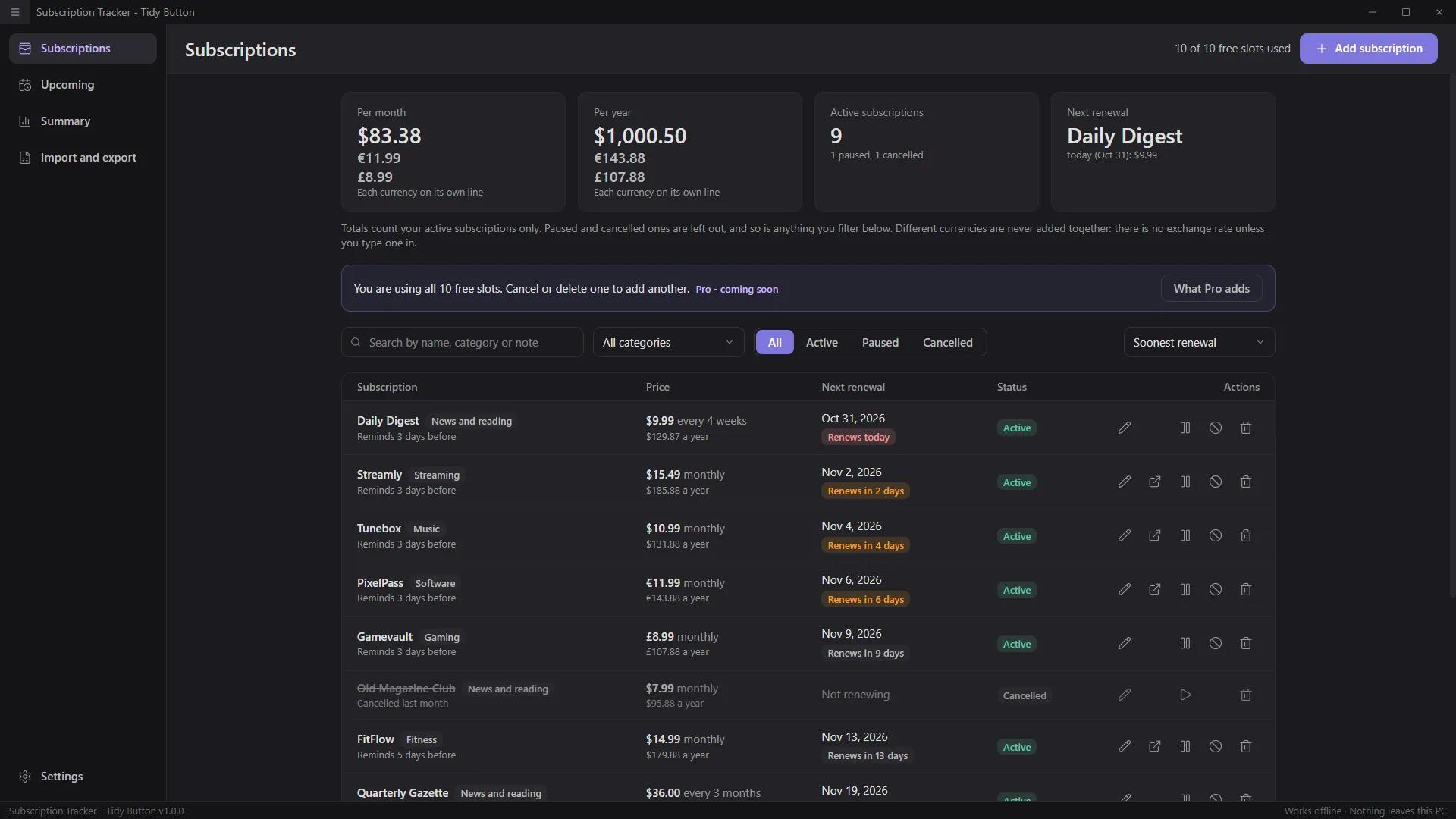
This app is not on the Microsoft Store yet. This guide is ready for the day it arrives.
Add a subscription
- Open Subscription Tracker and go to Subscriptions.
- Press Add subscription, or Add your first subscription if the list is empty.
- Type the Name and the Price. Pick the currency next to it.
- Choose how often it is charged in Charged.
- Pick any renewal date in Next renewal. Later dates are worked out for you.
- Press Add subscription to save.
You can also add a Category, a Cancel link and Notes in the same window.
Get a reminder before a renewal
- In the add or edit window, open the Reminder list on a subscription.
- Choose how many days before the renewal you want to be told, or choose No reminder.
- Open Settings and check that Show a Windows notification before a renewal is ticked.
- Press Send a test reminder to see what the notification looks like.
- Tick Keep running in the notification area when I close the window, so reminders can still arrive.
- Press Save settings.
Reminders are Windows notifications. They only appear while the app is running.
See what you pay each month and year
- Open Subscriptions. The totals are at the top of the page.
- Open Upcoming to see what renews in the next 90 days, grouped by month.
- Open Summary to see where the money goes by category.
Totals count active subscriptions only. Different currencies are shown on separate lines and are not added together.
Pause, cancel or open the cancel page
- Find the subscription in the list.
- Press the pause button on its row to stop counting it in your totals. Press the play button to bring it back.
- Press the cancel mark on its row when you have cancelled it with the company. The record stays on your list.
- If you saved a cancel link, press the link button on its row to open that page in your browser.
Hover over a button to see what it does.
Import and export a list
- Open Import and export.
- To save your list, press Save as CSV. The file opens in Excel and other spreadsheet programs.
- To bring in a list, press Choose a CSV file and pick the file.
- Read the preview. It shows what will be added and why any row was left out.
- Press the button at the bottom of the preview to add the rows.
Rows already in your list are skipped, so loading a file twice adds nothing the second time.
If something goes wrong
I do not see any reminders. What can I check?
Make sure the app is running, because reminders only appear while it is open or in the notification area. Open Settings, check the reminder box is ticked, and press Send a test reminder. Windows Focus assist can hide notifications.
Why are some subscriptions missing from the totals?
Totals count active subscriptions only. Paused and cancelled ones are left out, and so is anything hidden by your filter. Use the status buttons and the search box above the list to see the whole list.
A CSV row was left out of the import. Why?
The preview lists each row it cannot use, with the line number and the reason. Only Name and Amount are required. Fix the file and import it again.
Can I delete a subscription instead of cancelling it?
Yes. Press the bin button on its row. If you want a record, mark it as cancelled instead.
Good to know
- The app never looks up exchange rates and does not connect to your bank.
- Reminders do not appear when the app is not running.
Still stuck? Support is by email, and a person reads it.