How to calculate a subnet from an IP address and CIDR prefix
This guide shows how to work out a subnet from an IPv4 or IPv6 address, how to split a network into smaller ones, and how to merge a list of routes. The app never scans your network.
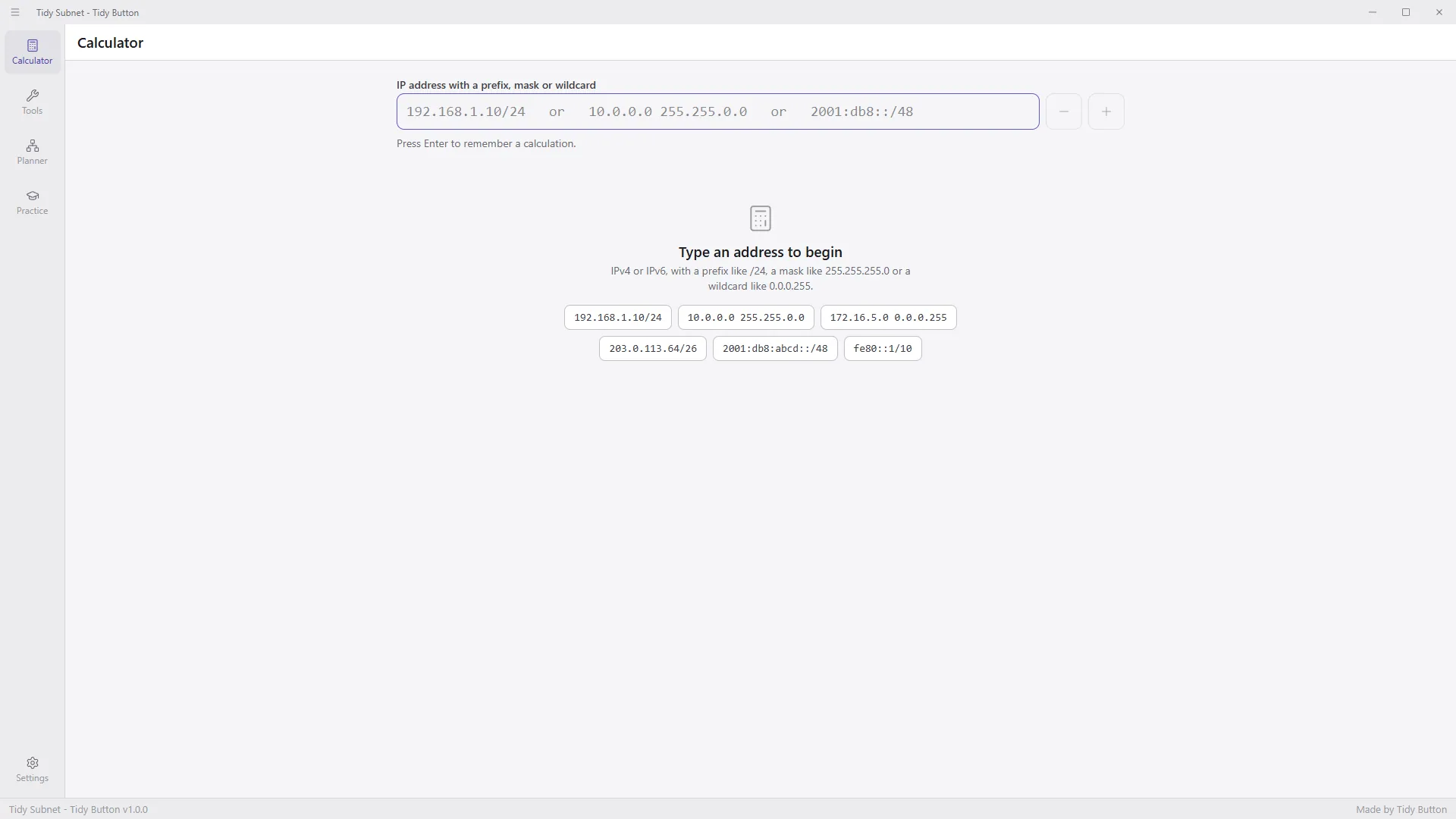
This app is not on the Microsoft Store yet. This guide is ready for the day it arrives.
Work out the network for an address
- Open Calculator in the left menu.
- Type an address in the box IP address with a prefix, mask or wildcard, for example 192.168.1.10/24.
- Read the result as you type. For an IPv4 address it shows the Network, Subnet mask, Wildcard mask, First host, Last host, Broadcast and Usable hosts.
- Look at the binary view. The coloured bits are the network part and the dimmed bits are for hosts.
- Press Copy all to copy the whole result, or use the small copy button beside a single value.
You can type a dotted mask instead of a prefix, for example 10.0.0.0 255.255.0.0. IPv6 works too, for example 2001:db8::/48, and it lists first and last addresses instead of hosts and broadcast. The binary view can be turned off in Settings.
Try a bigger or smaller network
- Open Calculator and type an address with a prefix.
- Use the plus and minus buttons beside the box. Plus makes the prefix longer, so the network is smaller. Minus makes it shorter, so the network is bigger.
- Watch the network and the host count change.
- Press Enter in the box to keep the calculation in the Recent list, and click an entry there to bring it back.
Check if an address is inside a network
- Open Tools in the left menu and pick Is it inside?.
- Type the network in Network, for example 10.1.0.0/16.
- Type an address or another network in Address or network to test.
- Read the answer that appears. It says whether the address is inside, or how the two networks relate.
Split a network into smaller subnets
- Open Tools and pick Split a network.
- Type the network in Network to split, for example 192.168.0.0/24.
- Under Split by, choose Number of subnets or New prefix length.
- Type the value, such as 4 or /26.
- Read the table of subnets. Press Copy table to copy it.
- For a long list, press the button that shows more rows.
Summarise a list of routes
- Open Tools and pick Summarise routes.
- Paste your networks into Networks, one per line. Press Try an example to see how it looks.
- Read the routes. Neighbouring networks merge into one route.
- Press Copy routes to copy the result.
Do not mix IPv4 and IPv6 in one list. Summarise each on its own.
If something goes wrong
The calculator shows an error. What does it want?
Type an IPv4 or IPv6 address with a prefix such as /24, a mask such as 255.255.255.0 or a wildcard such as 0.0.0.255. The result appears as soon as the entry is valid.
Why does a /31 or /32 show unusual host counts?
The app adds a note under the details for these sizes. A /31 is a point-to-point link where both addresses are usable, and a /32 is a single address. Read the Usable hosts line for the count it gives.
Does the app scan my network?
No. It only does the arithmetic on what you type, and it makes no network calls while you calculate.
My list of routes shows an error. What should I check?
Put one network on each line and do not mix IPv4 with IPv6. Lines that cannot be read are listed so you can fix them.
Good to know
- The calculator works on the addresses you type. It cannot find devices on your network.
Still stuck? Support is by email, and a person reads it.