How to plan your semester and track homework and grades
This guide shows how to set up a semester, add classes and homework, see what is due and record grades. Everything stays on your own PC.
This app is not on the Microsoft Store yet. This guide is ready for the day it arrives.
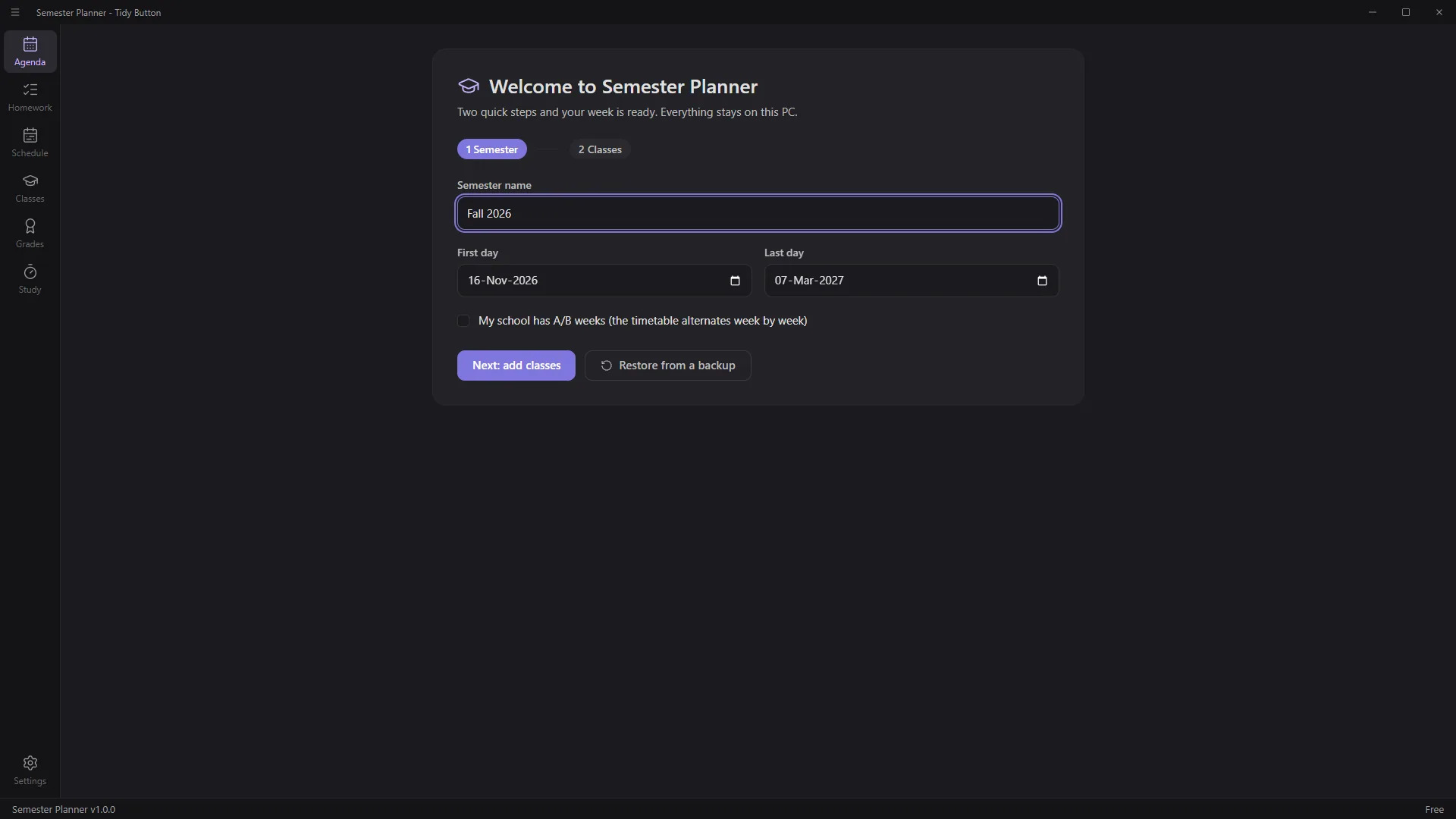
Set up your semester and classes
The first time you open the app, a short setup walks you through it.
- Type a name for the semester in Semester name, for example Fall term.
- Fill in the First day and the Last day.
- Tick My school has A/B weeks only if your timetable alternates week by week.
- Press Next: add classes.
- Type each class name, click the days it meets and set its start and end times.
- Press Add another class for each extra class, then press the finish button.
You can add the room, the teacher and the colour later on the Classes screen.
Add homework with one typed line
- Open Homework in the left menu.
- Click the box Quick add a task and type a line, for example math hw ch5 due fri.
- Check the small tags under the box. They show the class, the type, the due day and the time the app understood.
- Press Add.
- To fill in every detail yourself, press More options instead.
If you do not type a day, the tag says Add a day, like fri or tomorrow. Pressing Add then opens a window where you pick the date.
Add an exam or a quiz with all the details
- Open Homework and press More options.
- Type the title under What is it?.
- Pick the Class and the Type, for example Exam or Quiz.
- Set the Due date and, if you like, the Due time.
- Choose a Priority and an Estimated time.
- Press Add task.
See what is due and tick tasks off
- Open Agenda in the left menu.
- Choose Today or This week at the top to see your classes and tasks in time order.
- Open Homework to see tasks grouped as Overdue, Due today, Next 7 days and Later.
- Tick the box beside a task when you finish it.
- Press Open, Done or All to change which tasks show. Use the Search tasks box or the class list that says All classes to narrow the list.
- Press Remove finished to clear the tasks you have ticked off, then confirm.
Record grades and read your GPA
- Open Grades in the left menu.
- Click a class on the left.
- Press Add grade.
- Type what was graded under What was graded?, the Score and what it was Out of.
- Press Add grade again to save it. The class shows a percentage and a letter.
- Switch between 4.0 scale and Percentage at the top to change how the GPA is shown.
The GPA is weighted by the credits you set for each class.
If something goes wrong
The Add button is greyed out in the quick add bar. Why?
The box is empty, so there is nothing to add yet. Type a line such as bio quiz tomorrow 9am, and the button turns on.
My task was added with no class. How do I fix it?
Click the pencil button beside the task on Homework, pick the right Class, and press Save task.
I skipped the setup. Can I add classes later?
Yes. Open Classes and press Add class. Then open Schedule and press Add class time to give each class its days and times.
The GPA says No grades yet. What is missing?
Add at least one grade to a class on Grades. The GPA is worked out from your graded items and the credits of each class.
Good to know
- Reminders only appear while the app is running. Keeping it running in the notification area lets them arrive after you close the window.
Still stuck? Support is by email, and a person reads it.