How to open an STL or 3MF file and check it before printing
This guide shows how to open a 3D model on your PC, turn it around, read its size, and find holes or flipped faces before you send it to a printer.
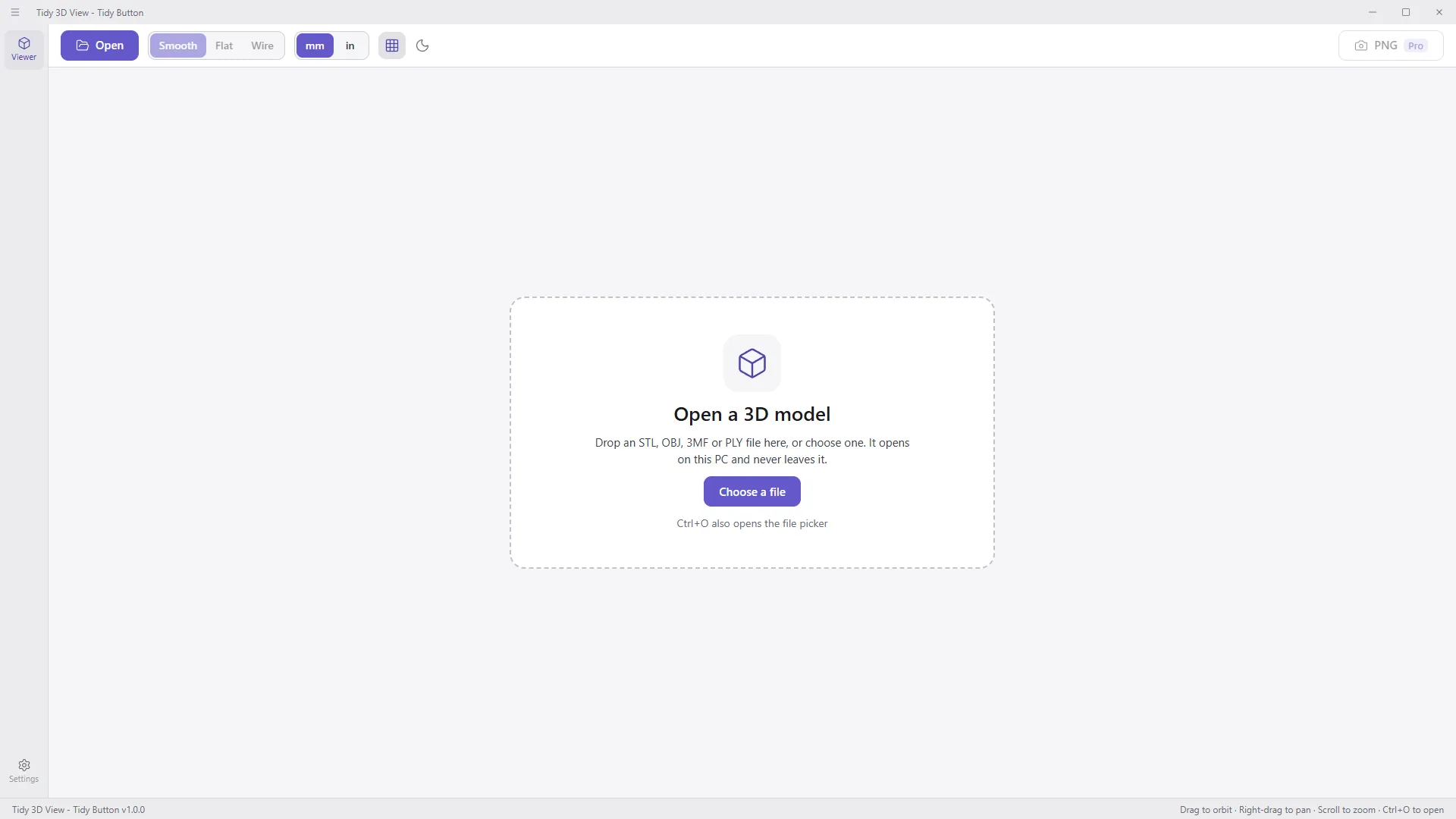
This app is not on the Microsoft Store yet. This guide is ready for the day it arrives.
Open a 3D model file
- Press Open at the top left, or press Ctrl+O.
- Choose an STL, OBJ, 3MF or PLY file.
- You can also drop the file onto the window, or press Choose a file on the start screen.
- To open a model you used before, pick it under Recent files.
The file is opened on this PC and never leaves it.
Look at the model from every side
- Drag the model to turn it.
- Right-drag to move the model, and scroll to zoom.
- Press Fit at the bottom of the view to bring the whole model back into the window.
- Press Front, Back, Left, Right, Top, Bottom or Isometric to jump to that view.
- Use Smooth, Flat or Wire at the top to change how the surface is drawn.
The grid button at the top shows or hides the grid and axes. The next button switches between a light and a dark background.
Read the size of the model
- Open the Model tab in the panel on the right.
- Look under Size of the box around it for Width (X), Depth (Y) and Height (Z).
- Press mm or in at the top to show the size in millimetres or inches.
- If the file does not state its own unit, choose what its numbers mean under What the numbers mean.
STL, OBJ and PLY files have no unit of their own, so the sizes are right only when you choose the correct unit. A 3MF file states its own unit.
Check the model for print problems
- Open the Model tab in the panel on the right.
- Scroll to Health check and read the first line. It says in plain words whether the model is solid and watertight.
- If problems are listed, look at Open edges (holes), Flipped faces, Duplicate triangles and Triangles with no area.
- A model with open edges or flipped faces may need fixing in your modelling program before you slice it.
If something goes wrong
The app says 3D graphics are not available. What can I do?
This can happen in a remote desktop session, a virtual machine or with an old graphics driver. Press Switch to software rendering and restart. It is slower but needs no graphics card.
My model looks too big or too small. Why?
STL, OBJ and PLY files do not say what unit their numbers use. Open the Model tab and pick the right unit under What the numbers mean. A 3MF file states its own unit, so no choice is needed.
The file will not open. What should I check?
Make sure the file is an STL, OBJ, 3MF or PLY file and that it is not damaged. The start screen shows a message that says what went wrong.
How do I remove a file from the recent files list?
On the start screen, press the remove button beside the file. Press Clear list to empty the whole list.
Good to know
- The health check reports problems but does not fix them. Repair the model in your modelling program.
Still stuck? Support is by email, and a person reads it.