How to put sticky notes with reminders on your Windows desktop
This guide shows how to create small notes that sit on your desktop, add checklists and reminders, and manage them from the notes list. Notes are saved as you type.
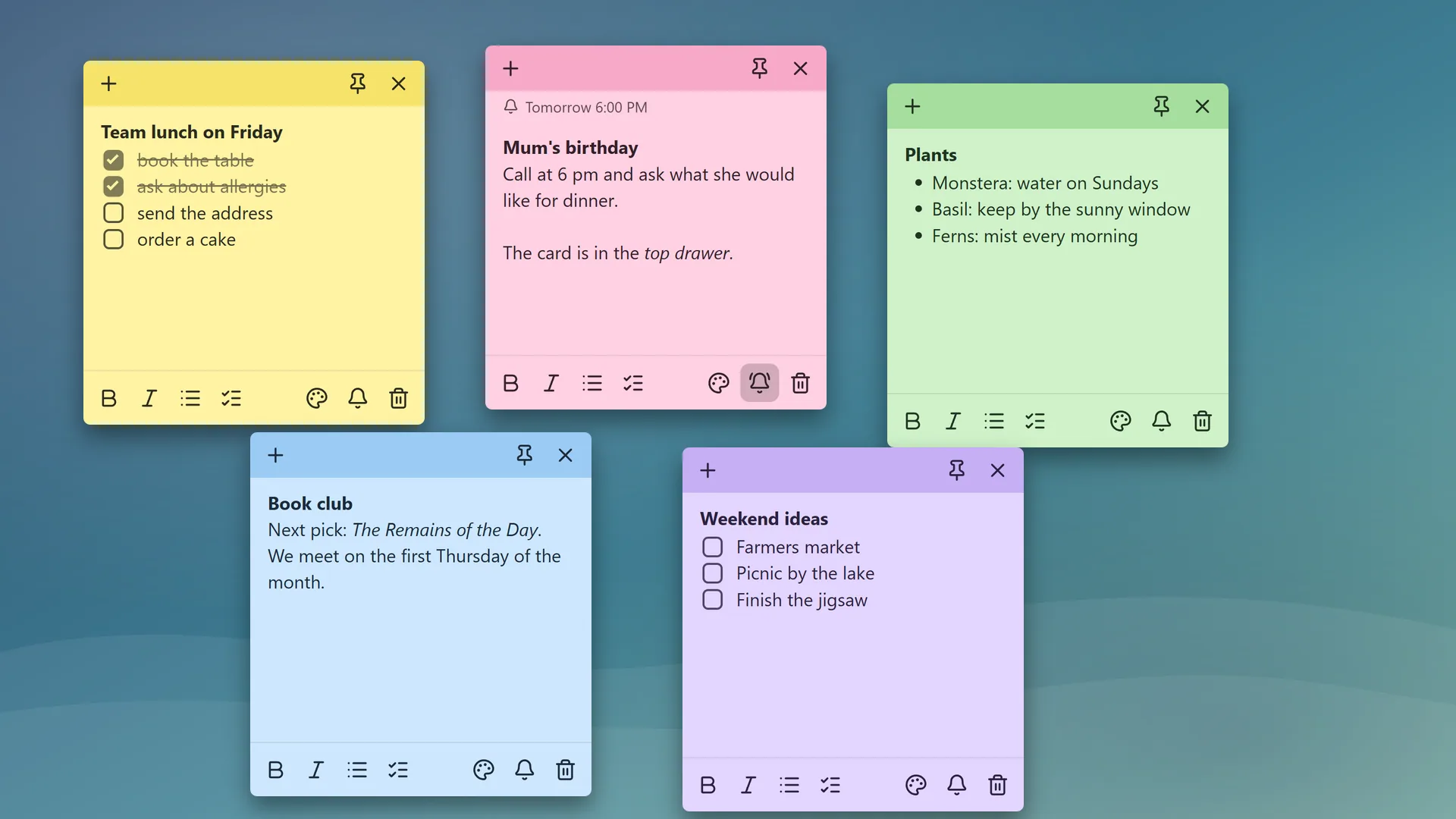
This app is not on the Microsoft Store yet. This guide is ready for the day it arrives.
Make a note and write a checklist
- Open Sticky Notes and press New note on the Notes screen. A small note window appears on the desktop.
- Type your text. It is saved as you type.
- Press the Checklist button at the bottom of the note and type your items.
- Click the box beside an item to tick it off.
- Use Bold, Italic or Bullet list in the same row to format the text.
- Press the Colour button and click one of the colours to change the note's colour.
- Press Keep on top at the top of the note to keep it above other windows. Press Unpin from top to undo that.
You can also press Ctrl+Alt+N from any program, or use the tray icon, to start a new note. To choose the colour that new notes start with, open Settings and use Colour of a new note.
Set a reminder
- Press Remind me at the bottom of the note.
- Pick In 10 min, In 1 hour or Tomorrow 9:00. Or choose a date and time under Or pick a time and press Set reminder.
- When the reminder is due, Windows shows a notification and the note shows a bar.
- Press Snooze 10 min to be reminded again, or Done to clear it.
Reminders show a Windows notification while Sticky Notes is running. Closing the list window keeps the app in the tray so reminders still arrive.
Find a note or bring hidden notes back
- Open the Notes screen.
- Type in the Search notes box, or press Ctrl+F, to find a note.
- Press All notes, On the desktop or With a reminder to narrow the list.
- Click a note card to open it, or press Show on desktop on the card.
- Press Bring notes to front to put all your open notes in front of other windows.
Closing a note window with the X does not delete it. The note stays in the list.
Delete a note and bring it back
- Press Move to trash on the note, then confirm with Move to trash.
- Open Trash in the left menu.
- Press Restore on the note you want back.
Deleted notes wait in the trash for 30 days. Press Delete forever to remove one sooner.
Save a note as a Markdown file, or import notes
- On the Notes screen, press Export as a Markdown file on a note card and choose where to save it.
- To bring in notes, press Import and choose .md or .txt files.
If something goes wrong
I closed a note and it disappeared. Is it gone?
No. Closing the note window only hides it from the desktop. Open the Notes screen and press Show on desktop, or click the note card.
The keyboard shortcut for a new note does not work. What can I do?
Another program may already use that shortcut. Open Settings and pick a different one under Shortcut for a new note. The tray icon and the New note button work either way.
My reminder did not show a notification. Why?
Reminders only show while Sticky Notes is running. Closing the list window keeps the app in the tray, so reminders still arrive.
How do I back up my notes?
Close Sticky Notes, then copy the data folder. Open Settings to see where it is and press Open the folder. You can also export notes as Markdown files from the Notes screen.
Good to know
- Uninstalling the app removes the data it keeps, so export or back up your notes first.
Still stuck? Support is by email, and a person reads it.