How to set up a countdown timer for a speaker on a second screen
This guide shows how to set the time for a talk, put the countdown on the screen the speaker can see, and send the speaker a message while the clock runs.
This app is not on the Microsoft Store yet. This guide is ready for the day it arrives.
Set the length of the talk
- Open Sheet in the left menu.
- Find the Length box in the row for your talk.
- Type the length as 5, 5:30 or 1:05:00.
- Click outside the box. The change is applied as you leave it.
You can also type a title and a speaker name in the same row. They show on the speaker's display.
Show the countdown to the speaker and run it
- Open Run in the left menu.
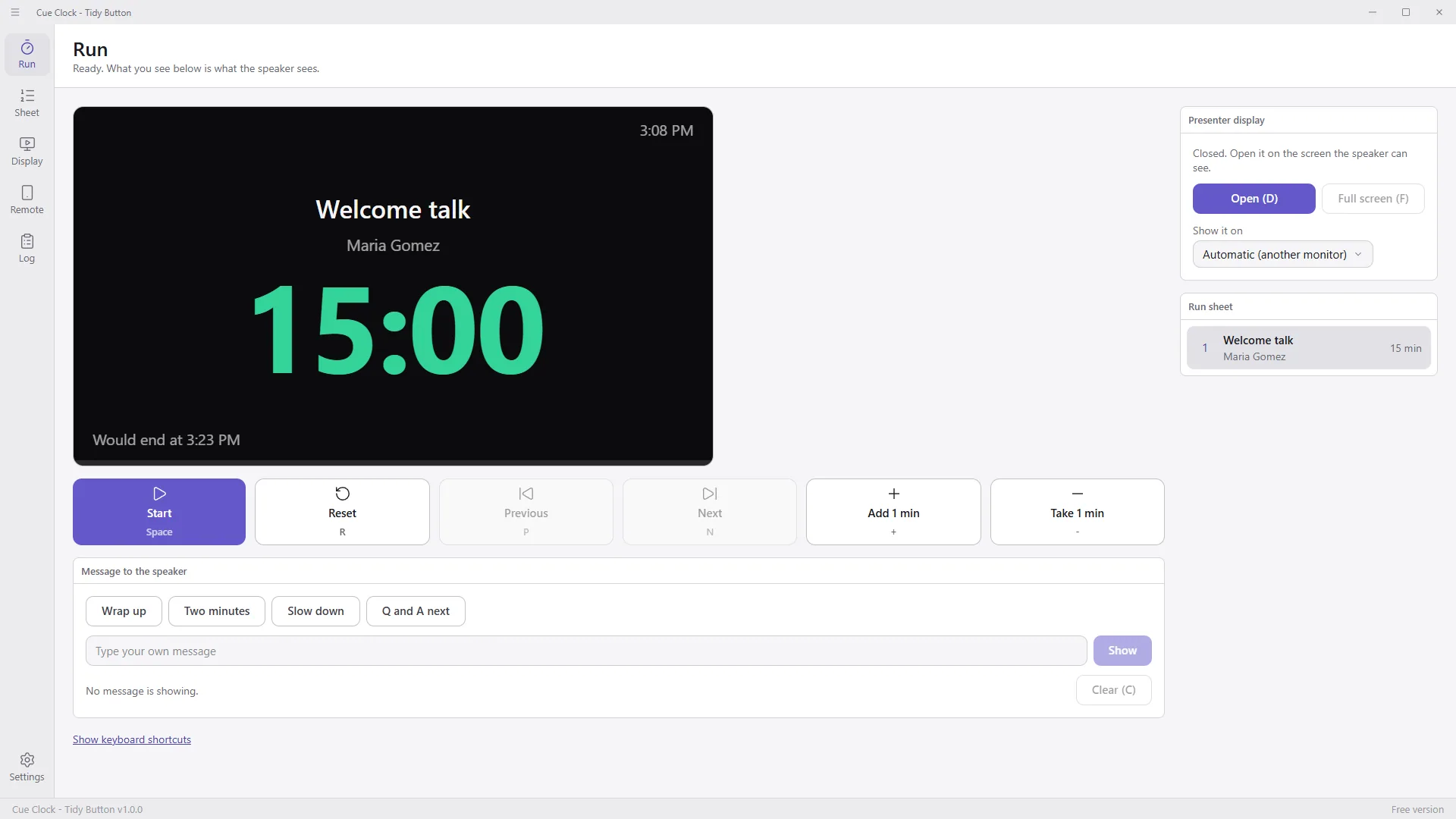
- In Presenter display, press Open (D) to open the speaker's display.
- Under Show it on, pick the monitor the speaker can see.
- Press Full screen (F) to fill that monitor.
- Press Start to begin. The same button becomes Pause while the clock runs.
- Press Add 1 min or Take 1 min to change the time on the fly.
- Press Reset to go back to the full time.
The preview on the Run screen shows exactly what the speaker sees.
Send a message to the speaker
- Open Run in the left menu.
- Find Message to the speaker.
- Press a quick message button, such as Wrap up, to show it on the display at once.
- Or type your own words in Type your own message and press Show.
- Press Clear (C) to take the message off the display.
Choose when the clock turns amber and red
- Open Display in the left menu.
- Set Turn amber at to the number of minutes left when the warning should start.
- Set Turn red at to the number of minutes left when time is nearly up.
- Switch Flash at zero on if you want the time to blink when it runs out.
- Switch on Show the time of day or Show when it ends if the speaker needs them.
The time is green first. It turns amber, then red, and counts up in red once time is over.
If something goes wrong
The speaker display opened on the wrong screen. How do I move it?
On the Run screen, change Show it on to the monitor you want. If only one monitor is connected, the display opens in a window until you plug in a second one.
How do I change the quick message buttons?
Open Settings and find the Quick messages box. Type one message per line, up to 8. They appear as buttons on the Run screen.
Can I run the timer from the keyboard?
Yes. Space starts and pauses, R resets, and the plus and minus keys add or take one minute. Show keyboard shortcuts on the Run screen lists them all.
Does the app make a sound at zero?
No. The cue is visual: colours, a flash and a message banner.
Good to know
- The timer is silent, so the speaker must be able to see the display.
Still stuck? Support is by email, and a person reads it.