How to connect to a Linux server over SSH from Windows
This guide shows how to open a terminal on a remote server, save the server so you can connect again in one click, and move files between your PC and the server.
This app is not on the Microsoft Store yet. This guide is ready for the day it arrives.
Connect to a server for the first time
You need the server's address, your user name and your password. To sign in with a private key file, save the server on the Hosts screen instead.
- Open Terminal in the left menu.
- In the box on the empty Terminal screen, type the address as user@host, for example [email protected]. Add :port if the server does not use port 22.
- Press Connect.
- The first time, the app shows the server's fingerprint. Compare it with the one your server owner gave you, then press Trust and connect.
- Type your password when asked, then press Enter. You can tick Remember it, stored encrypted by Windows if you want the app to keep it.
- When the terminal opens, type your commands as usual.
Quick connect does not save anything. Save the server on the Hosts screen if you will use it again.
Save a server and connect with one click
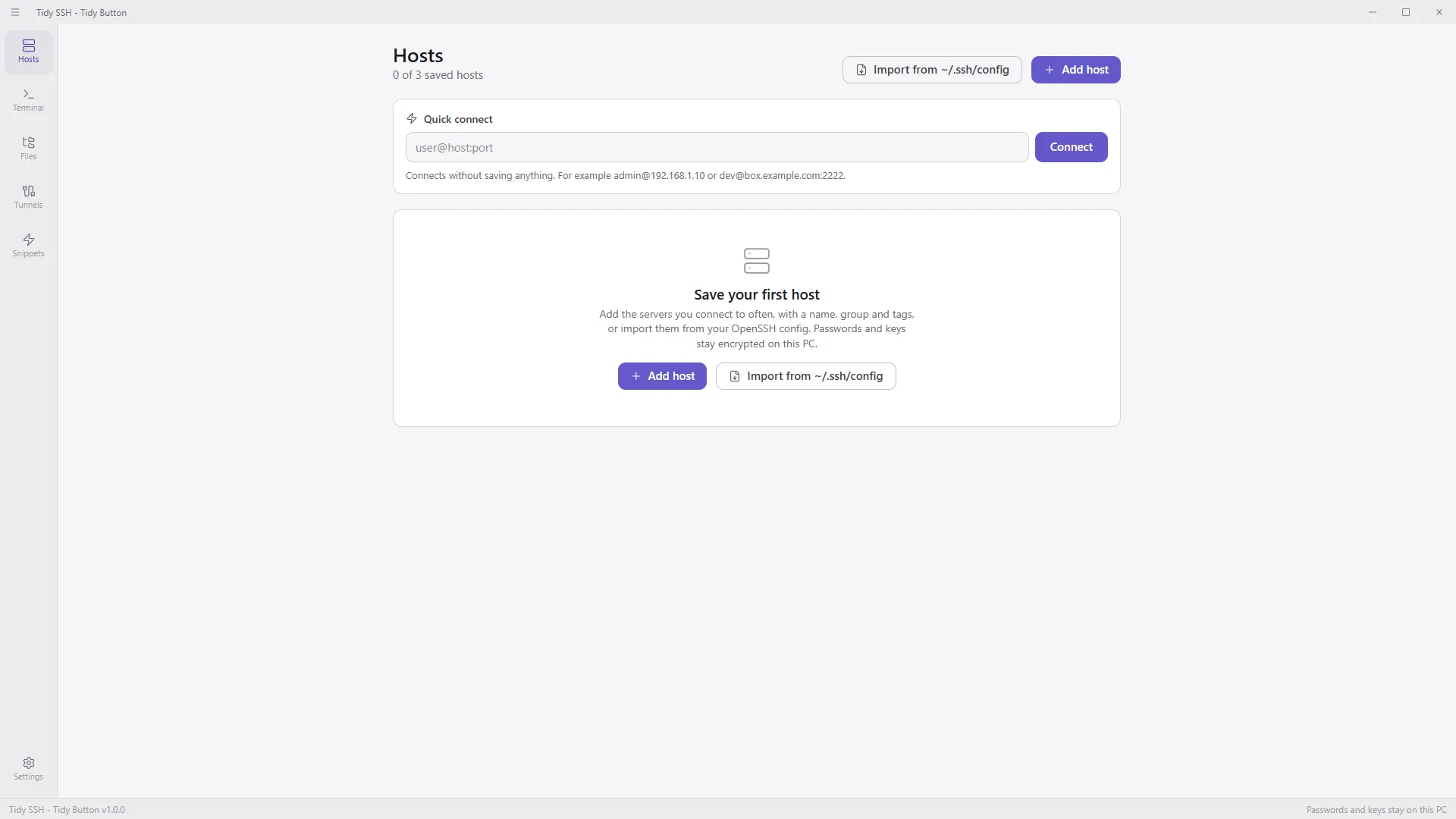
- Open Hosts in the left menu and press Add host.
- Type a short label in Name, for example Home server.
- Type the server's name or IP address in Address, and check Port.
- Type your login in User name.
- Choose Password or Private key file in Sign in with.
- For a key, press Browse... and choose your key file. Fill in Key passphrase if the key has one.
- Press Save host.
- Press Connect beside the host. A terminal opens.
Use Group and Tags to sort a long list of servers. The Search hosts box finds them again.
Bring in servers you already use
- Open Hosts.
- Press Import from ~/.ssh/config.
- Read the message. It says how many servers were found and imported, and lists any that were skipped.
Copy files to and from the server
Files shows your PC on one side and the server on the other.
- Connect to the server first, in Terminal or from Hosts.
- Open Files in the left menu.
- Find the folder you want on This PC and the folder you want on Server.
- Click one file on This PC, then press Upload. To get a file from the server, click it on Server and press Download.
- Watch the progress under Transfers. You can also drag a file from one side to the other.
If a file with the same name is already there, the app asks before it replaces it.
If something goes wrong
The app says the server key changed and will not connect. What does that mean?
The server now shows a different fingerprint from the one you trusted before. The app shows both. Do not continue unless you know why, for example the server was reinstalled. Press Close, do not connect if you are not sure.
My connection dropped. How do I get back in?
Press Reconnect in the bar above the terminal. The app can also try again by itself, and shows a message above the terminal while it does.
The Files screen says to connect to a server. Why?
Files needs a live session. Open a connection in Terminal or press Connect on Hosts, then come back to Files.
The text in the terminal is too small. How do I change it?
Press Larger text or Smaller text in the bar above the terminal. Press Find in terminal (Ctrl+F) to search what is on the screen.
Good to know
- Passwords and key passphrases are only saved if you choose to save them. Otherwise the app asks each time.
Still stuck? Support is by email, and a person reads it.