How to open a SQLite database file on Windows without coding
This guide shows how to look inside a SQLite database file, find the rows you need and save them to a file you can open in a spreadsheet.
This app is not on the Microsoft Store yet. This guide is ready for the day it arrives.
Open a database and browse its tables
- Open SQLite Viewer and press Open a database, or drop a .db, .sqlite or .sqlite3 file onto the window.
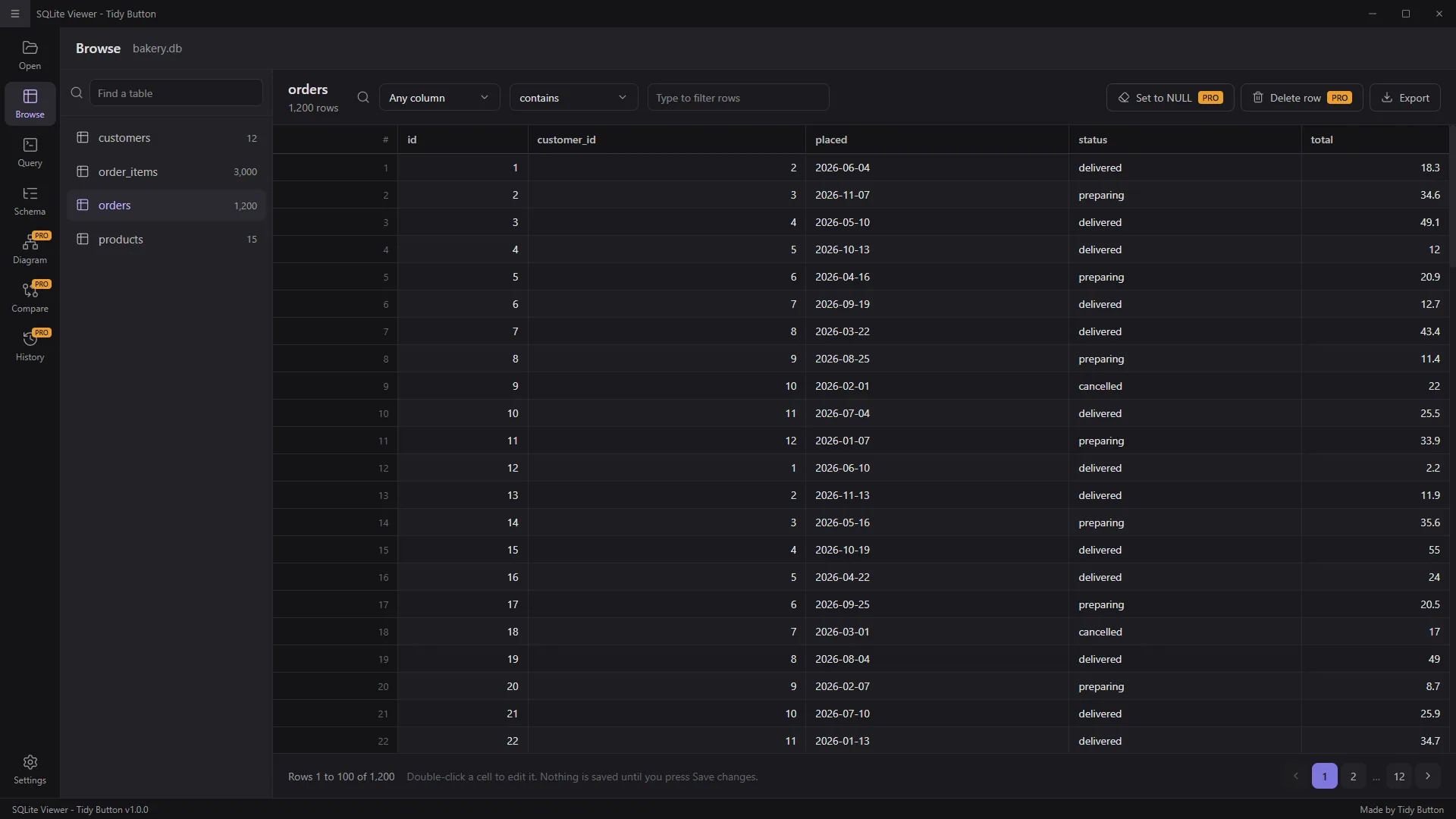
- The Browse screen opens and lists the tables with their row counts.
- Choose a table in the list. Use Find a table if there are many.
- Rows show 100 at a time. Use the page buttons at the bottom to move on.
- Click a column header to sort by that column. Click it again to reverse the order.
The app only reads your database. It does not change the file.
Filter the rows
- On the Browse screen, choose Any column or one column in the first list.
- Type the text to look for in the filter box.
- The count shows how many rows match.
- Press Clear filter to see every row again.
Run a SQL query
- Open Query.
- Type a statement such as SELECT * FROM your_table LIMIT 20; in the editor.
- Press Run, or press Ctrl+Enter.
- The result appears below as a table.
- Press Stop if a query takes too long.
Statements that only read data are always safe to run.
See how the tables are built
- Open Schema.
- Choose a table in the list.
- Read its columns, foreign keys and indexes.
- Press Copy SQL to copy the statement that created the table.
- Press Browse the rows to go back to its data.
Save rows to CSV or JSON
- Choose a table on the Browse screen, or run a query.
- Press Export.
- Choose CSV to open the file in a spreadsheet, or JSON for other programs.
- Press Choose where to save and pick a folder and a file name.
If something goes wrong
The app says it cannot open my file.
Check that it is a SQLite database. Some files with a .db ending belong to other kinds of database. Make sure the file is not already open and locked by another program.
A query returns nothing or an error.
Check the spelling of the table and column names on the Schema screen. Table names are shown exactly as they are in the file.
Can I change data in the database?
Not from the screens described here. They only read the file, so your database stays as it was.
Where did my recent database go?
The Open screen lists the databases you opened before. If you moved or renamed a file, open it again with Open a database.
Good to know
- The app opens SQLite files only. It does not connect to database servers.
Still stuck? Support is by email, and a person reads it.