How to make a spelling test for your child at home
This guide shows how to turn a school spelling list into a spoken test, a practice game and a printed sheet. The words stay on your PC.
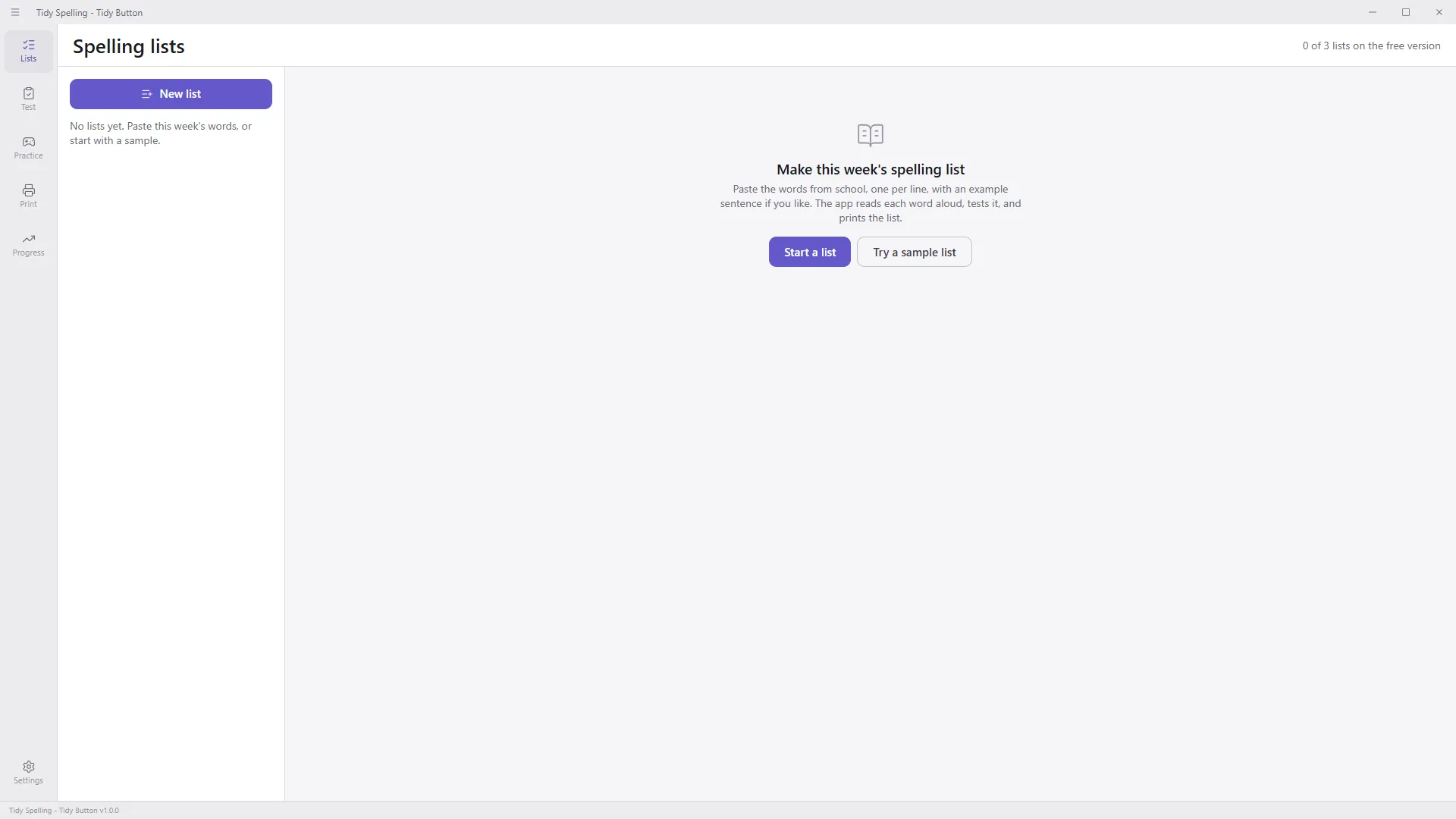
This app is not on the Microsoft Store yet. This guide is ready for the day it arrives.
Enter this week's spelling words
Put one word on each line. You can add an example sentence after a bar.
- Open Lists in the left menu.
- If you have no lists yet, press Start a list. To see how it works first, press Try a sample list. If you already have a list, press New list.
- Type a name in List name, for example Week 12.
- Choose US English or UK English for the voice.
- Type your words in Words, one per line. For a sentence, write the word, a bar, then the sentence, like this: because | I stayed in because it rained.
- Press Save list.
The box under the words shows how the list will be read. Press the speaker beside a word to hear it.
Give a spoken spelling test
- Open Test in the left menu.
- Pick the list in Spelling list.
- Press Start the test.
- The app says the word, then the sentence if the word has one, then the word again. Press Hear the word or Hear it in a sentence to hear it again.
- Your child types the word in the box and presses Next word.
- After the last word, press Finish the test to see the score.
The results show each missed word with its correct spelling. Press Try the missed words again to test only those.
Practise the words with look, say, cover, write, check
- Open Practice in the left menu.
- Pick the list, then press Start practising.
- Look at the word and say it out loud. Press Hear it to listen.
- Press Cover it. The word is hidden.
- Write the word from memory and press Check.
- Press Next word to go on.
Print the list or a test sheet
- Open Print in the left menu.
- Pick the list in Spelling list.
- Under Worksheet, press Word list, Test sheet or Practice sheet.
- Open the Paper list and choose US Letter or A4.
- Check the page preview, then press Save as PDF.
- Press Show in folder to find the file, then open it in any PDF viewer and print it from there.
Change the voice, speed and marking
- Open Settings in the left menu.
- Under Voice and marking, open Voice to pick a voice from Windows.
- Move the Speed slider. Slower is easier for young children.
- Press Hear a sample to listen.
- Tick Ignore capital letters or Ignore accent marks for a gentler test.
Marking is strict until you tick one of these boxes.
If something goes wrong
I hear nothing when the app should speak. What do I check?
The app uses the voices that are already installed in Windows. If none is found, the app shows a message that says no voice is installed. In that case add a voice in Windows Settings under Time and language, then Speech. Otherwise check that the PC sound is on, then open Settings and press Hear a sample.
A word was marked wrong but it looks right. Why?
Marking is strict, so capital letters and accent marks must match. Tick Ignore capital letters or Ignore accent marks in Settings if you want it gentler.
Pressing Save list shows a message about a name or a word. What is missing?
The message says Give the list a name first, or Add at least one word. A list needs a name in List name and at least one word in Words.
Does the app need the internet?
No. The voices come from Windows, and the lists are kept on your PC.
Good to know
- You can keep up to three lists.
Still stuck? Support is by email, and a person reads it.