How to play sounds with hotkeys on a Windows PC
This guide shows how to build a board of your own sounds, play them with hotkeys and send them to a second output. Soundboard includes no sounds, so you add your own files.
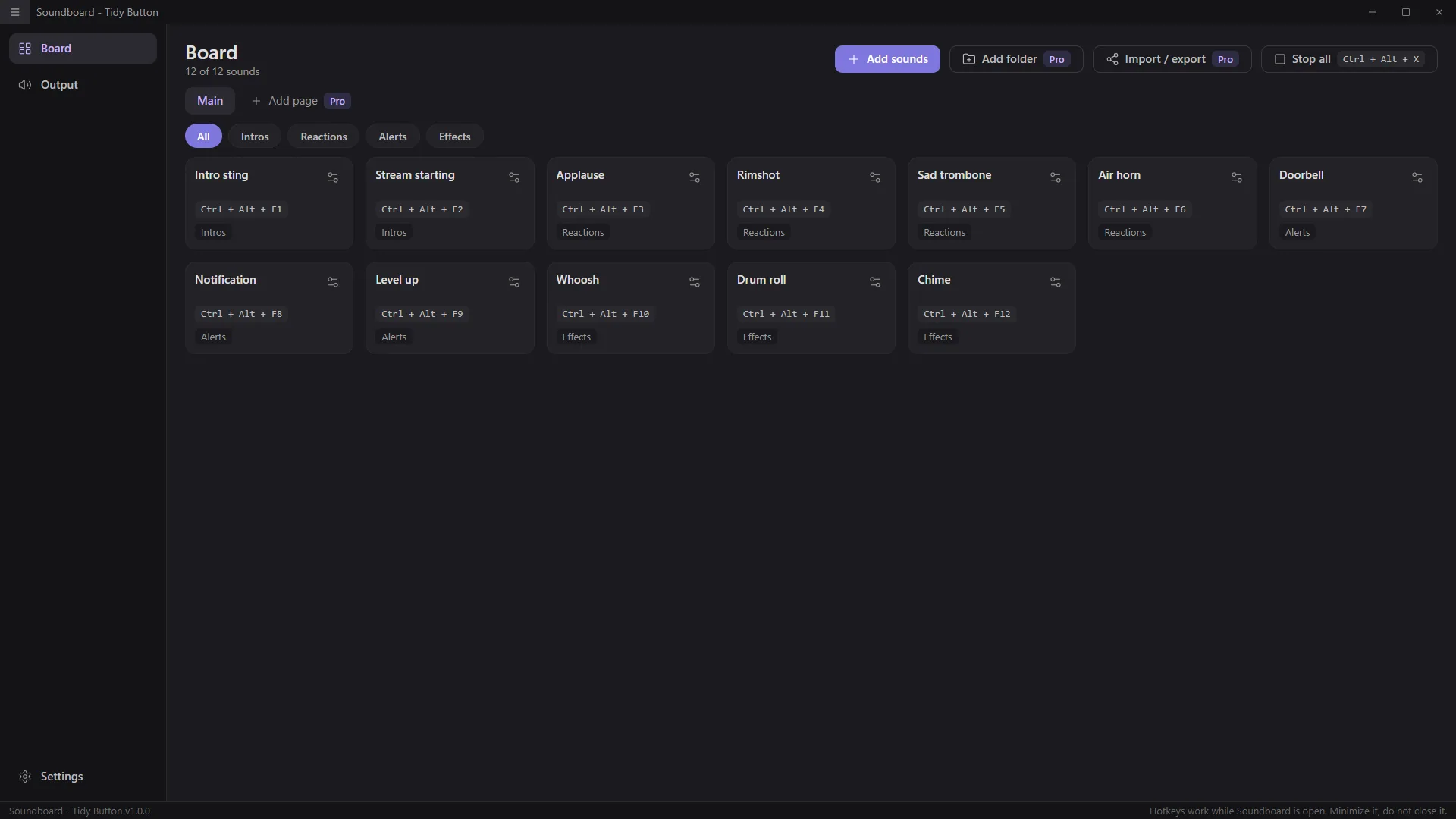
This app is not on the Microsoft Store yet. This guide is ready for the day it arrives.
Add sounds to your board
- Open Soundboard and stay on the Board screen.
- Press Add sounds and choose one or more audio files. You can also drop files onto the window.
- Wait for the message that says the sounds were added. Each sound becomes a pad.
- Press a pad to hear the sound.
Soundboard plays the files from where they are. It does not copy or change them.
Give a sound a hotkey and a volume
- Press the edit button on a pad.
- Press the Hotkey box, then press the keys you want, for example Ctrl, Alt and F1.
- Move the Volume slider if the sound is too loud or too quiet.
- Type a name in Category if you want to group the sound, for example Reactions.
- Press Save.
Hotkeys work in other programs while Soundboard is open. Minimize it instead of closing it.
Stop every sound at once
- Press Stop all at the top of the board, or press its hotkey.
- To change the hotkey, open Output and use the Stop all hotkey box.
Choose where sounds play
- Press Output in the bar on the left.
- Open Speakers or headphones and choose your device.
- Press Test tone to check that you hear it.
- Use the Master volume slider to set the overall level.
Send sounds to a call or a stream
You need a virtual audio cable installed on your PC. Soundboard does not include one.
- Press Output in the bar on the left.
- Open Also send sounds to (stream output) and choose the virtual cable.
- Press the Test tone button next to it.
- In your call or streaming app, choose the same cable as the microphone.
If something goes wrong
A hotkey does nothing in another program.
Soundboard must be open. Check that you minimized it instead of closing it. Another program may already use the same keys, so try a different combination in the Hotkey box.
I hear the sound myself but my call does not.
Choose a virtual audio cable in Also send sounds to (stream output), then choose the same cable as the microphone in your call app.
A device is missing from the list.
Plug it in or turn it on first. The list shows the devices Windows reports.
Does the app come with sounds?
No. Soundboard ships with no sounds. You add your own audio files.
Good to know
- Soundboard does not include a virtual audio cable.
- Hotkeys work only while Soundboard is open.
Still stuck? Support is by email, and a person reads it.