How to read sheet music PDFs and build a set list on a PC
This guide shows how to use your PC as a music stand. The app keeps its own copy of every score, so your original files are never opened, moved or changed.
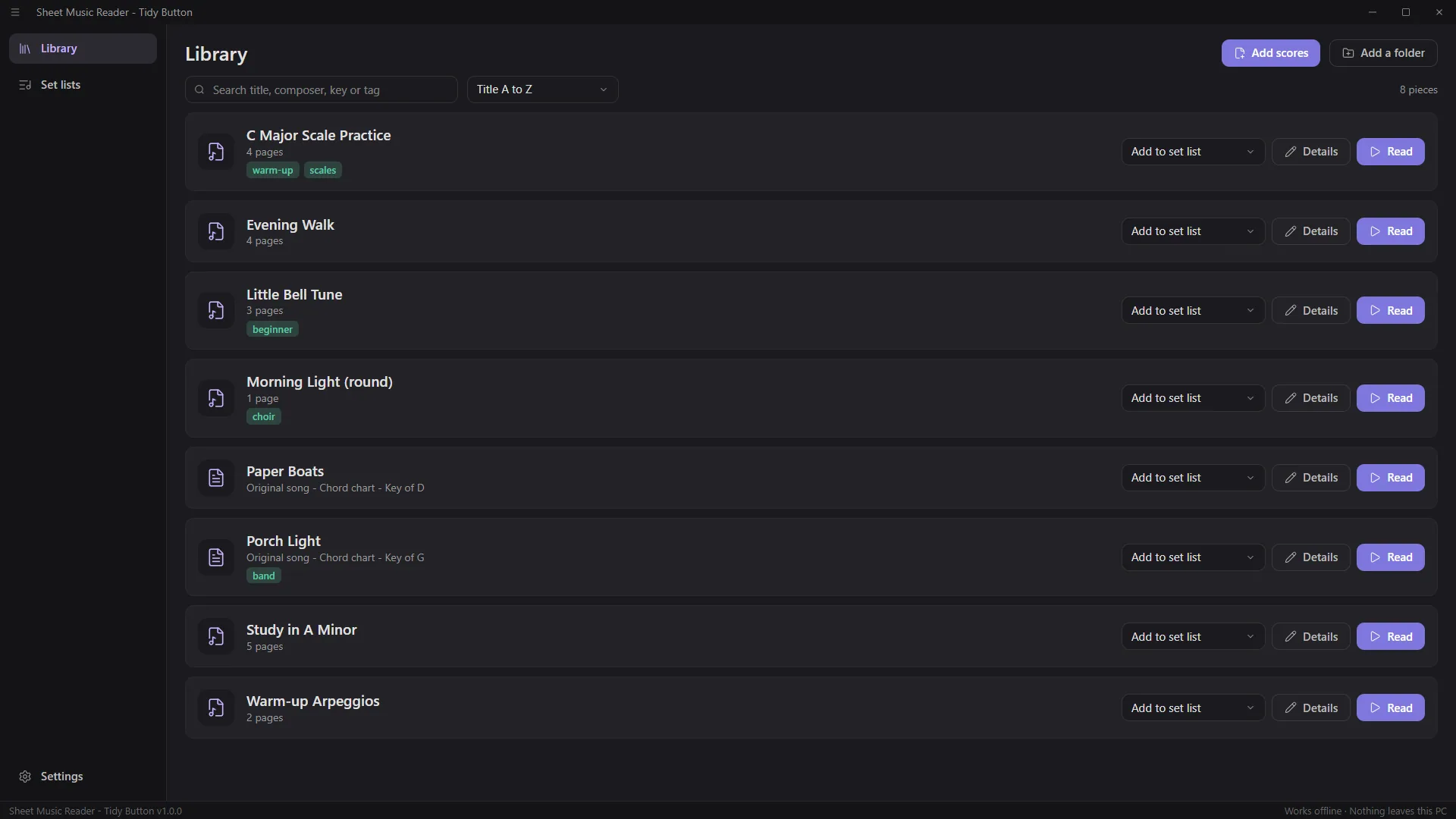
This app is not on the Microsoft Store yet. This guide is ready for the day it arrives.
Add scores and open one to read
- Open Sheet Music Reader and press Add scores to pick PDF files, or Add a folder to add a whole folder. You can also drop files onto the window.
- Type in Search the library to find a piece by title, composer, key or tag.
- Press Read on the piece you want.
- Turn the page with the Right arrow, Page Down or Space. Go back with the Left arrow or Page Up. You can also tap the edge of the page.
- Press Esc to go back to the library.
Press Details on a piece to edit its title, composer, key or tags.
Build a set list for a gig
- Open Set lists and press New set list.
- Type a name in Name and press Make it.
- Press Add pieces, tick the pieces you want, and press Add to set list.
- Drag the pieces into playing order, or use the up and down arrow buttons on each row.
- Press Play set list. When you reach the end of one piece, the next one opens.
Make the music fill the screen
- Open a piece with Read.
- At the top, choose how many pages to show: one page, two pages, or half-page turn.
- Choose Whole page or Full width to change how the page fits.
- Press Crop, drag the margin sliders to trim blank edges, and press Save crop.
- For a dim stage, choose Dark room under Lighting.
- Press Hide controls for a clean page. Press Show controls to bring them back.
Cropping applies to every page of that piece. The PDF file is not changed.
Write on a score
- Open a PDF piece with Read and press Mark up.
- Choose Pen, Highlighter or Text, and pick a colour.
- Drag on the page to draw. For text, click where you want it, type, and press Enter.
- Use Eraser to remove a mark, or Undo to take back the last change.
- Press Save a marked copy if you want a PDF with the markings drawn in.
Your markings are kept apart from the PDF, so the original is never changed.
Move a chord chart to a new key
- Add a ChordPro (.cho) or plain text (.txt) chord chart with Add scores.
- Press Read on the chart.
- Press Up one or Down one to move every chord by one semitone, or choose a key under Move to.
- Press Original key to go back to the written key.
- Press Save a copy to keep the new version as a file.
If something goes wrong
My page-turner pedal does not turn pages.
Open a piece and press Pedal. Press Learn a key next to the action you want, then press your pedal. The window also shows the last key it heard.
How do I get back to the usual keys after changing them?
In the Pedal window, press Back to the usual keys.
Why can I not mark up a chord chart?
Mark up and Crop are for PDF scores. Chord charts have their own tools for moving chords to another key.
A piece could not be opened.
The reader shows a message. Press Skip to the next piece to carry on with your set list, or Close to go back.
Good to know
- The app does not download music and has no music store. You are responsible for having the right to use the scores you add.
Still stuck? Support is by email, and a person reads it.