How to blur and mark up a screenshot on Windows
This guide shows how to take a screenshot, mark it up with arrows and text, hide private details, and share the result as a picture.
This app is not on the Microsoft Store yet. This guide is ready for the day it arrives.
Capture part of your screen and mark it up
Use this to point at the exact thing you want someone to see.
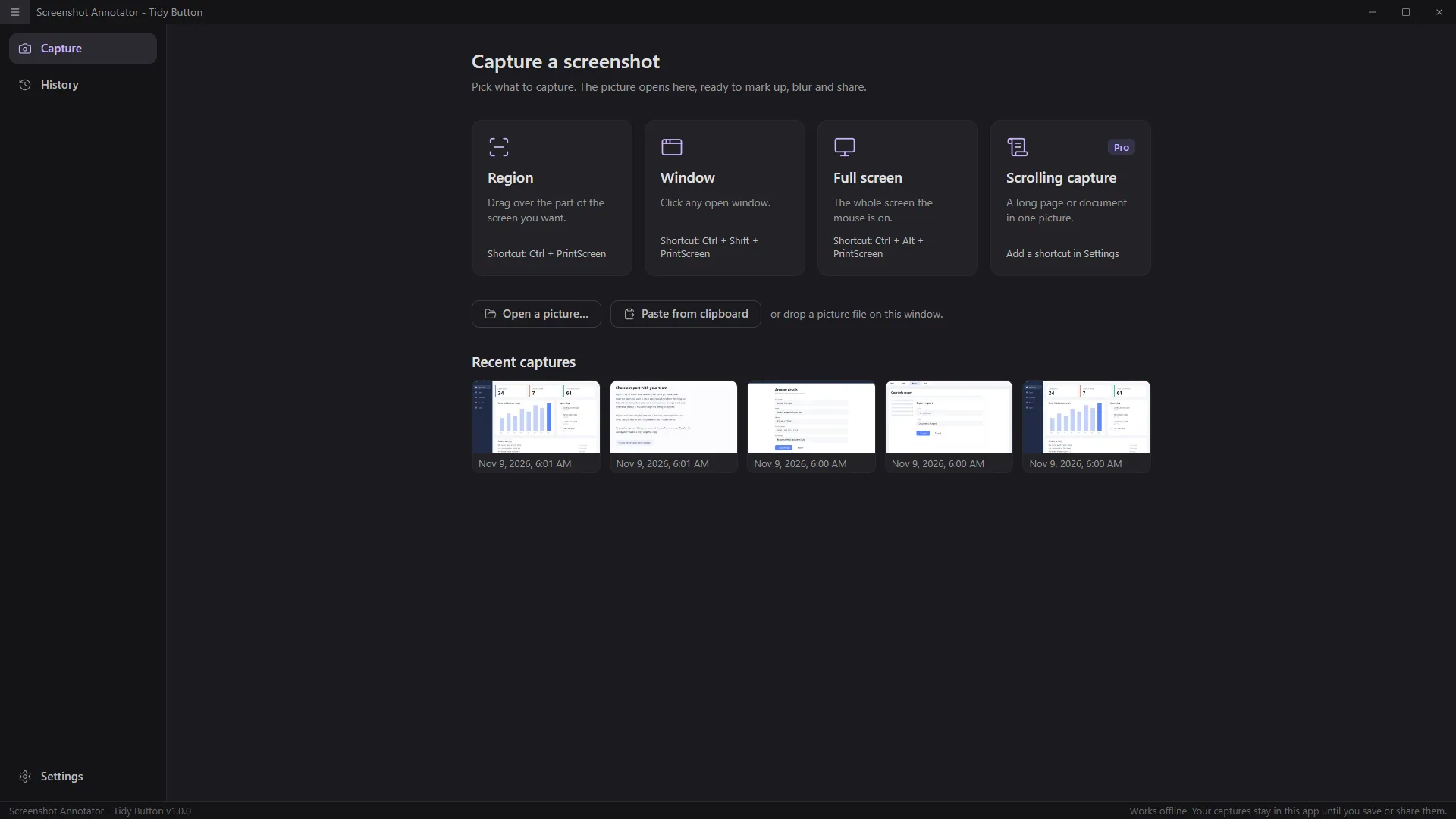
- Open Screenshot Annotator and press Region on the Capture screen.
- Drag over the part of the screen you want. Press Esc to cancel.
- The picture opens in the editor. Press Box and drag around the area that matters.
- Press Arrow and drag from the tail to the point.
- Press Text, click where the words should go, type, then press Enter.
- Press Undo if a mark is not right.
Press Window instead to click one open window, or Full screen for the whole screen the mouse is on.
Hide private details with blur
- Open the picture, or capture a new one.
- Press Pixelate for card numbers and keys, or Blur for names and emails.
- Drag over the part you want to hide.
- Choose a setting under Strength if you want it stronger or lighter.
- Press Copy or Save. The hidden part is part of the saved picture.
Pixelate hides text more reliably than blur.
Number the steps of a how-to guide
- Open or capture the picture you want to explain.
- Press Step.
- Click on the first thing to do. A numbered circle appears.
- Click on the second thing, then the next. The numbers count up in order.
- Use Size to make the circles larger or smaller.
- Press Save when you are done.
Crop a picture, or mark up one you already have
- On the Capture screen, press Open a picture… and choose a file, or press Paste from clipboard.
- You can also drop a picture file on the window.
- Press Crop and drag over the part you want to keep.
- Press Reset crop on the right if you change your mind.
- Press Save as… to choose a name and place for the new picture.
If something goes wrong
Where did my saved picture go?
Press Settings and look under Save folder. After you press Save, a message appears with a link to show the file in its folder.
Can I change a picture I captured earlier?
Yes. Press History in the list on the left and open the capture. Your marks are still there, so you can keep editing.
The shortcut does nothing. Why?
Another program may already use that shortcut. The Capture screen shows a message when that happens. You can still press Region, Window or Full screen with the mouse.
I want to save as JPEG instead of PNG. How?
Press Settings and choose JPEG under Save pictures as. PNG keeps pictures sharp. JPEG makes smaller files.
Good to know
- Blur and pixelate only hide what is in the picture you share. They do not remove anything from the original file on your PC.
Still stuck? Support is by email, and a person reads it.