How to measure pixels on your screen with an on-screen ruler
This guide shows how to put a ruler on your screen, measure the size of anything you can see, and copy the result.
This app is not on the Microsoft Store yet. This guide is ready for the day it arrives.
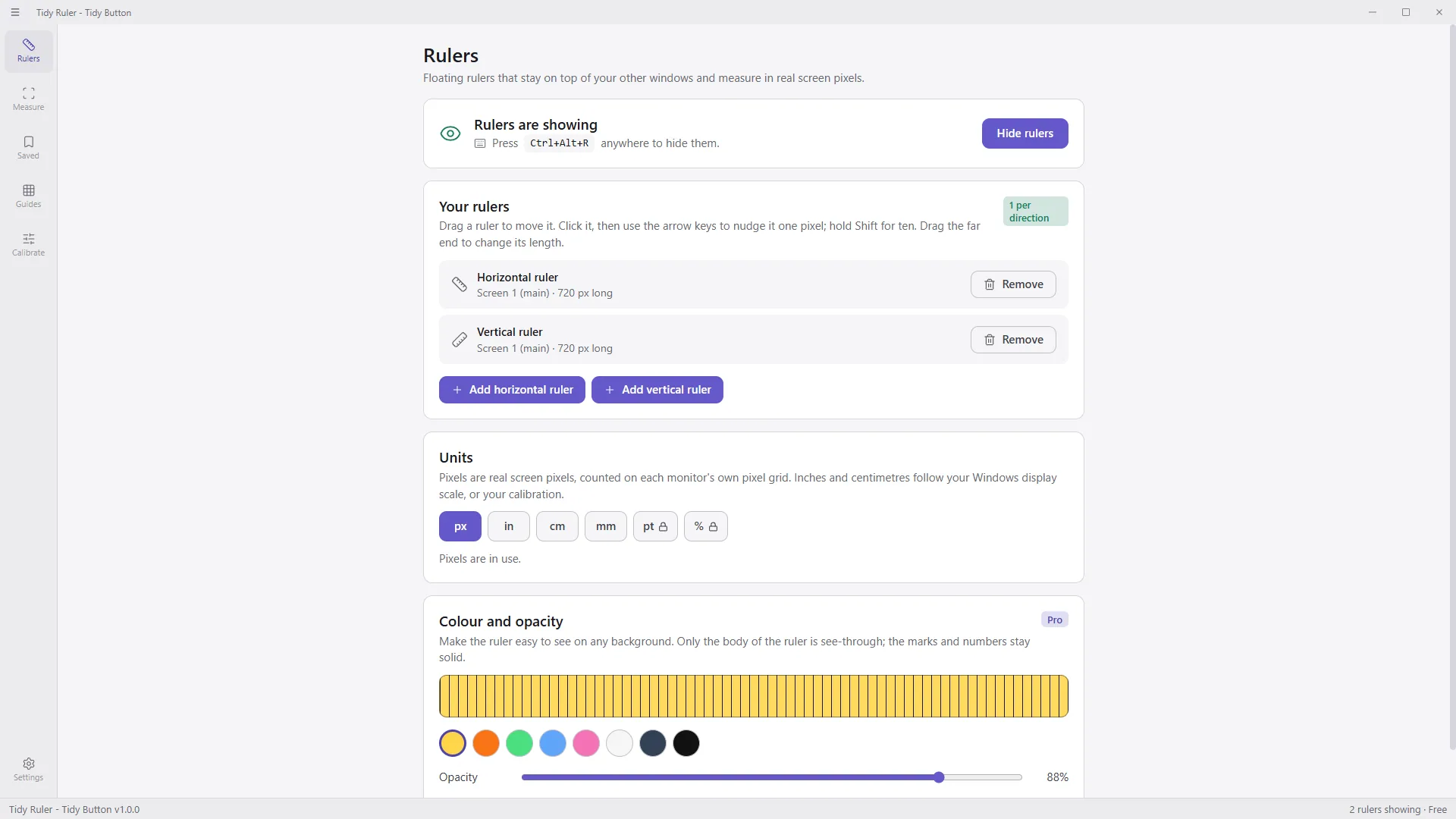
Show a ruler and move it
- Open Rulers in the left menu.
- Press Show rulers to put the rulers on your screen. Press Hide rulers to take them away.
- If you have no ruler yet, press Add horizontal ruler or Add vertical ruler.
- Drag a ruler to move it.
- Click a ruler, then press an arrow key to move it one pixel. Hold Shift to move it ten.
- Drag the far end of a ruler to change its length.
A keyboard shortcut hides or shows the rulers from any program. It is Ctrl+Alt+R unless you changed it. The Rulers screen shows the current one.
Choose pixels, inches, centimetres or millimetres
- Open Rulers in the left menu.
- Find Units on the page.
- In Unit, pick px, in, cm or mm.
- Look at the ruler on your screen. Its marks now use that unit.
Pixels are real screen pixels, counted on each monitor. Inches and centimetres follow your Windows display scale.
Measure the size of something on screen
- Open Measure in the left menu.
- Press Measure a rectangle.
- Switch to the window you want to measure.
- Drag from one corner of the thing to the opposite corner. The width and height show beside it.
- Press Esc to finish.
- Go back to the app and look under Last measurement. It shows the size in pixels, inches, centimetres and millimetres.
- Press Copy as text to copy the result.
Use the pixel loupe and edge snap
These help you place a corner exactly.
- Open Measure in the left menu.
- Find While you measure and look at the switches Pixel loupe and Edge snap (best effort).
- Switch on the ones you want.
- Press Measure a rectangle and move the pointer over the screen. The loupe magnifies the pixels around the pointer and shows the colour of the centre pixel.
- With edge snap on, a corner you place near a sharp edge is pulled onto that edge.
While you measure, press L to turn the loupe on or off and S to turn edge snap on or off.
If something goes wrong
My rulers have disappeared. How do I get them back?
Press the shortcut shown on the Rulers screen, or open the app and press Show rulers.
I pressed Measure a rectangle but nothing happens when I click in the app. What now?
Switch to the window you want to measure and drag there. The measuring layer sits over your screen. Press Esc on the screen when you are done.
How do I remove a ruler I do not need?
Press Remove beside it on the Rulers screen, or use the remove button on the ruler itself.
Does the app keep a picture of my screen?
The loupe and edge snap use a still picture of your screen taken when measuring starts. It stays on this PC and is deleted when you finish.
Good to know
- Measuring uses what is on your screen at the time. It cannot measure the real size of a printed page or an object.
Still stuck? Support is by email, and a person reads it.