How to record your screen with sound on Windows
This guide shows how to record what is on your screen, with your voice and the sound your PC plays, and how to find the video afterwards.
This app is not on the Microsoft Store yet. This guide is ready for the day it arrives.
Record your whole screen with your voice
Use this for a lesson, a how-to or a bug report.
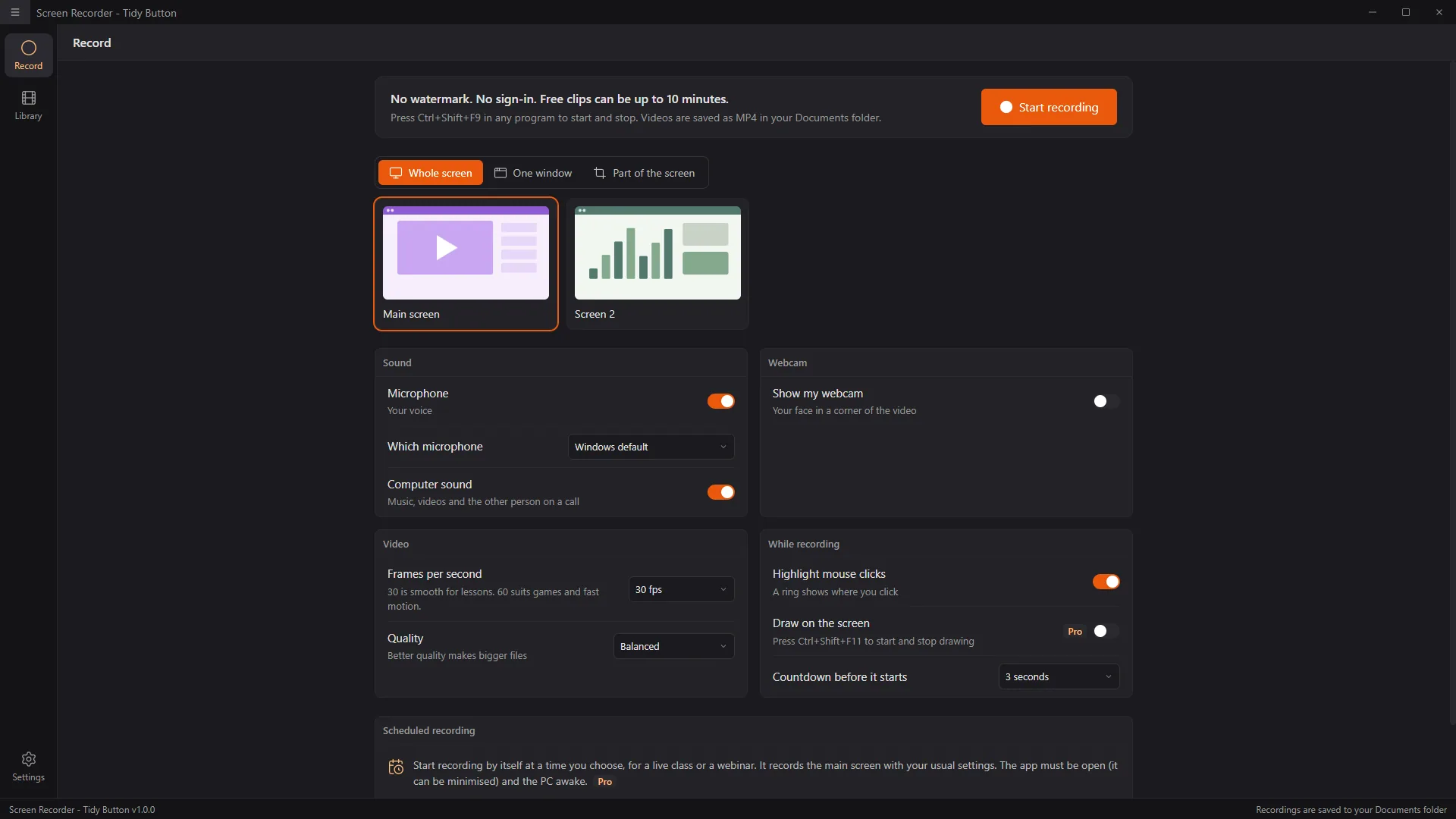
- Open Screen Recorder and stay on the Record screen.
- Press Whole screen, then click the screen you want in the list.
- Switch on Microphone to record your voice. Use Which microphone if you have more than one.
- Switch on Computer sound if you want music, videos or the other person on a call to be heard.
- Press Start recording. After the countdown the app window steps out of the way.
- When you are done, press the start and stop shortcut shown at the top of the Record screen, or bring the window back and press Stop and save.
The video is saved as an MP4 with no watermark.
Record just one window
- Open the program you want to record so it is on your screen.
- In Screen Recorder, press One window.
- Press Refresh list so the new window appears, then click it.
- Press Start recording.
Only that window is in the video, so other programs stay private.
Record only part of the screen
- Press Part of the screen.
- Press Choose the area under the screen you want.
- Drag over the part you want to record. The rest is left out of the video.
- Press Start recording.
Find, play and rename your recordings
- Press Library on the left.
- Press Play next to a recording to watch it.
- Use the pencil button to rename a recording, or the folder button to show it in its folder.
- Press Open the folder at the top right to see all your videos in Windows.
The trash button asks first, then moves a video to the Recycle Bin, where you can put it back.
Choose your own start and stop shortcut
- Press Settings at the bottom left.
- Find Shortcuts, then press the button next to Start and stop recording.
- Press the keys you want to use. Press Esc to cancel.
- Press Use the original shortcuts to go back to the first ones.
If something goes wrong
My video has no sound. What should I check?
Make sure Microphone is switched on for your voice and Computer sound is switched on for the sound your PC plays. If your voice is missing, open Which microphone and choose the microphone you are using.
The app window disappeared when I pressed Start recording. Is that normal?
Yes. The window steps out of the way so it is not in the video. Press the start and stop shortcut to finish, or bring the window back from the taskbar. You can set a countdown in Countdown before it starts.
The shortcut does not work. What can I do?
Another program may already use the same keys. Open Settings, look for the message Another program uses this next to the shortcut, and choose different keys.
Where are my videos saved?
In the Screen Recorder folder inside your Documents folder. Press Library, then Open the folder to open it.
The video is jumpy. How can I make it smoother?
Raise Frames per second, for example to 60 for games, and choose a higher Quality. Better quality makes bigger files.
Good to know
- Mouse click highlights work when you record a screen or a part of the screen, not a single window.
- Please record only what you have the right to record.
Still stuck? Support is by email, and a person reads it.